Labels for a label maker
The Labels dialog turns a list into one image for each label, sized for your label maker. You print the images from your printer's app. It works with Brother P-touch and DYMO LabelManager tape, and with Niimbot D11, D110 and Phomemo D30 labels.
Make labels
- Open the label maker. It needs no layout. In the layout editor, you can also click Print, then Labels for a label maker, or press Ctrl+K and type label.
- Pick your printer under Label printer, and the tape or labels it holds under Label size.
- Type or paste your list in Add labels, one label on each line, and click Add to list.
- Edit a label in its row. The preview shows it as it prints.
- Click Download PNG. More than one label downloads as a ZIP.
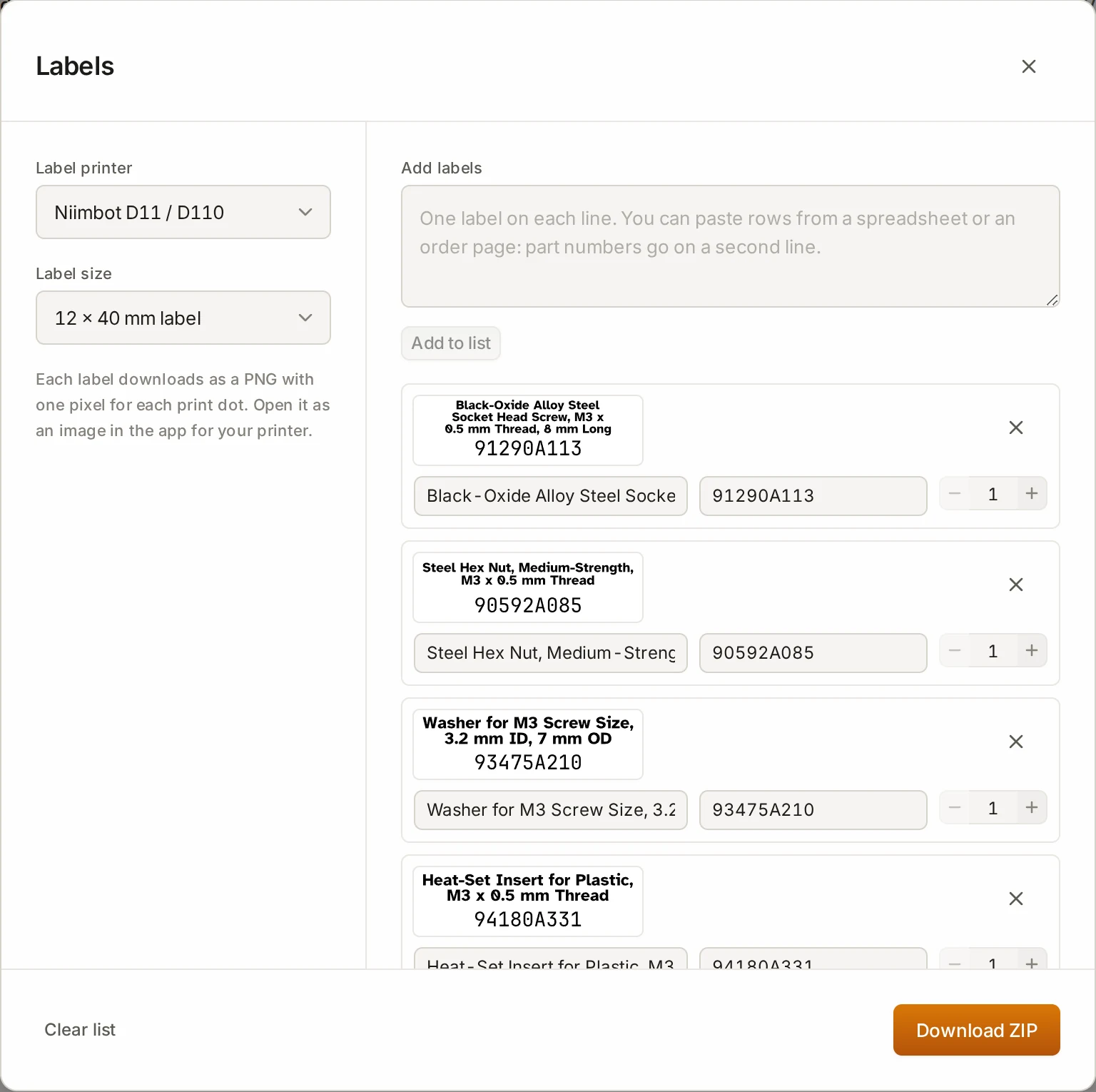
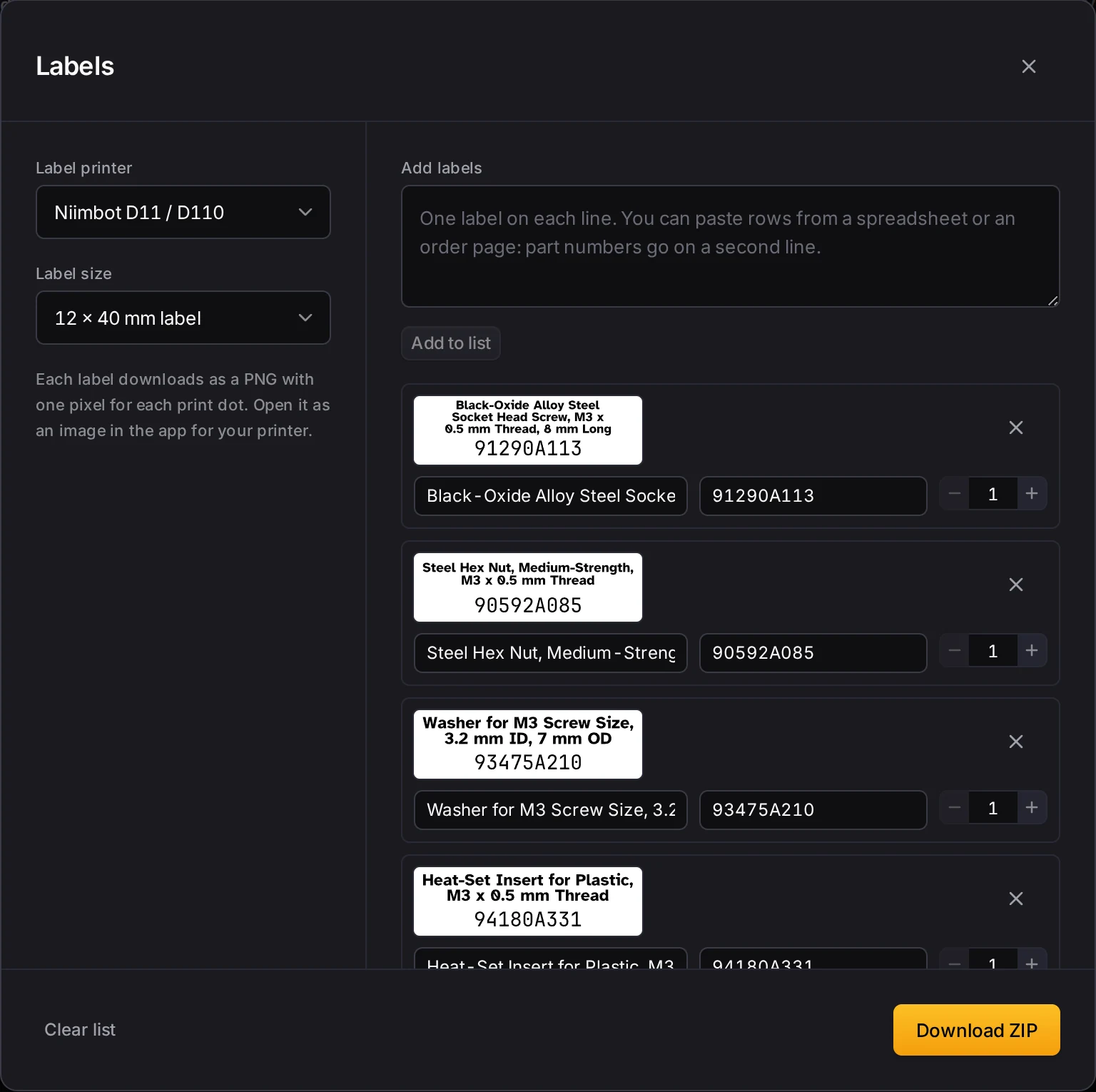
Open each image in your printer's app and print it at full size. If you set an export folder in Settings, the files go there.
Paste a parts order
Paste rows copied from a spreadsheet or an order page. The part numbers go on a second line, in a font where 0 and O look different. The longest text in each row becomes the label.
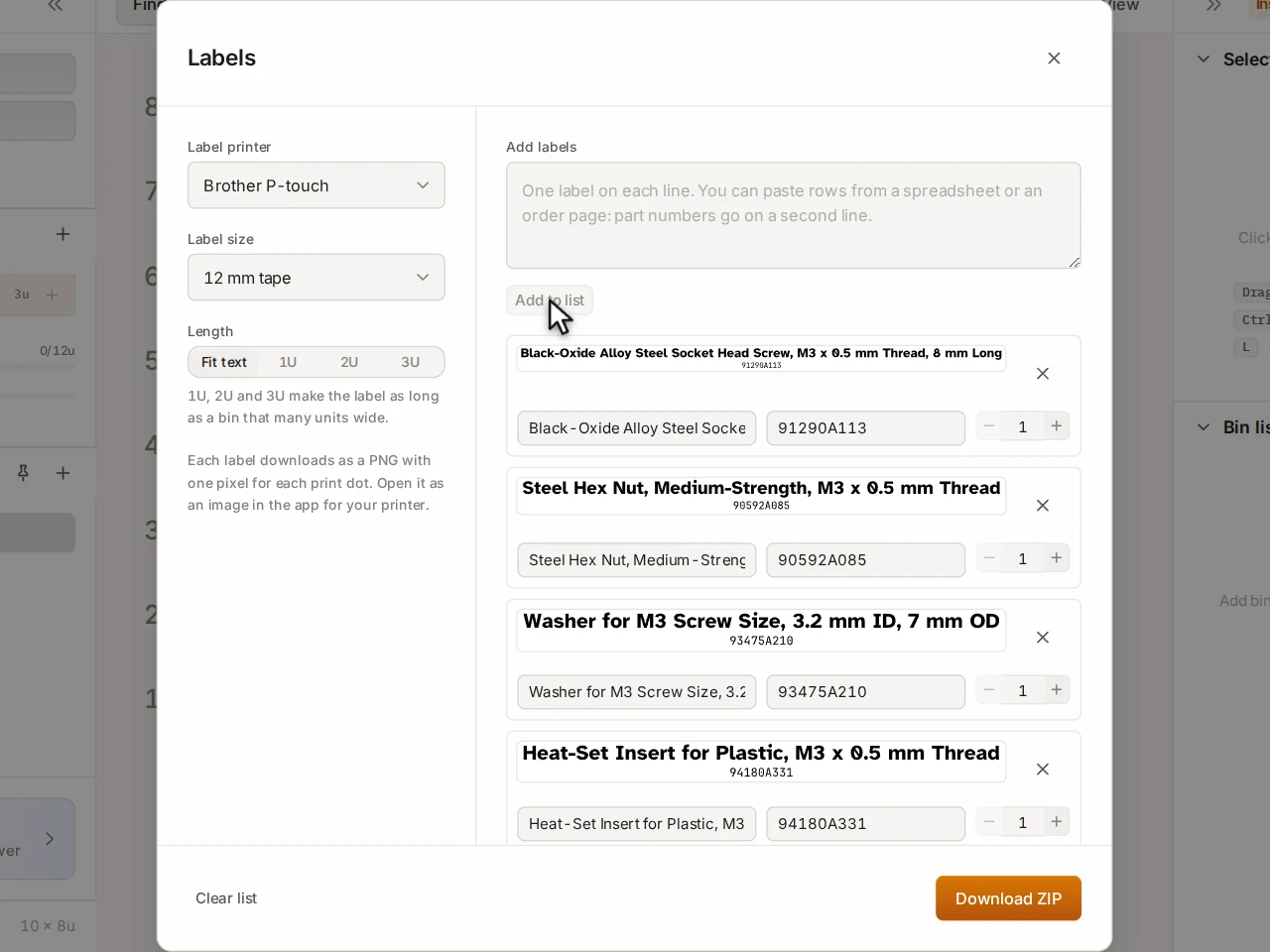
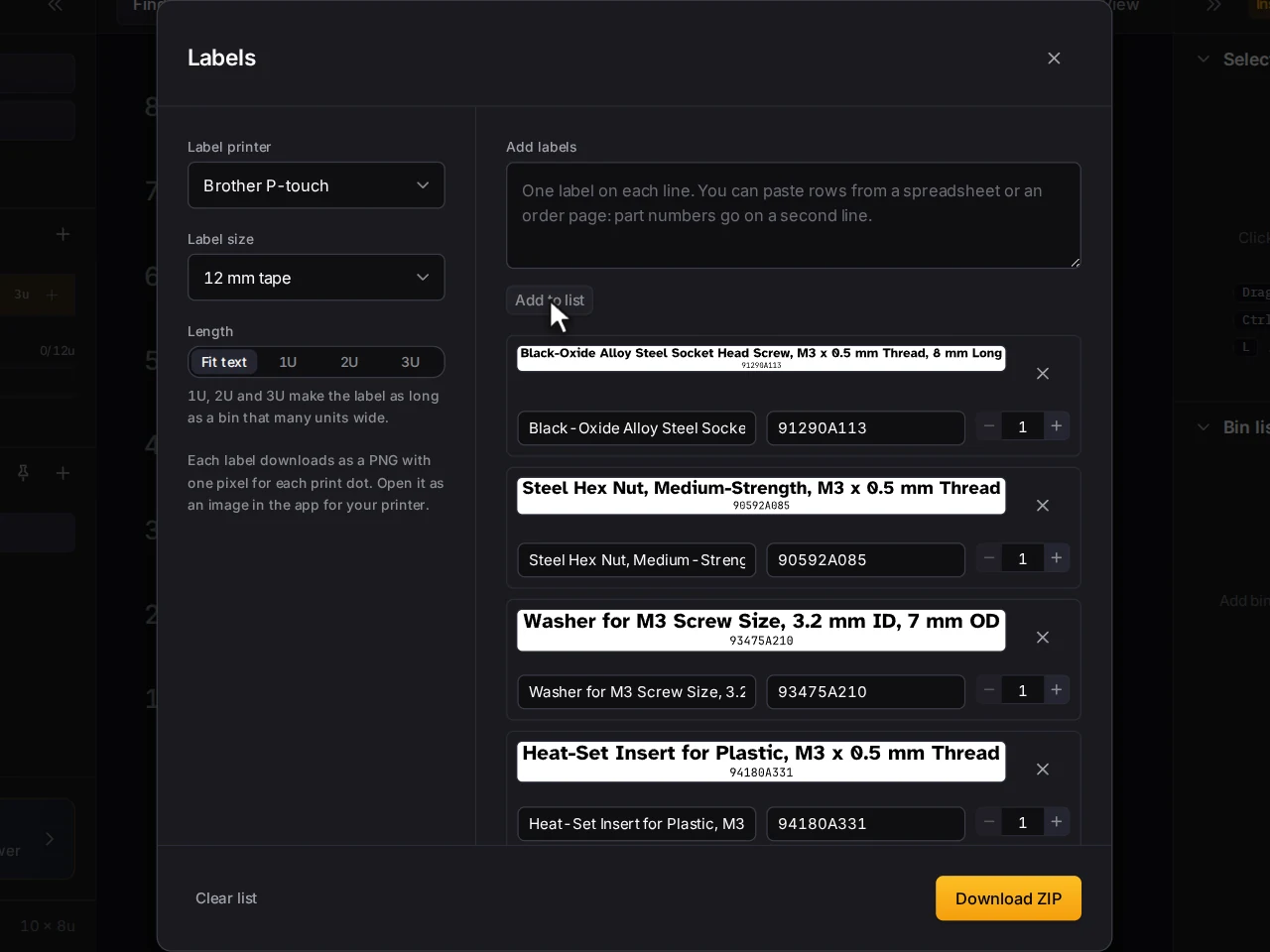
In a typed line, a McMaster-Carr part number at the start or end goes on the second line: 91290A113 Socket head screw.
The dialog does not look up part numbers, so paste the descriptions with them. Text longer than 120 characters, or a second line longer than 40, is cut at a word and ends with an ellipsis (…).
Choose the length
Tape has no fixed length. Under Length:
- Fit text: each label is as long as its text.
- 1U, 2U or 3U: each label is 36, 78 or 120 mm long, to fit a bin that many grid units wide. Long text wraps.
Die-cut labels have a fixed size, so this setting does not show. On 6 mm tape the part number goes after the name, on the same line.
Labels left out of the download
A row shows a warning, and the download skips that label, when:
- the label has no text
- the text does not fit at a size you can read: shorten it, or pick a longer label
- the font has no letters for some of the text, such as Cyrillic or Chinese
If the label fonts do not load, for example offline, the dialog says so. Click Try again when you are back online.
Where the list is kept
The list stays in this browser until you clear it. It is not part of a layout, so it does not sync to your other devices or go into share links.
Next steps
- Labels and text: print the text on the bin itself.
- Swappable label plates: print labels that click into the bin.
- The print list and ZIP export: print a paper plan of the drawer.