
Drawers that are not rectangles
Not every drawer is a neat rectangle. Some have round corners, a cut corner, or a notch for a rail. Give your layout a custom drawer shape, and the baseplate generator cuts the plate to match. Here's how the plate follows the shape, and which settings change.
Give the drawer a shape
You draw the shape in the layout editor, not in the baseplate generator.
- In the layout editor, turn on Custom drawer shape. A grid opens where you can remove cells from the drawer.
- For other ways to make the shape, open the Drawer shape options menu next to the toggle. It has Corner cuts for cut corners and Draw shape for a free outline. Once the drawer has a shape, it also has Edit shape.
With Draw shape you can drag corners, curve edges, and import an outline from an SVG or DXF file. See Set up the drawer for the full steps.
How the plate follows the shape
The plate follows the drawer shape only while Sync with layout is on. A plate with a custom size has no link to the drawer, so it stays a rectangle.
The shape cuts through some grid cells. A cut cell keeps a sliced pocket when at least a quarter of the cell stays inside the shape. A sliced pocket can't hold a bin, and it leaves broken bits of wall along the edge.
Want a clean edge? Turn on Fit whole cells only under Padding. The plate then drops each pocket that the shape cuts, and solid plastic fills the edge. This option appears for every shaped plate, and for a plate with a large corner radius. It's off by default.
When the shape makes the plate bigger than the grid cells, the size under the steppers shows incl. drawer shape.
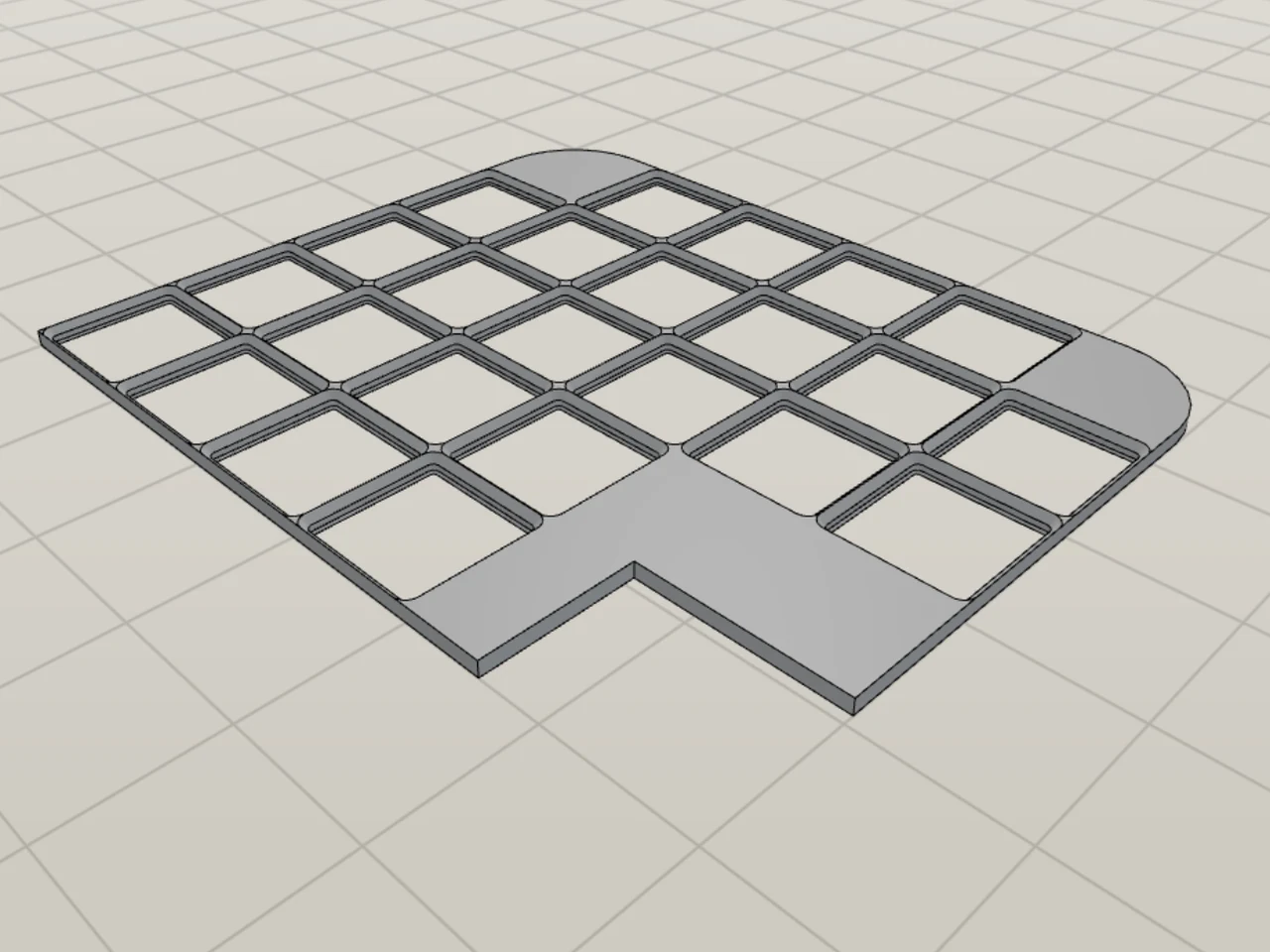
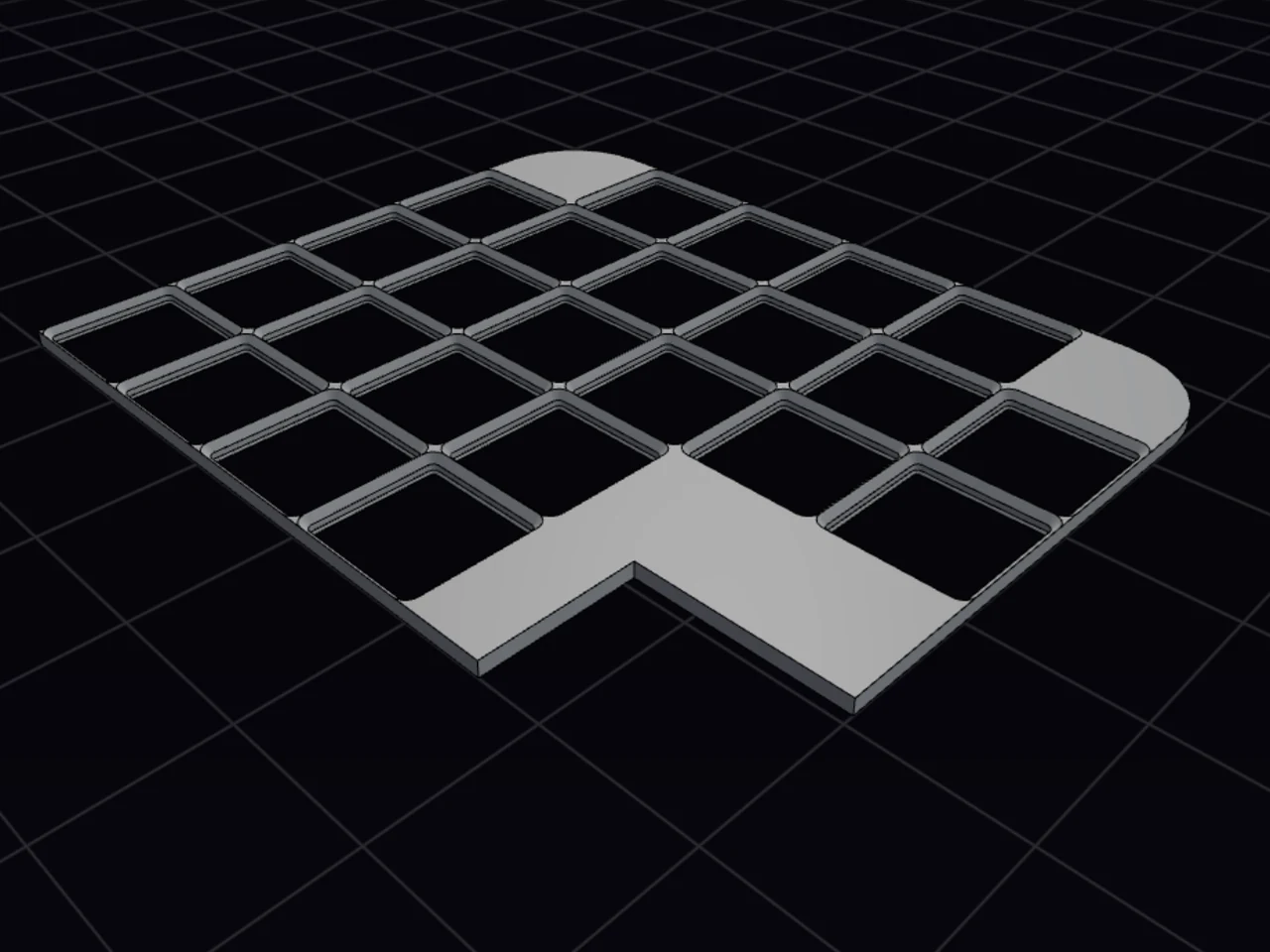
Move the grid inside the shape
On a shaped plate, the drawer sets the outer size. Your only free choice is where the cells sit inside the shape.
- In Dimensions, find Grid position.
- Change the X and Y values of Grid shift (mm). For example, push the grid against the front-left corner.
- To go back, click Reset.
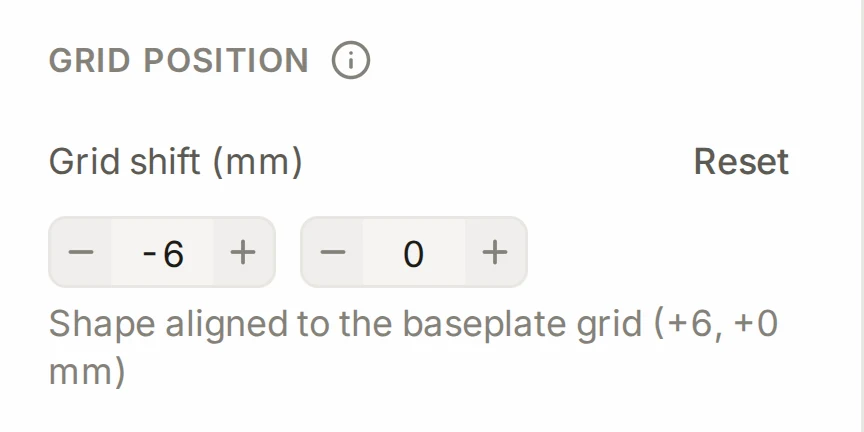
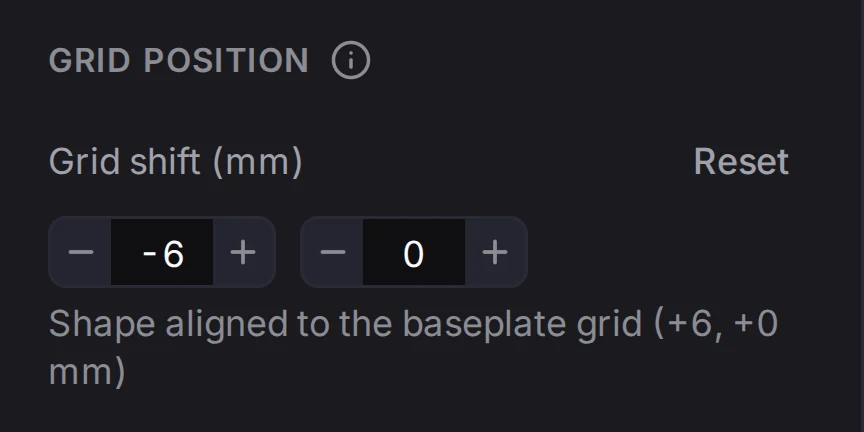
The outer size of the plate stays the same, and only the cells move. The layout editor has the same control under the shape toggle, and both places change the same value.
Margins around a shape
Padding still works on a shaped plate:
- For a shape from Corner cuts, the margin grows the plate, and the Layout Tool cuts the same corners on the bigger plate.
- For any other shape, the margin moves each edge of the shape outward.
If the margin is too big for such a shape, the panel shows a warning and ignores the margin. Make the margin smaller until the warning goes away.
Settings that a shape turns off
The shape brings its own corners and edges, so two settings don't appear on a shaped plate:
- Corner radius
- Detach margins as separate pieces
On a rectangular plate, a large Corner radius acts like a shape. It cuts or removes the corner pockets that it passes through.
Split a shaped plate
A shaped plate splits like any other plate. See Split for your print bed. The shape changes the result in three ways:
- Each piece follows the part of the outline that it holds.
- The Layout Tool doesn't print the grid positions outside the shape, and the print guide skips their labels.
- A seam that the shape crosses gets no connector. Line up those pieces by their outline.
With Vertical stack on, pieces with the same shape stack together, and a piece with a unique edge prints as its own stack. With Stack plates of different sizes, a shaped piece stacks only with pieces like it.
INFO
Give a shaped plate a moment after each change. The quick preview doesn't draw shaped plates, so the plate appears only when the full build is ready.
When it goes wrong
The plate stays a rectangle
Turn on Sync with layout in Dimensions.
The plate takes the drawer shape from the layout only while it is in sync. A plate size that you type in millimeters also turns sync off.
The margin does nothing
Make the Padding smaller, until the warning goes away.
On any shape except one from Corner cuts, the margin moves each edge of the outline outward. A margin that is too large for the outline can't do that, so the Layout Tool ignores it.
The edge has broken bits of wall
Turn on Fit whole cells only. Solid plastic then fills the cut cells along the edge.
The shape cuts through the cells at the edge. A cut cell keeps a sliced pocket, and a sliced pocket can't hold a bin. See How the plate follows the shape.
Next steps
- Set up the drawer: draw, edit or import the drawer shape.
- Baseplate basics: set the margins and the grid pitch.
- Split for your print bed: control where a large plate breaks.
- Eco plates and stack printing: print the pieces in stacks.