
Accounts and sync
You don't need an account to use the Gridfinity Layout Tool. Without one, your work stays in this browser on this device. Sign in with Google or GitHub when you want the same layouts and designs on your desktop, your laptop and your phone.
Work without an account
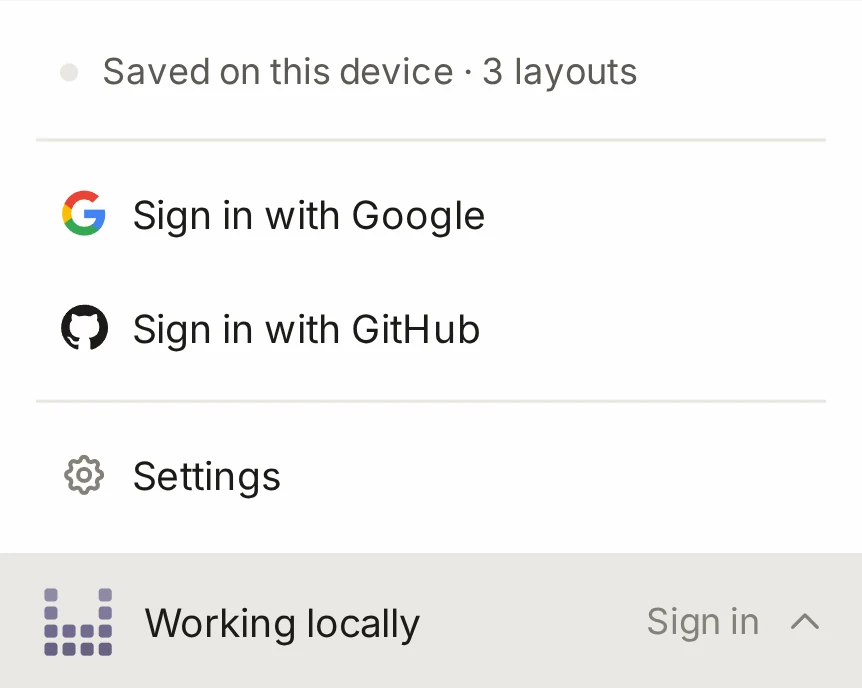
At the bottom of the side panel, the account button reads Working locally. Everything saves in this browser, and other browsers and devices can't see it. Your data explains where the browser keeps it and how to back it up.
Sign in
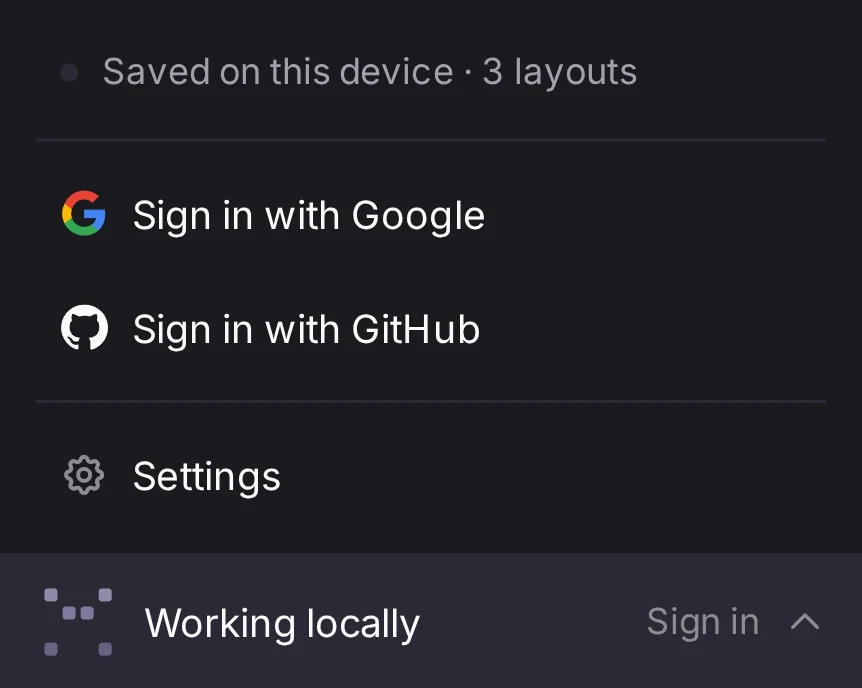
- Click Working locally at the bottom of the side panel. You'll find it in the layout editor, the bin designer and the baseplate generator.
- Click Sign in with Google or Sign in with GitHub.
- Approve the sign-in on the Google or GitHub page. The browser then takes you back to the Layout Tool.
The same buttons are also in Settings, on the Account tab.
Your first sign-in on a device keeps the work that is already there. The Layout Tool merges the local layouts and designs with the copies in your account. If the data on the device belongs to a different account, the Different account dialog asks what to do. Add the data to the account that you use now, or click Discard to remove it from the device.
A sign-in lasts 30 days. After that, the Layout Tool signs you out and keeps your local copies. Sign in again to start the sync again.
What syncs
After you sign in, these items sync, up to a limit for each account:
| Item | Limit for each account |
|---|---|
| Layouts | 100 layouts, 10 MB |
| Saved bin designs | 100 designs, 10 MB |
| Saved baseplate designs | 100 baseplates, 10 MB |
| Versions of bin designs | 500 versions, 25 MB |
| Folders in the layout manager | 200 folders |
Your settings, your Labs choices and your share links don't sync. Each device keeps its own.
The Layout Tool sends a change about 3 seconds after you stop. While the tab is visible, it gets the changes from your other devices every 45 seconds. Offline? Your changes wait in the browser and go to your account when the connection comes back.
The account button shows the state of the sync:
| Status | What it tells you |
|---|---|
| All changes synced | Your account has all your changes. |
| Syncing… | The Layout Tool sends or gets changes at this moment. |
| Offline | No connection. Your changes wait in the browser. |
| Sync error | The last sync failed. The Account tab shows the error. |
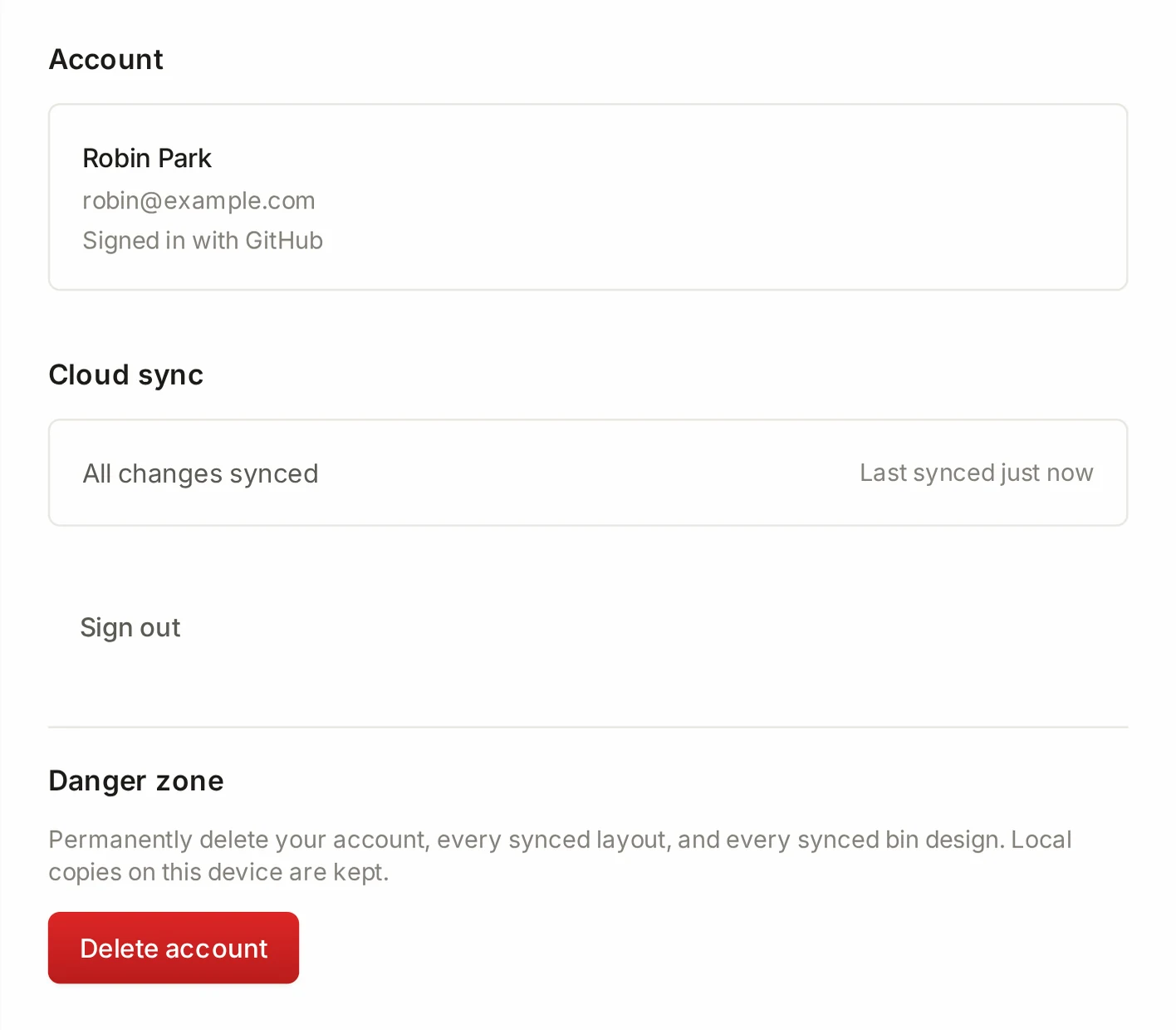
For more detail, open Settings > Account. Its Cloud sync section shows the time of the last sync and how many changes wait to upload.
When your account reaches a limit, the server refuses the new item, and a message tells you that your cloud storage is full. Delete some items to make space. Deleted items don't count toward the limit.
When two devices change the same item
Each layout, design and folder records the time of its last change. When two devices change the same item, the newer change wins. The older device takes the newer copy and shows this message: Layout updated from another device.
The newer copy replaces the whole item, so two sets of changes never merge into one layout. If the two changes have the same time to the millisecond, all devices pick the same winner.
TIP
Edit a layout on one device at a time. To edit one layout with other people at the same time, use a live session.
A deletion syncs too. Delete an item on one device, and your other devices remove it as well. A device with an older edit of that item shows this message: This layout was deleted on another device. Save again to restore. Edit the item again on that device to bring it back.
Sign out
- Click your name at the bottom of the side panel.
- Click Sign out.
- In the Sign out dialog, pick what happens to the data on this device:
- Keep & sign out keeps your layouts, designs, baseplates and folders on this device. Changes that didn't upload yet go to your account at the next sign-in.
- Wipe & sign out removes them from this device. The copies in your account stay.
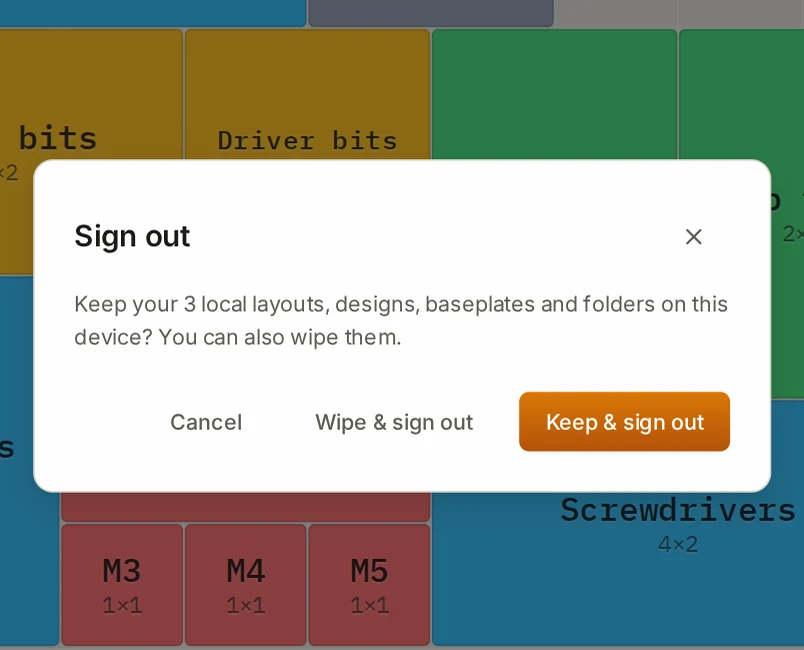
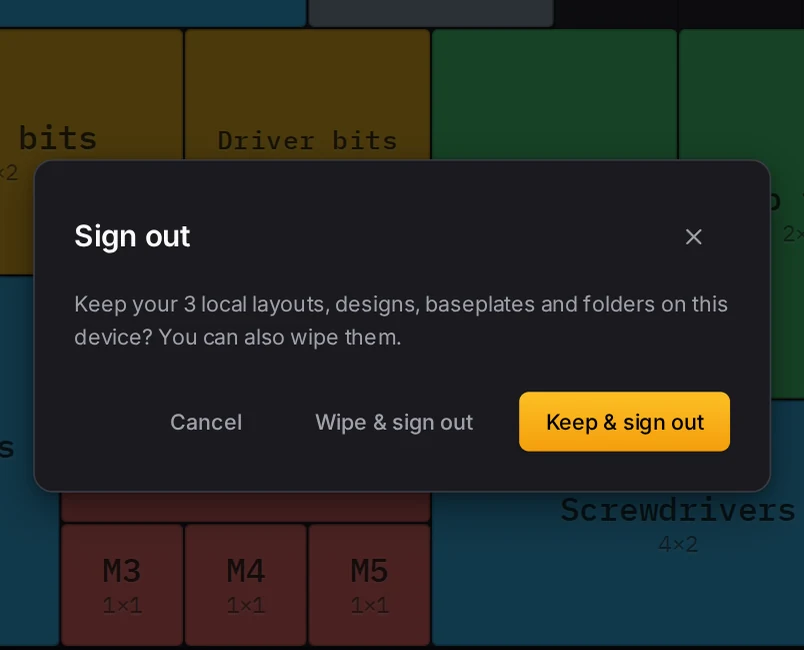
On your own computer, pick keep. On a shared computer, pick wipe.
Settings > Account has the same Sign out button.
Delete your account
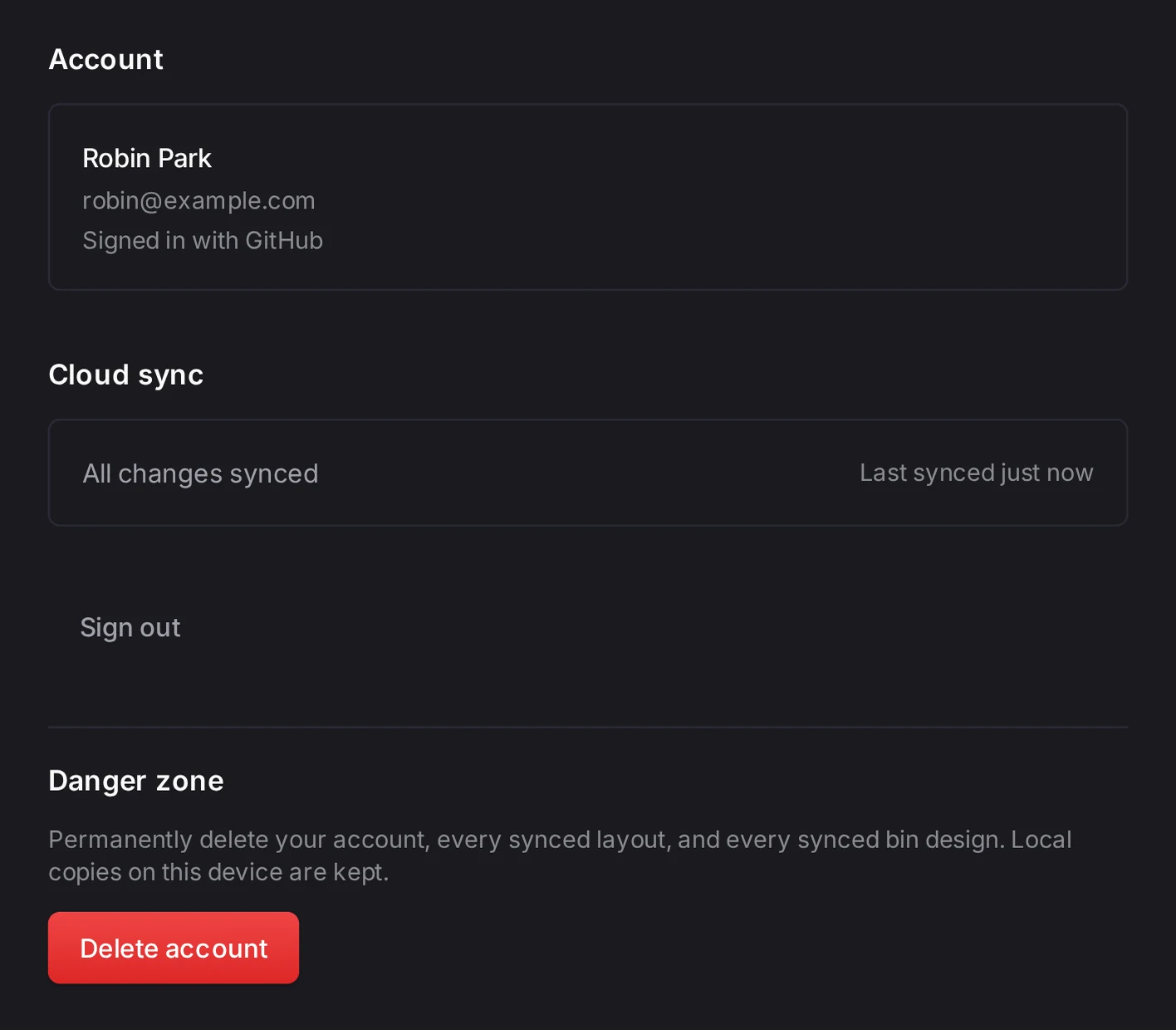
- Open Settings > Account.
- Under Danger zone, click Delete account.
- In the dialog, click Delete account.
WARNING
Make sure that you don't need the copies in your account. You can't undo the deletion.
The deletion removes these items from the server:
- your account and the sign-in on every device
- every synced layout, design, baseplate, version and folder
- your published designs in the community gallery, your likes and your print reports
Share links aren't part of your account, so the deletion leaves them in place. Delete each link from the share button first, because only the browser that made a link can delete it. See Share a layout.
The local copies on this device stay too. Clear all data on the Storage tab removes your layouts, but it keeps your saved bin designs, your saved baseplates and your settings. To remove everything, clear the browser data for this site.
When the server has no sign-in
Sign-in and sync need the server of the Layout Tool. A self-hosted copy has no sign-in, and its sign-in buttons open a short page with a link back to the app. See Self-hosting.
When it goes wrong
Sync stops because your cloud storage is full
Delete the layouts, designs, baseplates or old versions that you don't need. Then make a small change to the item that didn't sync, so that it uploads again.
Each account has a limit for each kind of item. See What syncs. The server refuses the item that goes past the limit, and the Layout Tool doesn't try that change again by itself.
A message says that your changes couldn't sync
Edit the item again to send it again. Your change stays in this browser. For the details, open Settings > Account, where Cloud sync shows the last error.
After a network or server problem, the Layout Tool tries again by itself. When the tries run out, or the server refuses the change, it stops and tells you.
Your latest edits to a layout disappear
Edit each layout on one device at a time. To edit with other people at the same time, use a live session.
When two devices change the same item, the newer change replaces the whole item, and the other device shows a message. See When two devices change the same item.
You're signed out
Sign in again. The Layout Tool keeps your local copies when it signs you out.
A sign-in lasts 30 days. The Layout Tool also signs you out when the server no longer accepts your sign-in.
Next steps
- Your data and privacy: what the browser stores and how to back it up.
- Share a layout: send a layout to a person without an account.
- The community gallery: publish a design under your public name.
- Settings and accessibility: the other tabs in Settings.