
Categories and colors
A full drawer plan gets busy fast. Categories help: give every bin a named color, like screws or kitchen tools, and you can read the drawer at a glance. Here's how to make categories in the Gridfinity Layout Tool, give them to bins, and see where their colors show up.
Find the categories
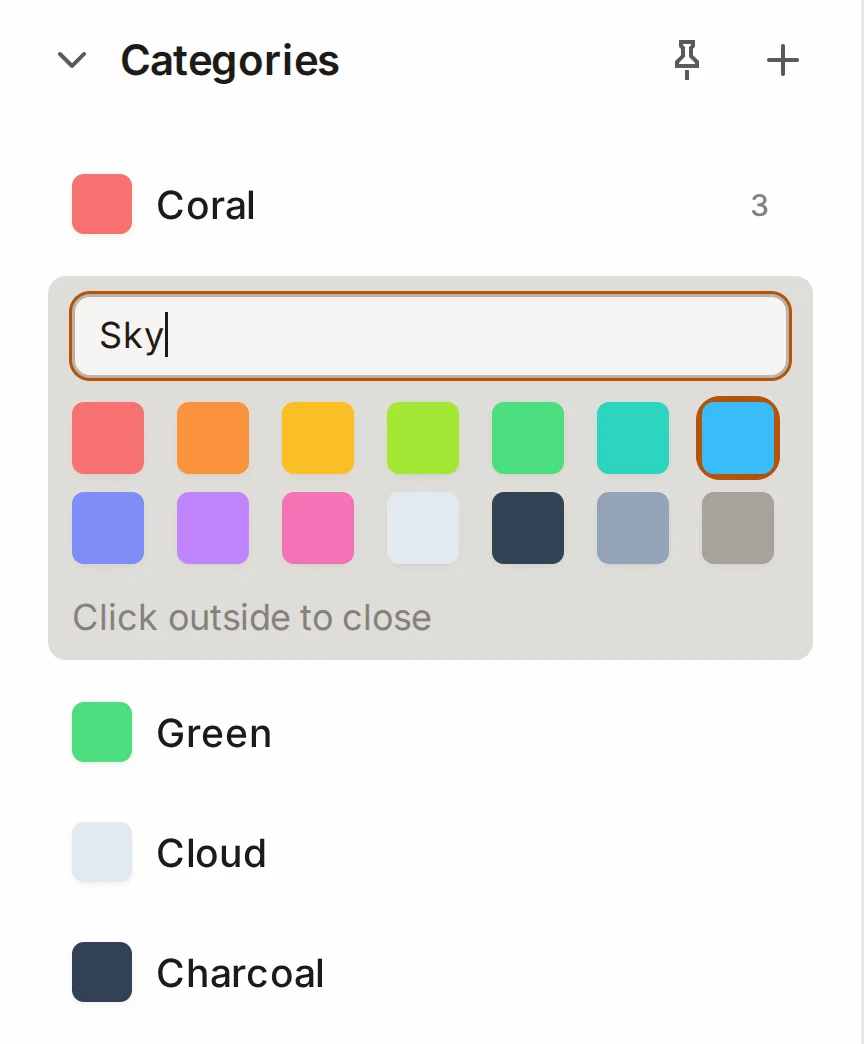
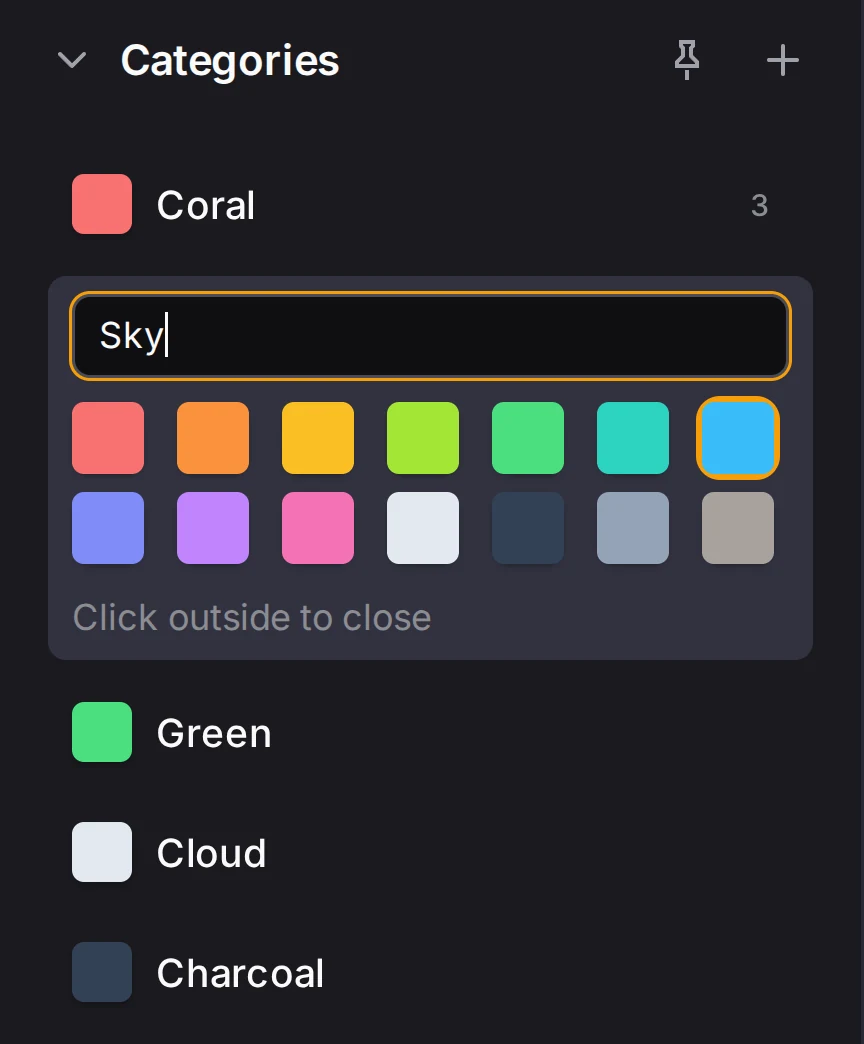
On a computer, the categories are in the Categories group of the left panel. Each row shows the color, the name, and the number of bins in that category. On a phone, tap Categories in the bar at the bottom of the screen.
A new layout starts with five categories: Coral, Sky, Green, Cloud and Charcoal. Rename them to suit your drawer. A layout can have 1 to 20 categories.
Give bins a category
- With no bin selected, click a category. It becomes the category for new bins, and its color square shows a check mark.
- Select one or more bins, then click a category. The selected bins change to that category.
- Press [ or ] to go to the previous or the next category. With bins selected, the keys change their category. With no bin selected, they change the category for new bins.
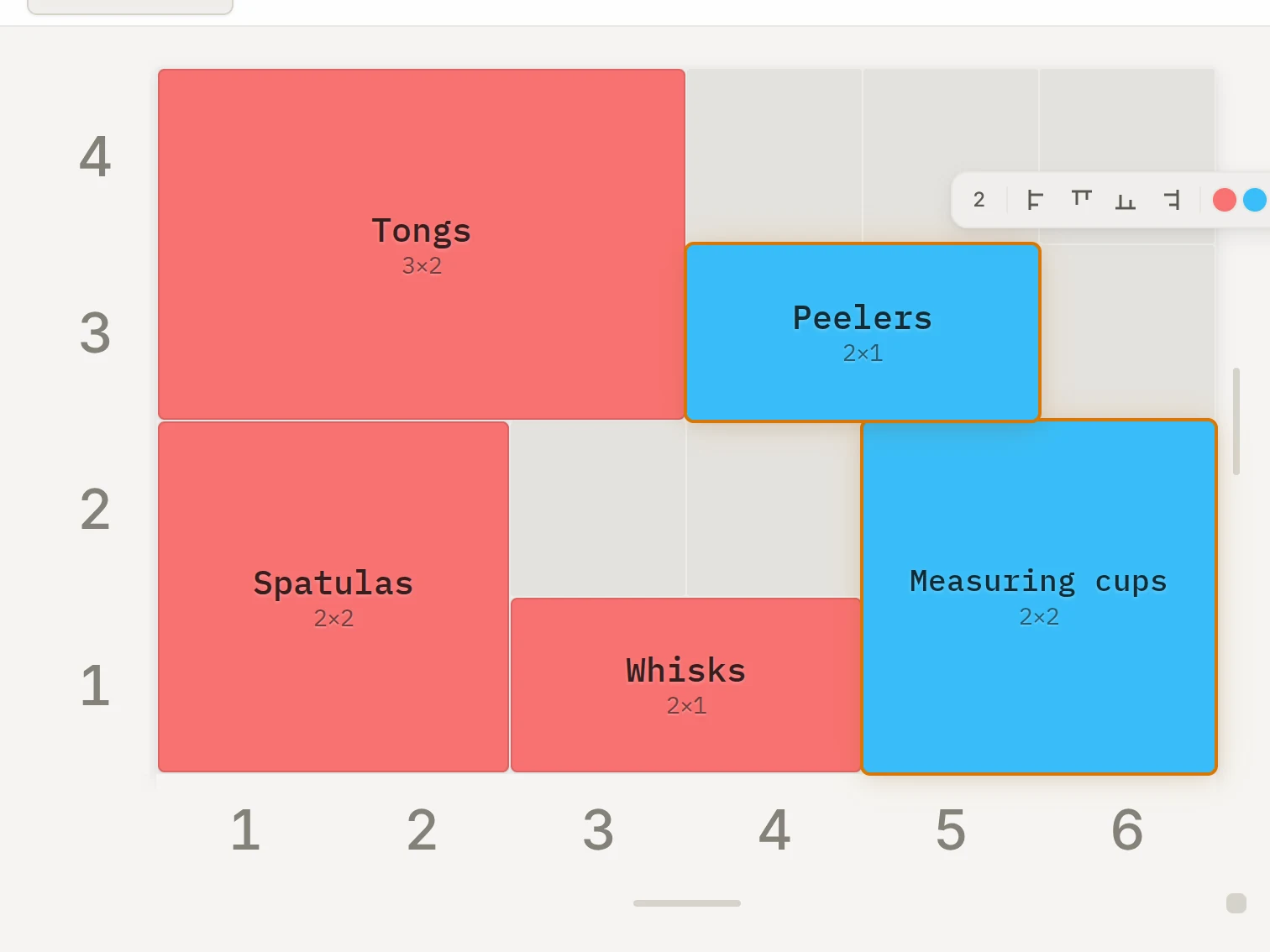
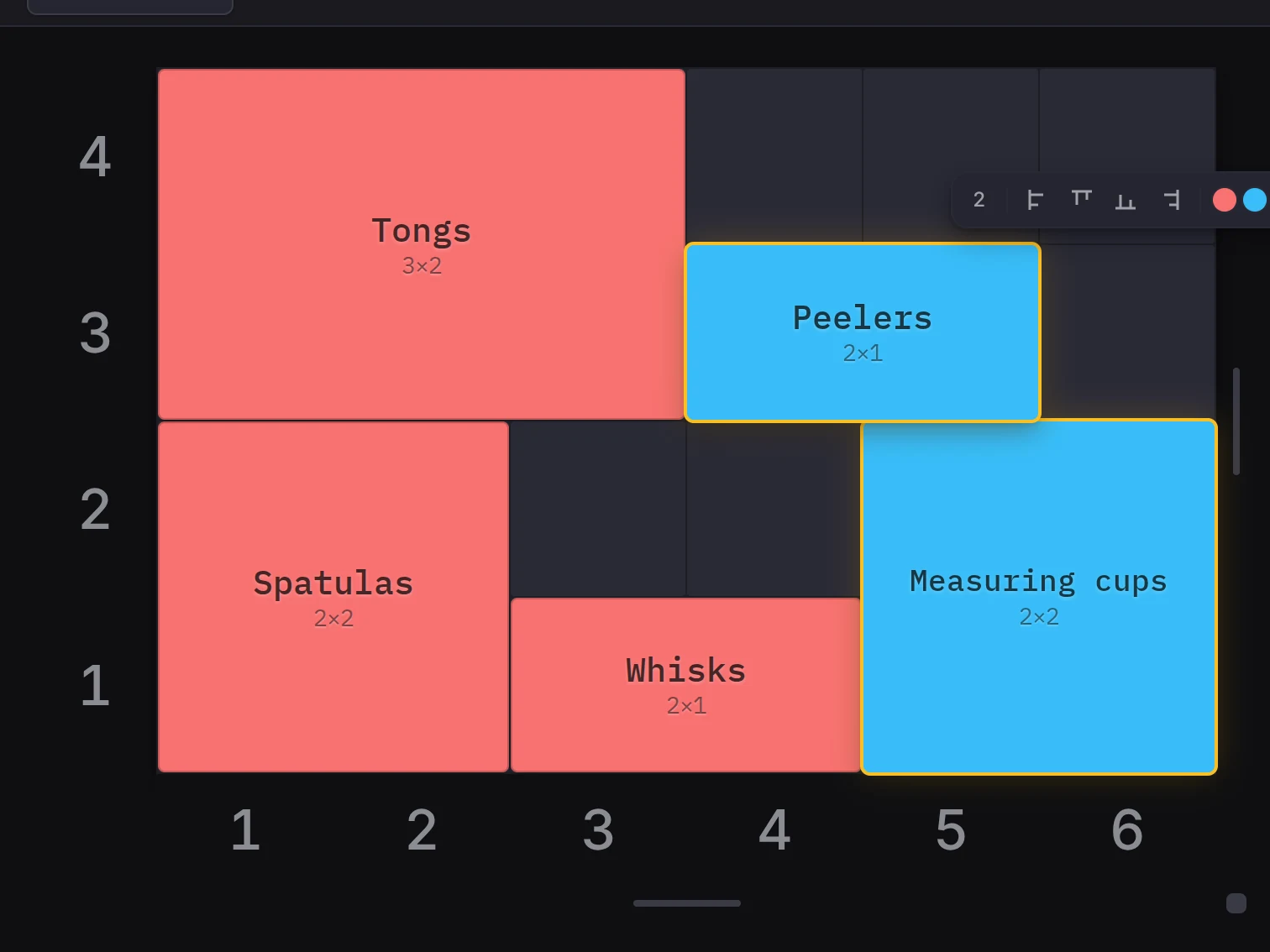
The inspector also has a Category field for the selected bin. To select every bin of one category, select one of them and run Select by category from the command palette.
Add and edit categories
- Click Add category (the plus button) in the group title. The new category opens for editing.
- Type a name of up to 24 characters.
- Click a color in the palette.
- Click outside the row to close it.
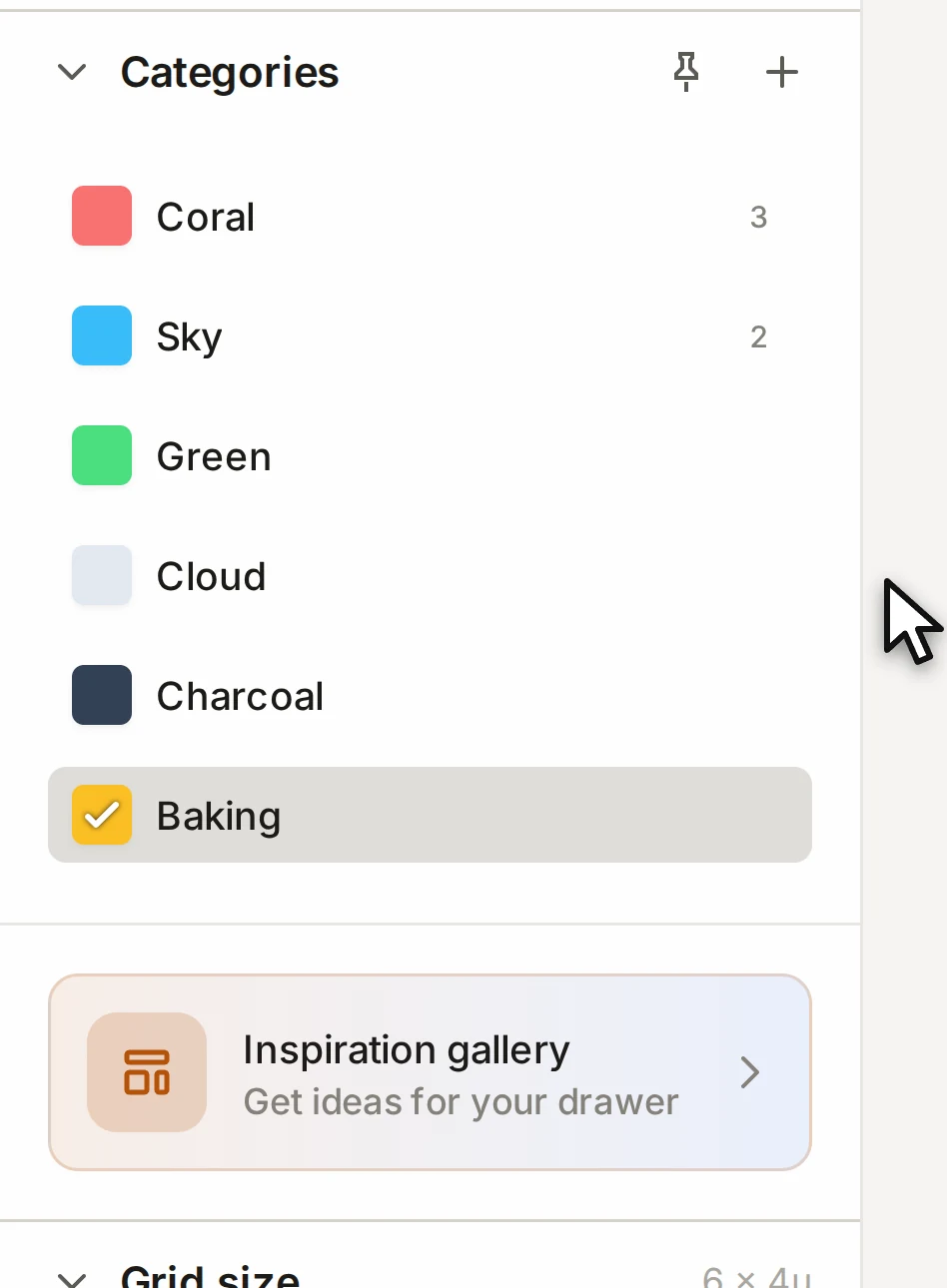
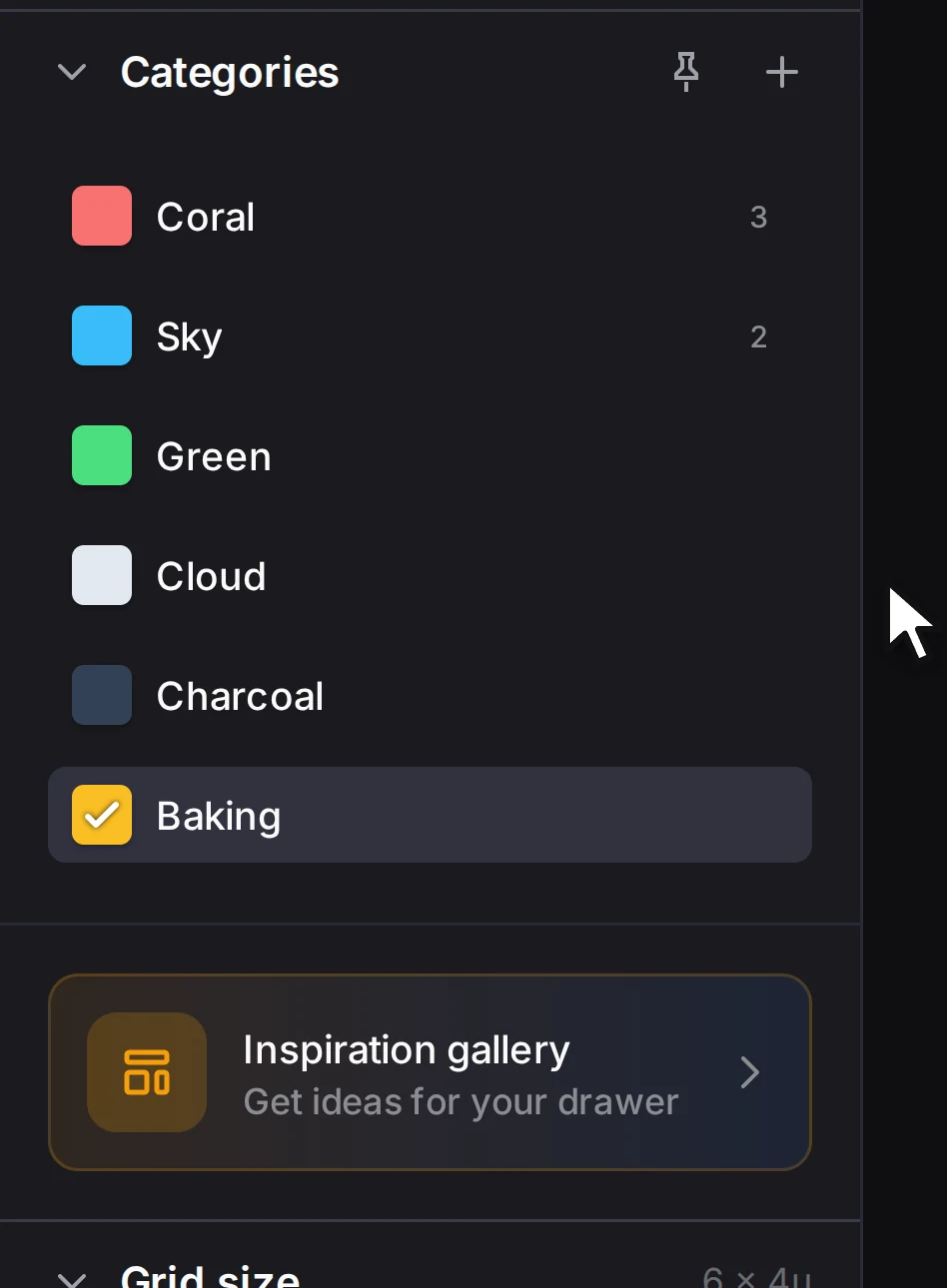
To edit a category later, double-click its name or click Edit category. Only want a new color? Click the color square and pick one. The palette has 14 colors.
Delete a category
You can delete a category when no bin uses it, so move its bins to a different category first.
- Hover over the category row and click Delete category (the X).
- Click Delete category.
If a bin still uses the category, a message tells you how many bins use it. A layout always keeps one category.
Use the same categories in every layout
Set up categories you like? Click Save as defaults in the group title, and new layouts start with your current categories. You can also see and change the defaults in Settings, on the Categories & bins tab, under Default categories.
What a category changes
| Where | What the category does |
|---|---|
| Grid and stash | Fills each bin with the category color |
| 3D preview | Colors each bin |
| Categories group | Highlights the bins of a category on the grid when you hover over its row |
| Print list | Bins with the same size, height, label, category and design share one row with a count |
| Print layout view | Bin list sort can sort the bin list by category, and Category color adds the color |
The category color is for planning only. It doesn't set the filament color of the printed bin. For bins in more than one filament color, see Multi-color printing.
Tell categories apart without color
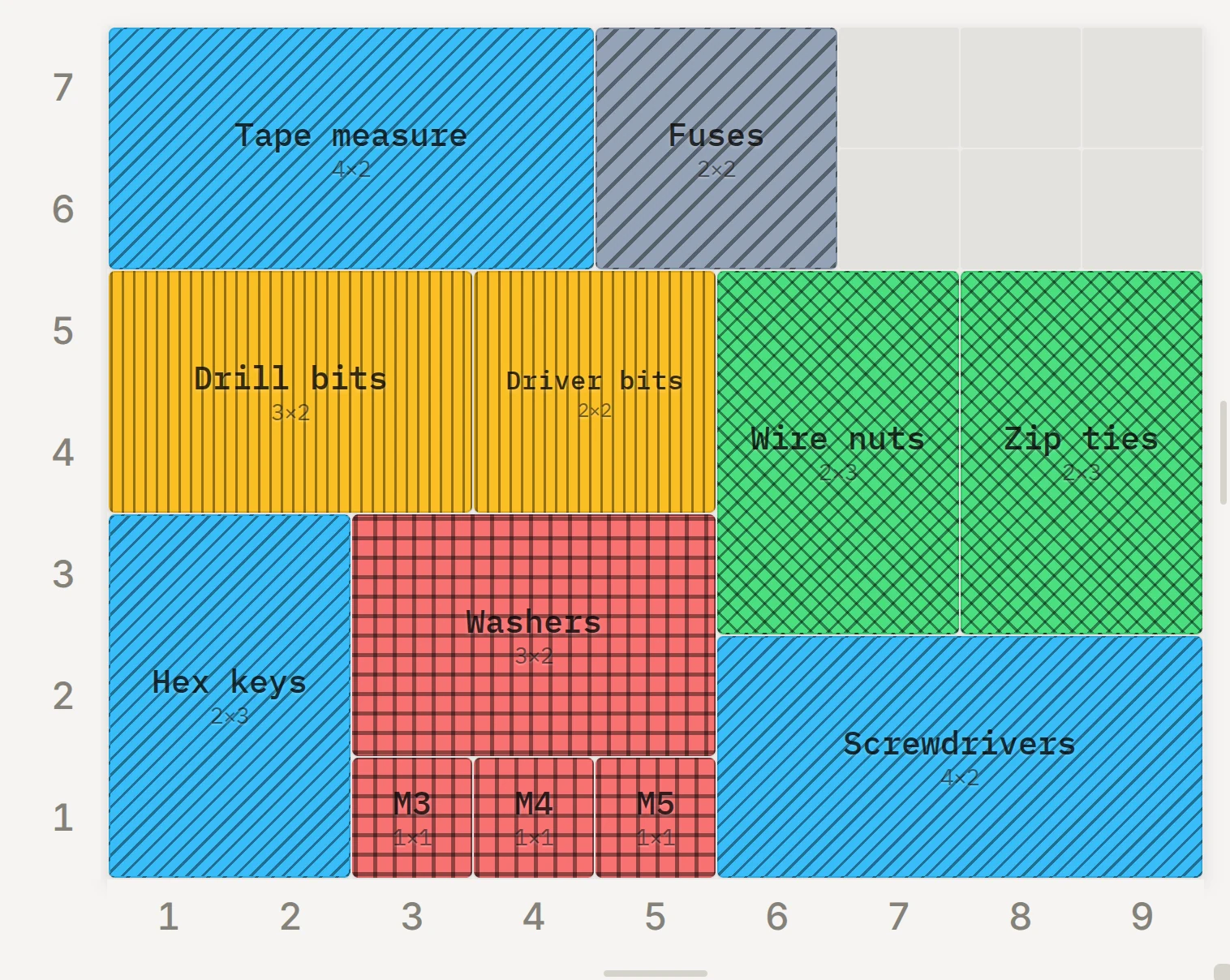
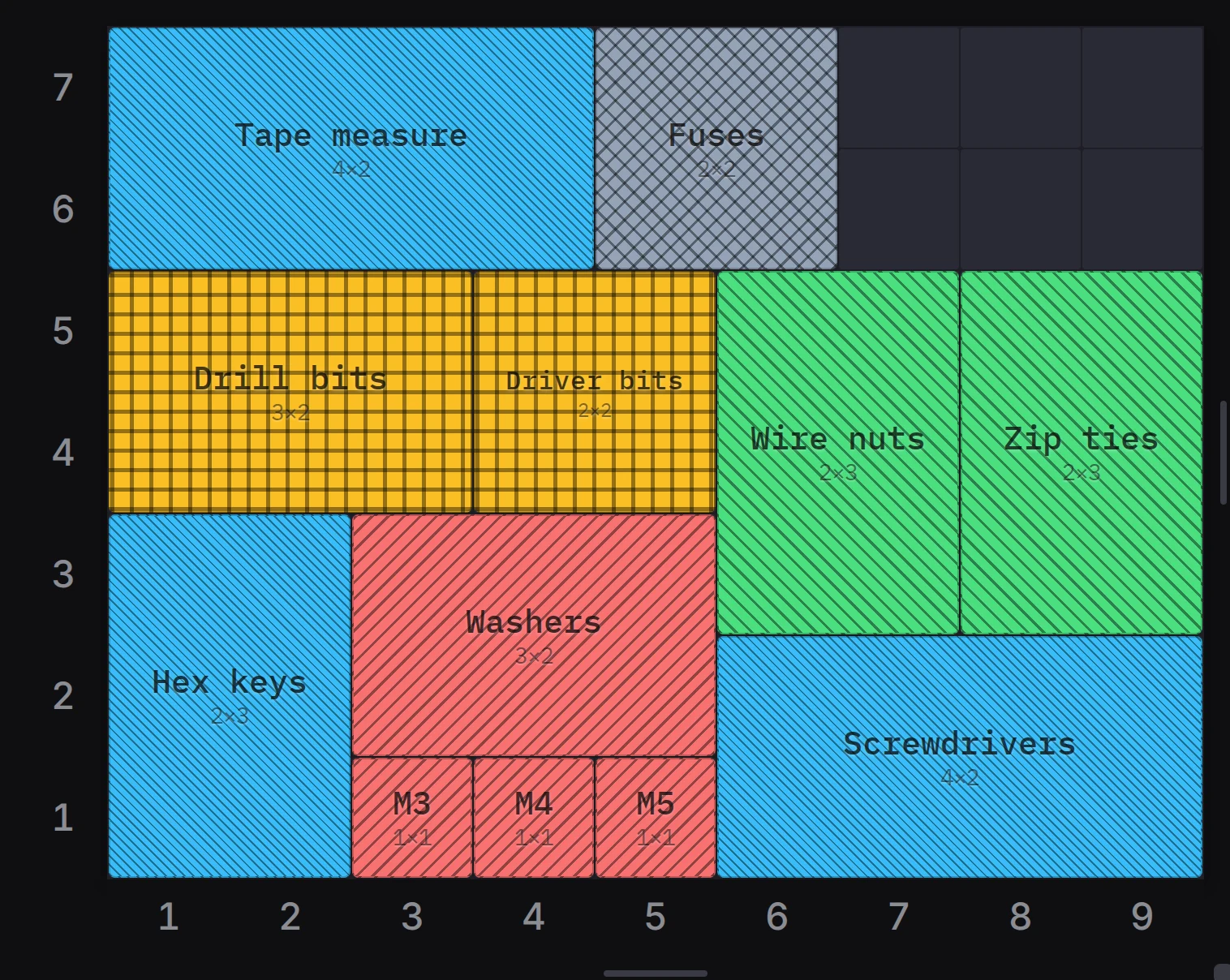
If some colors are hard for you to tell apart, open Settings and go to Accessibility. Turn on Distinguish categories by pattern. Each category then gets its own pattern of lines, dots or grids on the canvas.
When it goes wrong
You can't delete a category
Move its bins to a different category first. Select one bin of that category, and run Select by category from the command palette. Click a different category, then delete the empty one.
That command selects bins on the active layer only. So repeat it on each layer, and look in the stash too. The message that blocks the delete tells you how many bins still use the category. A layout also always keeps its last category.
The add button is gray
A layout can have 20 categories. Delete one that no bin uses, or rename one and use it for the new group.
The print list shows one bin size on two rows
Check the category and the label of those bins. The print list puts bins on one row only when they share the size, height, label, category and design. So two bins of one size with different categories take two rows. To merge the rows, give the bins the same category and label.
Next steps
- Work with several bins: select a group of bins and give them one category.
- The print list and ZIP export: see how the print list groups your bins.
- Settings and accessibility: change the default categories and the patterns.