
Install and work offline
No Wi-Fi in the workshop? No problem. The Gridfinity Layout Tool runs in your browser, and it keeps a copy of itself on your device. You can install it as an app with its own window, and you can plan drawers and design bins without an internet connection. Here is what works offline, and how a new version gets to you.
Install the app
Your browser can install the Layout Tool as an app. In Chrome, Edge and other Chromium browsers:
- Click Settings (the gear icon) in the header.
- Click General.
- In Install app, click Install.
After you download a file, the export window can also show Install the app. In other browsers, use the install command of your browser.
The installed app has the name Gridfinity Layout Tool. It opens in its own window, without the address bar, and starts on the layout editor. It uses the same data as the browser tab, because it is the same site.
To open the bin designer or the baseplate generator directly, right-click the app icon in the taskbar or the dock. On Android, touch and hold the app icon.
Get ready to work offline
The first visit stores the core of the app. The other parts download the first time that you open them, so do this once while you are online:
- Open the layout editor, the bin designer and the baseplate generator.
- In the bin designer and the baseplate generator, wait until the preview shows a model.
After that, these tools also start without a connection. A tool that you did not open while online is not available offline.
Work offline
When the connection stops, a message tells you: You're offline. Changes save locally. Your layouts and designs save in the browser as usual. When the connection comes back, you see Back online.
These features need the server, so they do not work offline:
| Feature | What happens offline |
|---|---|
| Share links | You can't make, change or open a share link. |
| Live sessions | You are not in the room until the connection comes back. |
| Sign-in and sync | Changes wait in the browser and upload when the connection comes back. |
| The community gallery | The gallery doesn't load. It tries again when you are back online. |
| Phone scan | The phone can't send the scan to your computer. |
| These docs | The pages don't load. The app does not keep a copy of them. |
How updates arrive
The Layout Tool looks for a new version at these times:
- when the page loads
- when you come back to the tab
- every hour while the tab is open
- when the connection comes back
A new version downloads in the background. The Layout Tool then waits for a pause in your work before it reloads. It doesn't reload while:
- you drag, resize, draw or paint bins
- bins sit in the stash
- the large 3D preview is open
- a dialog or a menu is open
- you type in a field
- a sync runs
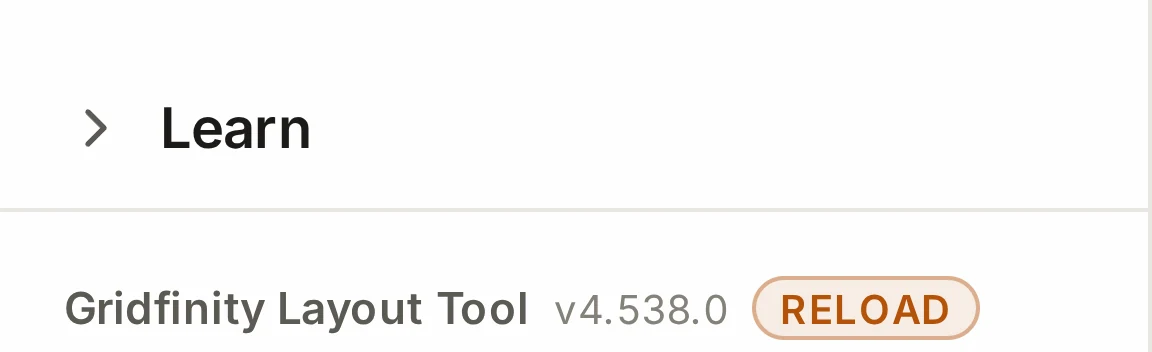
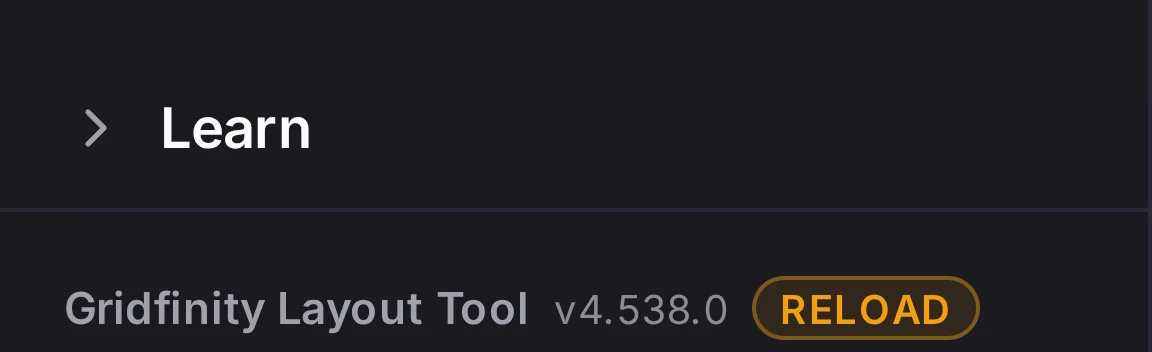
If you take a short break during the first minute, the update applies then. If you don't stop, the version button at the bottom of the side panel changes to Reload. The update then applies when you click that button, when you leave the tab, or after 5 minutes without input.
Just before the reload, this message shows: Updating to latest version...
After the reload, the Layout Tool puts back your selection, the active layer, the zoom, the panels and the 3D preview. You can continue where you stopped.
Get the newest version
Want the update at once? Look at the version button at the bottom of the side panel. If it shows Reload, click it.
If the button shows only the version number, you have the newest version that your browser found. Click the button to see what changed in recent versions. To see a summary after each update, turn on Show update summaries in Settings > General.
Once in a while, a stored copy of the app fails to load after an update. The app then clears that copy and loads the newest version from the server. It does this one time for each tab, so a damaged version can't get stuck in a reload loop.
INFO
A self-hosted copy of the Layout Tool on plain HTTP cannot install or work offline. Use HTTPS or localhost. See Use HTTPS.
When it goes wrong
A tool won't open offline
Go online, open that tool, and wait until its preview shows a model. After an update, open each tool once more while you're online.
The app keeps the files of a tool from the first time that you open it. A new version can change those files, and the app stores the new ones only when you open the tool. See Get ready to work offline.
The update doesn't arrive
Click the version button at the bottom of the side panel when it shows Reload.
The Layout Tool waits for a pause in your work before it reloads. While you drag, type or keep a dialog open, it waits. See How updates arrive.
Next steps
- Your data and privacy: where the browser keeps your layouts, and how to back them up.
- Accounts and sync: keep a copy of your work in your account.
- Settings and accessibility: the other tabs in Settings.