
The community gallery
Need a bin for a tool that you own? Look in the community gallery first. It holds bin designs that other makers published from the Gridfinity Layout Tool. Print one as it is, or remix it into your own design. When you make a bin that works well, publish it so other people can print it too.
Open the gallery
There are three ways in:
- In the bin designer, click Community designs in the panel. The gallery opens on its Community tab. The Examples tab next to it holds the built-in examples.
- Open the community page in your browser.
- In the layout editor, pick an empty area of the drawer to see the designs that fit it. See Find bins that fit.
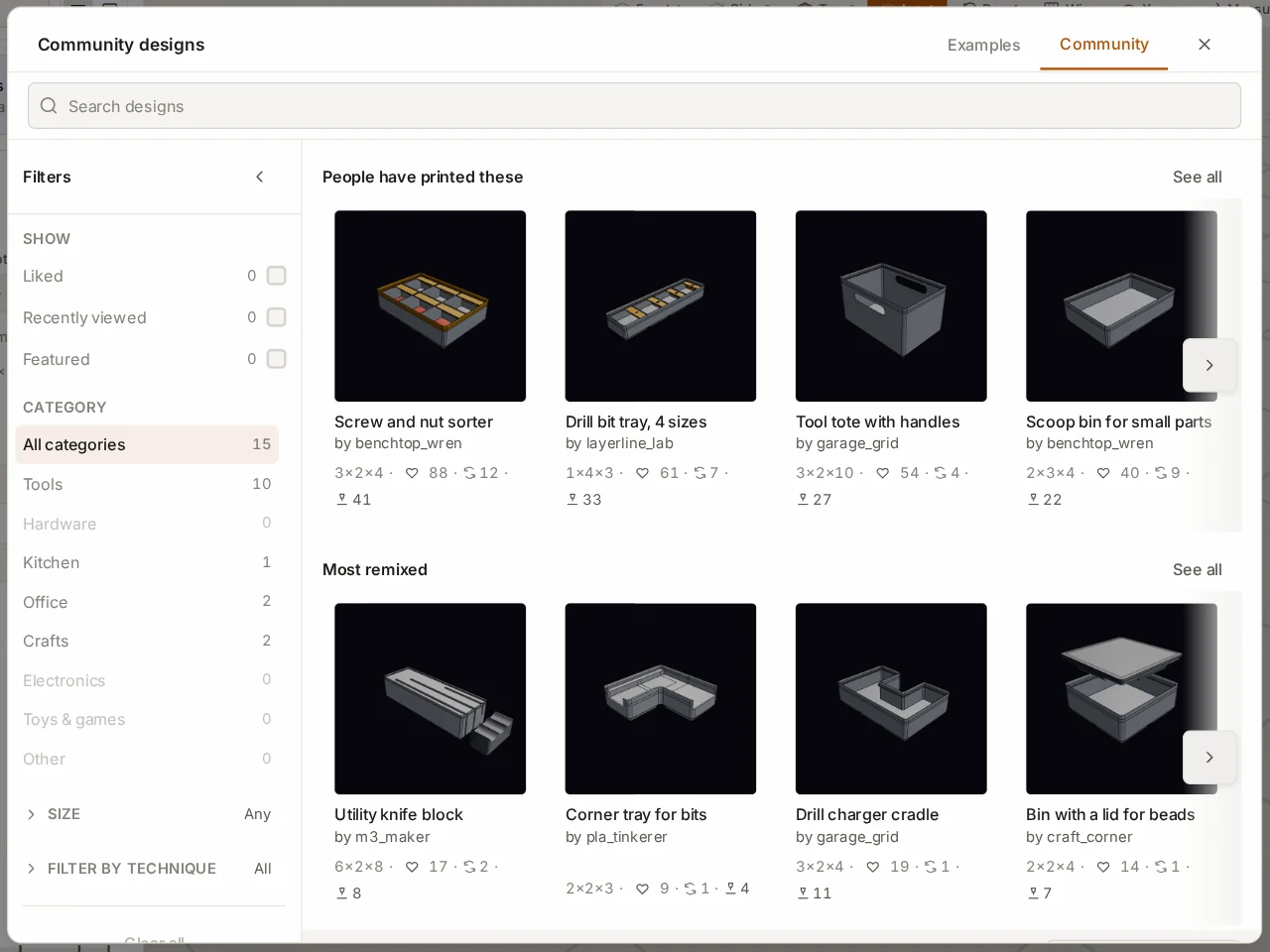
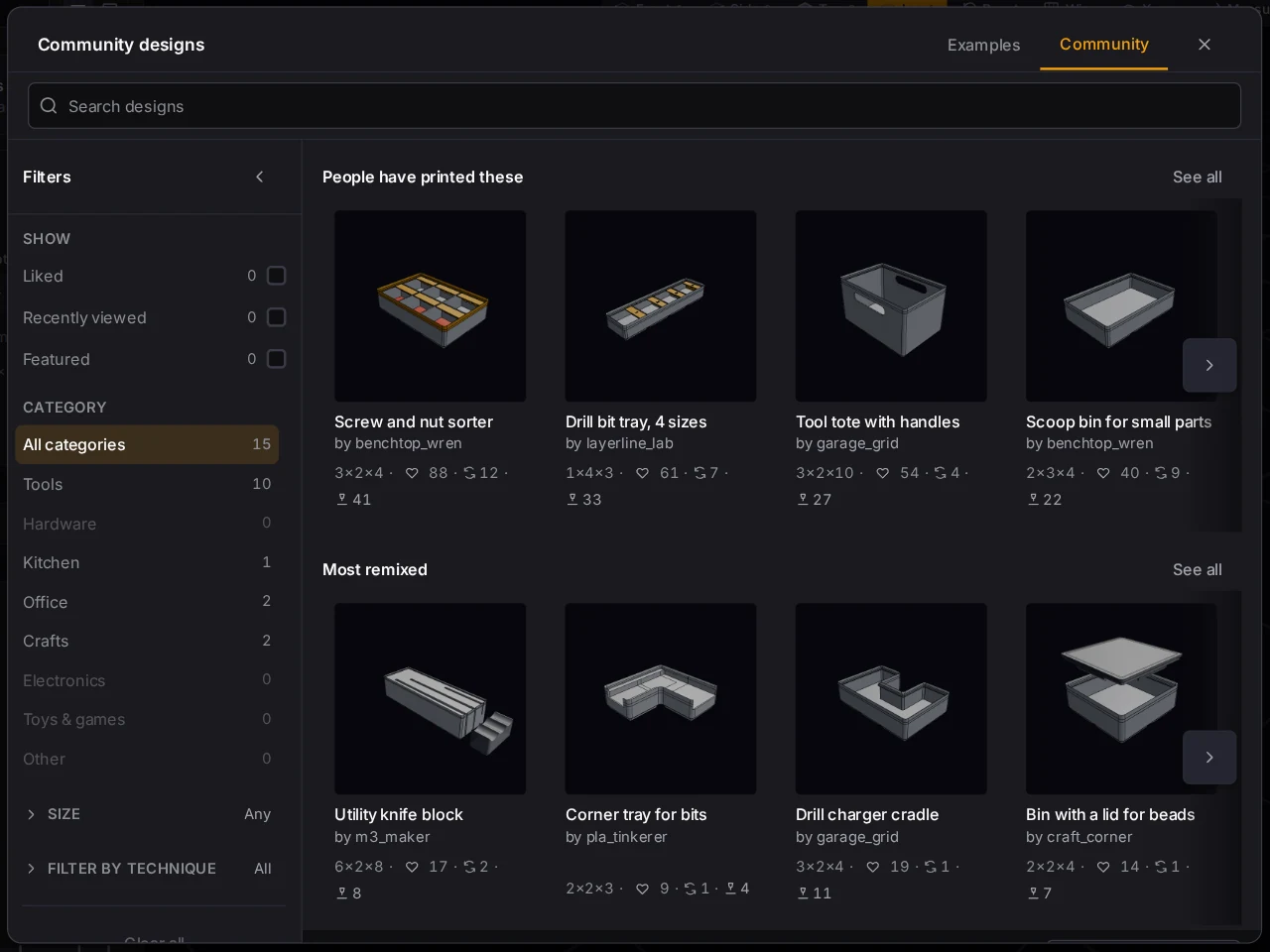
You don't need an account to browse, open or remix a design.
Find a design
Type in Search community designs to search the design names and the public names of the makers. To narrow the results, use the Filters panel:
| Filter | What it keeps |
|---|---|
| Show > Liked | Designs that you liked |
| Show > Mine | Your own designs |
| Show > Recently viewed | Designs that you opened recently |
| Category | One category of designs |
| Size | A range of width, depth and height |
| Filter by technique | Designs that use one feature, such as a scoop or a label tab |
To change the order, pick an option in Sort by:
| Sort | Shows first |
|---|---|
| Newest | The most recent designs |
| Most liked | The designs with the most likes |
| Most remixed | The designs with the most remixes |
| Most printed | The designs with the most posted prints |
The print count on a card shows how many people printed the design and posted the result. The address of the community page keeps your search and filters, so you can send a filtered gallery to someone else.
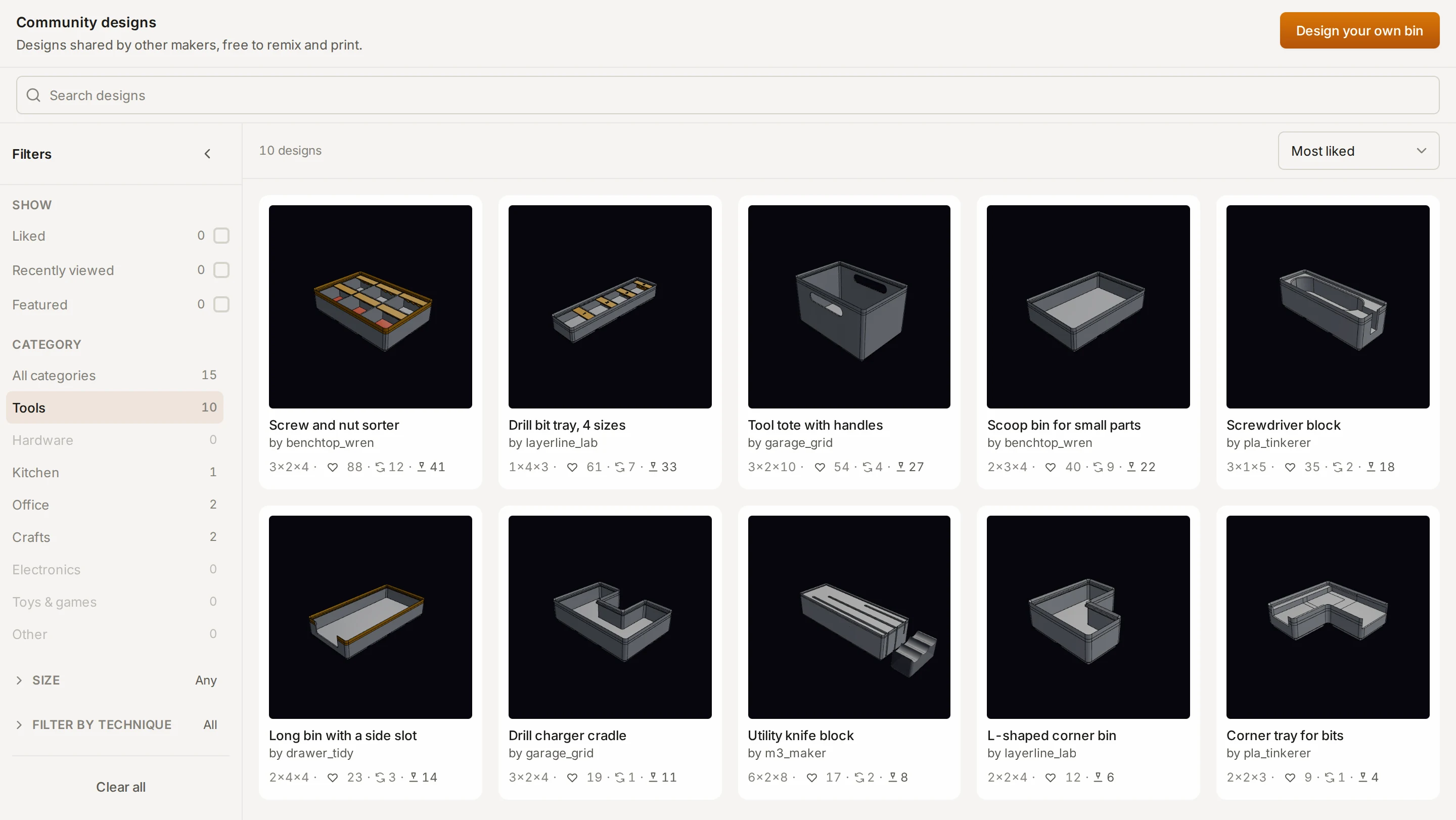
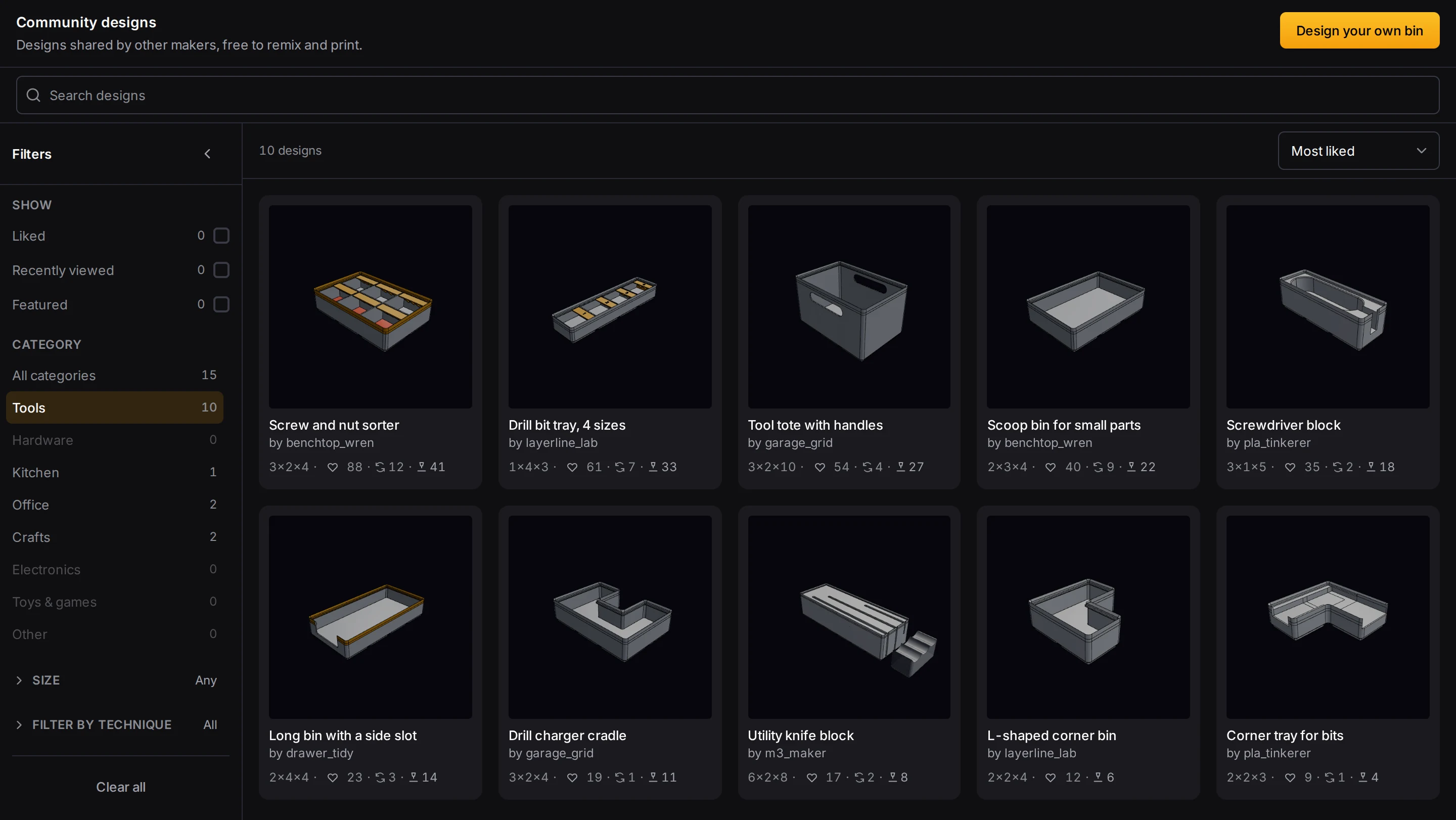
Open a design
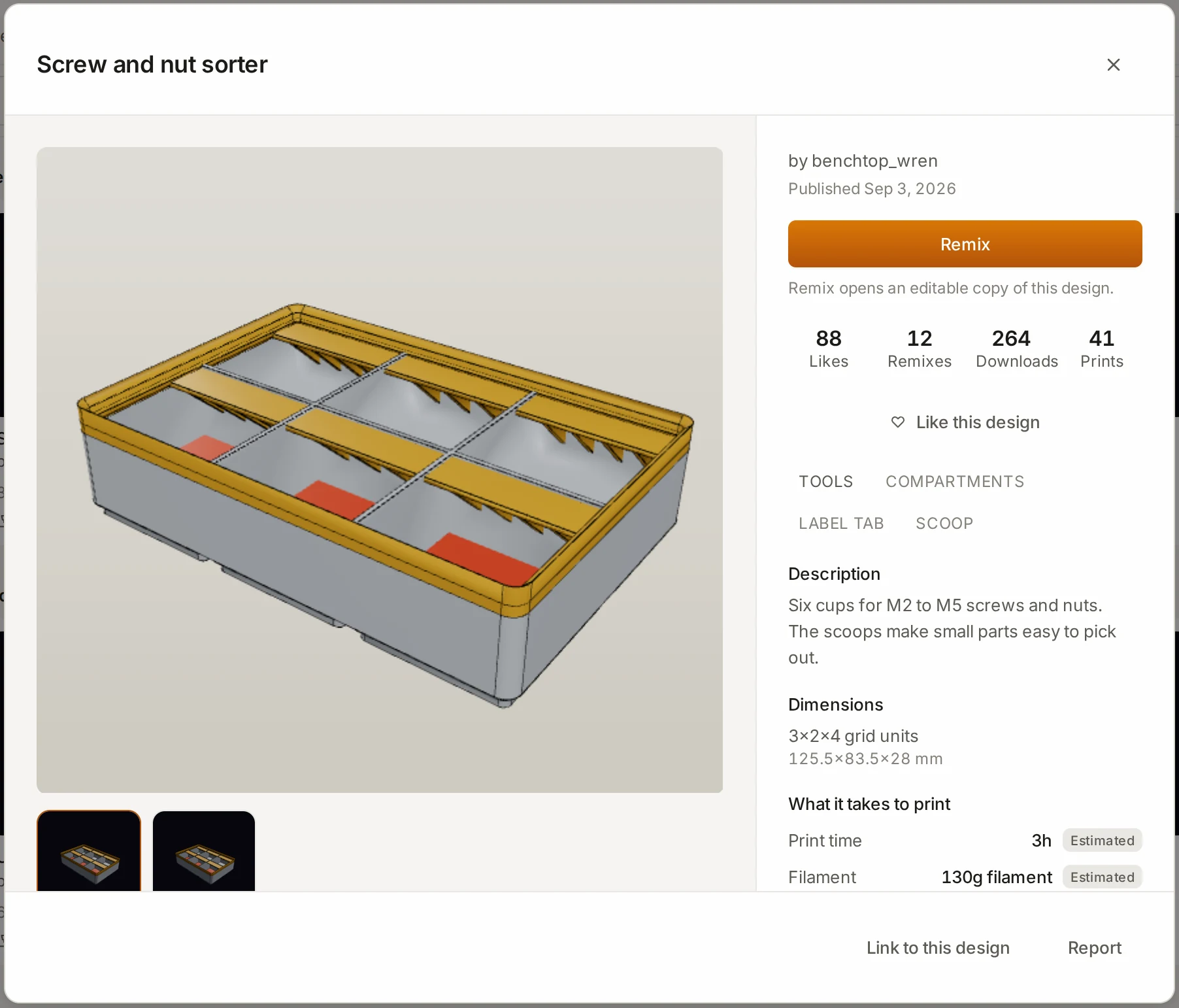
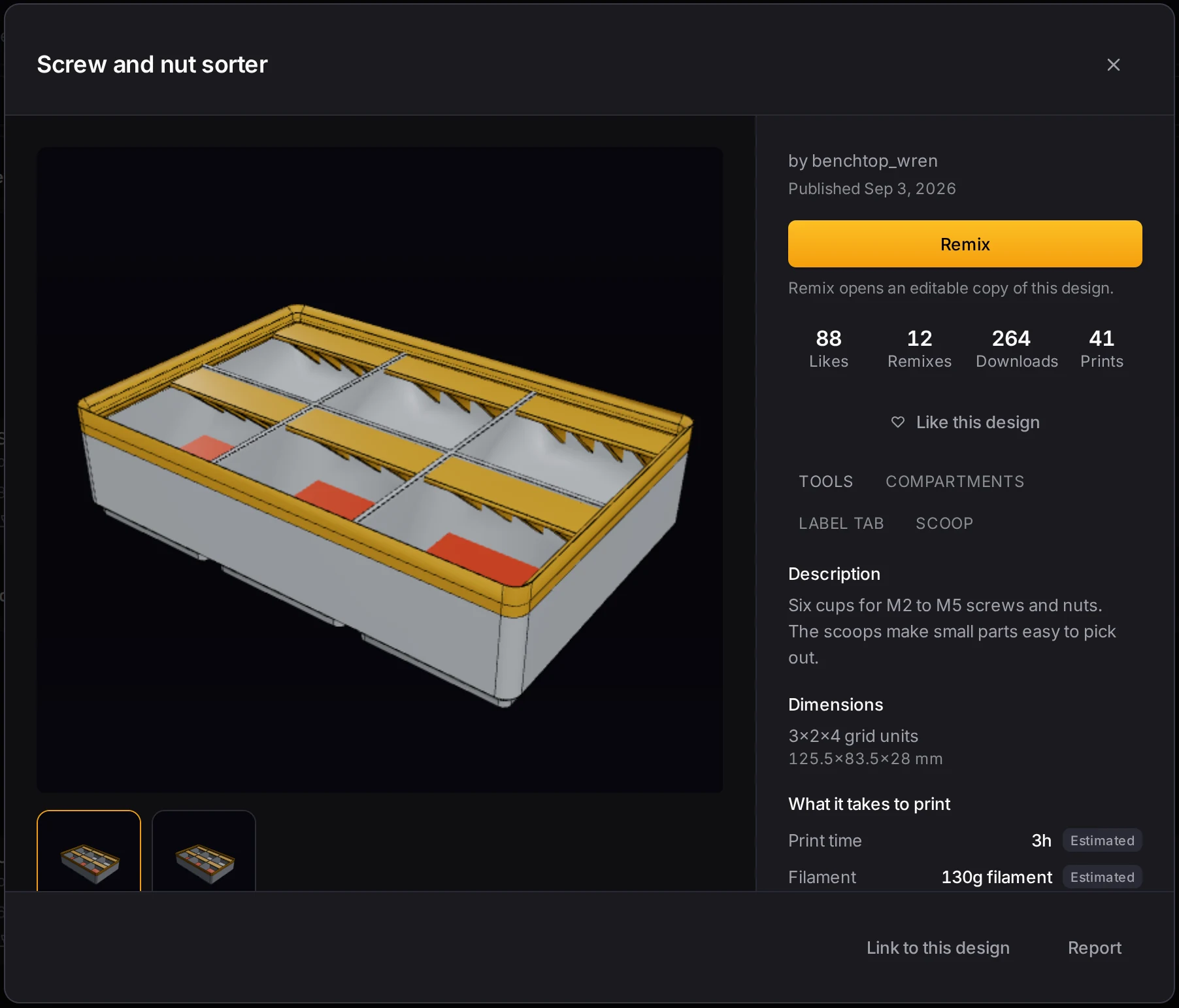
Click a card to open its design page, with 3D views, the dimensions and the posted prints. Every design has the CC BY 4.0 license.
| Button | What it does |
|---|---|
| Remix | Opens an editable copy of the design in the bin designer. The original doesn't change. |
| Place in layout | Shows when you came from an empty area of a layout. It puts the design into that area. |
| Link to this design | Copies a link to the design page. |
| The heart | Likes the design. You must sign in to like a design. |
| Report | Tells the moderators about a problem. See Report a design. |
Publish a design
Did a bin turn out well? Publish it, and the next maker with the same tool can print it.
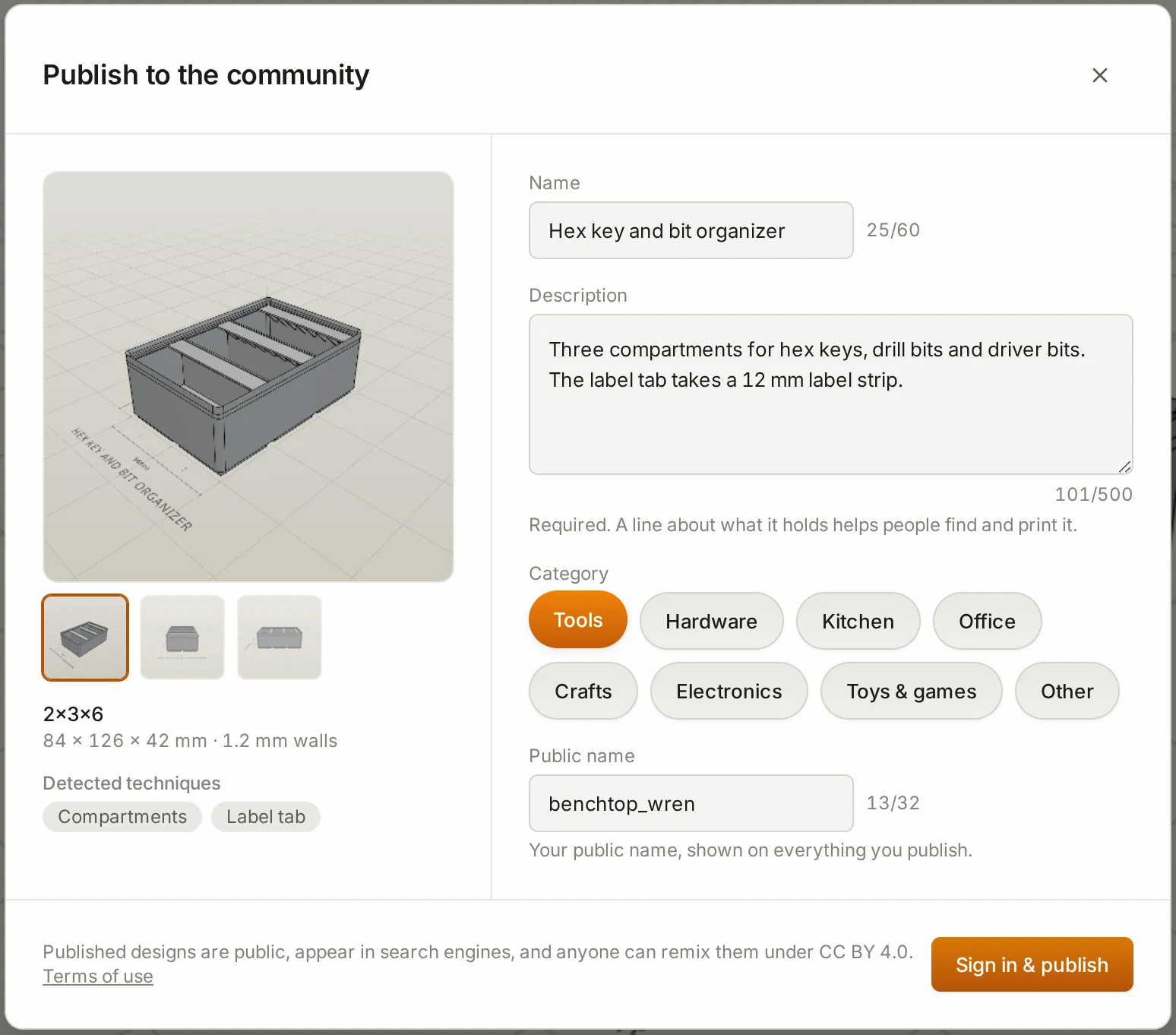
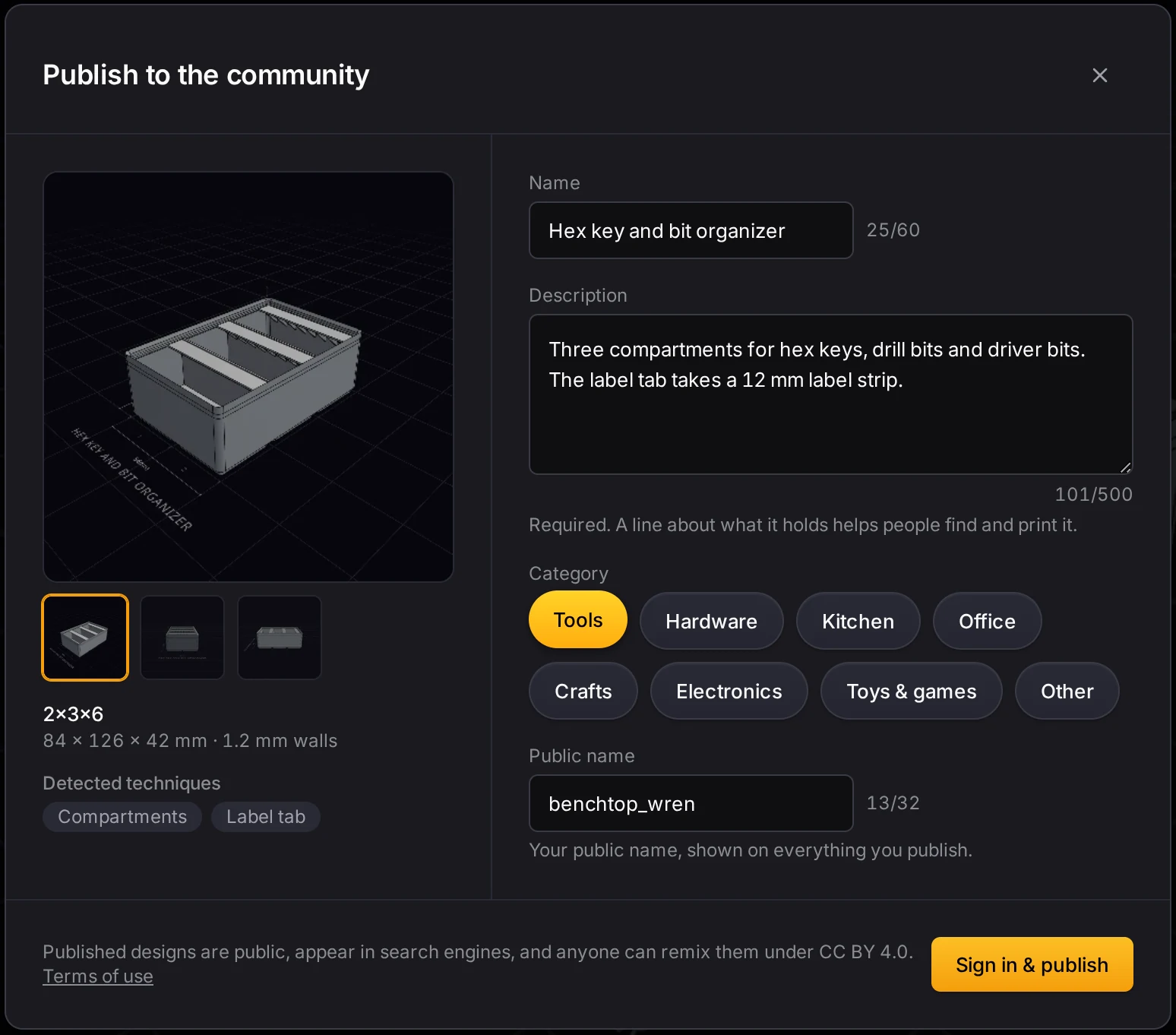
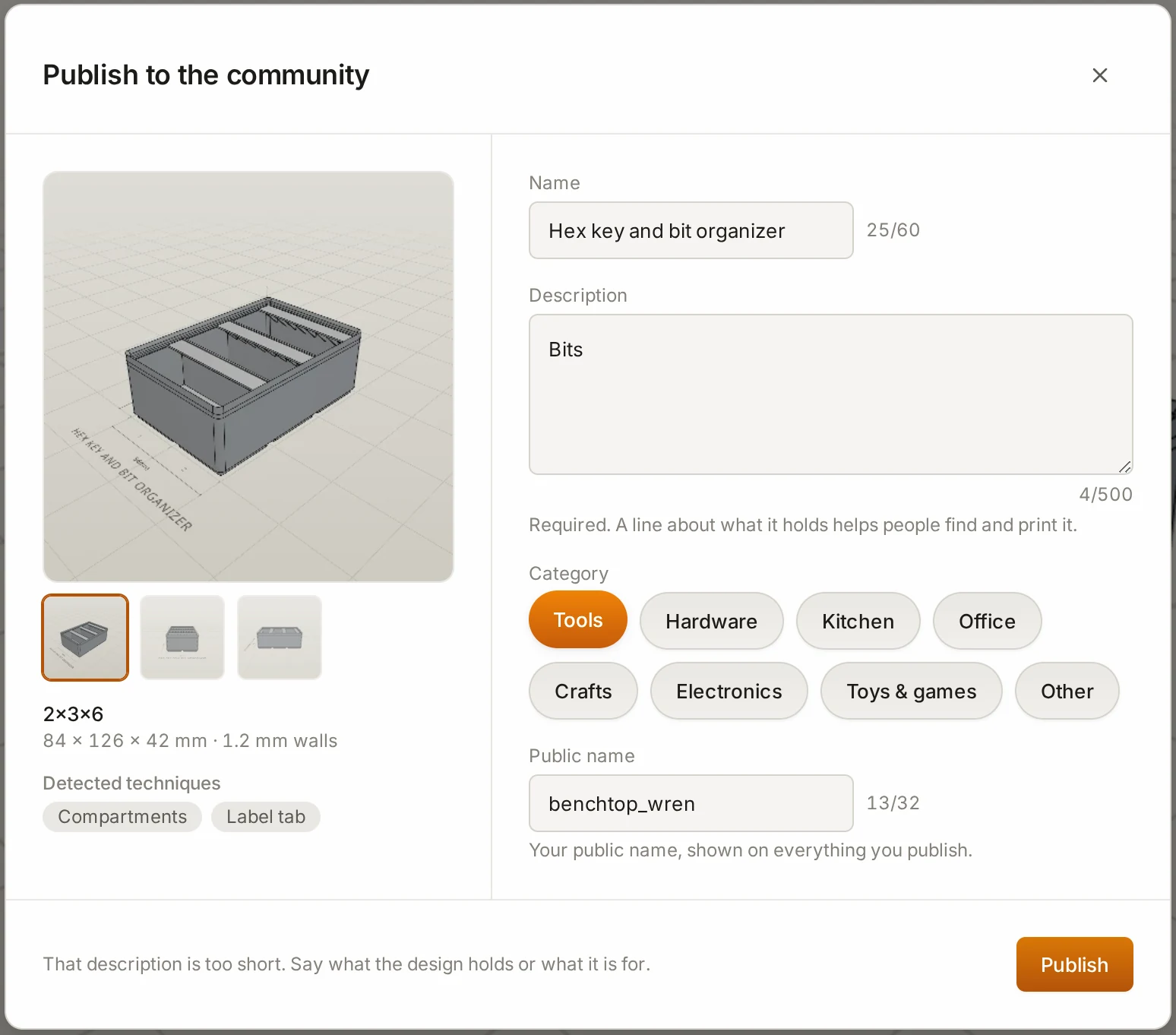
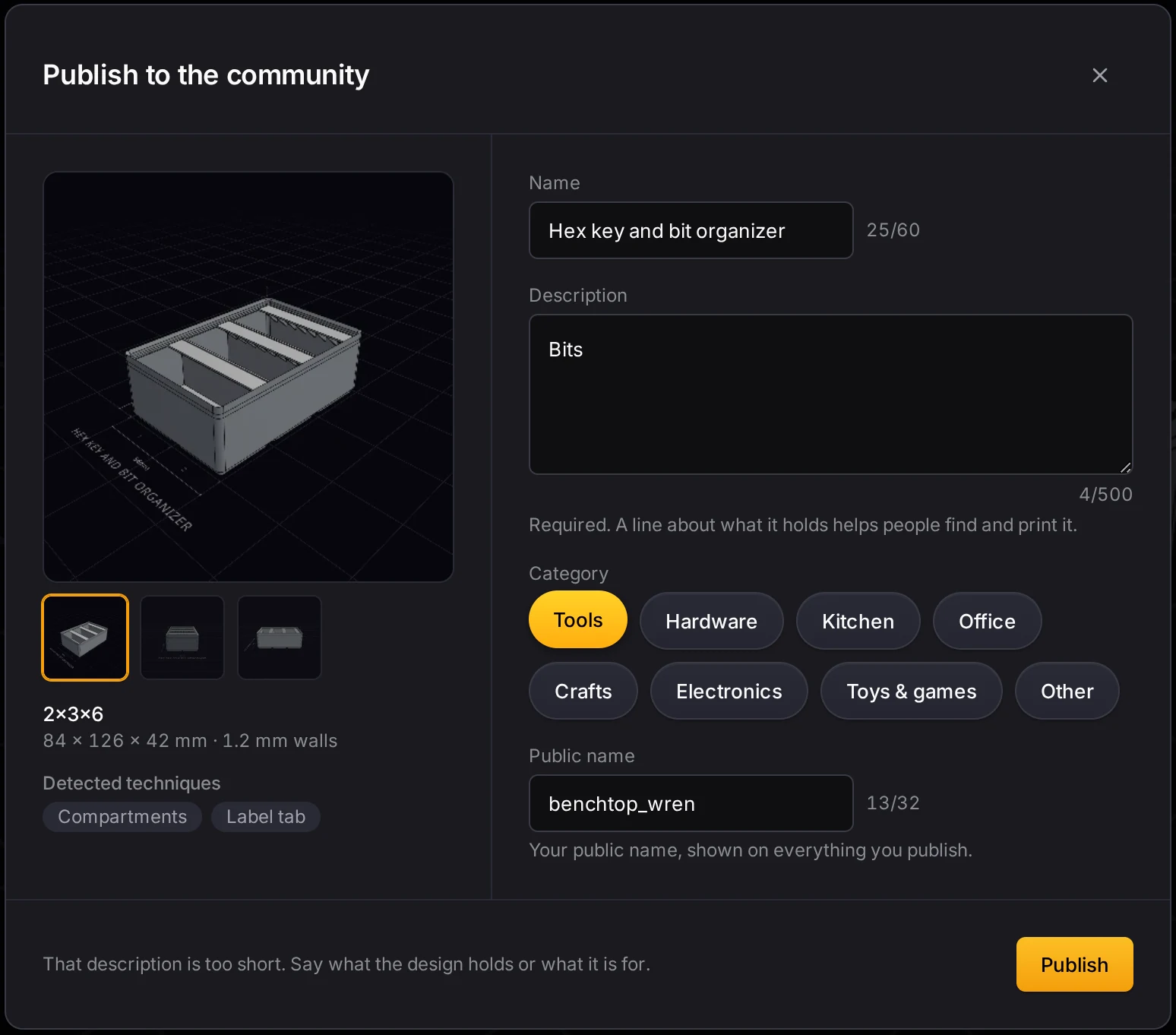
- Open your design in the bin designer, and click Publish in the header.
- Type a Name and a Description. The server checks both (see the table below).
- Pick a Category.
- Check Public name. It shows on all your published designs.
- Click Publish.
Not signed in? The button then reads Sign in & publish. Sign in with Google or GitHub, and the dialog comes back with your text in place. The Layout Tool makes the preview images from the design for you.
The server checks the text before it accepts the design:
| Field | Rule |
|---|---|
| Name | At least 3 characters, and not the default name of a new design. |
| Description | At least 12 characters, with letters and at least 5 different characters. |
| All text | The content filter refuses blocked words. Reword the text and try again. |
The description rule is on by default. The person who runs the server can switch it off.
A few more rules:
- The server refuses a design that is the same as a published design or a built-in example.
- A remix must be different from the design that it copies. The published remix gives credit to the original.
- Each account can have 25 published designs at a time. Unpublish one to make space.
The server can switch publishing off. The dialog then shows Publishing is switched off. Your design stays saved, so you can try again later.
WARNING
Publish only a design that you want to be public. Published designs are public, appear in search engines, and anyone can remix them under CC BY 4.0.
To update a published design, open its page, click Edit original, change the design, and publish again. To take it down, open the menu in the publish dialog and click Unpublish. Remixes that people made from it stay.
Post a print
A print report tells the next maker how a design printed for you. It's a real help to anyone who is about to print the same bin.
- Open the design page and click I printed this. Sign in if the page asks.
- Under Did it fit as designed?, pick one answer:
- Fit as designed
- Fit after adjusting
- Did not fit
- Add a photo, a note, or both. The form needs at least one of them.
- Fill in Settings that worked if you like. All these fields are optional.
- Click Post print.
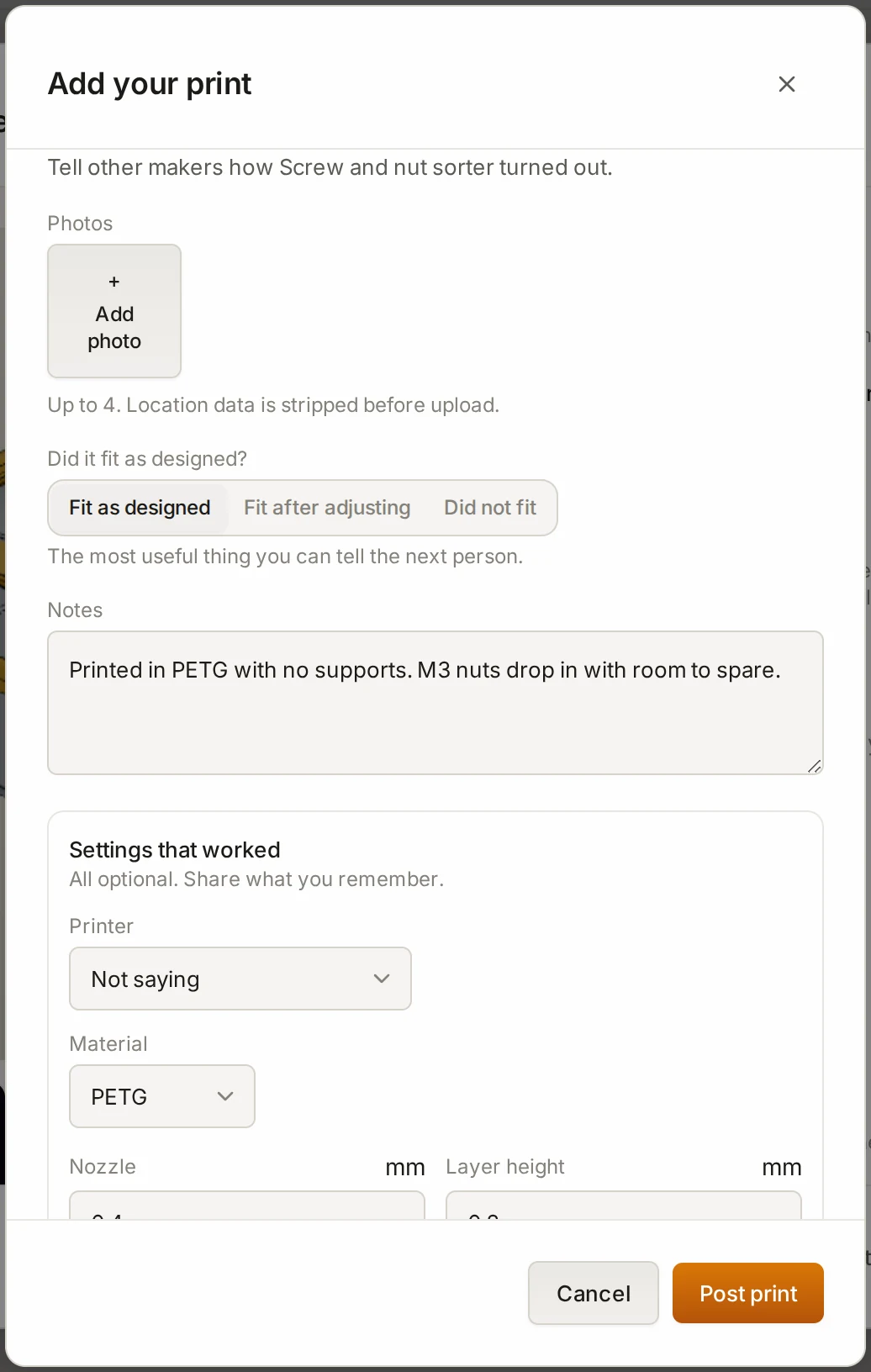
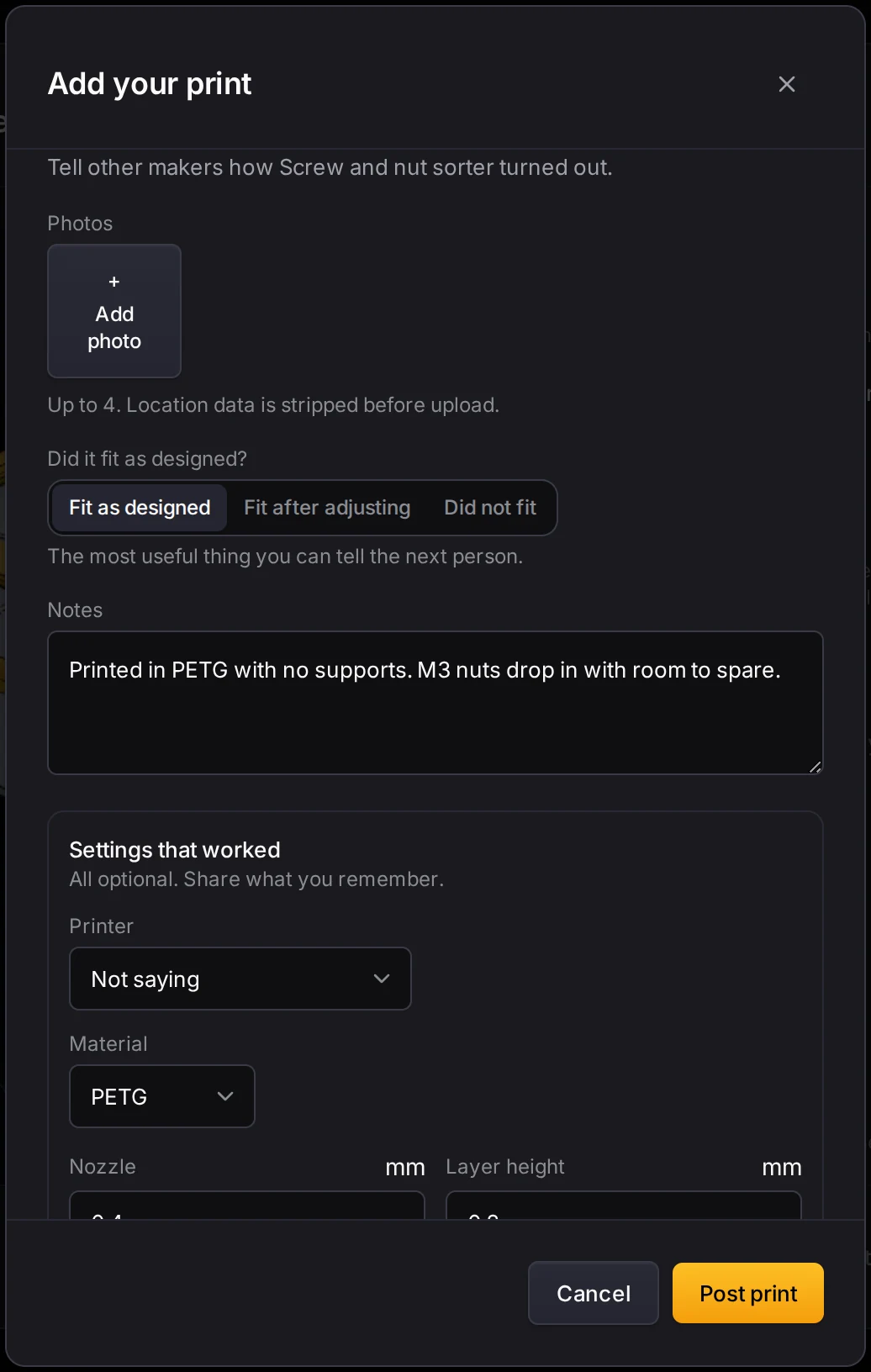
You can post one print for each design, and a new post replaces your old one. After a few people report their prints, the design shows their print times in place of the estimate. See Filament and time estimates.
The Layout Tool shrinks each photo before upload and removes its location data. The owner of a design can use a print photo as the card image.
The server can switch print reports off. The form then tells you that print reports are not available.
Report a design
- On the design page, click Report.
- Pick a Reason:
- Inappropriate content
- Spam
- Doesn't generate correctly
- Stolen work
- Add a note for the moderator if you like.
- Click Submit report.
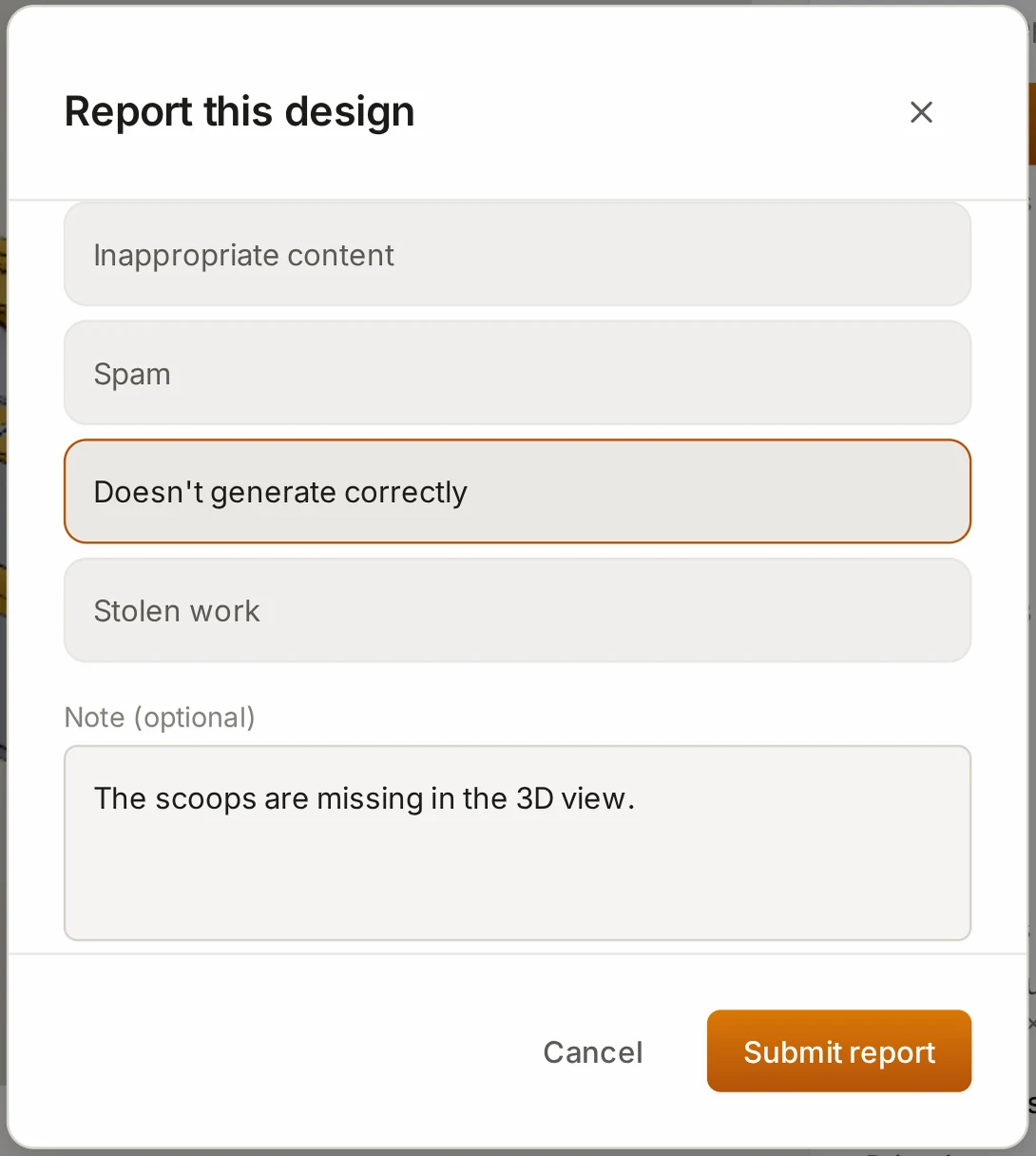
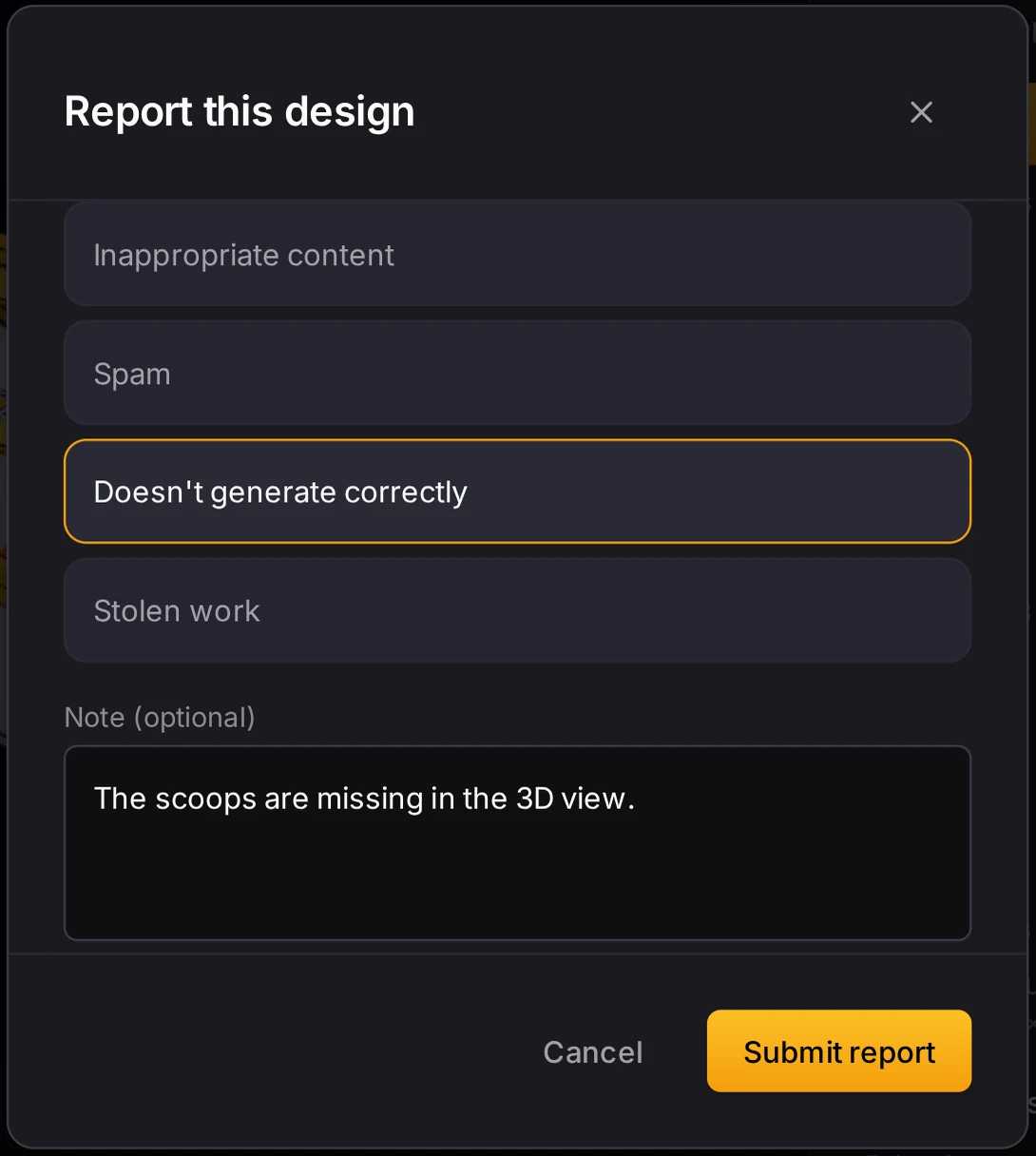
You must sign in to report. When 5 different people report a design, the gallery hides it until a moderator reviews it. To report a single print, use Report this print on that print.
When it goes wrong
Publish won't accept the name or the description
Give the design a name that says what it is, not the default name of a new design. In the description, say what the bin holds or what it's for. If the content filter flags a word, reword the text.
The dialog and the server check the text against the rules in Publish a design. A name with no letters, or with one character over and over, fails even when it's long enough.
The server says that the design is already in the gallery
Change the design before you publish it. For a remix, change something in the copy first.
The server refuses a design that matches a published design or a built-in example. Is the original of your remix gone? Then the dialog offers Publish without the remix link.
You reach the limit of published designs
Open one of your published designs. In the menu of the publish dialog, click Unpublish. Then publish the new one.
Each account can have 25 published designs at a time.
A photo won't attach to your print
Use an image file under 25 MB. If the message says that the image is too detailed, crop it, and add it again.
The Layout Tool shrinks each photo before upload. A very large or very detailed photo can't shrink far enough.
Next steps
- Find bins that fit: see the community designs that fit an empty area of a drawer.
- Save and reuse designs: keep a remixed design in your library.
- Accounts and sync: sign in to publish, like and post prints.
- Share a layout: send a whole layout instead of one design.