
Settings and accessibility
Make the app look and work the way you like. The Settings dialog of the Gridfinity Layout Tool holds the choices that apply to all your work. These include the language, the theme, accessibility, and the values that new layouts and bins start with. Each device keeps its own settings, and an account doesn't sync them.
Open Settings
- Click the gear button (Settings) in the header. It's there in the layout editor, the bin designer and the baseplate generator.
- In the command palette, run Open settings.
Need to find one setting? Type a word in Search settings… at the top of the dialog, for example "dark" or "nozzle". Each result shows the tab that holds it.
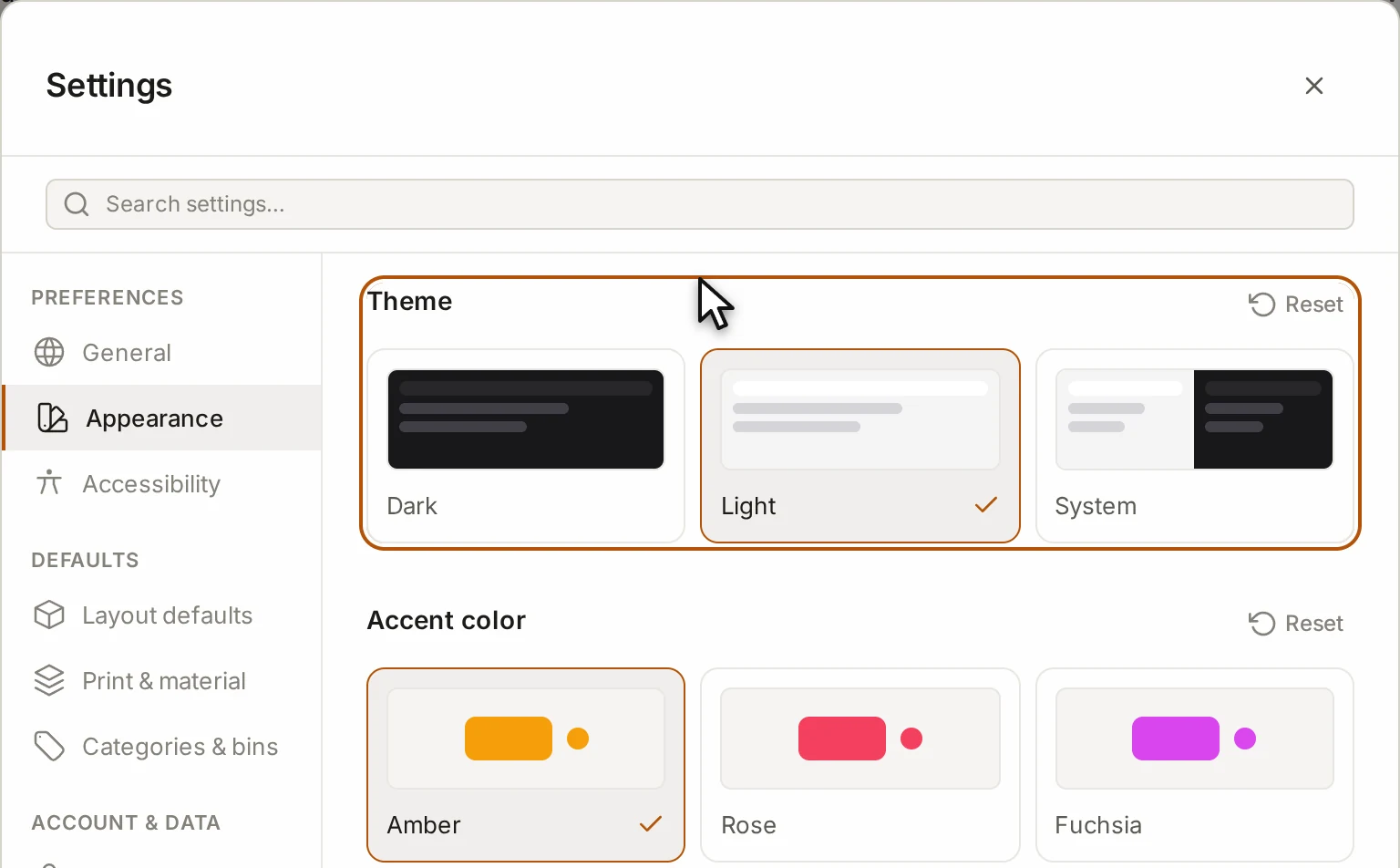
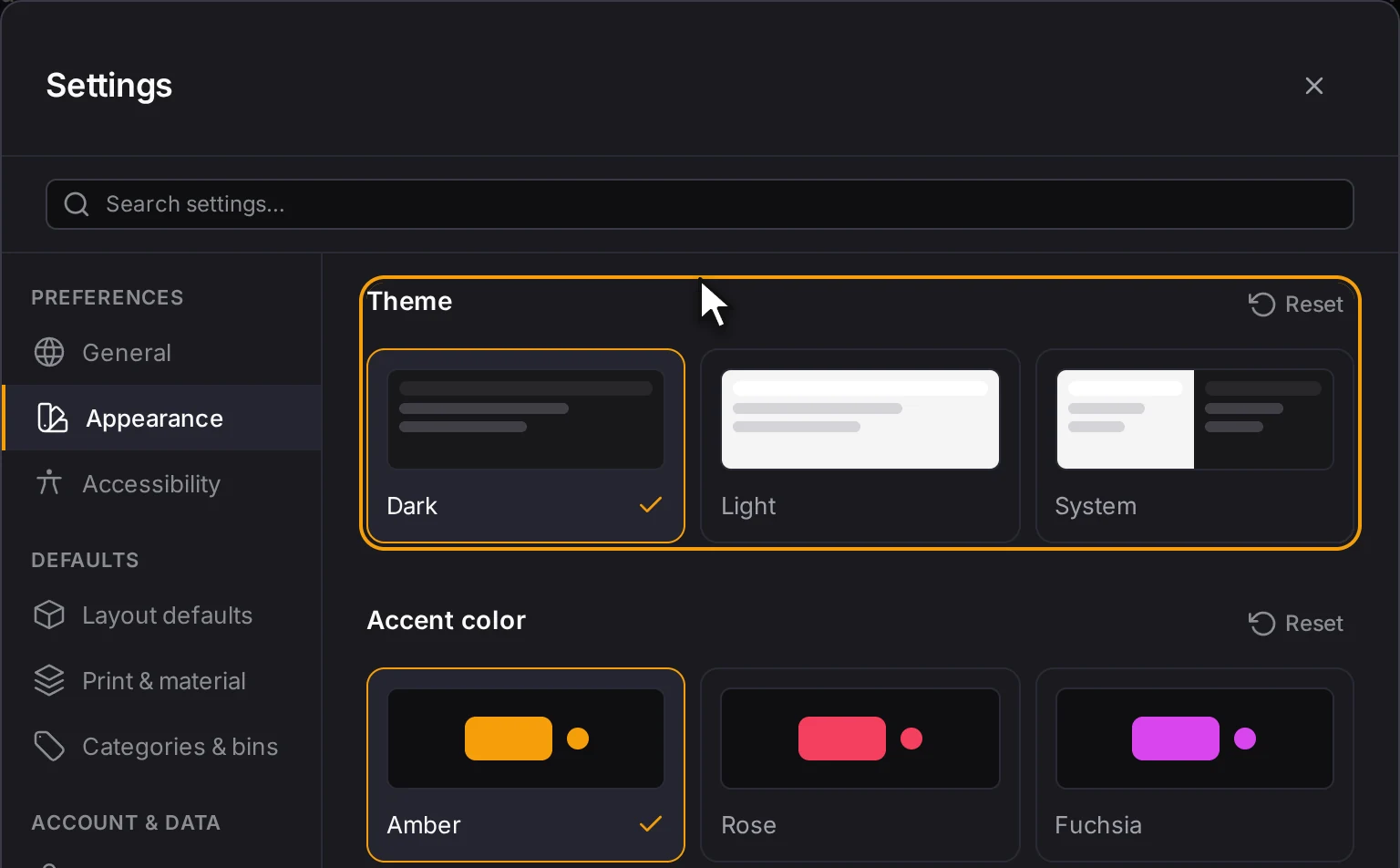
Changed something and want it back? Each section has a Reset button that puts that section back to its defaults. At the bottom of the dialog, Reset all settings puts every setting back to its default, and you can't undo it. Reset onboarding shows the first-time tutorial again after a reload.
Preferences
The General tab:
| Setting | What it does |
|---|---|
| Language | Auto (browser default) follows your browser. You can also pick one of 16 languages. |
| Show update summaries | Shows a short summary of the changes after an update. The sidebar marks new items either way. |
| Install app | Installs the Layout Tool as an app with its own window. See Install and work offline. |
| SpaceMouse | Turns on a 3Dconnexion SpaceMouse. See SpaceMouse. |
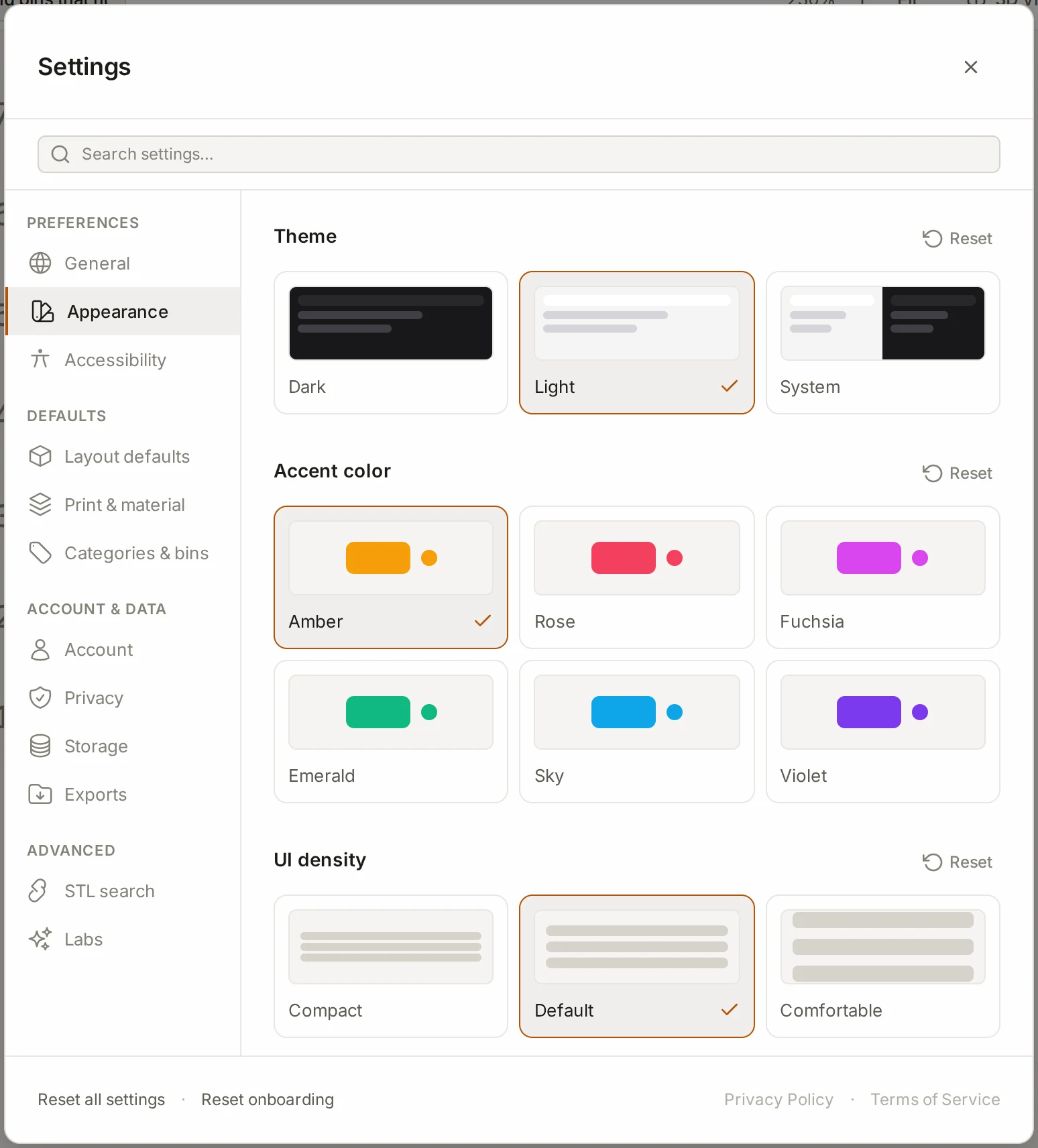
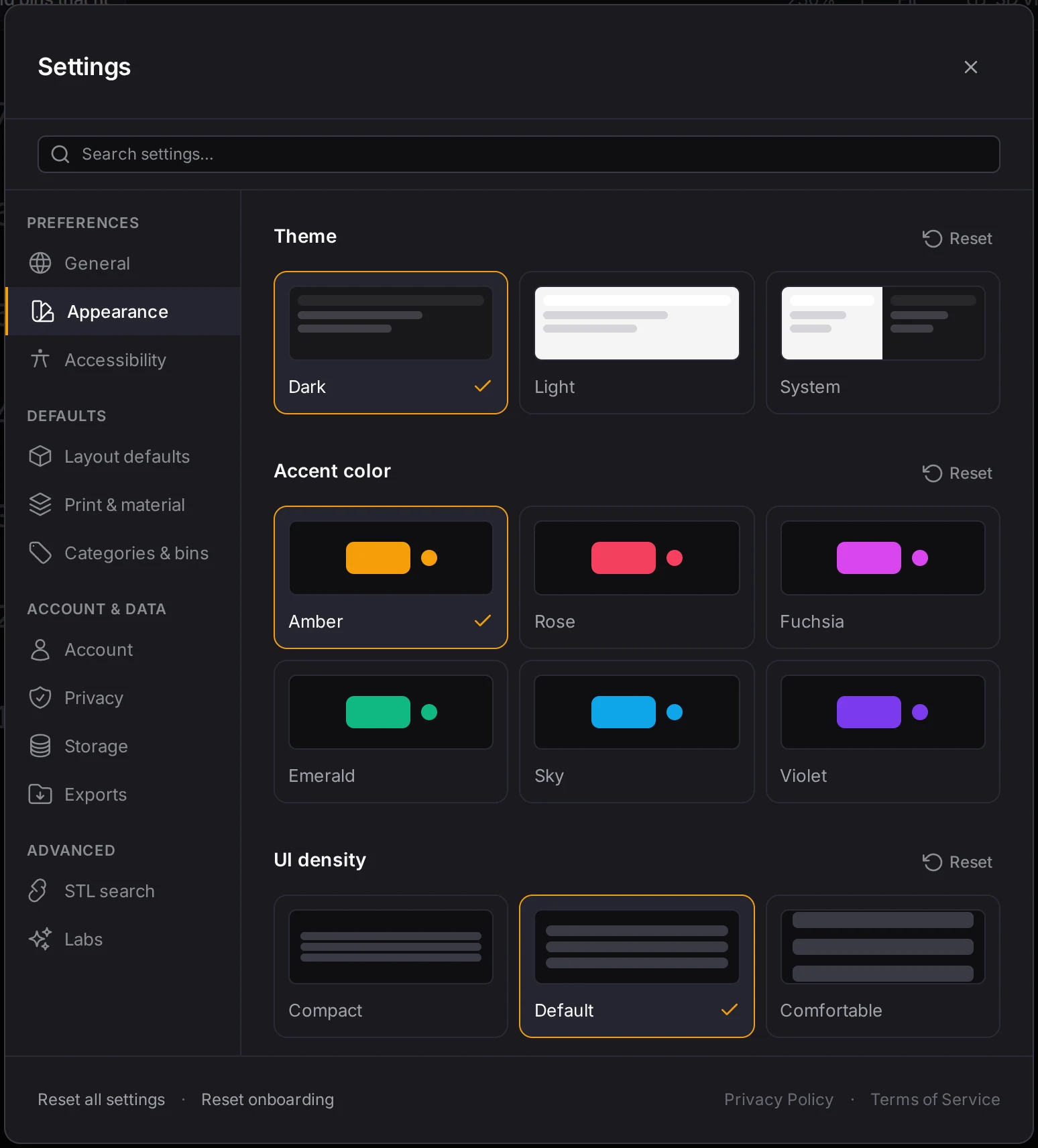
The Appearance tab:
| Setting | What it does |
|---|---|
| Theme | System follows your computer. Pick Dark or Light to keep one look. |
| Accent color | The color of buttons and other controls. Pick one of six colors. |
| UI density | The spacing and the text size. Compact fits more on the screen. Comfortable gives more room and larger text. Default sits between them. |
Accessibility
The Accessibility tab has three switches:
| Setting | What it does |
|---|---|
| Reduce motion | Minimize animations and transitions. |
| High contrast | Strengthen borders, focus rings, and text contrast. |
| Distinguish categories by pattern | Add a pattern to each category so bins are not told apart by color alone. |
If some category colors look alike to you, turn on Distinguish categories by pattern. See Categories.
Most dialogs, menus and lists also work from the keyboard. See Keyboard and command palette.
Defaults
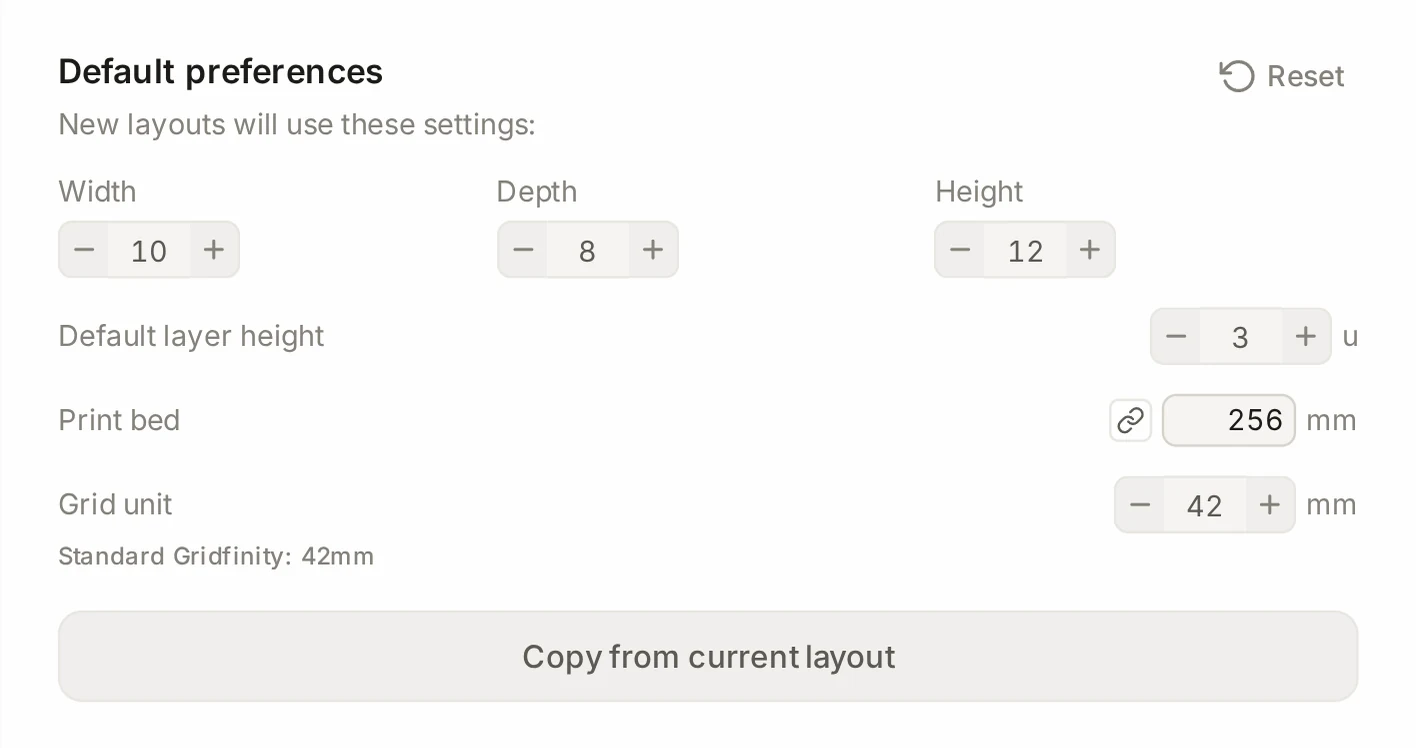
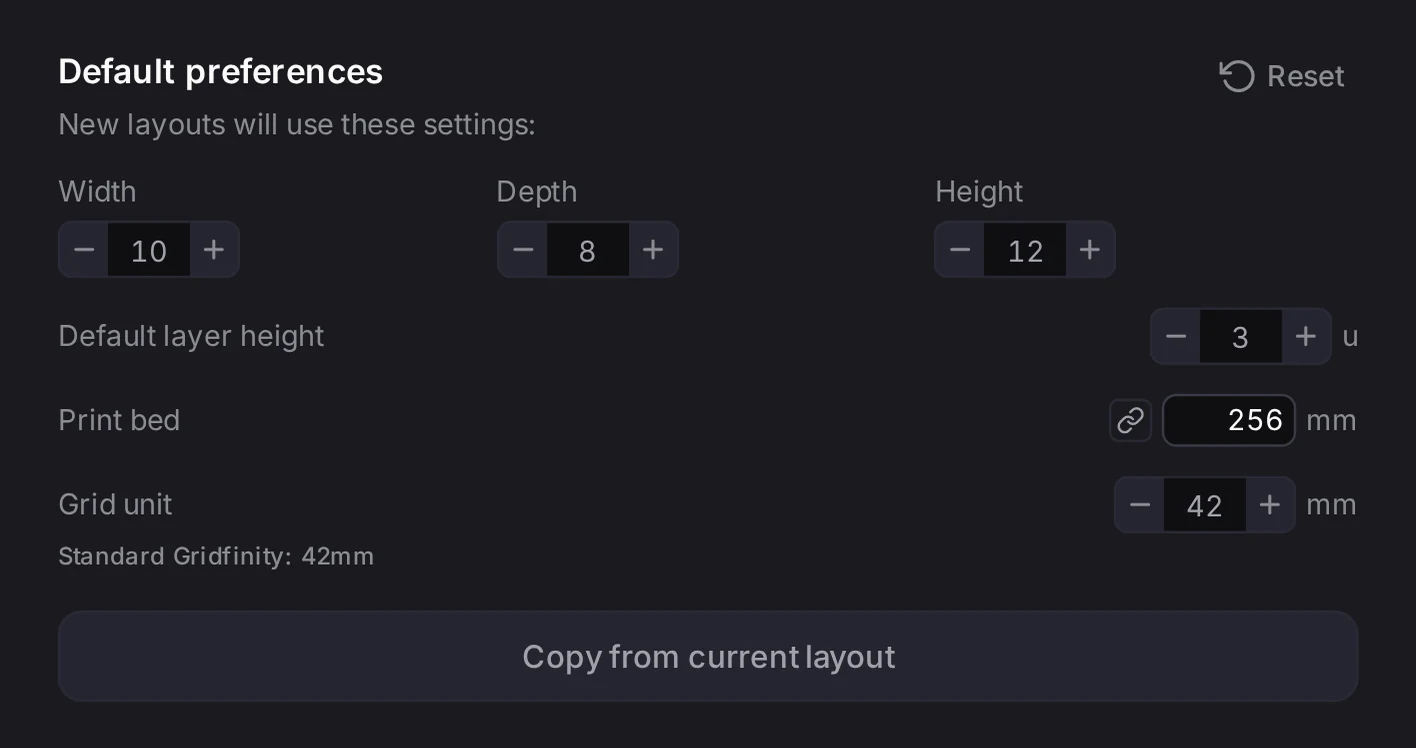
These tabs set the values that a new layout or a new bin starts with. Your existing layouts don't change.
Layout defaults has these settings:
| Setting | Unit |
|---|---|
| Drawer width, depth and height | Grid units for width and depth, height units for height |
| Default layer height | Height units |
| Print bed | Millimeters |
| Grid unit | Millimeters, from 20 to 60. Standard Gridfinity is 42. |
Not sure about the grid unit? Keep 42 mm, unless your other parts use a size that is not standard. After you set up one drawer the way you like, Copy from current layout copies these values from the open layout. See Units.
Print & material holds the values that the print estimates use. Set them to match your slicer profile:
- Filament cost
- Layer height (slicer)
- Infill
- Nozzle size: connectors, wall locks and baseplate clips scale to it, so they still print on wider nozzles.
See Estimates.
Categories & bins has two sections:
- Default categories sets the categories of a new layout. Click Save current categories as defaults to use the categories of the open layout.
- New bin defaults shows if new bins in the bin designer start from your own defaults. To set them, run Set current settings as default for new bins in the command palette.
Account and data
| Tab | What it holds |
|---|---|
| Account | Sign-in, sync state, sign-out and account deletion. See Accounts and sync. |
| Privacy | Help improve suggestions: Share bin sizes and placement patterns (no personal data). If your browser sends a privacy signal, it starts off. |
| Storage | The storage state, the number of layouts and the database size. Clear all data is here too. |
| Exports | Save to a folder puts exports in a folder, not in Downloads. Send to a URL also sends a copy of each export to an address. |
WARNING
Back up your layouts before you click Clear all data. It deletes all layouts, snapshots and cached data in this browser, and you can't undo it. Your settings, your saved bin designs and your saved baseplates stay.
Advanced
| Tab | What it holds |
|---|---|
| STL search | The websites that STL search looks at for Gridfinity files. |
| Labs | Early features that you can turn on. See Labs. |
When it goes wrong
You change a default, but the open layout stays the same
Change the value in the layout itself. Set the grid size in the layout editor. Set the grid unit and the print bed size in Physical units of the baseplate generator.
The values on the Layout defaults tab apply only when you make a new layout. Each layout keeps its own grid unit and print bed size after that.
The storage status says that capacity is limited
Keep a copy of your work first. Sign in to sync it, or save each layout as a file. Then work in a different browser.
This browser doesn't support the large database that holds your layouts. So the Layout Tool falls back to about 5 MB of storage.
Next steps
- Keyboard and command palette: run any command without the mouse.
- Labs: try the early features.
- Your data and privacy: what the browser stores and how to back it up.
- Install and work offline: use the Layout Tool without a connection.