
SpaceMouse
Do you have a 3Dconnexion SpaceMouse on your desk? The Gridfinity Layout Tool can use it to move the camera in its 3D previews. Push, tilt and twist the puck to pan, zoom and orbit around a bin or a baseplate, while your other hand stays on the mouse. The SpaceMouse support is off until you turn it on.
Turn it on
- Open Settings and select General.
- In the SpaceMouse section, turn on Use a SpaceMouse.
- Look at the status line below the switch. If it shows No device connected, click Connect.
- In the browser dialog, pick your SpaceMouse and allow the connection.
While the switch is off, the Layout Tool doesn't look for a driver or a device. The switch applies to all open tabs of the Layout Tool.
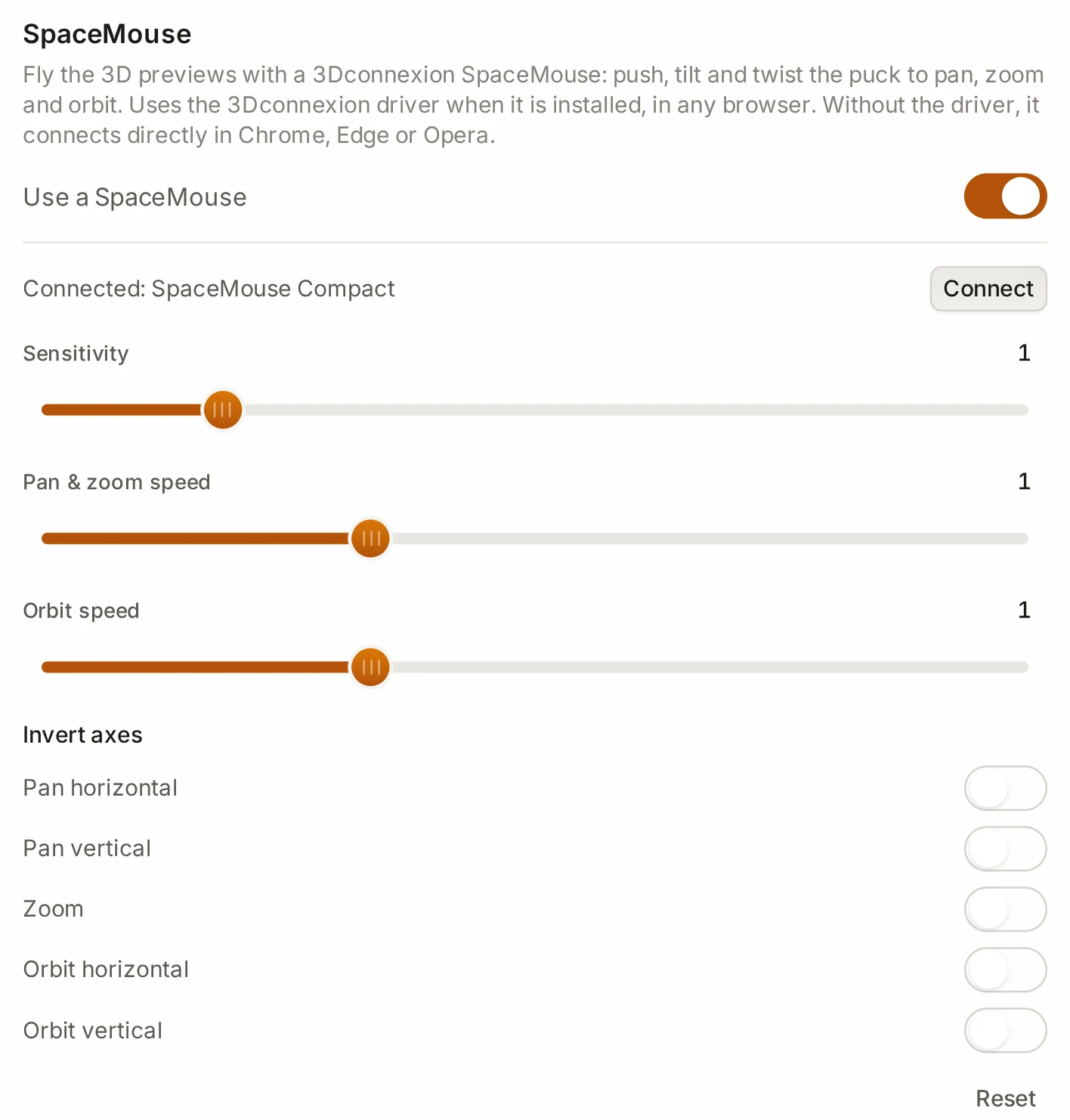
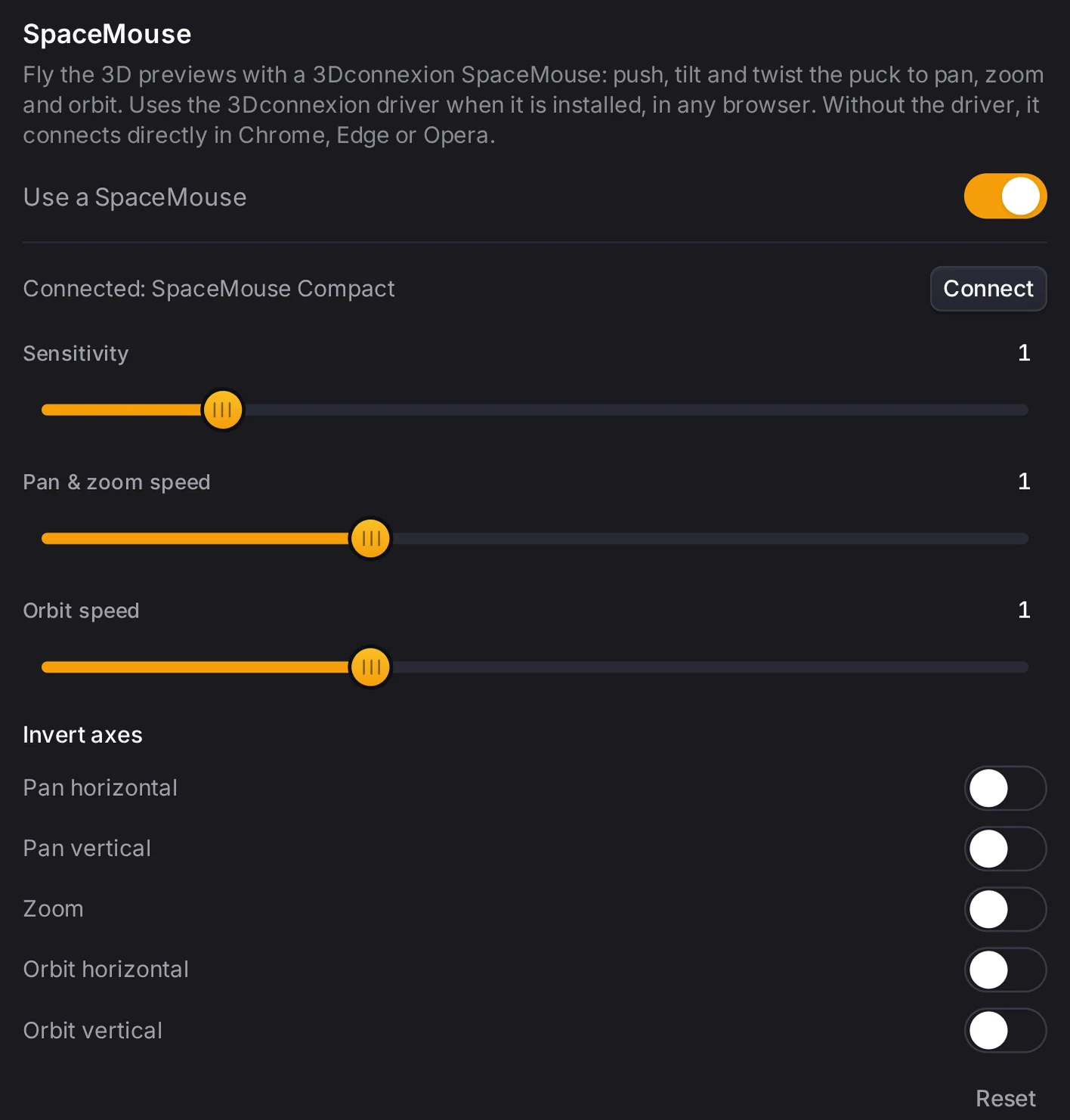
Driver or direct connection
The Layout Tool can connect to the SpaceMouse in two ways, and it tries the driver first.
| Connection | When the Layout Tool uses it | Browsers | Where you set speed and axes |
|---|---|---|---|
| 3Dconnexion driver | The 3Dconnexion driver is installed and runs on the computer | Any browser | The 3Dconnexion control panel. Settings shows Speed and axis direction are set in the 3Dconnexion control panel. |
| Direct | No driver answers | Chrome, Edge or Opera | Settings in the Layout Tool |
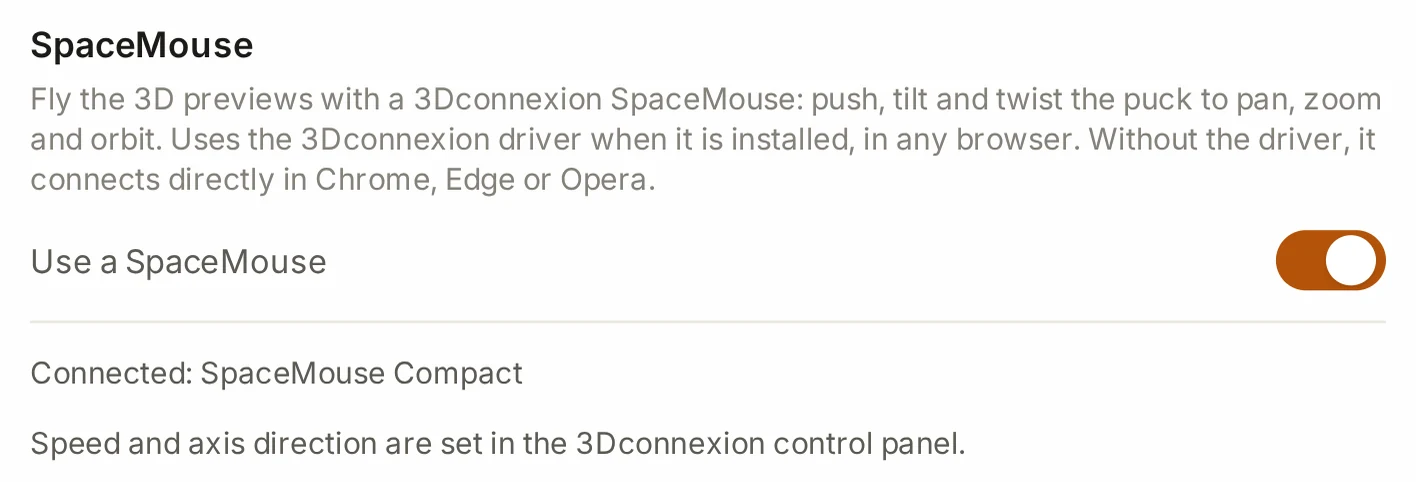
If the status shows Needs a Chromium browser, this browser can't make a direct connection. Install the 3Dconnexion driver, or use Chrome, Edge or Opera. If the driver stops, the Layout Tool changes to the direct connection.
After the first pairing, the direct connection finds the same device again by itself. If the status shows Connection failed, click Connect to try again.
Adjust the movement
With the direct connection, the SpaceMouse section has these controls:
| Control | What it changes |
|---|---|
| Sensitivity | The speed of all movement, on top of the two speeds below |
| Pan & zoom speed | The speed of pan and zoom |
| Orbit speed | The speed of orbit |
| Invert axes | Five switches. Each one reverses one direction of movement. |
The five Invert axes switches are:
- Pan horizontal
- Pan vertical
- Zoom
- Orbit horizontal
- Orbit vertical
Not sure where to start? Keep the defaults, move the puck a little, and then change one control at a time. Reset puts all of them back to the defaults.
What it moves in each tool
The SpaceMouse moves the camera of one 3D view at a time:
| Tool | 3D view |
|---|---|
| Layout editor | The 3D preview of the layout |
| Bin designer | The preview of the bin, and the Workshop view |
| Baseplate generator | The preview of the baseplate |
| Dialogs | The 3D view in a dialog, for example a community design or an STL import |
When a dialog with a 3D view is open, the SpaceMouse moves that view. If not, it moves the view that your mouse pointer was over last. It moves nothing while the browser window doesn't have the focus. Each view keeps its own limits, so the camera can't orbit past the angles that the view allows.
The buttons
With the direct connection, the buttons do these actions:
| Button | Action |
|---|---|
| 1 | Fit the model in the view |
| 2 | Reset the view |
| 3 | Top view |
| 4 | Front view |
| 5 | Right view |
| 6 | Isometric view |
| 7 | Undo |
| 8 | Redo |
Every SpaceMouse has buttons 1 and 2, and the larger models have the others too. With the driver, assign these same actions to the buttons in the 3Dconnexion control panel. The Fit button of the puck works without an assignment.
When it goes wrong
The puck moves nothing
Click inside the Layout Tool window, then move the mouse pointer over the 3D view that you want to move. Is a dialog with a 3D view open? Then the puck moves that view.
The SpaceMouse moves nothing while another window is in front, even when you can see the Layout Tool behind it.
The SpaceMouse doesn't connect
Read the status line below the switch:
| Status | What to do |
|---|---|
| Needs a Chromium browser | Install the 3Dconnexion driver, or open the Layout Tool in Chrome, Edge or Opera. |
| Connection failed | Click Connect, and pick your SpaceMouse in the browser dialog. |
| No device connected | Click Connect, and allow the connection. |
The speed and invert controls are missing
Set the speed and the axes in the 3Dconnexion control panel.
The 3Dconnexion driver runs the device, so its control panel holds these settings. Settings in the Layout Tool shows them only with the direct connection.
Next steps
- Preview and export: what the 3D preview shows.
- Settings and accessibility: the other tabs in Settings.
- Keyboard shortcuts: the keys for the 3D preview.