
Keyboard and command palette
Do you know what you want to do, but not where the button is? Press Ctrl+K and type it. The command palette of the Gridfinity Layout Tool finds any layout command from part of its name. With the palette and the keyboard controls on this page, you can plan a drawer with very few mouse clicks. For every shortcut, see Keyboard shortcuts.
Open the command palette
- Open the layout editor.
- Click the grid or an empty part of the page, so that no text field has the focus.
- Press Ctrl+K, or Cmd+K on a Mac.
The palette works in the layout editor on a computer or a tablet. It doesn't open in the bin designer, in the baseplate generator, or on a phone.
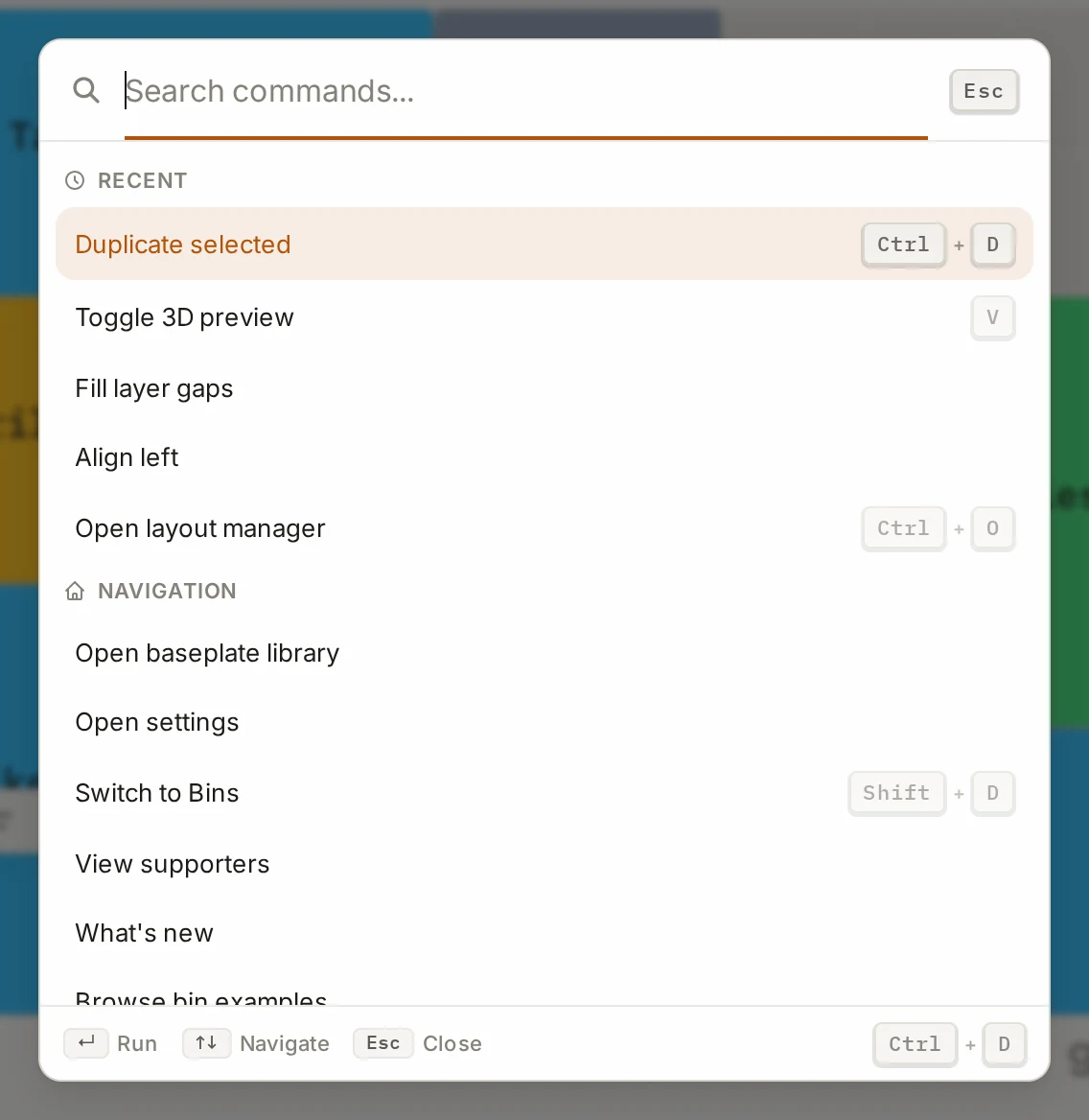
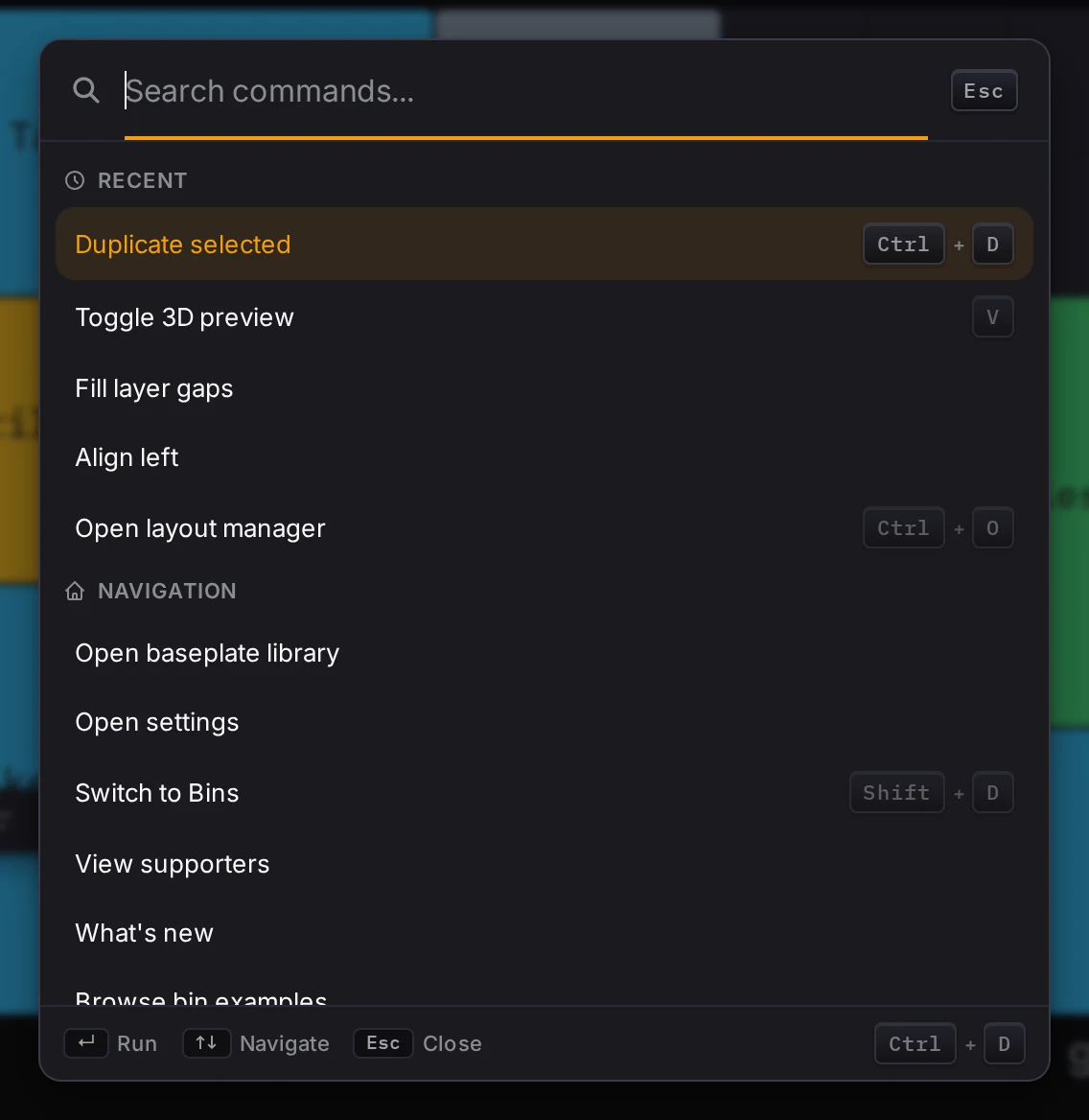
Find and run a command
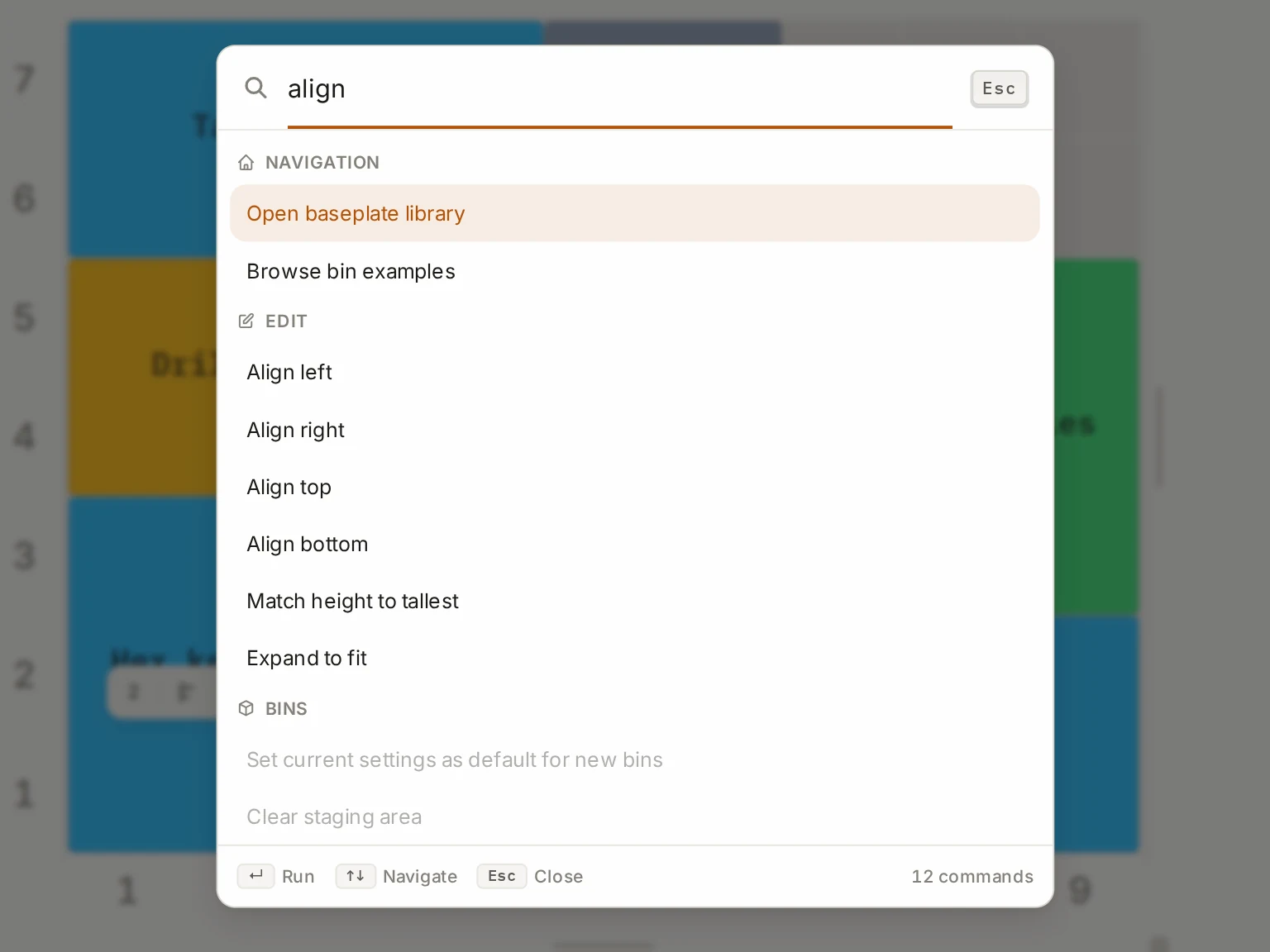
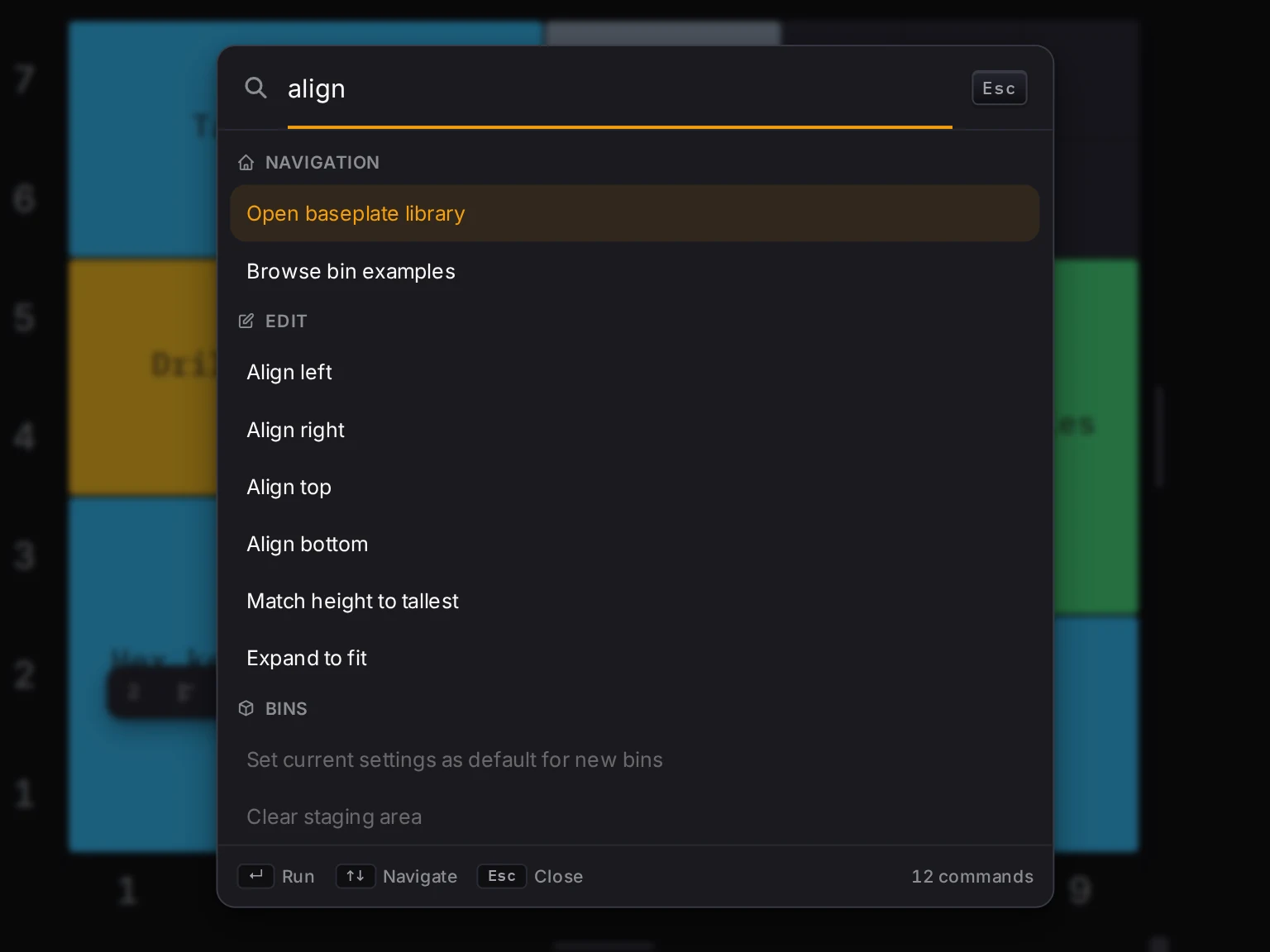
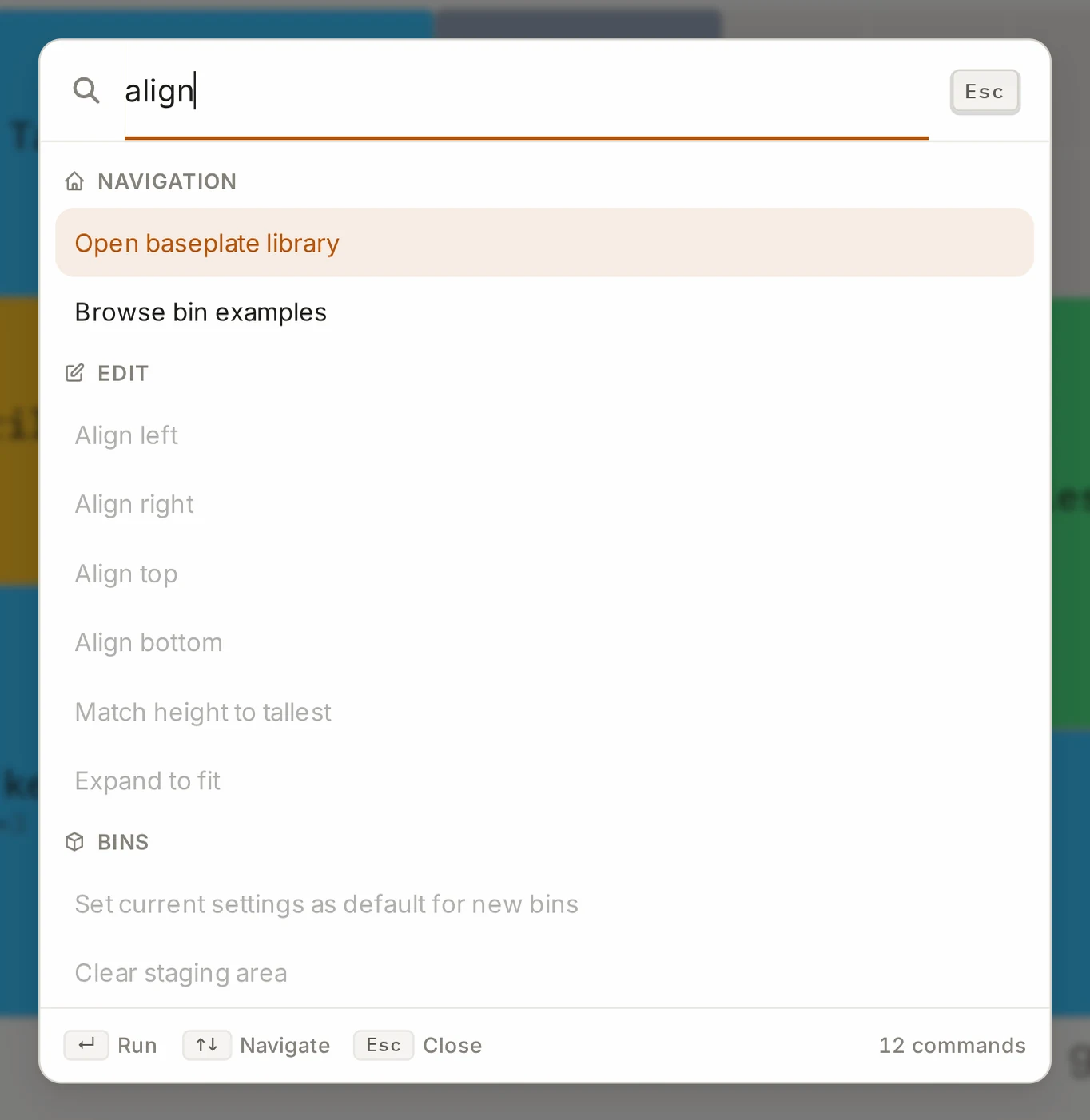
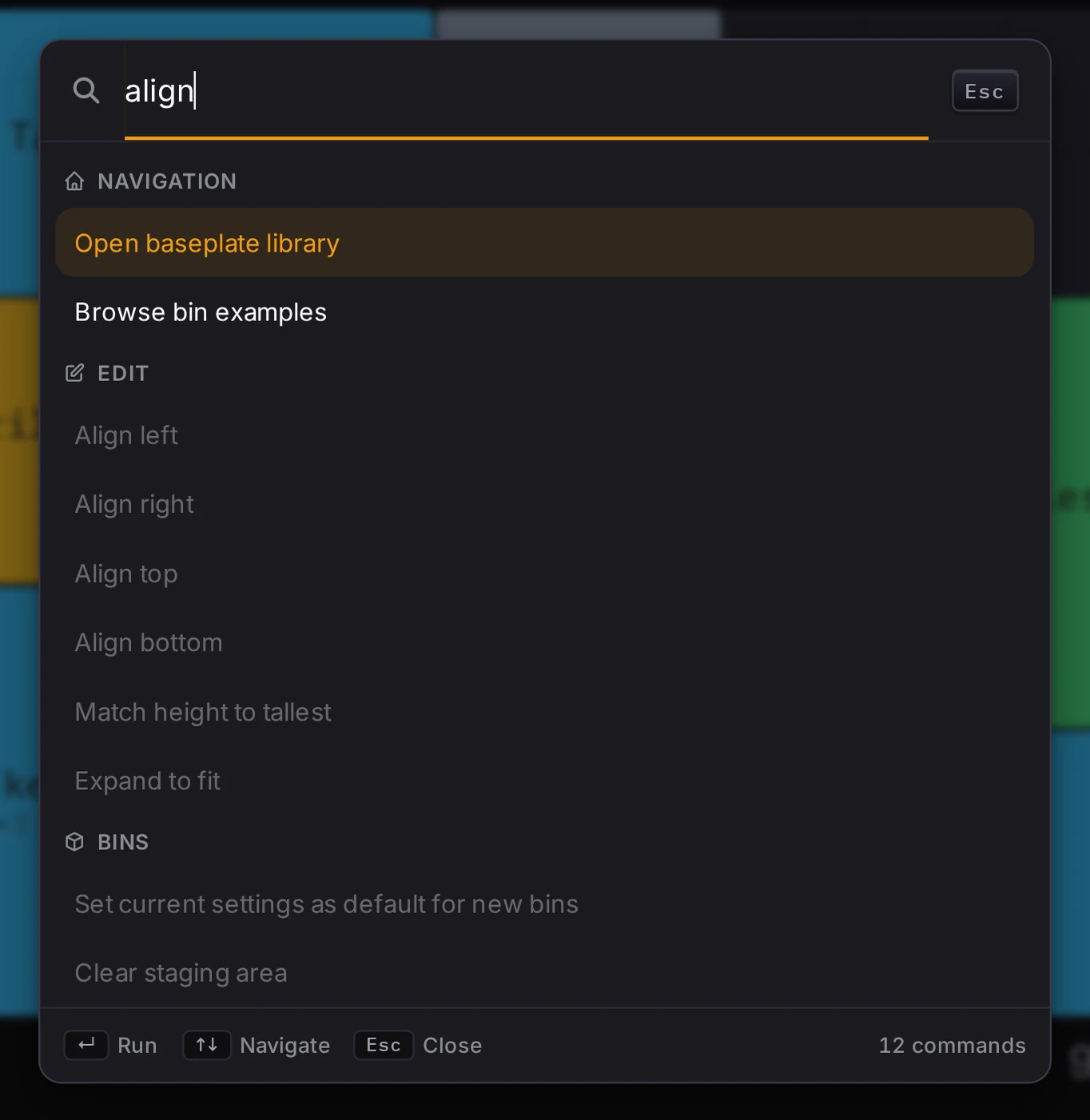
Type part of a command name in Search commands.... The list gets shorter as you type.
| Key | Action |
|---|---|
| ↑ and ↓ | Move to the previous or next command |
| Enter | Run the selected command |
| Esc | Close the palette |
A command that has a shortcut shows its keys on the right. Look there to learn the shortcuts of the commands that you use often.
What the palette finds
The palette sorts the commands into groups:
| Group | Examples |
|---|---|
| Navigation | Open layout manager, Open settings, What's new |
| Edit | Duplicate selected, Align left, Match height to tallest |
| Layers | Add layer, Go to layer above, Clear active layer |
| View | Zoom in, Fit to screen, Toggle other layers |
| 3D Preview | Toggle 3D preview, Expand/collapse preview |
| Bins | Select next bin, Move to stash, Restore all from staging |
| Tools | Fill layer gaps, Toggle paint mode, Toggle half-bin mode |
| Export | Export layout as ZIP (3D), Download layout, Copy share link |
The Recent group at the top shows up to five commands. It picks them from how often and how recently you used each command, and from what you do at the moment. For example, while bins are selected, the align and delete commands move up, if you used them before. A command that can't run at the moment stays in its group, but you can't select it.
With the Places feature from Labs turned on, the palette also finds bins by what they hold, in all your layouts. These results show above the commands. Select one to open its layout and select the bin.
Search from the help dialog
Press ? or / to open Keyboard shortcuts. Type in Search shortcuts and features... to find a shortcut or a feature. No match? Click Search all commands instead, and the command palette opens with the same words.
Move through menus and panels
Most controls in the Layout Tool work from the keyboard. Press Tab to go to the next control, and Shift+Tab to go back.
| Control | Keys |
|---|---|
| Menus | The first item gets the focus. ↑ and ↓ move through the items and wrap at the ends. Home and End go to the first and last item. Esc or Tab closes the menu. |
| Tabs and segmented buttons | The arrow keys move to the next or previous option. Home and End go to the first and last option. |
| The tab list in Settings | ↑ and ↓ move through all the tabs, across the groups. |
| Dialogs | The focus stays in the dialog. Esc closes it. |
In the layout editor, a Skip to grid planner link shows when it gets the keyboard focus. Press Enter on it to jump to the grid. On the grid, the arrow keys move the selected bins. See Keyboard shortcuts for all grid keys.
In the bin designer, the search box at the top of the panel finds a setting by name. Type a word, pick a match with ↑ and ↓, and press Enter to jump to that setting. Esc clears the search.
When it goes wrong
The command palette doesn't open
Click an empty part of the grid, then press the keys again. Not in the layout editor? Click Layout first.
The palette ignores Ctrl+K while a text field has the focus. It also doesn't open in the other tools.
A command is gray, and you can't select it
Select the bins that the command works on, then open the palette again.
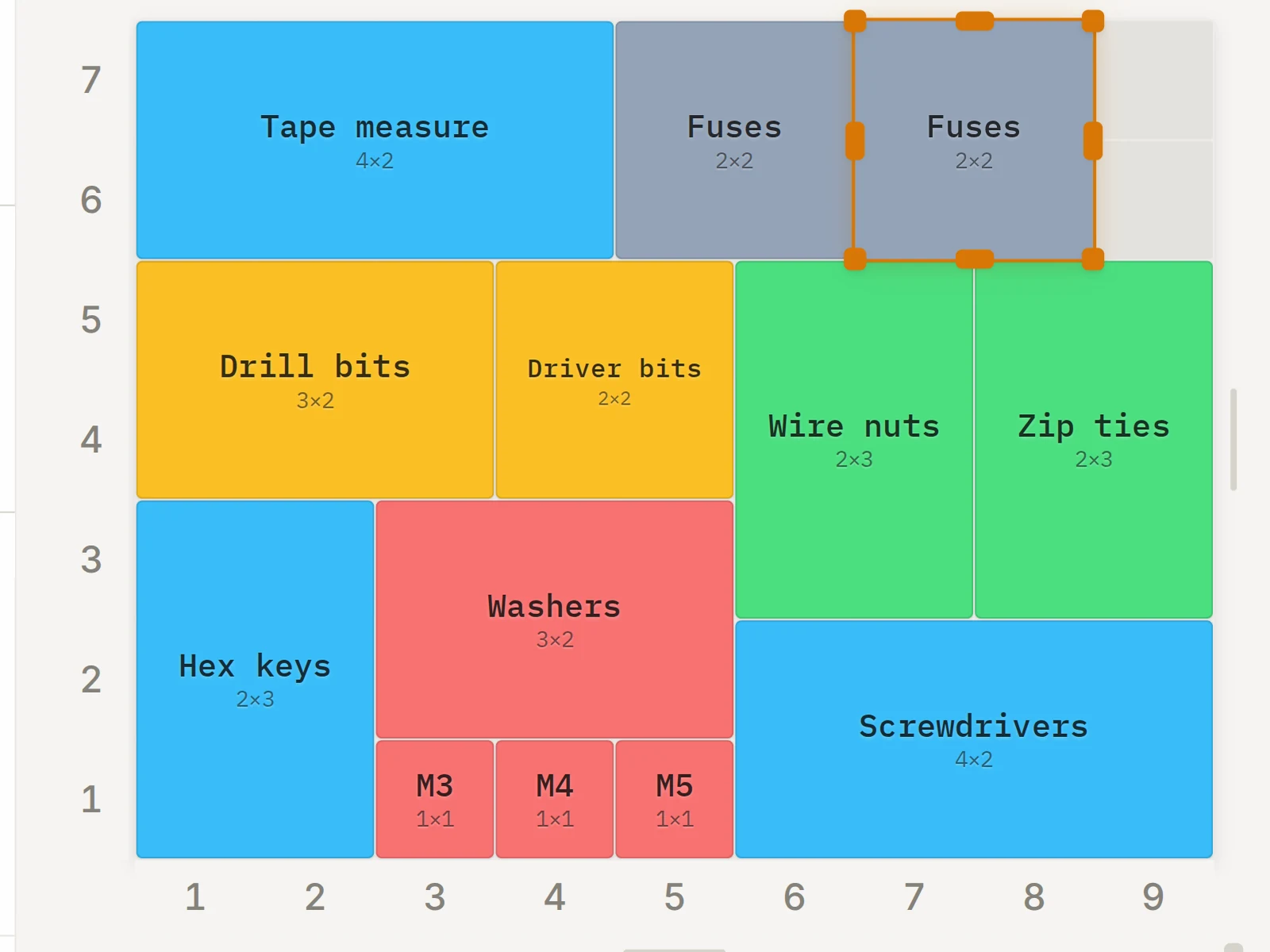
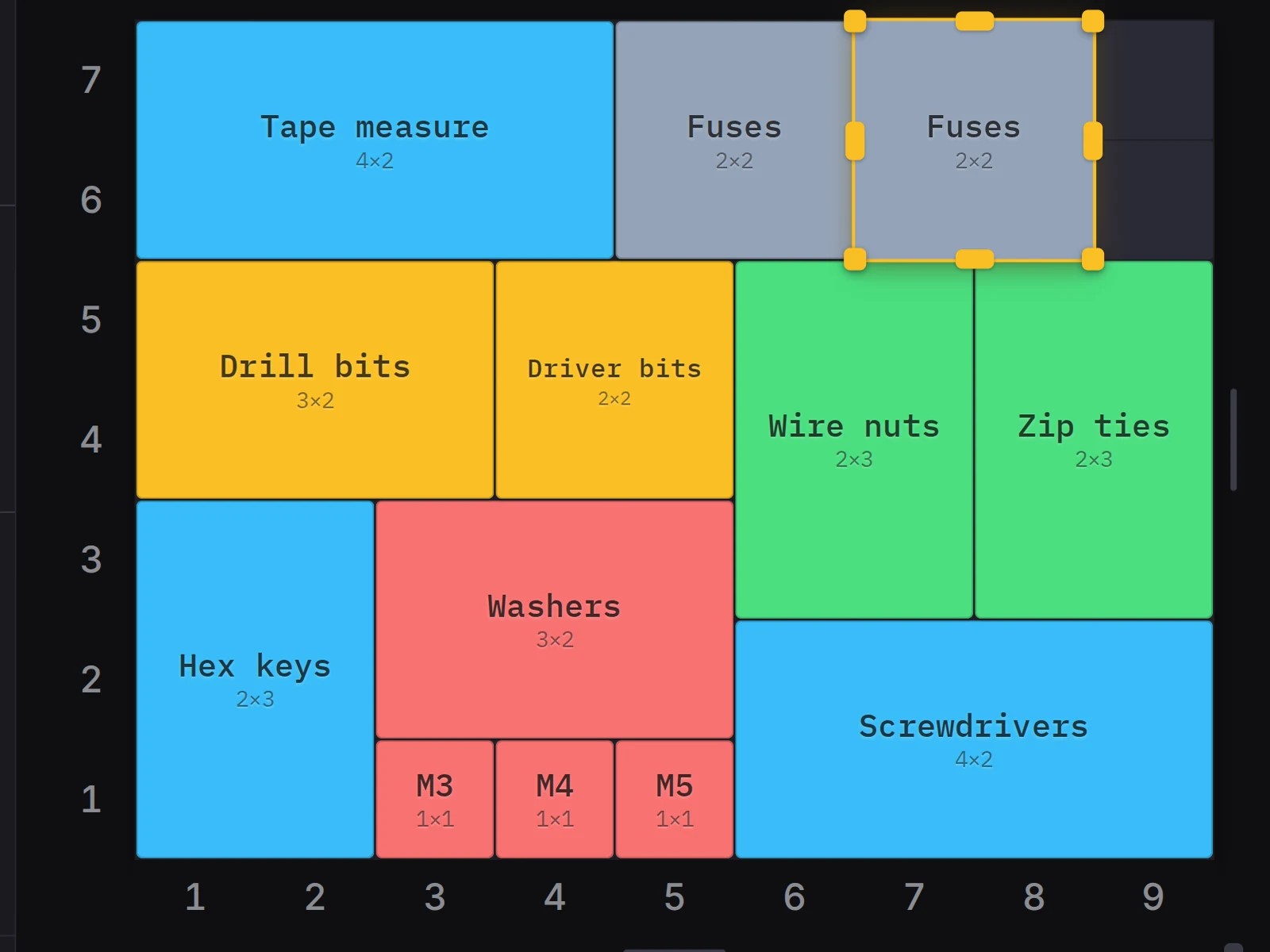
Most bin commands need a selection. Duplicate selected needs one bin or more. The align commands and Match height to tallest need two or more. Rotate bin needs exactly one bin, with no size lock.
Next steps
- Keyboard shortcuts: the full table of shortcuts in each tool.
- Settings and accessibility: reduce motion, high contrast and patterns for categories.
- Work with several bins: select many bins, then align or move them with commands.