
Bin design file format
A bin design file is a JSON text file that holds one design from the bin designer of the Gridfinity Layout Tool. It stores every setting of the bin, so you can open it again later and carry on with the design. It is not a printable model. To print, export an STL, 3MF or STEP file.
Use a design file to back up a design, send it to a friend, or move it to a different browser. The published schema is at gridfinitylayouttool.com/schema.
Export a design file
Export a design file from the export dialog of the bin designer, or from the menu of a design in Saved designs. Save and reuse designs gives the steps.
The file takes the name of the design. If the design has an imported STL shape, the file holds a copy of it. You don't need to send any other files.
INFO
A Workshop build has no design file. The Download JSON item shows only for bin designs.
The file always holds a standard base. If the design uses a low-profile base, the export removes it, and the layout that you import the design into sets the base profile again.
Import a design file
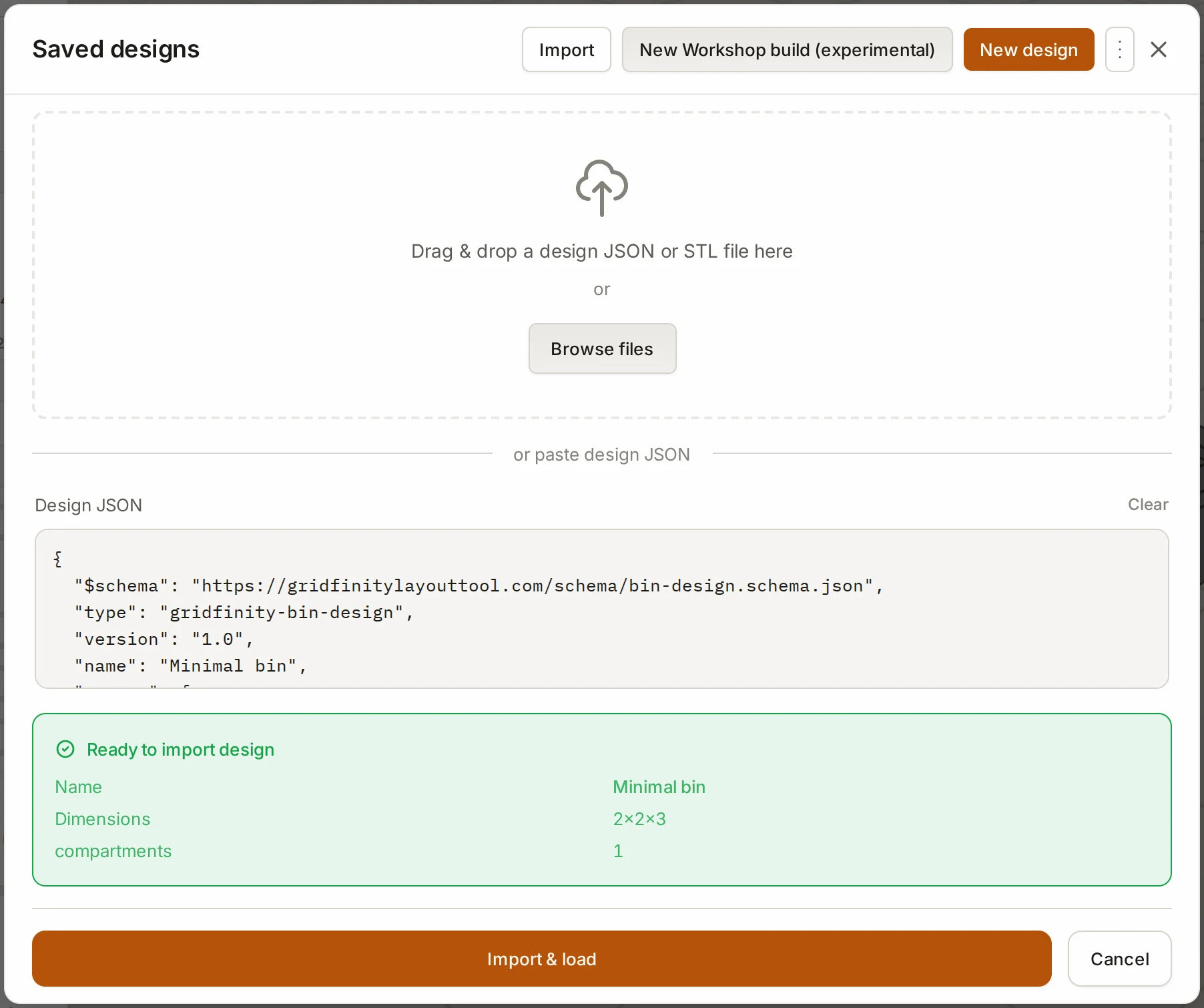
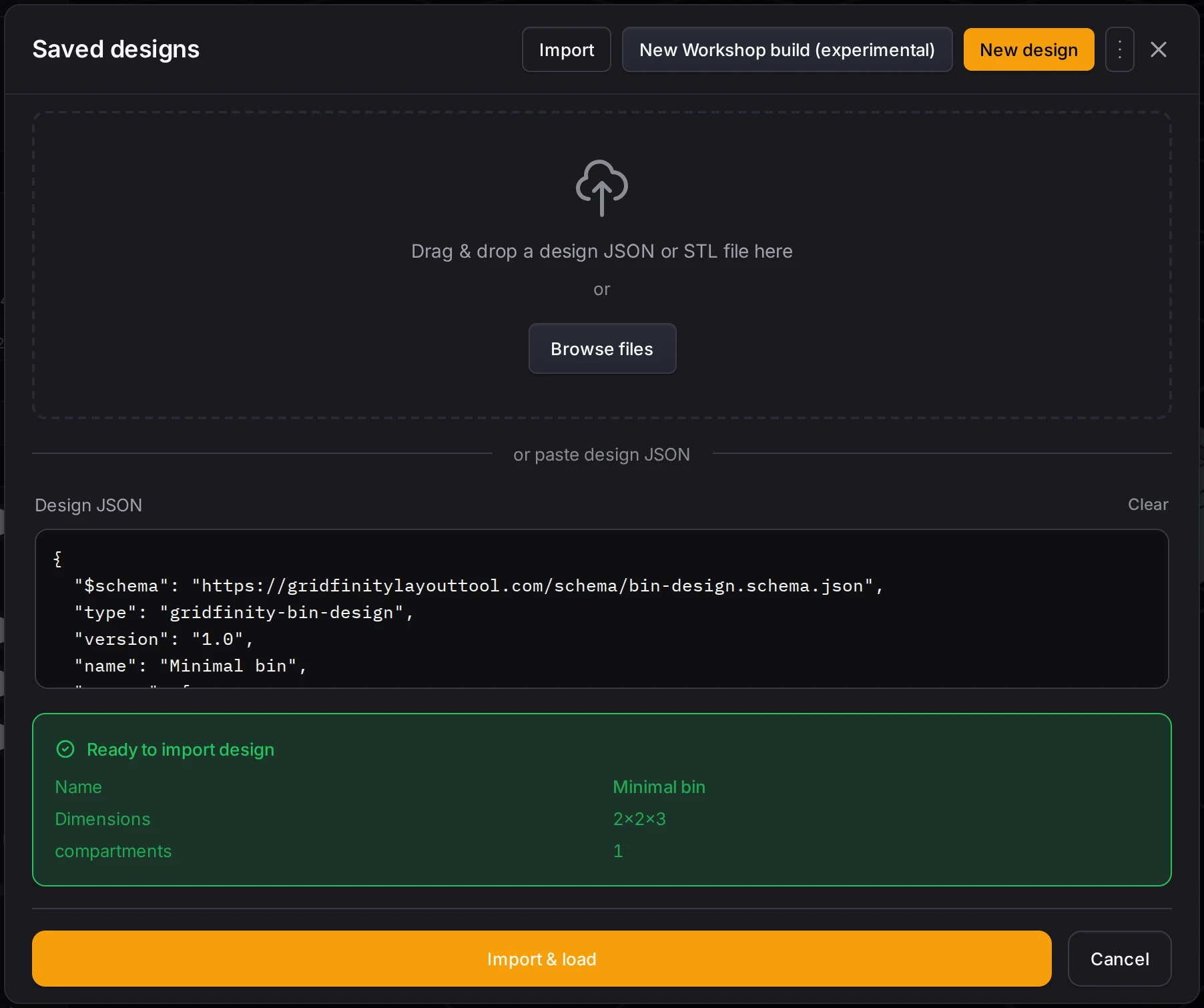
In Saved designs, click Import. Then drop the file, or paste the JSON text into the Design JSON box. Read the summary under Ready to import design before you import. Save and reuse designs gives the full steps.
The design goes into your saved designs and opens in the bin designer. The drop area also takes the STL file of a whole Gridfinity bin, which becomes a saved design with a fixed shape.
What the file holds
The file wraps the bin settings in a small envelope:
| Field | Required | What it holds |
|---|---|---|
$schema | No | The schema address, for your code editor. The importer ignores it. |
type | Yes | Always "gridfinity-bin-design". The importer rejects other values. |
version | Yes | Always "1.0" |
name | Yes | The design name |
params | Yes | All bin settings |
_meta | No | Where and when the file was exported |
The params object has nine required fields. You can leave out every other setting, and the importer fills it with its default value.
| Field | Unit | Range | What it sets |
|---|---|---|---|
width | Grid units | 0.5 to 16, in steps of 0.5 | Bin width |
depth | Grid units | 0.5 to 16, in steps of 0.5 | Bin depth |
height | Height units | 1 to 50. Only a spacer can be 1, other bins need 2. | Bin height |
gridUnitMm | mm | 20 to 60 | Size of one grid unit. Standard Gridfinity is 42. |
heightUnitMm | mm | 3 to 20 | Size of one height unit. Standard Gridfinity is 7. |
wallThickness | mm | 0.4 to 2.4 | Outer wall thickness |
base | The base, with a style such as "standard" or "magnet" | ||
style | "standard", "slotted" or "solid" | An open bin, a bin with divider slots, or a solid block for cutouts | |
compartments | 1 to 12 columns and 1 to 12 rows | The compartment grid |
The compartments object has cols, rows, a divider thickness in mm, and a cells list. The cells list gives one compartment number for each grid cell, row by row. Cells with the same number make one large compartment.
Avoid the traps
- Heights are height units.
"height": 3is a 21 mm bin at the standard 7 mm height unit. - Some widths are percentages. The width of a label tab, a handle and the wall cutouts is a percentage of its span. The label tab depth is in millimeters.
- The cell count must match. The
cellslist needs exactlycolsmultiplied byrowsentries. - Leave out two fields. The app adds the magnet position from the layout and the nozzle size from your print settings. Do not write them in a file.
A minimal design
This file holds a 2 by 2 bin, 3 height units tall, with one compartment and a stacking lip:
{
  "$schema": "https://gridfinitylayouttool.com/schema/bin-design.schema.json",
  "type": "gridfinity-bin-design",
  "version": "1.0",
  "name": "Minimal bin",
  "params": {
    "width": 2,
    "depth": 2,
    "height": 3,
    "gridUnitMm": 42,
    "heightUnitMm": 7,
    "wallThickness": 1.2,
    "style": "standard",
    "base": { "style": "standard", "stackingLip": true },
    "compartments": { "cols": 1, "rows": 1, "thickness": 1.2, "cells": [0] }
  }
}
Validate a file
Keep the $schema line at the top of the file. Most code editors then mark a wrong field or value while you type.
The importer applies more rules than the schema. It rejects a file when:
typeis not"gridfinity-bin-design", or the file has noversionor noname- the width, the depth, the height or a unit size is not a number above zero
styleis not one of the three stylescolsorrowsis not a whole number from 1 to 12
The importer lists each problem that it finds. Until you correct them, the import button stays off, so a file with problems never reaches your saved designs.
Next steps
- Layout file format: a layout file can carry its designs inside it.
- Save and reuse designs: the saved designs list, versions and variants.
- Saved designs and linked bins: how a layout uses a saved design.
- File formats: STL, 3MF and STEP for printing.