
Labs
Labs is where the Gridfinity Layout Tool keeps the features that are still in development. Each one stays off until you turn it on. Try them if you like new tools early, and expect them to change.
WARNING
Do not depend on a Labs feature for important work. Preview features still in development. Some may change or be removed.
Turn on a Labs feature
- Open Settings, and select Labs in the Advanced group.
- Find the card of the feature and turn on its switch.
The feature starts at once in all open tabs. A card with more risk shows a warning below its description. Your Labs choices stay in this browser and don't sync to your other devices.
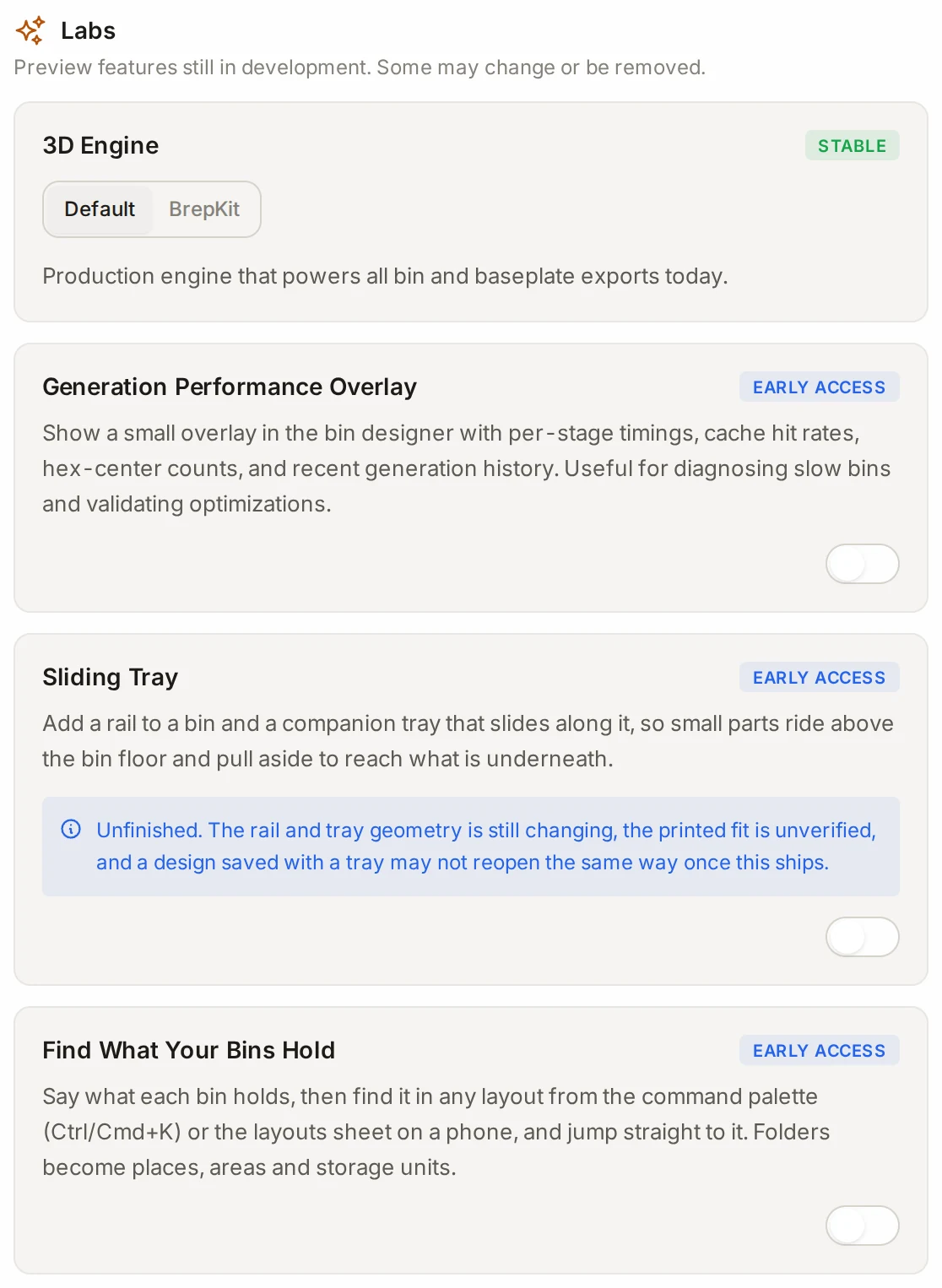
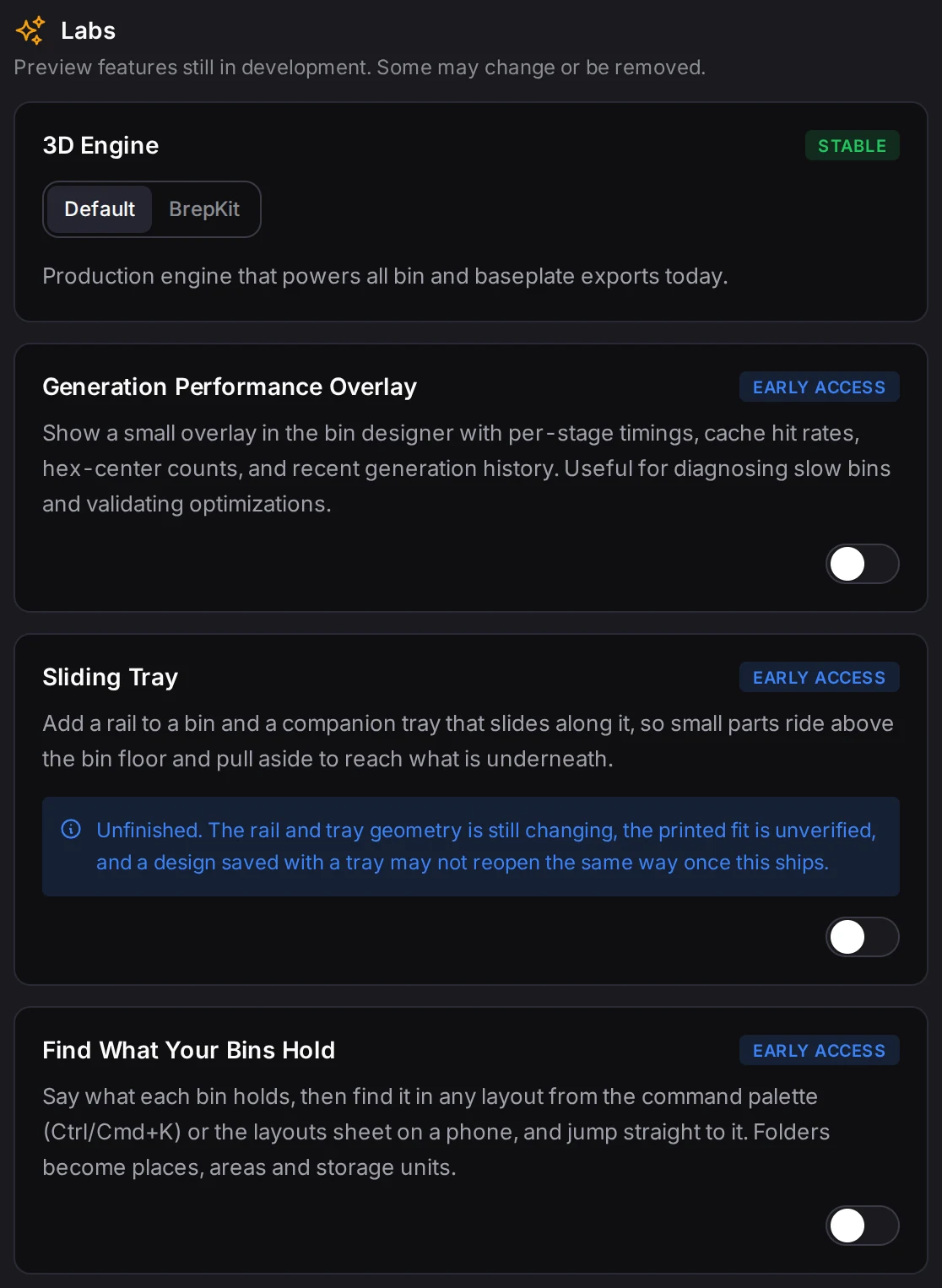
Find What Your Bins Hold
Forgot which drawer holds the hex keys? With this feature, you write down what each bin holds, and then find any item in all your layouts.
Say what a bin holds. Select a bin in the layout editor, and the inspector gets a Contents section. Type an item in Add an item, or paste a list, or paste a list to add many items at once. Each item can have a quantity. A bin holds up to 100 items.
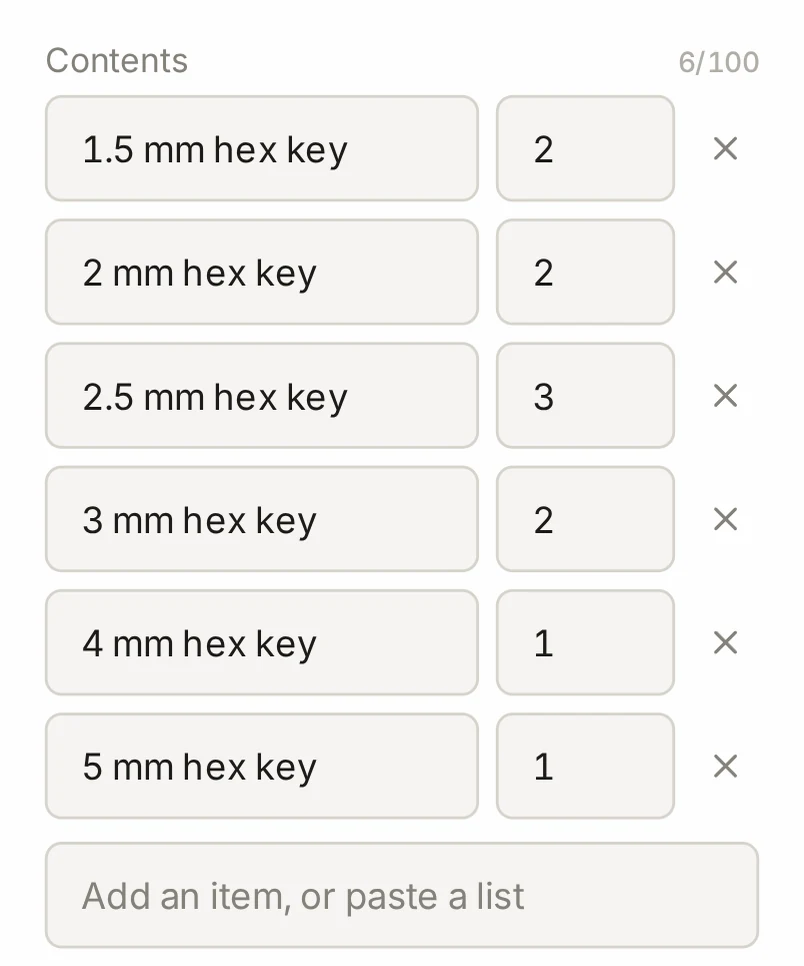
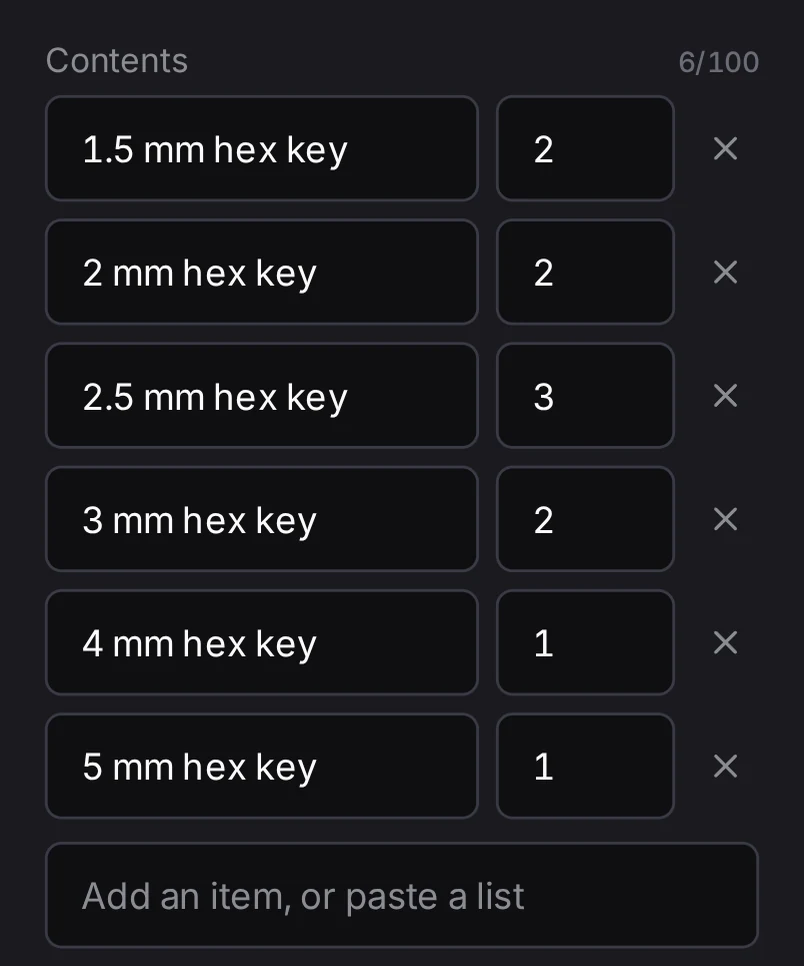
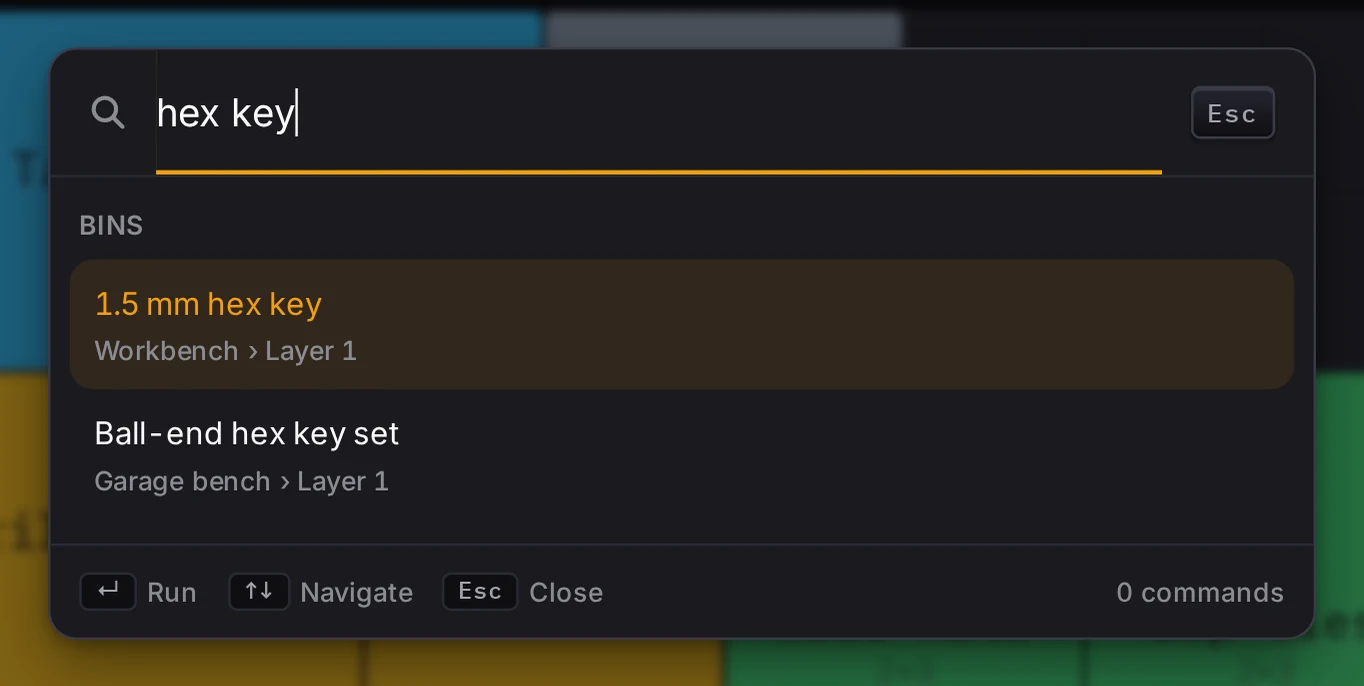
Find a bin. In the layout editor, press Ctrl+K (Cmd+K on a Mac) and type what you look for. The command palette shows the matching bins above the commands, with the folder, the layout and the layer of each one. It searches item names, bin labels and notes. Select a result to open its layout and select the bin. On a phone, use Find a bin by what it holds in the layouts sheet.
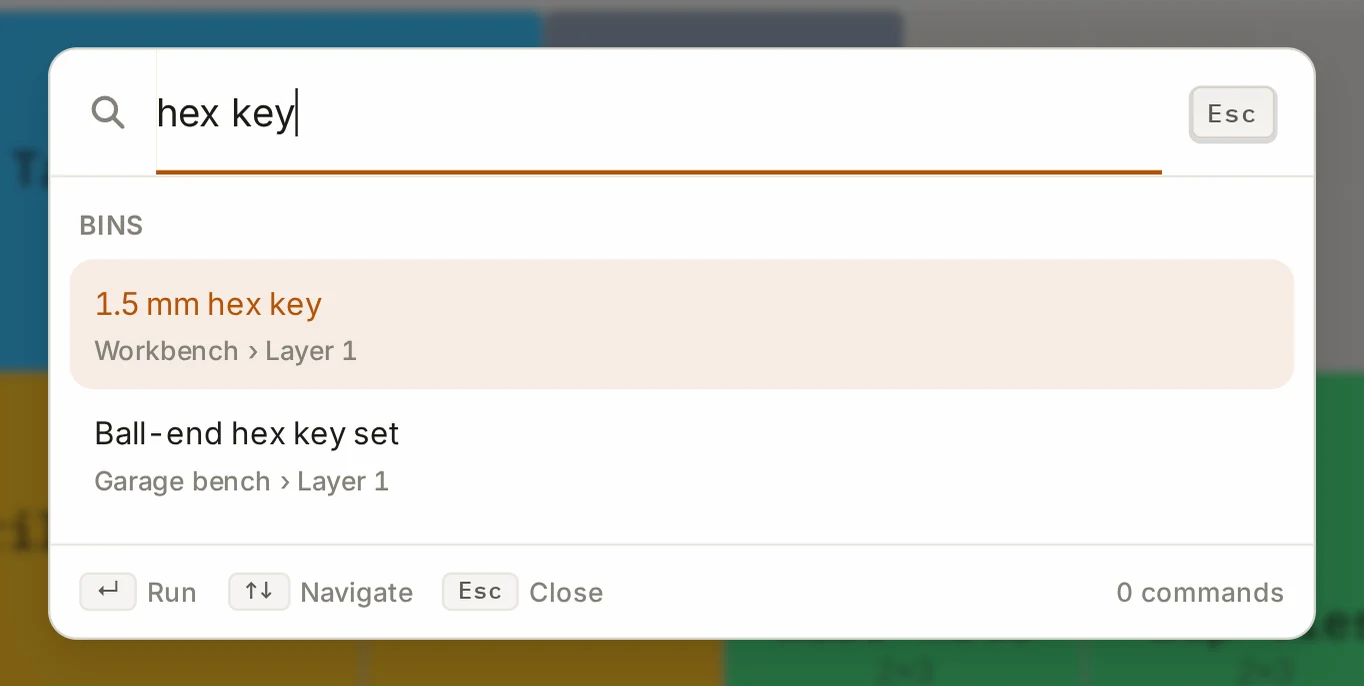
Folders as places. In the layout manager, a folder can be one of three kinds:
- Place, for example your home or your shop. A place is always at the top level. New place makes a new one.
- Area. A folder is an area until you change its kind.
- Storage unit.
To change the kind, click the swap button (Change kind) next to the folder. On a computer, the header of the layout editor shows where the open layout is.
See Organizing layouts for folders, and Keyboard and command palette for the palette.
Sliding tray
This feature adds a rail to a bin and a tray that slides along the rail. Small parts ride in the tray above the bin floor, and you slide the tray aside to reach what is below.
When the feature is on, the bin designer shows a Sliding tray section in the Interior group. Pick where the rail goes:
- Inside bin: The tray drops into this bin and slides within it.
- Over the rim: The tray rides above the rim and can slide onto a neighbouring bin with the same rail.
Special bins explains the tray width, the rail drop, the clearance and the fit test.
WARNING
Print a test before you print a full tray. The shape of the rail and the tray can still change, and the printed fit is still unproven. A design that you save with a tray may not open the same way in a later version.
Alternative 3D engine
The Layout Tool builds each bin and baseplate model with a 3D engine. In Labs, you can try a second engine that uses less memory and loads faster than the default one.
The 3D Engine selector sits at the top of the Labs tab. Its two options are Default and BrepKit. After you change it, reload the page. A message with a Reload button does it for you.
While the second engine is on, the bin designer and the baseplate generator show Alternative 3D engine active. Click Labs settings in that notice to go back to Labs.
WARNING
Make sure that each export is correct when the second engine is on. Exports may have geometry defects. Change back to Default for the files that you print.
Generation performance overlay
Is a bin slow to update, and you want to know why? This feature shows a small overlay in the bin designer. It gives the time of each step that builds the bin model, the cache hit rates, and a history of recent models. It doesn't change the bin.
When it goes wrong
The 3D engine change does nothing
Click Reload in the message, or reload the page.
The page loads one engine when it starts. A different engine takes over only after a reload.
A Labs feature is missing on another device
Open Settings > Labs on that device, and turn the feature on there too.
Each browser keeps its own Labs choices, and your account doesn't sync them.
Next steps
- Settings and accessibility: the other tabs in Settings.
- Keyboard and command palette: open Find with the command palette.
- Preview and export: how the Layout Tool makes the model that you export.