
Keyboard shortcuts
Learn the keys for the tasks that you do often, and you'll need the mouse less. This page lists the keyboard shortcuts in the Gridfinity Layout Tool, tool by tool. Each table gives the keys for Windows and Linux, and the keys for macOS.
TIP
Shortcuts don't work while the cursor is in a text field. If a key does nothing, click an empty part of the canvas and press it again.
Open the shortcut list
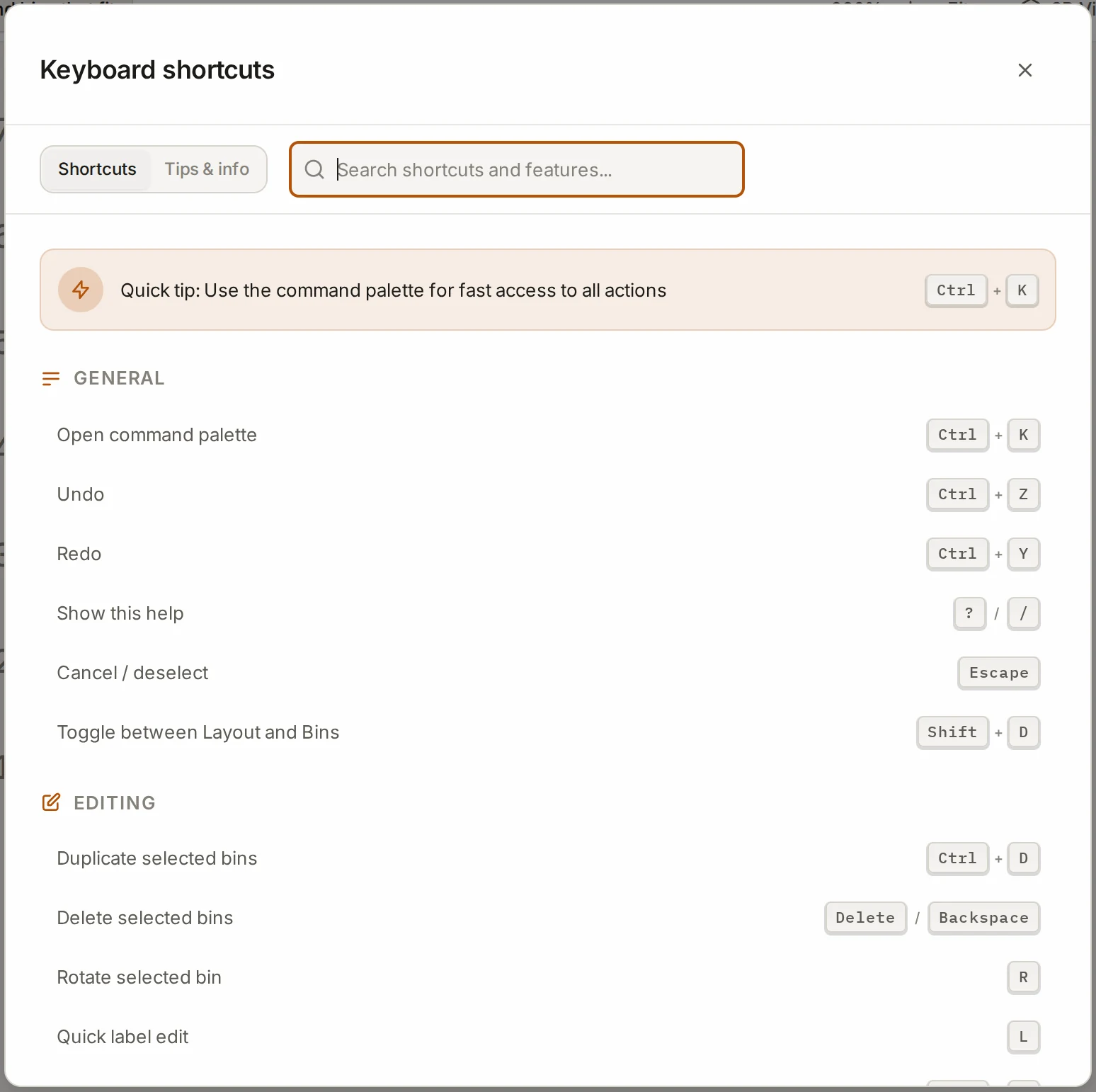
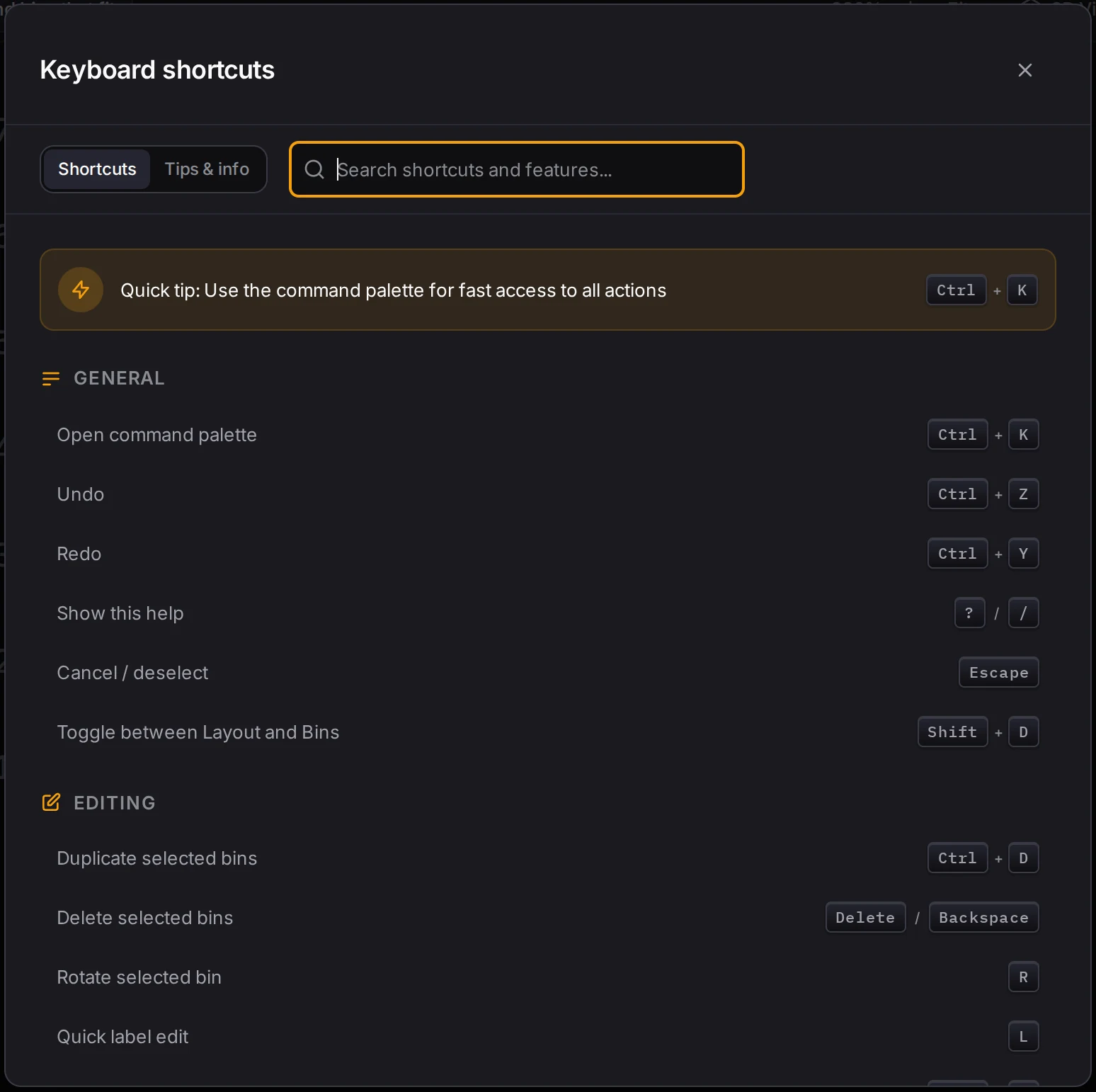
Can't remember a key? Press ? or / in any tool to open the Keyboard shortcuts panel. Its Shortcuts tab lists the main shortcuts, and the search field finds a shortcut by its name.
Shortcuts in more than one tool
| Windows and Linux | macOS | Action | Where |
|---|---|---|---|
| ? or / | Same | Open the shortcut list | Every tool |
| Ctrl+K | Cmd+K | Open the command palette | Layout editor |
| Ctrl+Z | Cmd+Z | Undo | Layout editor, bin designer |
| Ctrl+Y or Ctrl+Shift+Z | Cmd+Y or Cmd+Shift+Z | Redo | Layout editor, bin designer |
| Shift+D | Same | Go from the layout editor to the bin designer, or back | Layout editor, bin designer |
Layout editor
Edit bins
| Windows and Linux | macOS | Action |
|---|---|---|
| Ctrl+D | Cmd+D | Duplicate the selected bins |
| Ctrl+A | Cmd+A | Select all bins on the active layer |
| Delete or Backspace | Same | Delete the selected bins. A bin in a pair takes its partner with it. |
| R | Same | Rotate the selected bin. Select one bin only. |
| L | Same | Edit the label of the selected bin. Select one bin only. |
| Arrow keys | Same | Move the selected bins one grid unit. If a selected bin has a half-unit size, they move half a unit. |
| [ and ] | Same | Give the selected bins the previous or next category. With no bin selected, change the category for new bins. |
| H | Same | Turn half-grid mode on or off |
| Escape | Same | Stop the current drag or draw, clear the selection and stop paint mode |
Move around the layout
| Windows and Linux | macOS | Action |
|---|---|---|
| W | Same | Go to the layer above |
| S | Same | Go to the layer below |
| A | Same | Select the previous bin on the active layer |
| D | Same | Select the next bin on the active layer. The order goes from the front row to the back, left to right. |
| Arrow keys | Same | With a bin in keyboard focus and no selection, move the focus to the nearest bin in that direction |
| + or = | Same | Zoom in |
| - | Same | Zoom out |
| Ctrl+O | Cmd+O | Open the layout manager |
| Shift+N | Same | Make a new layout and open it |
3D preview
| Windows and Linux | macOS | Action |
|---|---|---|
| V | Same | Show or hide the 3D preview. The key works after you open the preview once. |
| Space | Same | Make the 3D preview larger, or return it to its usual size |
| Escape | Same | Close the large preview |
| E | Same | Turn the exploded layer view on or off. This needs a desktop screen and two or more layers. |
Mouse with a modifier key
| Windows and Linux | macOS | Action |
|---|---|---|
| Ctrl+click a bin | Cmd+click a bin | Add the bin to the selection, or remove it |
| Alt+drag a bin | Option+drag a bin | Duplicate the bin and move the copy |
| Shift+drag a bin | Same | Swap the bin with the bin you drop it on, if the two can change places |
| Hold Ctrl while you draw or drag | Hold Control while you draw or drag | Stop the automatic fit. Without the key, a moved bin that hits another bin goes to a free spot nearby, and a new bin stops at the other bin. |
| Click a row or column number | Same | Select every bin in that row or column of the active layer |
| Shift+click a row or column number | Same | Add all rows or columns from the last one you clicked |
| Ctrl+click a row or column number | Cmd+click a row or column number | Add the bins in that row or column, or remove them |
Drawer shape editor
These keys work in the Draw drawer shape dialog, where you draw a drawer that is not a rectangle.
| Windows and Linux | macOS | Action |
|---|---|---|
| Hold Space and drag | Same | Pan the view |
| Ctrl+Z | Cmd+Z | Undo the last change to the shape |
| Ctrl+A | Cmd+A | Select every corner |
| Delete or Backspace | Same | Delete the selected corners |
| Arrow keys | Same | Move the selected corners one snap step, or 1 mm when snap is off |
| Shift+arrow key | Same | Move the selected corners ten steps |
| Escape | Same | Clear the corner selection |
Bin designer
3D preview
| Windows and Linux | macOS | Action |
|---|---|---|
| 1 | Same | Front view |
| 2 | Same | Side view |
| 3 | Same | Top view |
| 4 | Same | Isometric view |
| R | Same | Reset the view |
| W | Same | Turn the wireframe view on or off |
| X | Same | Turn the X-ray view on or off |
| P | Same | Change between perspective and orthographic |
Cutout editor tools
The Cutout editor has its own keys. Some letters do a different task there than in the 3D preview.
| Windows and Linux | macOS | Action |
|---|---|---|
| V | Same | Select tool |
| R | Same | Rectangle tool. With cutouts selected, turn them 90 degrees clockwise. |
| C | Same | Circle tool |
| G | Same | Polygon tool |
| P | Same | Pen tool |
| S | Same | Slot tool |
| K | Same | Knife slot tool |
| T | Same | Text tool |
| M | Same | Ruler tool |
| I | Same | Import SVG |
| J | Same | Import STL |
Cutout editor edits
| Windows and Linux | macOS | Action |
|---|---|---|
| Ctrl+A | Cmd+A | Select all cutouts |
| Ctrl+C | Cmd+C | Copy the selected cutouts |
| Ctrl+V | Cmd+V | Paste. If you copied no cutout, an image on the clipboard opens as a photo to trace. |
| Ctrl+D | Cmd+D | Duplicate the selected cutouts |
| Ctrl+Shift+D | Cmd+Shift+D | Make a repeat from one selected cutout, or collapse a pattern of copies into one repeat |
| Ctrl+G | Cmd+G | Group the selected cutouts. Select two or more. |
| Ctrl+Shift+G | Cmd+Shift+G | Ungroup the selected cutouts |
| Ctrl+L | Cmd+L | Lock or unlock the selected cutouts |
| Shift+H | Same | Flip the selection from left to right |
| Shift+V | Same | Flip the selection from front to back |
| Delete or Backspace | Same | Delete the selected cutouts |
| Arrow keys | Same | Move the selected cutouts 0.5 mm |
| Shift+arrow key | Same | Move the selected cutouts 5 mm |
| Tab or Shift+Tab | Same | Select the next or the previous cutout |
| Escape | Same | Cancel the current drag. Press again to step out of a group, then to clear the selection. |
| Ctrl+0 | Cmd+0 | Fit the board to the view |
| Hold Space and drag | Same | Pan the view |
Cutout editor: paths and the mouse
| Windows and Linux | macOS | Action |
|---|---|---|
| Ctrl+Z while you draw a path | Cmd+Z | Remove the last point |
| Escape while you draw a path | Same | Cancel the path |
| Delete while you edit points | Same | Delete the selected point |
| Escape while you edit points | Same | Stop the point edit |
| Alt+drag a curve handle | Option+drag a curve handle | Move one handle without the other |
| Shift+drag on an empty part of the board | Same | Measure a distance |
| Hold Shift while you draw a shape | Same | Keep the width and the depth equal |
| Hold Alt while you draw a shape | Hold Option | Draw out from the center |
| Hold Shift while you drag | Same | Move along one axis only |
| Hold Shift while you rotate | Same | Turn in 15 degree steps |
| Alt+drag a cutout | Option+drag a cutout | Duplicate the cutout and move the copy |
Bento canvas
These keys work on the Bento canvas, where you draw compartments of any size.
| Windows and Linux | macOS | Action |
|---|---|---|
| Arrow keys | Same | Move the selected compartment one cell |
| Delete or Backspace | Same | Delete the selected compartment |
| Escape | Same | Cancel the current drag. Press again to clear the selection, then to close the canvas. |
| Ctrl+0 | Cmd+0 | Fit the canvas to the view |
| Hold Space and drag | Same | Pan the view |
Workshop builds
These keys work in a build that you start with New Workshop build (experimental) in Saved designs.
| Windows and Linux | macOS | Action |
|---|---|---|
| 1 to 4 | Same | Front, side, top and isometric views |
| P | Same | Change between perspective and orthographic |
| R | Same | Turn the selected parts 90 degrees |
| Arrow keys | Same | Move the selected parts one snap step, in the direction that the view faces |
| Alt+arrow key | Option+arrow key | Move the selected parts 0.1 mm |
| Hold Alt while you drag | Hold Option | Use a finer snap |
| Ctrl+A | Cmd+A | Select all parts |
| Ctrl+C | Cmd+C | Copy the selected parts |
| Ctrl+V | Cmd+V | Paste under the pointer, or next to the original part |
| Ctrl+D | Cmd+D | Duplicate the selected parts |
| Delete or Backspace | Same | Delete the selected parts |
| Escape | Same | Cancel a part that you are about to place, or clear the selection |
Baseplate generator
| Windows and Linux | macOS | Action |
|---|---|---|
| X | Same | Turn the X-ray view on or off |
| P | Same | Change between perspective and orthographic |
Next steps
- Keyboard and command palette: find the commands that have no key of their own.
- Place and edit bins: learn what each bin edit does on the grid.
- Arrange cutouts: group, repeat and align cutouts in the cutout editor.
- Work with several bins: select many bins and change them at the same time.