
Find bins that fit
You don't have to design every bin yourself. Drag across an empty spot in your drawer, and the Gridfinity Layout Tool shows community designs that fit it. Not sure how big a bin should be? Type what it holds as its label, and the Layout Tool can suggest a size.
Open the gap search
The control has the same name on every screen: Find bins that fit.
- On a computer: click Find bins that fit in the toolbar above the grid. In a narrow window with two or more layers, it is in the More options menu of the toolbar.
- On a phone: tap Layers in the bar at the bottom of the screen. Open the Tools tab and tap Find bins that fit.
Pick an empty area
- Turn on Find bins that fit.
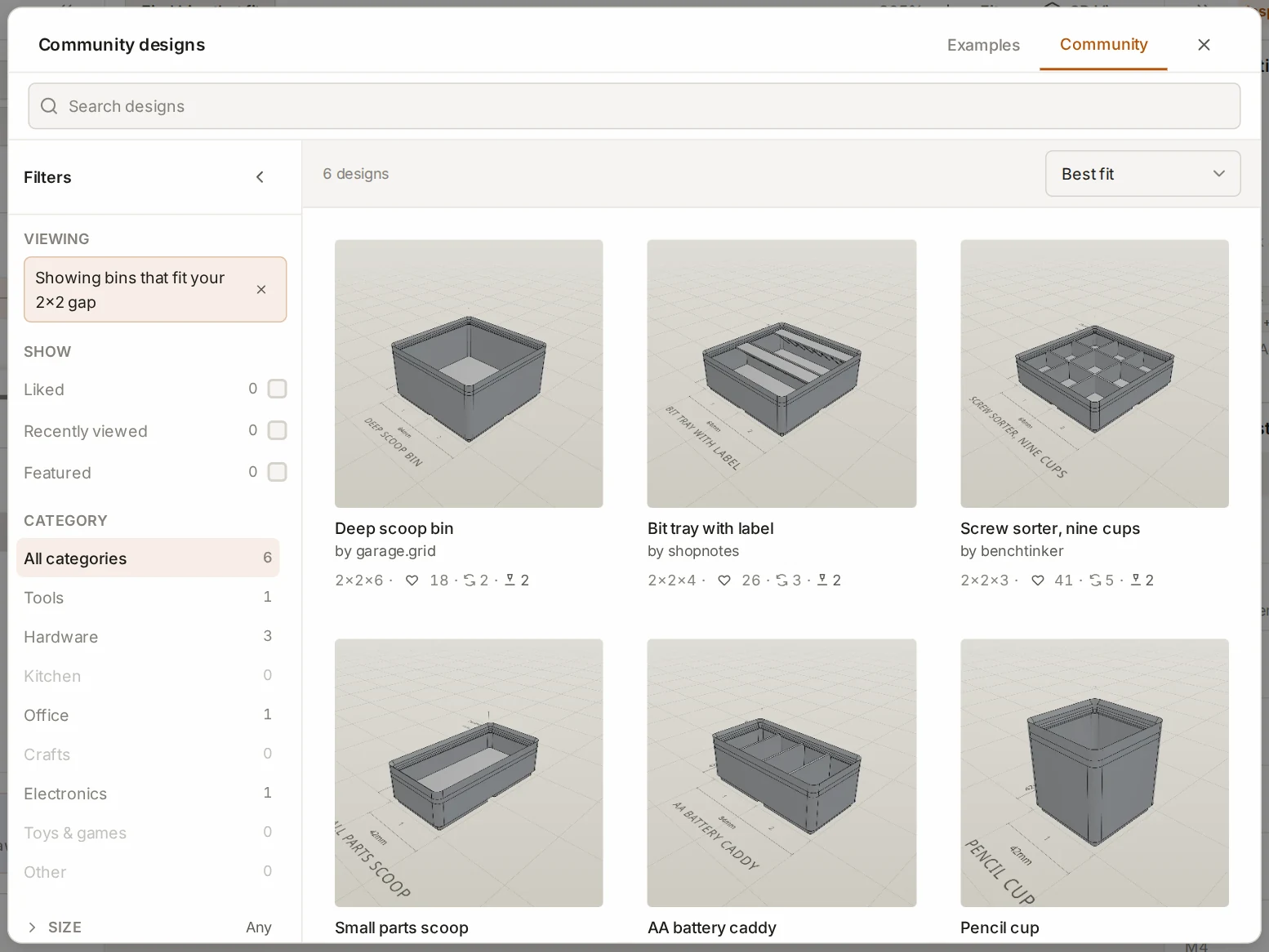
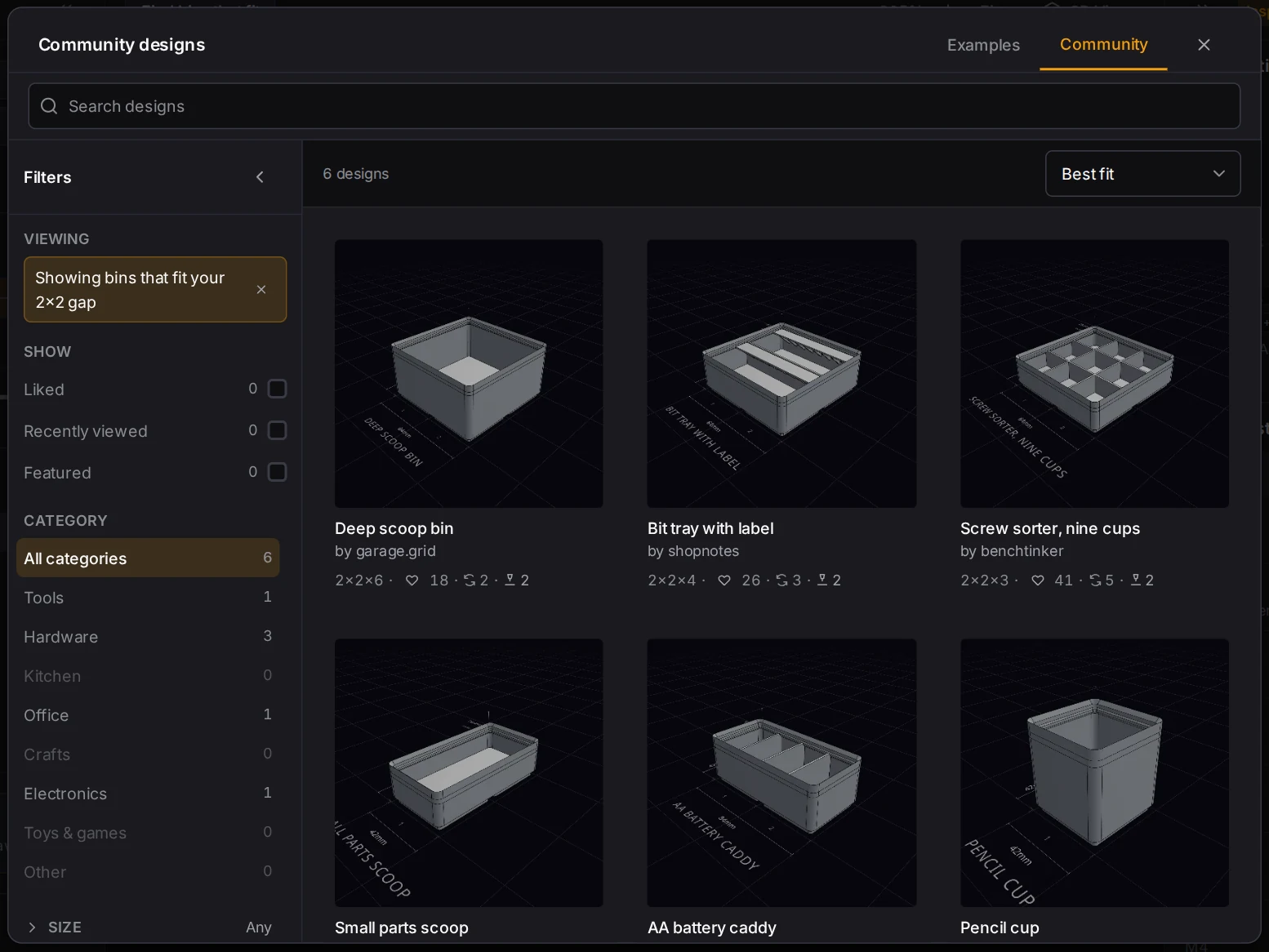
- Drag across the empty cells that you want to fill. When you let go, the gallery opens on its community tab.
Your drag can cross a bin. The Layout Tool then uses only the empty part. To stop without a search, press Escape. On a phone, tap the Find bins that fit button above the grid again.
Choose a design
The gallery shows only the designs that fit the area. A design must fit the width and the depth of the area, turned or not. It must also fit the free height above the active layer. A design made for a different grid unit does not show, because it would print at the wrong size.
The filters panel shows the size of the area under Viewing. When that panel is collapsed, a chip above the cards shows it. The cards sort by Best fit, so the designs that fill the area best come first.
- Click a card to open the design.
- Click Place in layout.
The Layout Tool saves a copy of the design to your saved designs. Then it puts a bin that uses the copy in the area. If the design fits only when turned, the bin goes in turned. Your copy is yours to change, so you can tweak it in the bin designer.
Nothing fits? The gallery tells you. Select a larger area, or click Clear gap filter to see all the designs. When you close the gallery, the search ends.
Get a size from a label
Know what goes in the bin, but not how big the bin must be? The inspector can suggest a size from the bin's label.
- Select a bin. On a phone, tap Bin in the bar at the bottom of the screen to open the inspector.
- Type what the bin holds in the Label field, for example "screws".
- A list of labels opens under the field and covers the suggestion. Press Escape to close the list. On a phone, tap outside the field.
- If a line with a size shows under the field, click Apply. The bin changes to that size where it stands.
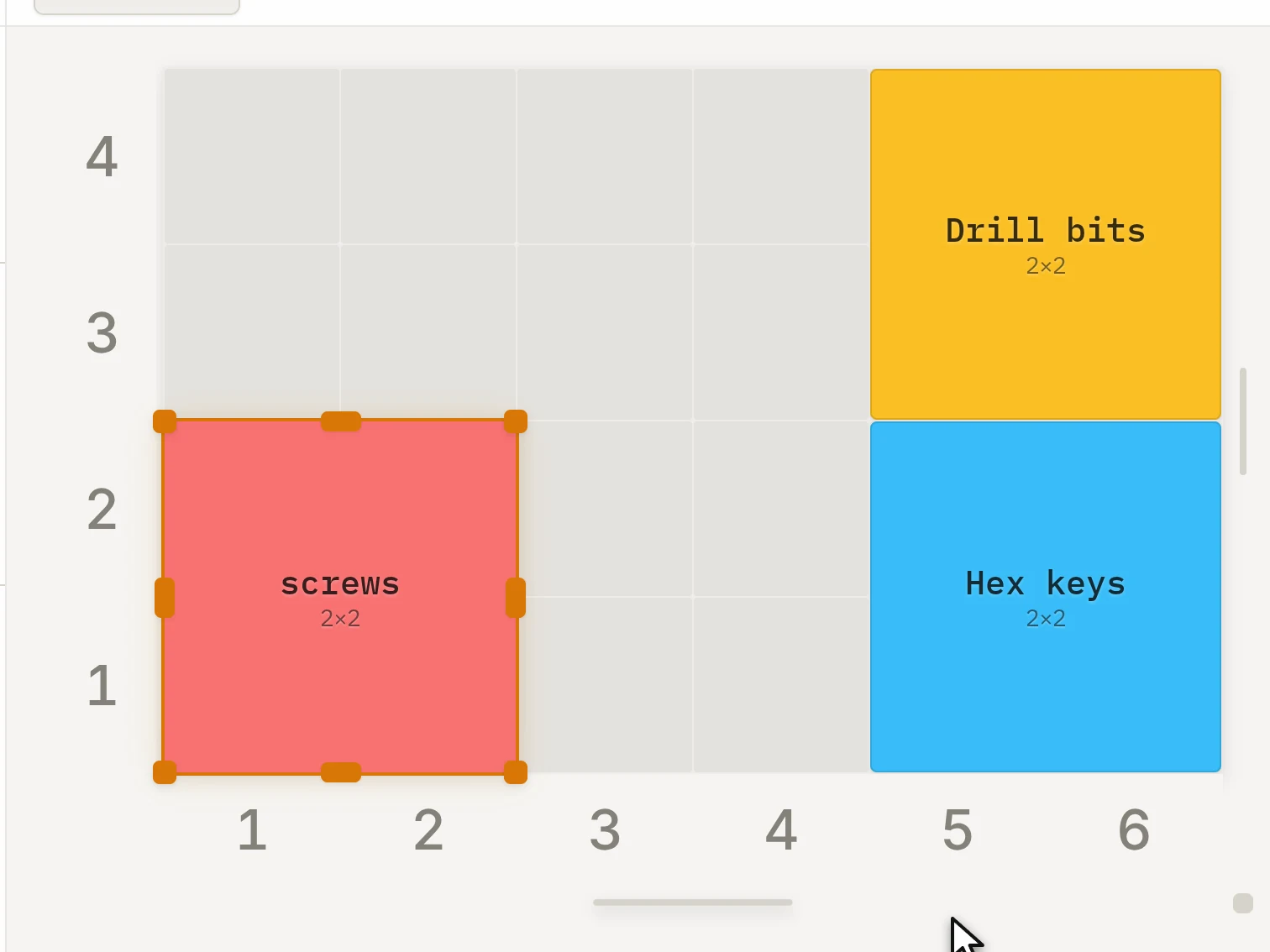
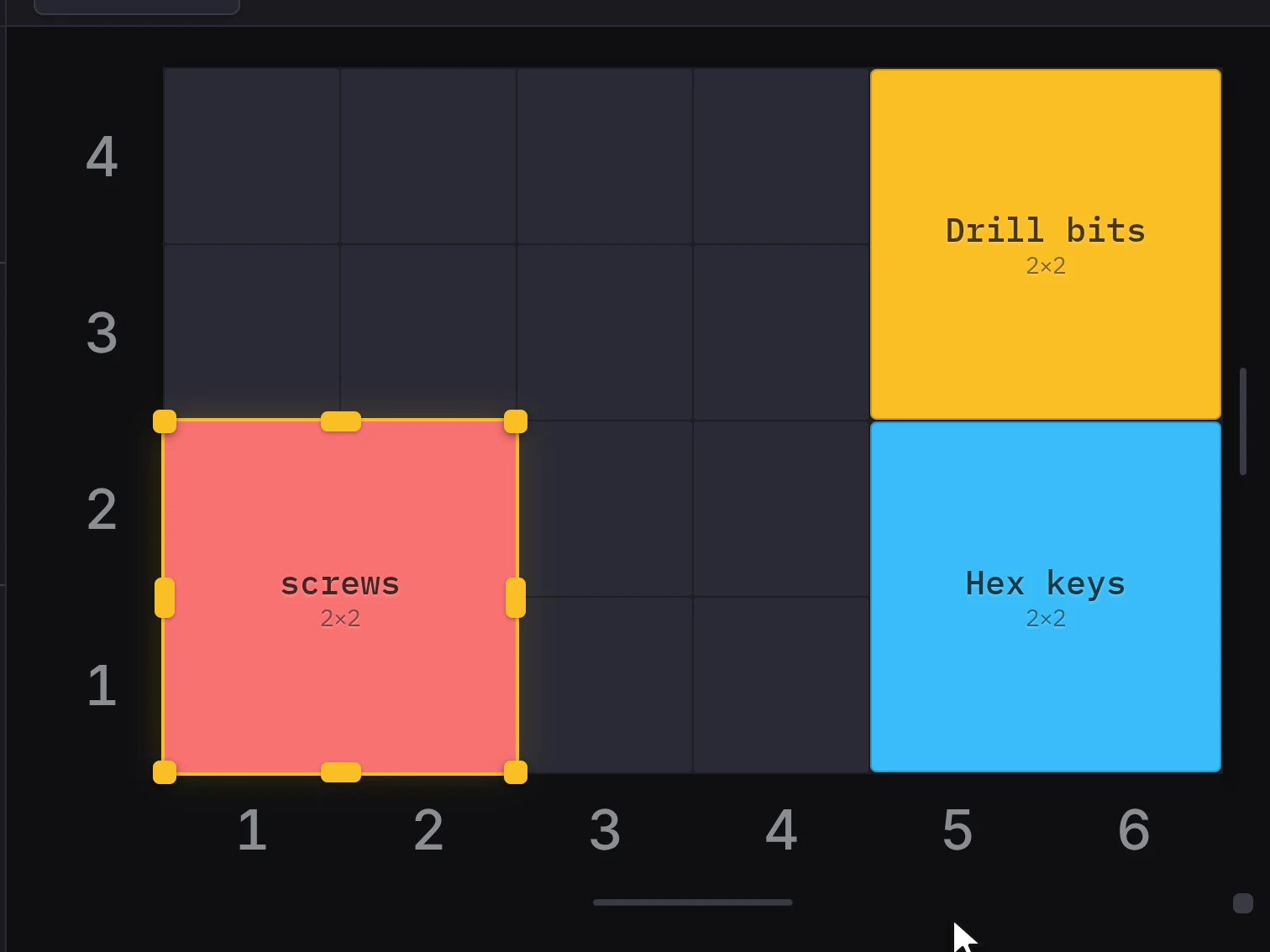
The suggestion gives the width, the depth and the height in units.
The line shows only when the label matches a known size, and when that size is different from the current size. If the size does not fit where the bin is, the line shows Won't fit here and has no apply button. A bin with a locked size cannot take the size. Click Dismiss suggestion (the X) to hide the line for that label.
The Layout Tool finds the size on your device. Your label stays in your browser for this suggestion.
When it goes wrong
The gallery says nothing fits
Select a larger area, or an area with more free height above it, such as one on a lower layer. To browse every design instead, click Clear gap filter.
A design shows only when it fits the width, the depth and the free height of your area. It must also use the grid unit of your layout.
A red message shows, and the gallery doesn't open
The area has no room for even the shortest bin. Pick an area with less under it, or switch to a lower layer. The message names the cause: Stack would be taller than the drawer, or a bin on a lower layer that keeps the space free for its items.
The size suggestion says it won't fit here
Won't fit here means the suggested size has no room where the bin stands. Move the bin to an open spot, or move its neighbors, and Apply comes back. A bin with a locked size shows the same note, so click Unlock size first.
A design shows, but it won't go into the gap
Pick a different design. A message says the design doesn't fit, and the gallery stays open for you. The gallery checks only the grid unit of each design. So a design made with a different height unit, or with cells of a different depth, can still show. The Layout Tool can't place it, because it would print at the wrong size.
Next steps
- The community gallery: browse, like and share designs.
- Saved designs and linked bins: what the placed copy is and how to edit it.
- Place and edit bins: resize or move the bin after you place it.