
Organize your layouts
Plan one drawer, and soon you'll want to plan the whole workshop. Each drawer is one layout. The Gridfinity Layout Tool keeps all your layouts in a library in your browser, and it saves each change for you. Here's how to find, rename, copy and file your layouts, and how to go back to an earlier version when an idea doesn't work out.
Rename and switch layouts
The name of the open layout is in the header. Click the name to change it, then press Enter. A name can have up to 64 characters.
Next to the name, a menu lists all your layouts, grouped by folder. Click a layout to open it. The menu also has New layout and Manage layouts.
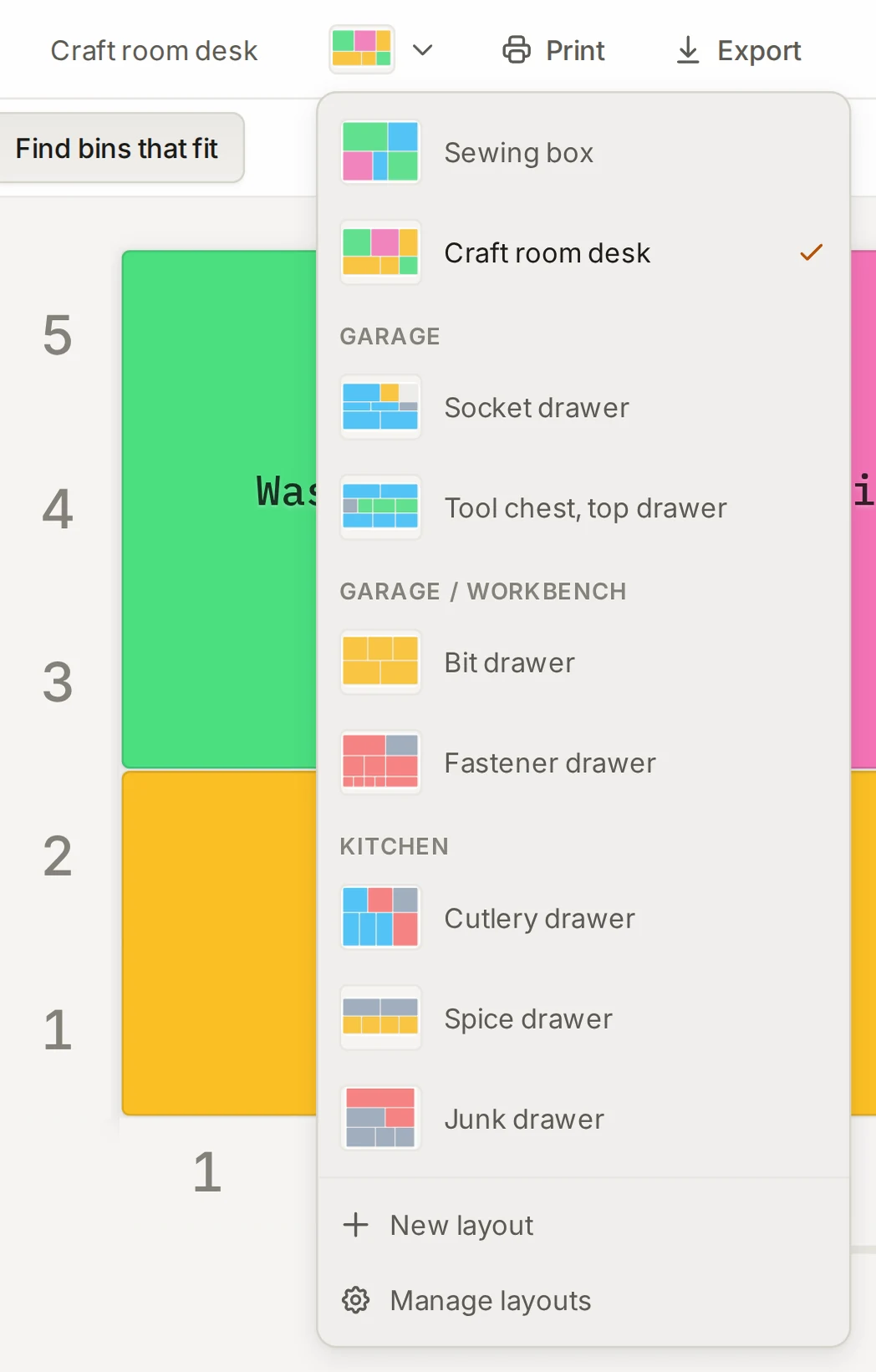
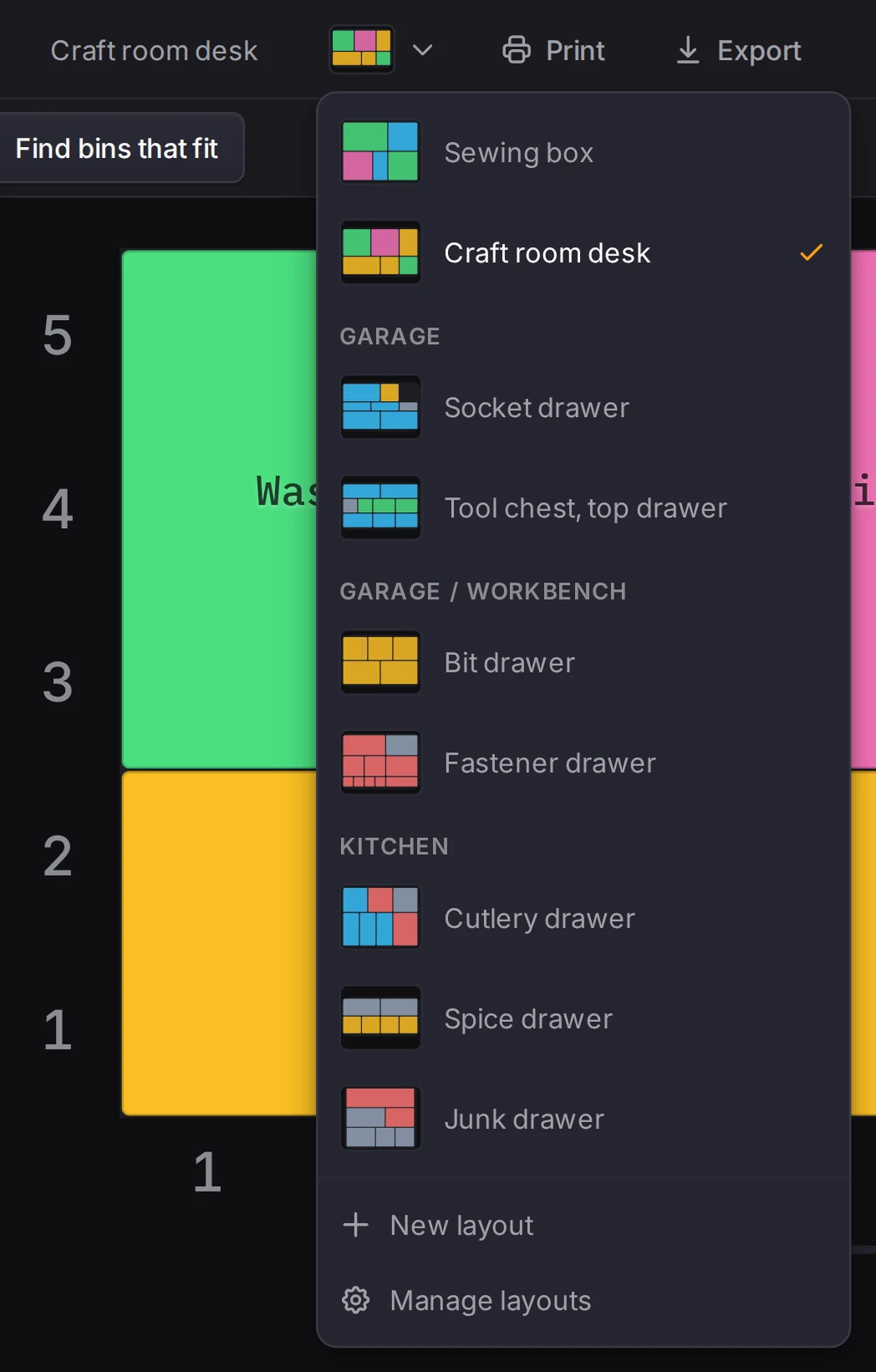
Use the layout manager
To open the layout manager, choose Manage layouts in the menu, or press Ctrl+O (Cmd+O on a Mac). On a phone, open the layouts panel from the header.
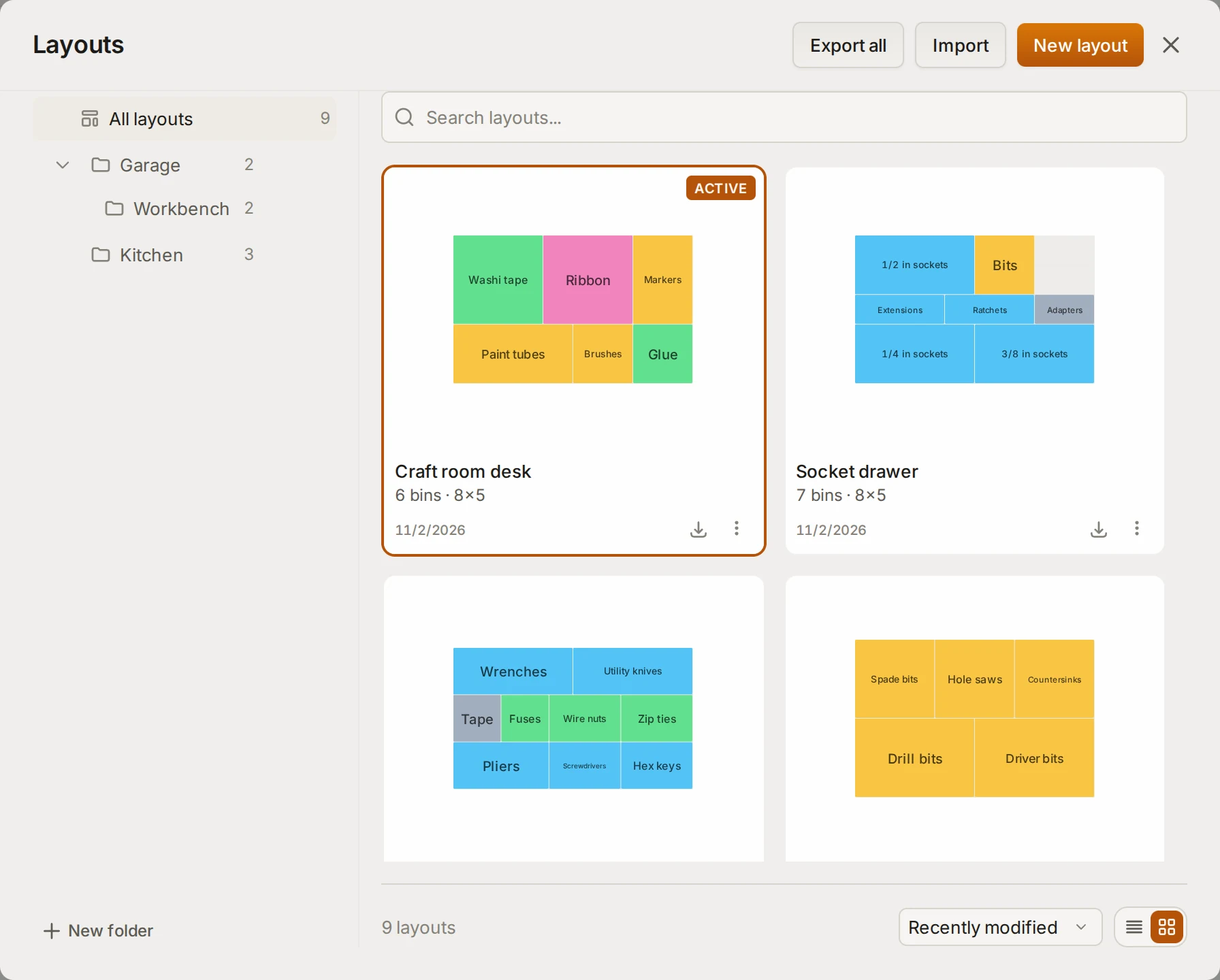
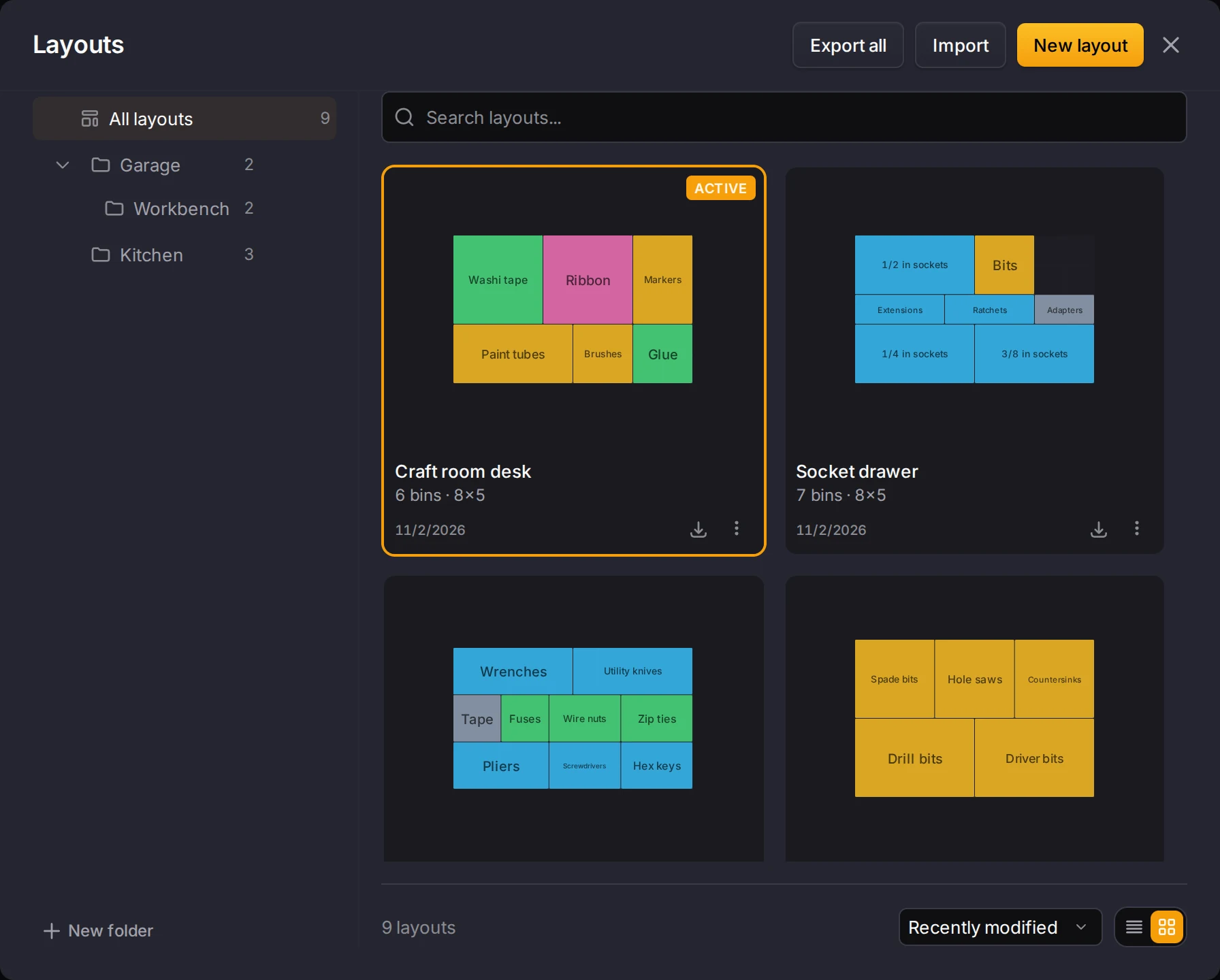
The manager shows each layout with a small picture of its drawer, so you can spot the one you want. You can:
- Click New layout to start an empty layout.
- Type in the search field to find a layout by name.
- Pick an order under Sort by. The table below shows the choices.
- Click Download on a layout to save it as a file.
| Order | Puts first |
|---|---|
| Recently modified | The layouts that you changed last |
| Name (A-Z) | Names in alphabetical order |
| Drawer size | The largest drawers, by area |
| Bin count | The layouts with the most bins |
The open layout always comes first, whatever the order.
The more actions menu of each layout has these items:
| Item | What it does |
|---|---|
| Rename | Changes the name |
| Duplicate | Makes a copy with "(copy)" after the name |
| Move to folder | Puts the layout in a folder |
| Copy link | Opens Share layout, to share the layout without a server copy |
| Delete | Deletes the layout after you click Delete layout |
WARNING
Download a layout before you delete it if you think you need it later. You cannot undo a delete, and the snapshots of that layout go too.
You can keep up to 500 layouts. The library always keeps at least one.
Sort layouts into folders
Folders keep a big library tidy, for example one folder for the garage and one for the kitchen. The folder list is on the left side of the manager, and All layouts shows every layout.
- Select the folder that the new folder goes in, or All layouts for the top level.
- Click New folder.
- Type a name of up to 32 characters, then click Create.
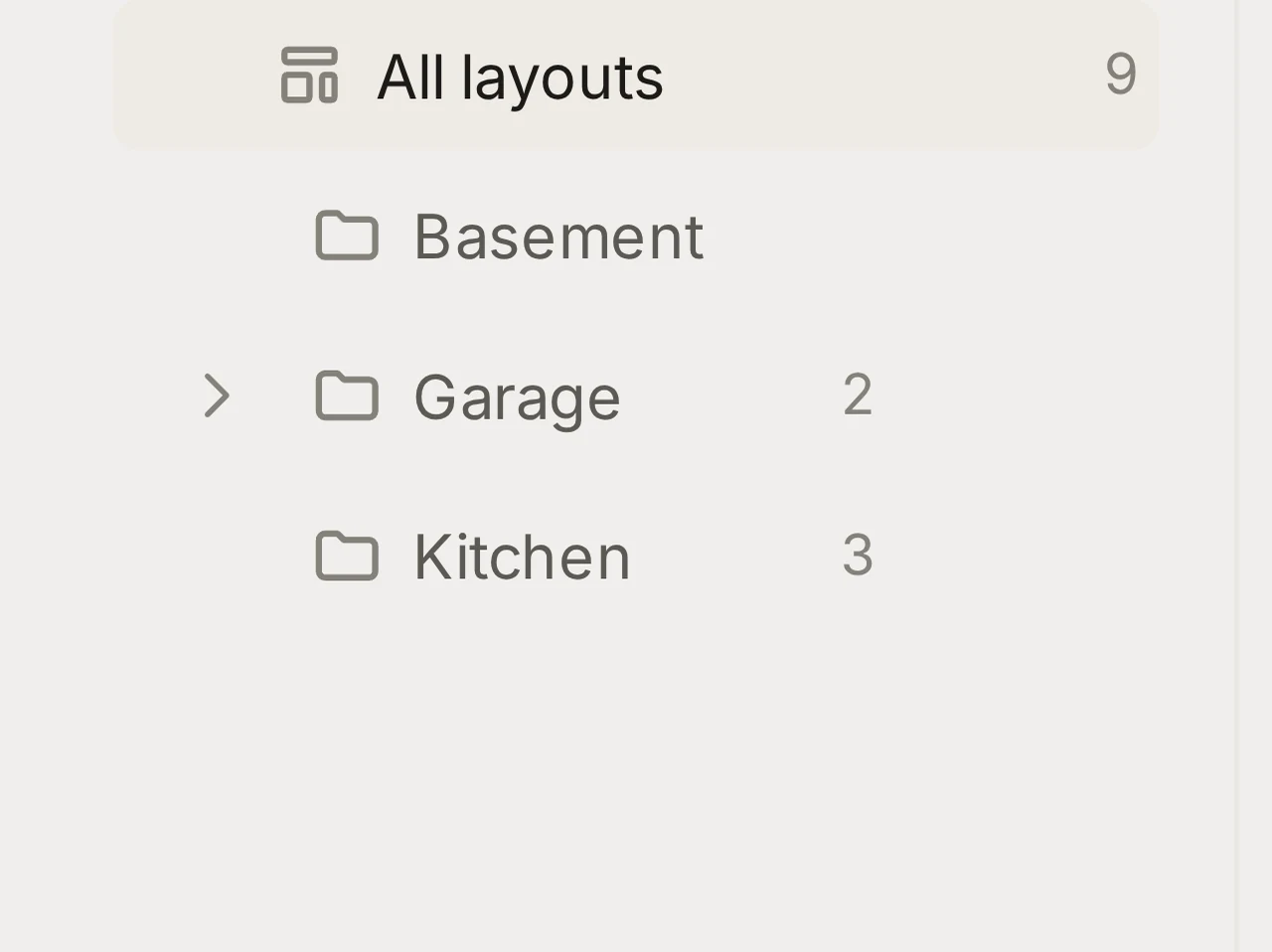
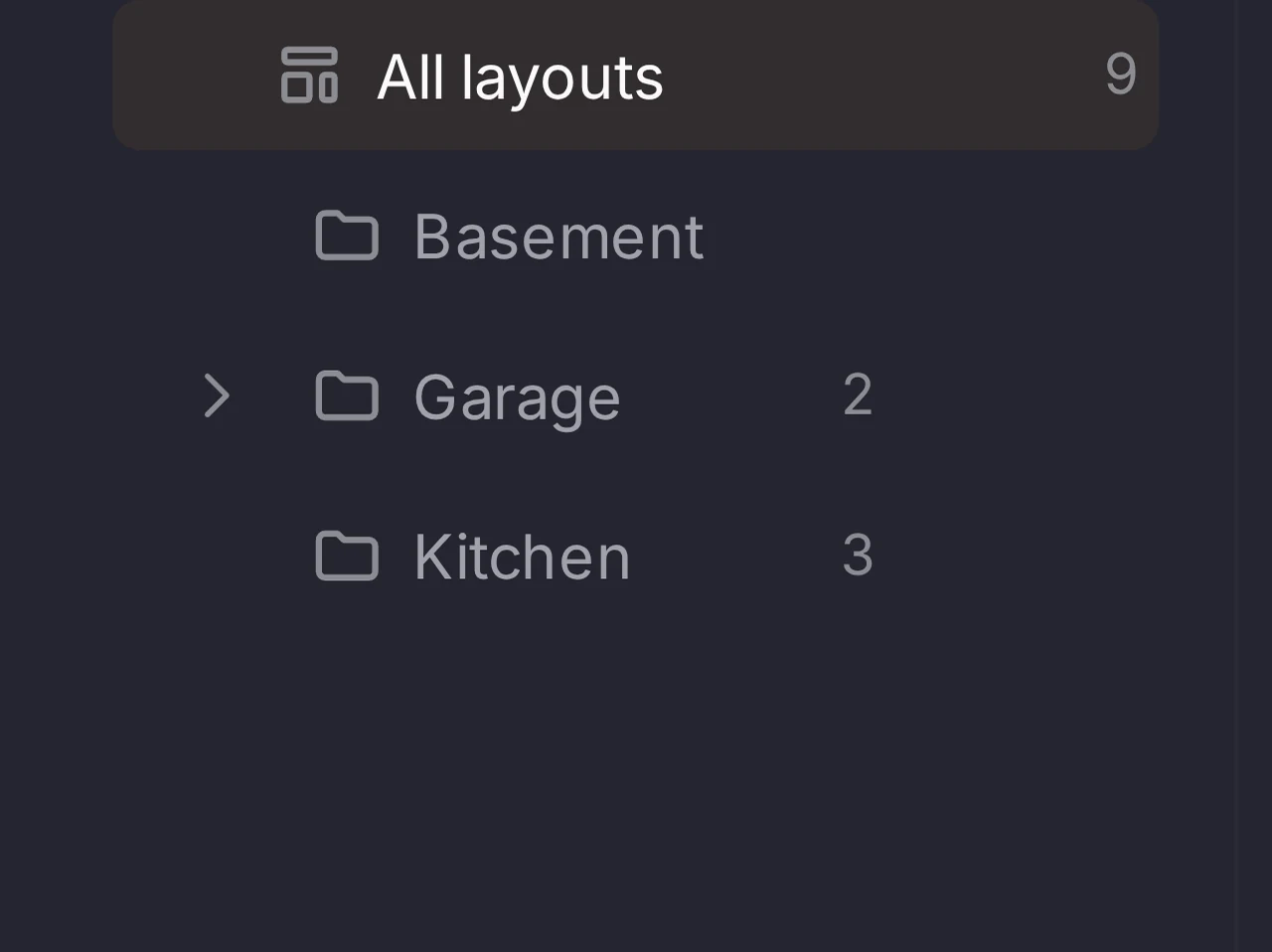
To put a layout in a folder, open its more actions menu and choose Move to folder. Pick the folder, then click Move.
To rename a folder, double-click its name. To delete a folder, click its delete button two times. Don't worry about what's inside: its layouts and folders move up one level, so you lose no layouts.
With the Places feature in Labs, a folder can also be a place, an area or a unit. See Find What Your Bins Hold.
Go back to an earlier version
Tried an idea and don't like it? The Layout Tool saves a snapshot of the open layout every 2 minutes when it changes. On a computer, open the History tab in the right panel to see them. Each snapshot shows its age, a small picture, and the number of bins and layers.
- Click Save checkpoint to keep the current state, with the date and time as its label. Do this before a big change.
- Click the name of a snapshot to give it a label.
- The Layout Tool keeps the 10 newest snapshots without a label. It keeps labeled snapshots until you delete them.
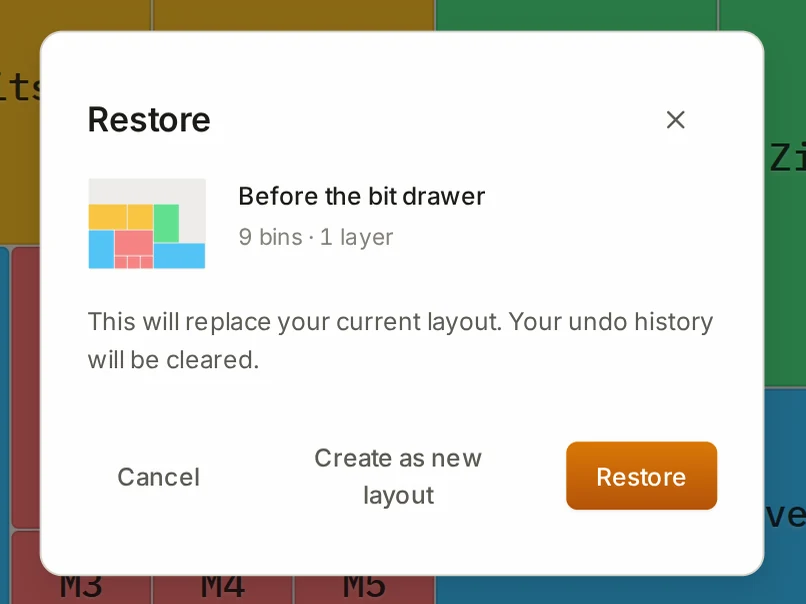
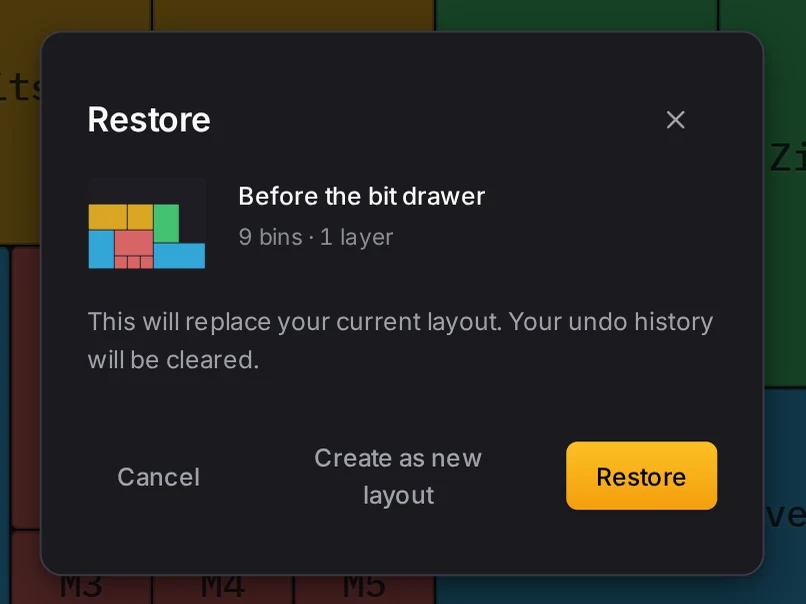
To go back, click Restore on a snapshot. A dialog gives two choices:
- Restore replaces the current layout with the snapshot and clears the undo history.
- Create as new layout opens the snapshot as a new layout and keeps the current one. Pick this one if you're not sure.
If the browser loses the data of a layout, the Layout Tool looks for it in its backup storage when it starts. If it finds the layout, it shows Layout recovered from backup storage.
Undo a change
Press Ctrl+Z to undo and Ctrl+Y to redo. On a Mac, use Cmd. The header also has undo and redo buttons.
The undo history keeps the last 100 changes of the open layout. When you open a different layout or restore a snapshot, the history starts again. For an older state, use a snapshot.
When it goes wrong
A message says the Layout Tool couldn't save your changes
Free up space on your device, then come back to the Layout Tool. When the header shows Saved, your changes are safe.
Your browser keeps your layouts on your device, so the Layout Tool can't save when the device is full. While a save fails, the header shows Save failed. The Layout Tool tries again by itself, first after a few seconds and then every minute. It also tries again when you come back to the window. Until a save works, the browser asks before you close or reload the tab.
Undo doesn't go back far enough
Restore a snapshot from the History tab instead. Undo keeps only the last 100 changes of the open layout. It also starts again when you open a different layout or restore a snapshot.
A snapshot that you wanted is gone
Give a snapshot a label to keep it, or click Save checkpoint before a big change. The Layout Tool keeps only the 10 newest snapshots without a label. Each new snapshot pushes out the oldest one without a label.
A new layout or a copy fails with a message
Delete the layouts that you don't need. Download a layout first if you may want it later. The library holds up to 500 layouts, and at that limit a new layout or a copy fails. To see your count, open Settings and go to the Storage tab.
Next steps
- Your data and privacy: where the browser keeps your layouts.
- Accounts and sync: keep your layouts on all your devices.
- Layout file format: the file that a download makes.
- Share a layout: send a layout to someone else.