
Layout file format
A layout file is a plain JSON text file that holds one drawer that you planned in the Gridfinity Layout Tool. It has the drawer size, the grid, the layers and every bin. It can also carry copies of the saved designs that its bins use. Use this page to edit a layout file by hand, write one with a script, or find out why an import fails.
The published schema and a short overview are at gridfinitylayouttool.com/schema.
Get a layout file
There are two ways to save one:
- In the layout manager (Ctrl+O, or Cmd+O on a Mac), click Download on the row of a layout.
- In the command palette, run Download layout to save the layout that is open.
Both files include a copy of each saved design that a bin in the layout uses. To save every layout at once, click Export all in the layout manager. You get one archive file.
Import a layout file
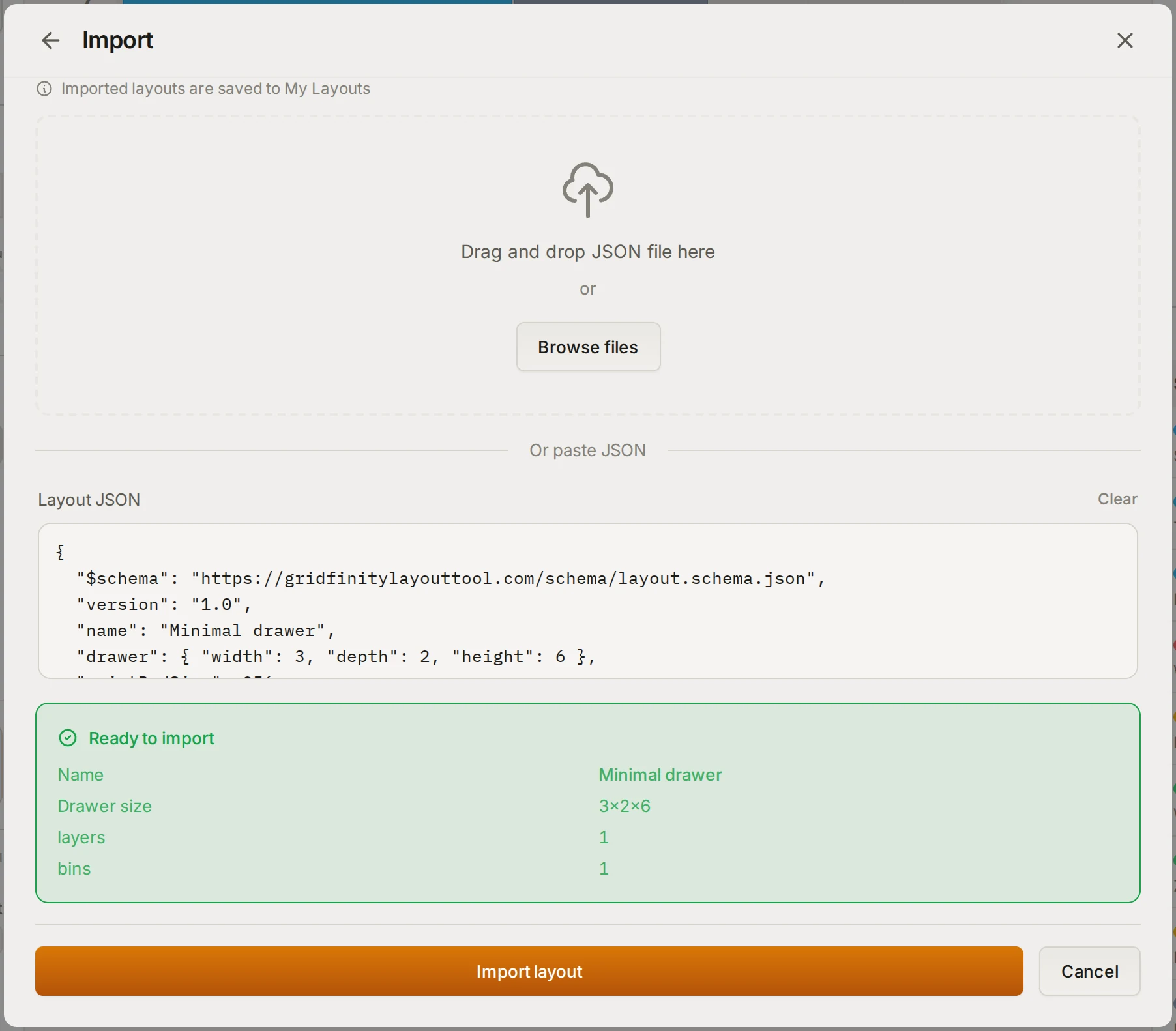
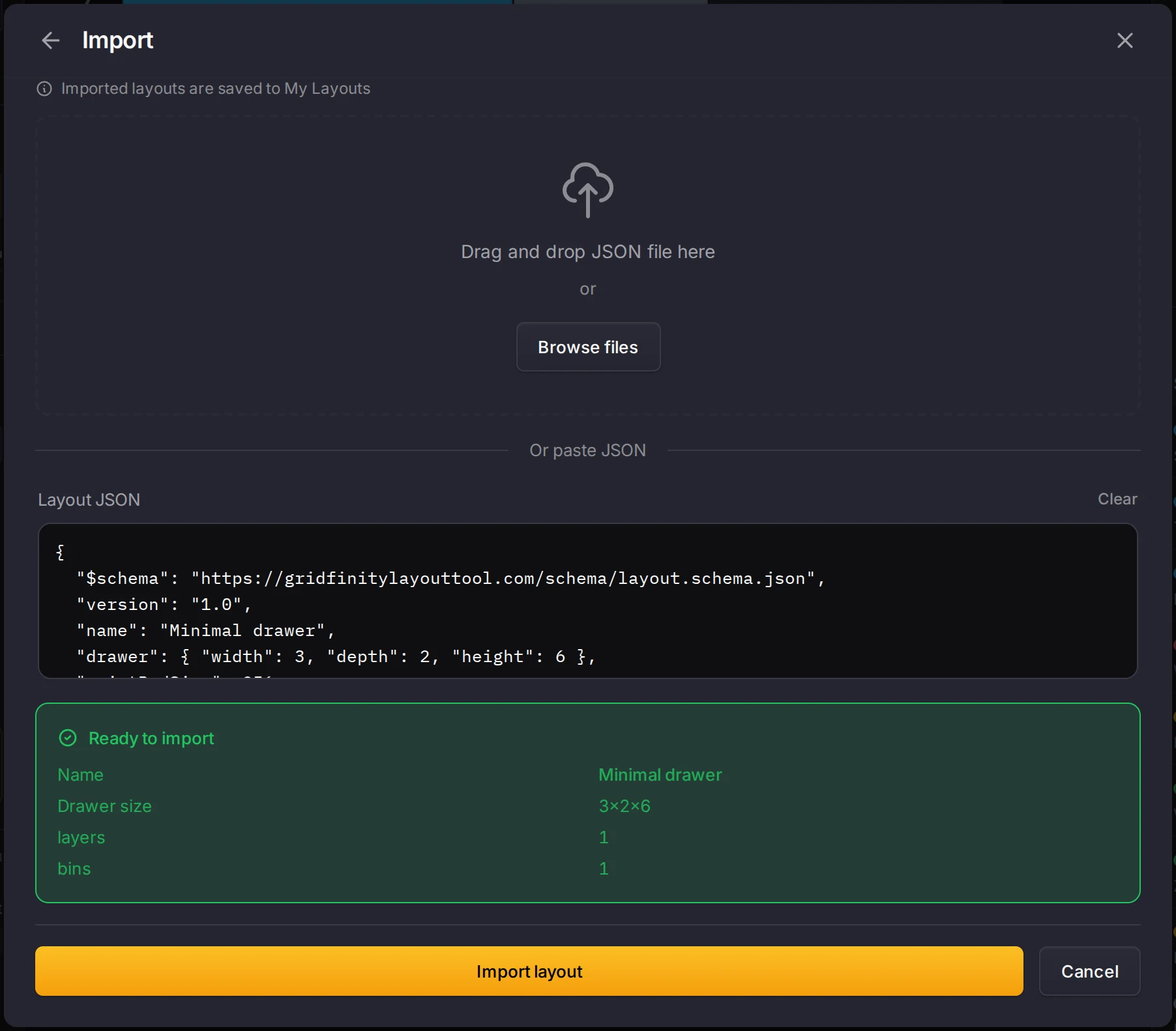
- Open the layout manager with Ctrl+O, and click Import.
- Drop the file on the drop area, or paste the JSON text into the box below it.
- Read the summary under Ready to import, then click Import layout.
The import adds a new layout to your library and opens it, with "(imported)" at the end of its name. Each design in the file goes into your saved designs, and the bins link to those copies. The import gives every layer, category and bin a new ID, so the IDs in a file only need to agree with each other.
What the file holds
The file is one JSON object. These are its top-level fields:
| Field | Required | Unit | What it holds |
|---|---|---|---|
version | Yes | Always "1.0". The importer does not read it. | |
name | Yes | The layout name, 1 to 64 characters | |
drawer | Yes | Grid units | The drawer width and depth, and its height in height units |
gridUnitMm | Yes | mm | Size of one grid unit, 20 to 60. Standard Gridfinity is 42. |
gridUnitMmY | No | mm | Grid unit front to back, for a grid that is not square |
heightUnitMm | Yes | mm | Size of one height unit, 3 to 20. Standard Gridfinity is 7. |
printBedSize | No | mm | Print bed width, 42 to 3000. The default is 256. |
printBedDepth | No | mm | Print bed depth. Leave it out for a square bed. |
categories | Yes | 1 to 20 categories, each with an id, a name and a #RRGGBB color | |
layers | Yes | 1 to 10 layers, bottom layer first | |
bins | Yes | The bins. The list can be empty. | |
baseplateParams | No | The baseplate settings of this layout | |
linkedDesigns | No | Copies of the saved designs that the bins use | |
_meta | No | Where and when the file was exported. The importer removes it. |
Each bin has these fields:
| Field | Required | Unit | What it holds |
|---|---|---|---|
id | Yes | Any text that no other bin in the file uses | |
layerId | Yes | The id of a layer, or __staging__ for the stash | |
x, y | Yes | Grid units | Position of the front-left corner, in steps of 0.5 |
width, depth | Yes | Grid units | Size, 0.5 to 50, in steps of 0.5 |
height | Yes | Height units | Height, 2 or more |
category | No | The id of a category in the same file | |
label | No | Bin label, up to 24 characters | |
notes | No | A note, up to 256 characters | |
clearanceHeight | No | Height units | Empty space above the bin for tall contents |
linkedDesignId | No | The id of an entry in linkedDesigns | |
locked | No | true stops changes to the bin size | |
items | No | Up to 100 things that the bin holds, each with an id and a name |
The full field list, with every baseplate and drawer outline field, is in the layout JSON reference.
Avoid the traps
Watch out for these. Each one gives a file that imports without an error, but shows the wrong drawer.
- The grid origin is at the bottom left.
xgrows to the right andygrows toward the back of the drawer. A bin at"y": 0sits at the front. - The first layer is the bottom layer. The app shows layers from the top down, but the file lists them from the bottom up.
- Heights are not millimeters. A bin
heightcounts height units of 7 mm, so"height": 6is a 42 mm bin. - Three units live in one file. Width, depth and position are grid units. Heights are height units. A field that ends in
Mmis millimeters. - Drawer outline corners are millimeters. A drawer that is not a rectangle has an
outlinewhose corners are in millimeters, not grid units. - Half steps are 0.5 only. A size of
1.5is correct. A size of2.25fails. - The stash is not a layer. A bin with
"layerId": "__staging__"goes to the stash. Do not add__staging__tolayers. - Designs travel only inside the file. A bin with a
linkedDesignIdand no matchinglinkedDesignsentry loses its design on import.
A minimal layout
This file holds a drawer 3 grid units wide and 2 deep, with one bin in the front-left corner:
{
  "$schema": "https://gridfinitylayouttool.com/schema/layout.schema.json",
  "version": "1.0",
  "name": "Minimal drawer",
  "drawer": { "width": 3, "depth": 2, "height": 6 },
  "printBedSize": 256,
  "gridUnitMm": 42,
  "heightUnitMm": 7,
  "categories": [{ "id": "cat-general", "name": "General", "color": "#3b82f6" }],
  "layers": [{ "id": "layer-base", "name": "Base", "height": 6 }],
  "bins": [
    {
      "id": "bin-screws",
      "layerId": "layer-base",
      "x": 0,
      "y": 0,
      "width": 2,
      "depth": 2,
      "height": 6,
      "category": "cat-general",
      "label": "Screws",
      "notes": ""
    }
  ]
}
Validate a file
Add the $schema line from the example above to the top of your file. Most code editors then suggest field names and mark a wrong field or value while you type. The importer ignores this line.
The schema can't see how the parts fit together, so the importer applies a few more rules. The import fails when:
- a bin
categorynames no category in the file - a bin is outside the drawer, is taller than the drawer, or covers another bin on the same layer
- a compartment or cell list in a design does not have one entry for each column and row
Build up a file one bin at a time, and import it after each change. A collision shows on the second bin of the two, which is often not the bin that you edited.
TIP
If you work from a copy of the source code, run pnpm run validate:json path/to/file.json. It reports schema errors and import errors separately.
Next steps
- Bin design file format: the JSON file for one bin design.
- Units and sizes: how grid units, height units and millimeters relate.
- Layouts, layers and the stash: what layers and the stash do in the app.
- Organize your layouts: export, import and archive layouts in the layout manager.