
Share a layout
Want a second opinion on your drawer plan, or a friend who wants to print the same bins? Send them a share link. The Gridfinity Layout Tool puts a copy of your layout on its server. You decide if people with the link can only look, or can also edit with you.
Make a share link
- Open the layout in the layout editor.
- Click Share layout in the header, next to undo and redo.
- Under Anyone with link can, pick what the other person can do (see the table below).
- Click Create share link. The link goes to your clipboard, ready to paste.
| Pick | The other person can |
|---|---|
| Anyone with link can view | Look at the layout and save their own copy. Their changes stay with them. |
| Anyone with link can edit | Edit the same layout with you, live. |
Not sure? Pick view. You can change it later.
After you make the link, the share button gets a check mark and turns into Manage shared layout.
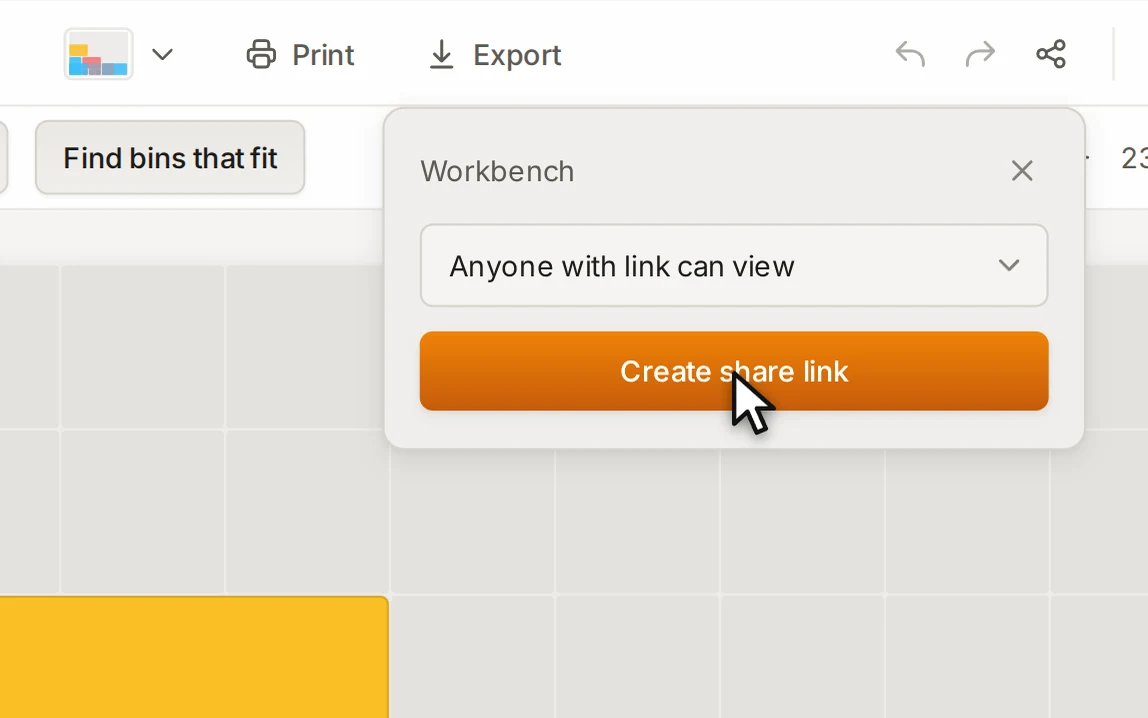
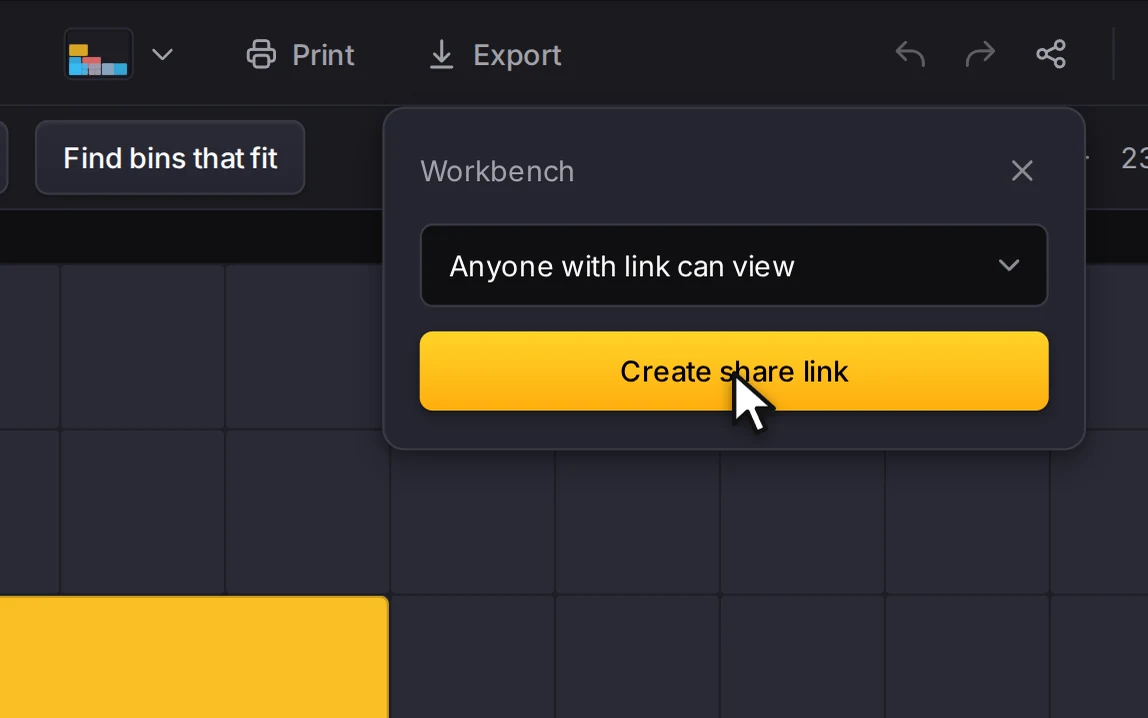
Prefer the keyboard? Run Copy share link in the command palette to open the same controls.
INFO
You must be online to make, change or delete a share link. You don't need an account.
What the link holds
The link carries the whole layout: the drawer, the layers, the categories, and the bins with their labels and notes. If a bin uses a saved design, a copy of that design goes along too. The person who opens the link gets their own copy of each design, so the linked bins look the same for them.
You can still edit after you share. The Layout Tool updates the link a few seconds after each change, so you never have to share it again. A change to the stash alone doesn't start an update.
Links don't expire. A link stays until you delete it. Your data and privacy explains who can see the copy.
The server turns away a layout that is too large or that holds blocked text:
| Limit | Value |
|---|---|
| Size of the layout data | 500 KB |
| Bins in the layout | 2,500 |
| Text | No web addresses, no character 11 or more times in a row, and no offensive words |
If the server refuses the text, the error message names where it found it.
What the other person sees
The link opens the layout editor with your layout in it. What they can do next depends on the permission that you picked.
View only. A banner at the top shows the name of the shared layout. They can look around and even change things on their screen, but their changes don't come back to you. The banner has two buttons:
- Save to My Layouts keeps a copy in their own layouts, with "(imported)" after the name. The copy includes their changes.
- Discard closes the shared layout and opens their last layout again. They lose their changes.
Can edit. They join a live session and edit the same layout as you, with no banner. See Work together live.
Either way, they must be online to open the link.


Change or delete a link
Click Manage shared layout in the header to get the link controls back.
| To do this | Do this |
|---|---|
| Copy the link again | Click Copy. |
| Change who can edit | Pick a new value in Anyone with link can. A message lets you undo the change. |
| Stop the link from working | Click Delete share link, then Delete. |
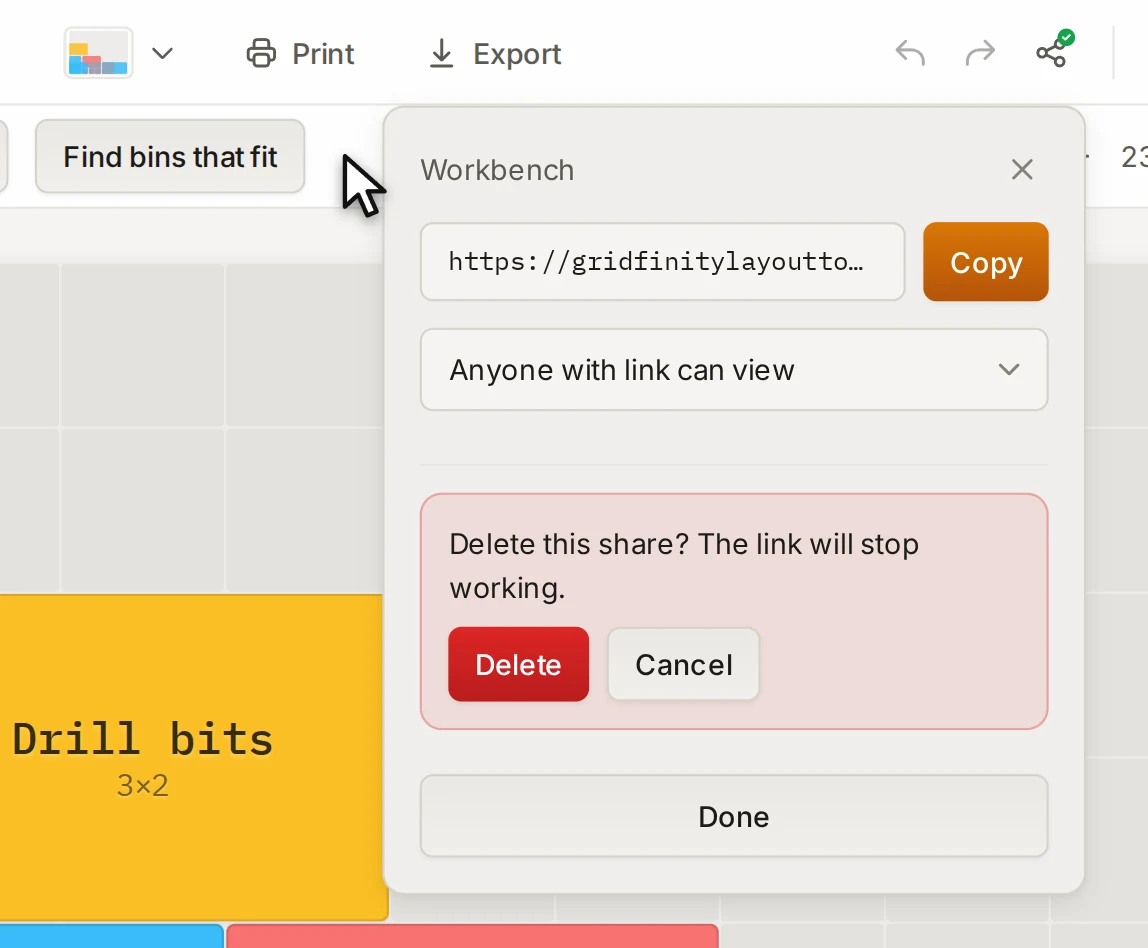
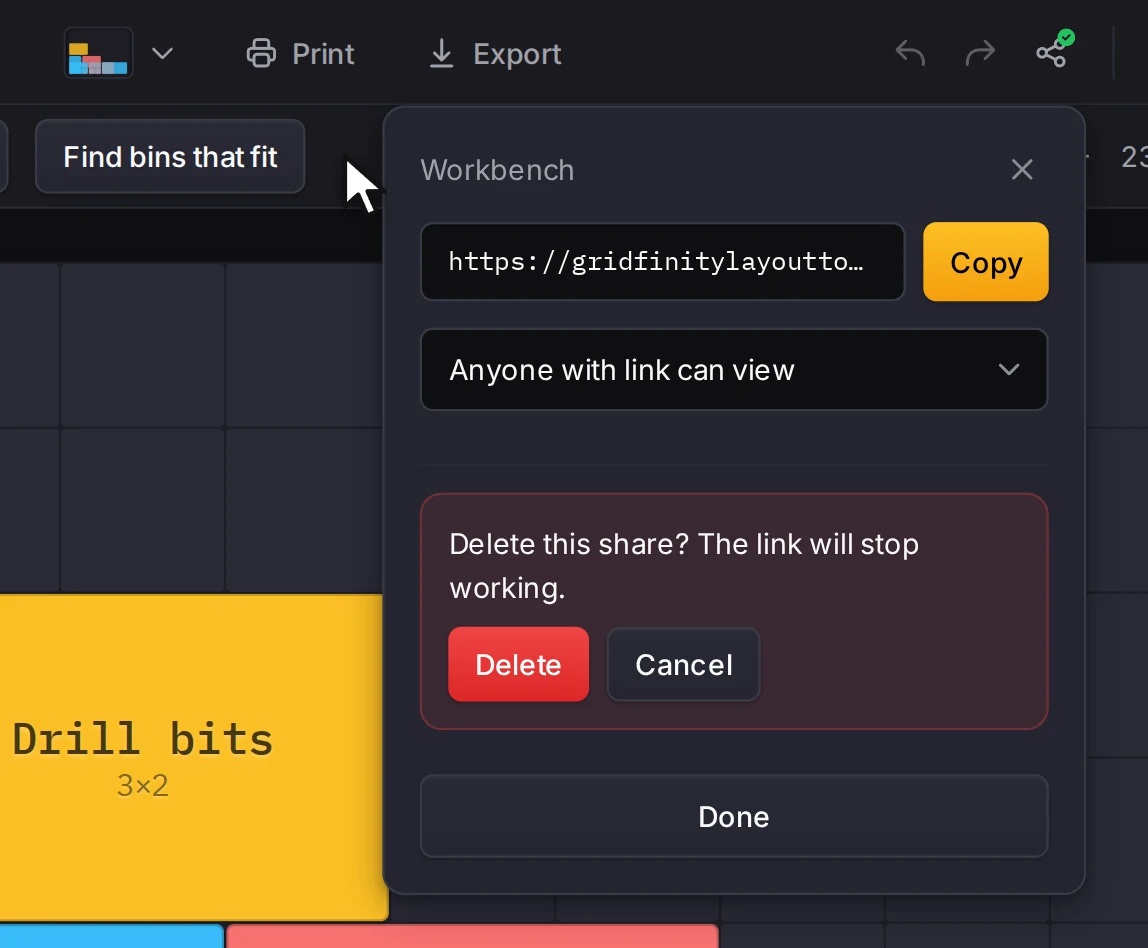
Switch an edit link to view only, and anyone who opens the link after that can only look. People already in a live session can keep editing until they leave and come back. Delete a link, and it stops working for everyone who has it.
INFO
Only the browser that made a link can change or delete it. A share link isn't part of your account, so it doesn't sync to your other devices.
Share without the server
Rather not put a copy on the server? The layout manager has three other ways to send a layout.
- Open the layout manager with Ctrl+O (Cmd+O on a Mac).
- Open the actions menu on the layout, and click Copy link.
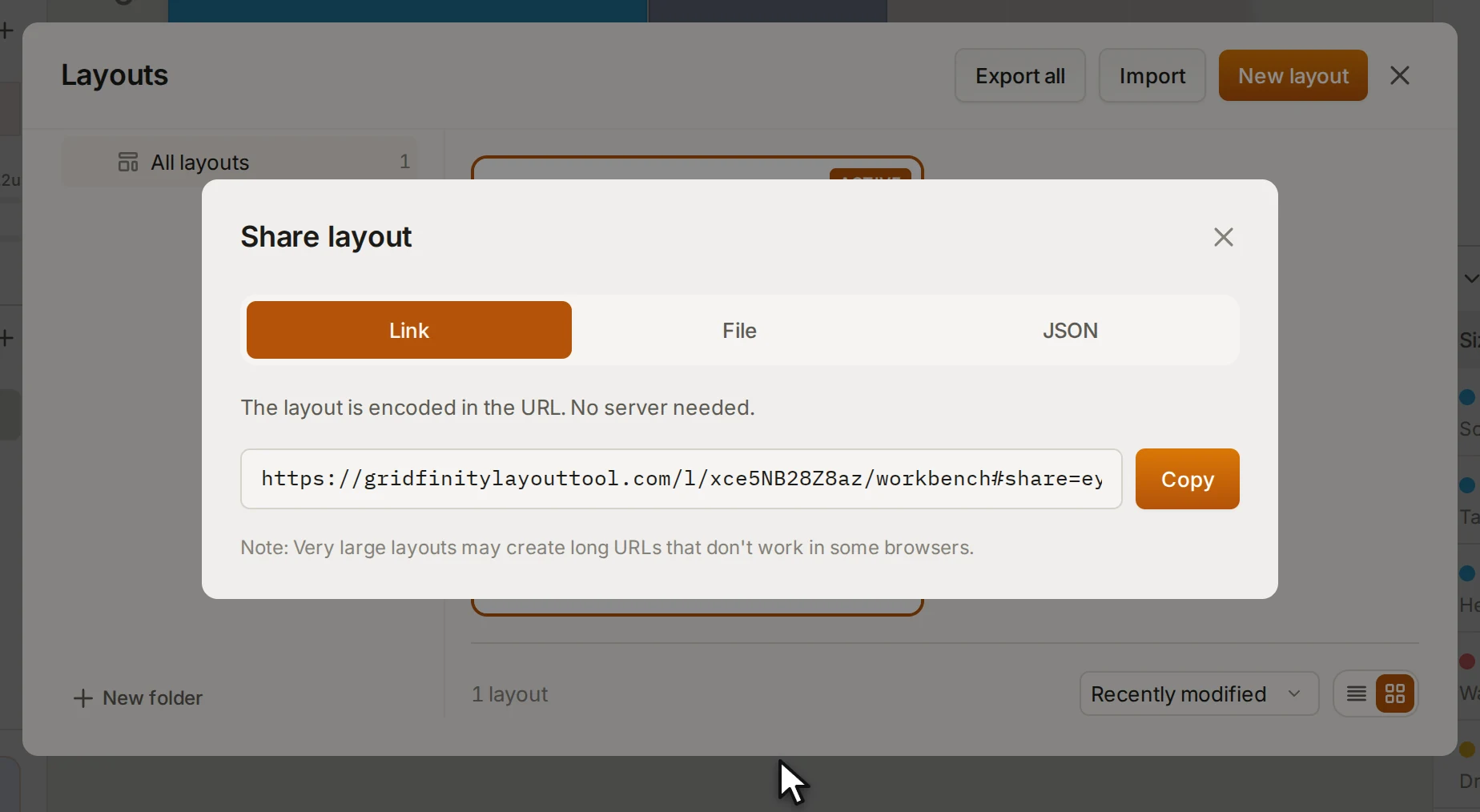
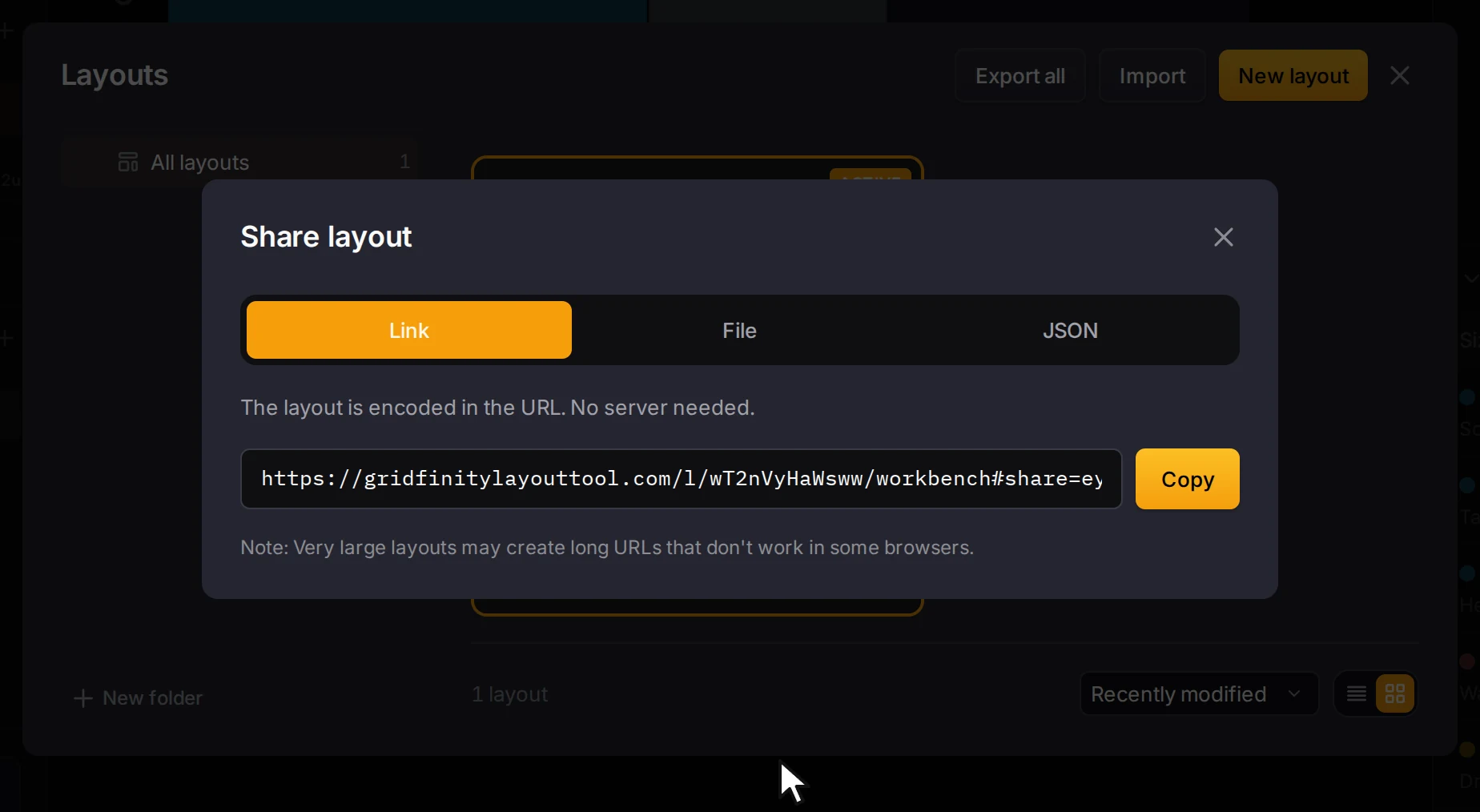
The Share layout dialog opens with three tabs:
| Tab | What you get |
|---|---|
| Link | A link that carries the whole layout in the address itself, with no server. Very large layouts make long links that some browsers don't open. |
| File | Download JSON saves the layout as a JSON file. The other person imports it in the layout manager. |
| JSON | Copy JSON copies the layout data to your clipboard. |
Share one bin design
Want to send just one bin? Send its design file. It holds the editable design, not a printable model, and the other person imports it in the bin designer. Save and reuse designs shows how to download and import the file. To share a design with every maker, publish it in the community gallery.
When it goes wrong
The server refuses to share your layout
Read the message, and do what it asks:
| Message is about | What to do |
|---|---|
| Blocked content | Change the text that the message names, then share again. |
| A layout too large | Remove bins that you don't need, or share without the server. |
| Too many bins | Remove bins until the layout has 2,500 or fewer. |
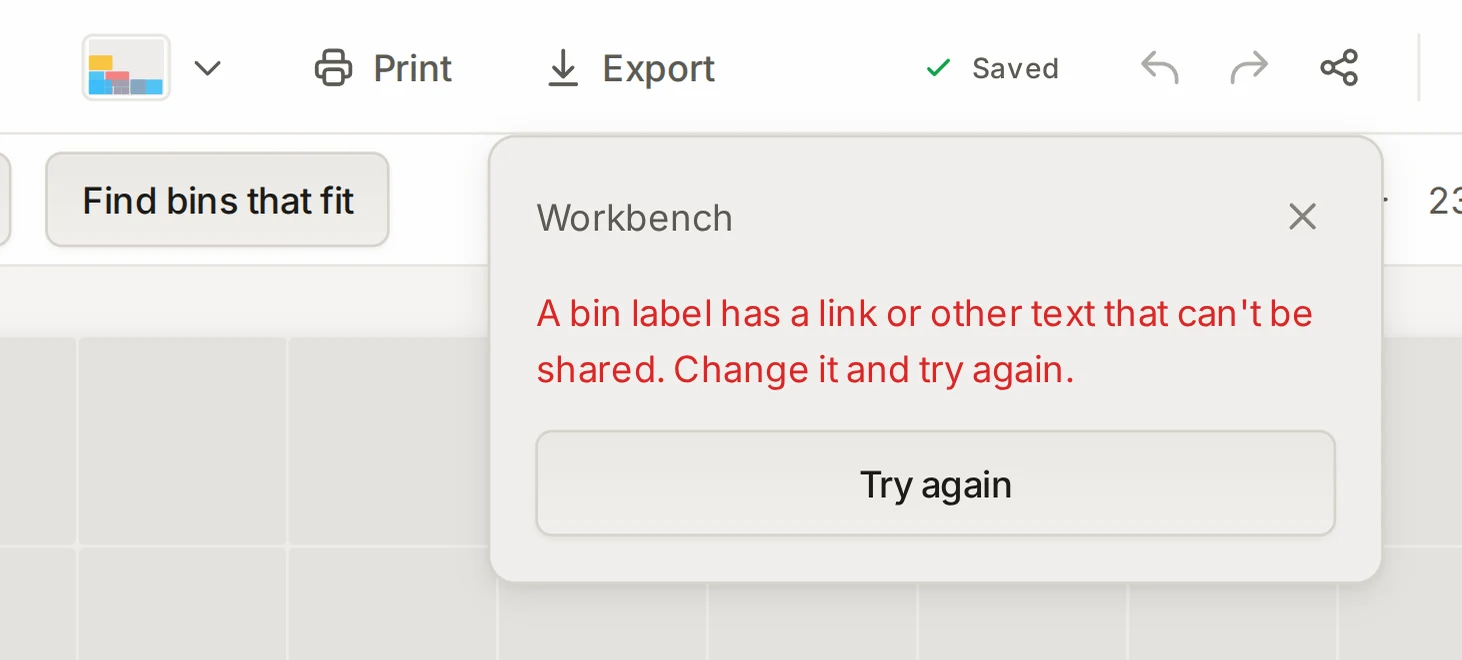
The server reads all the text that you share. That is the layout name, the category names, each linked bin design, and the labels, notes, contents and custom properties of each bin. In the text that the message names, remove web addresses that start with http://, https:// or www.. Type a character fewer times where it comes 11 or more times in a row. Then reword offensive words.
The link says that the share isn't found
Copy the whole link again, and open it. Still not found? Ask the owner for a new link.
A link doesn't expire. So when the server can't find a complete link, the owner deleted it, and it stops working for everyone.
You can't change or delete your link
Open the layout in the browser that made the link, and change it there. If a message says that the share no longer exists, make a new link.
The browser that makes a link keeps a key for it. Another browser or another device doesn't have that key, even with the same account.
Next steps
- Work together live: edit one layout with other people at the same time.
- Accounts and sync: keep your own layouts on all your devices.
- The community gallery: publish a bin design for everyone.
- Layout file format: what a layout JSON file holds.