
Preview and export
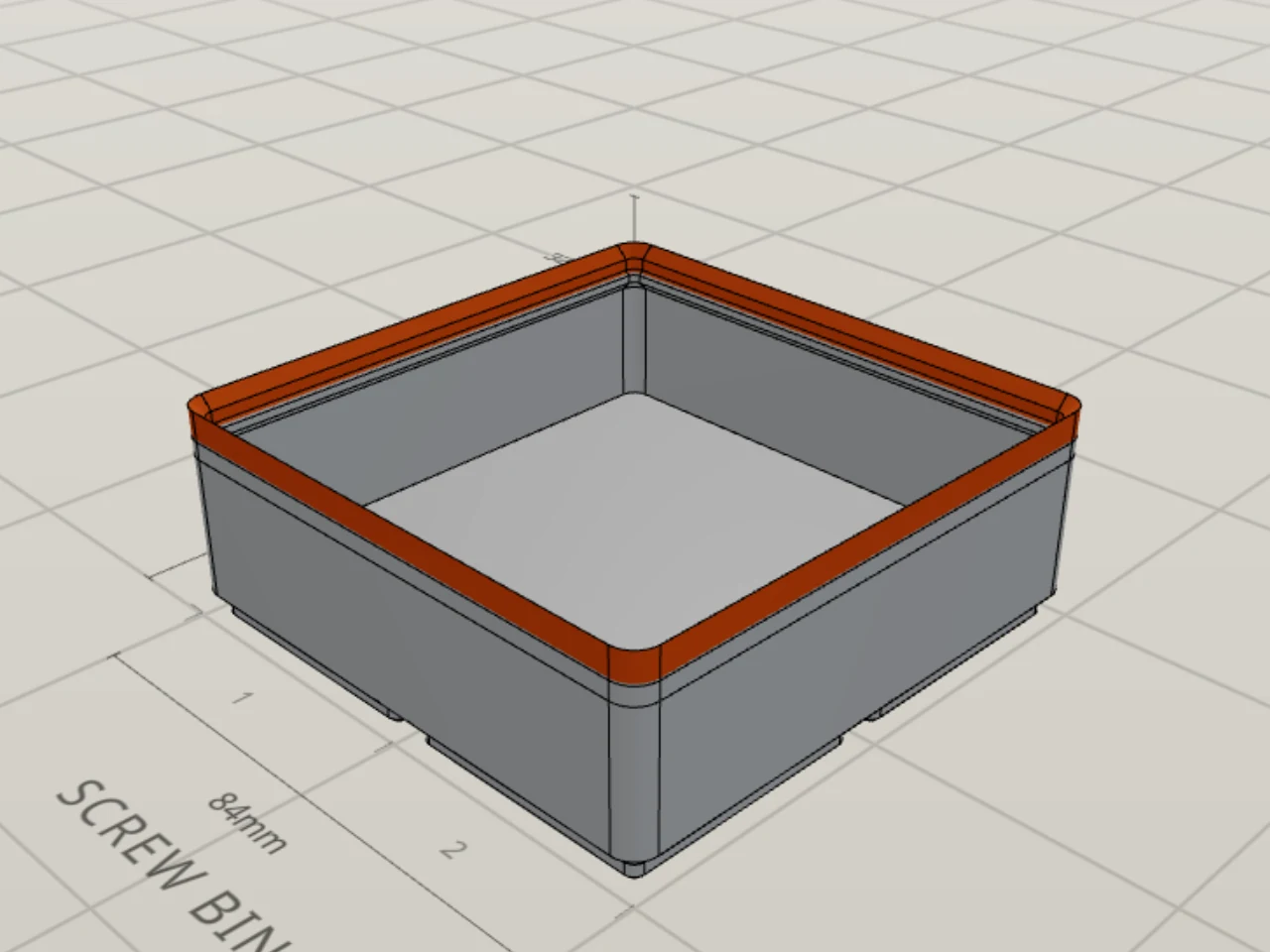
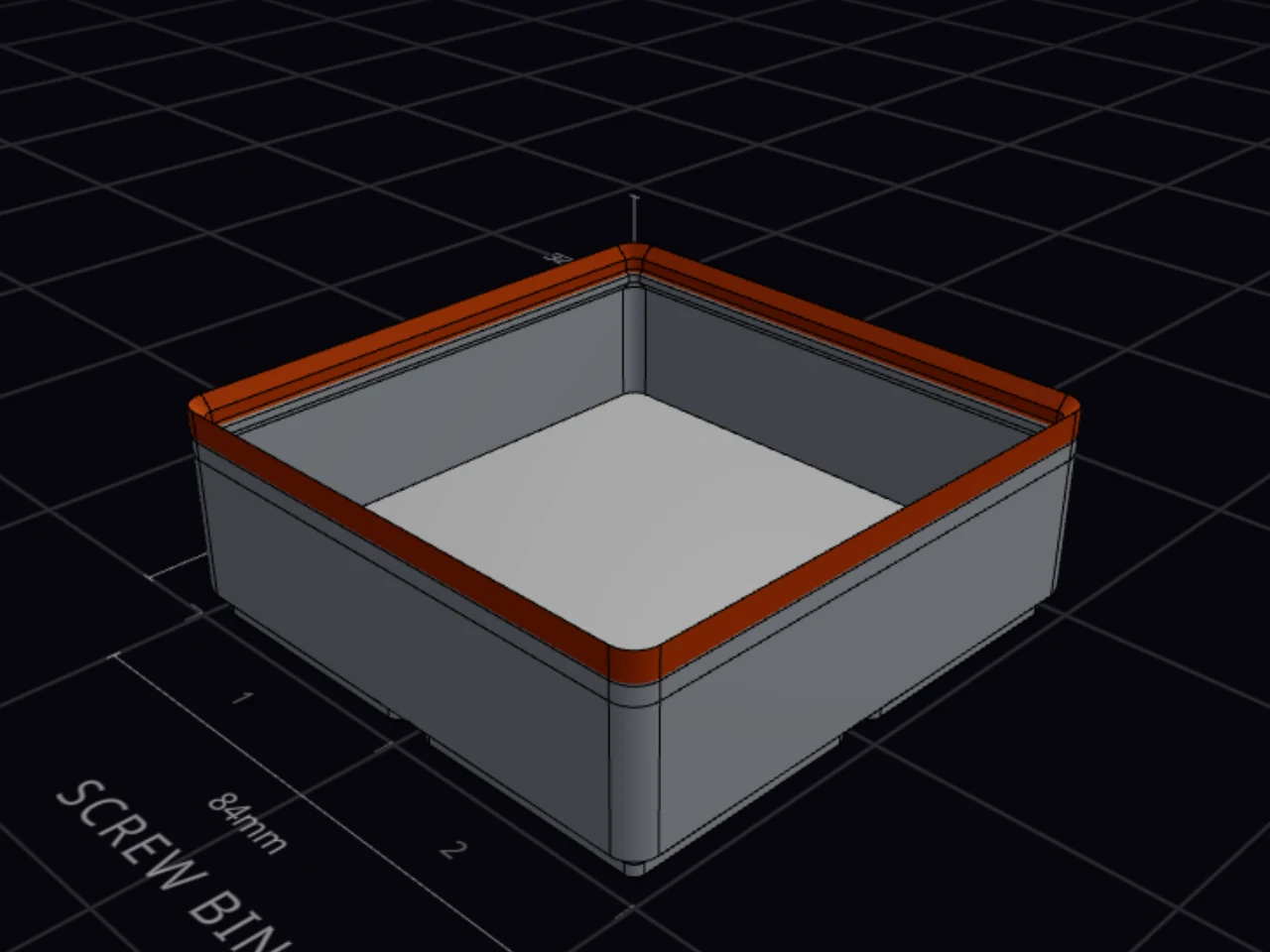
Change a bin or a baseplate, and the Gridfinity Layout Tool shows you a quick draft first, then the exact model. It works like a sketch before the final drawing: you see the shape right away, and the details follow a moment later. An export always builds the exact model again, at full quality. Here's what happens at each step, so a preview that changes for a moment, or an export that takes a while, won't surprise you.
From an edit to the exact model
The bin designer and the baseplate generator build the model in your browser. Each edit goes through up to three steps:
- Instant draft. For a simple bin, the Layout Tool draws a quick shape at once, before the geometry engine starts. A simple bin has a rectangular footprint and a standard base, with or without magnet or screw holes.
- Fast draft. For other bins, a second, faster engine builds a coarse model while the exact model computes. The Layout Tool skips this step when it expects the exact model to arrive quickly.
- Exact model. The main geometry engine builds the exact model. It replaces the draft when it's ready.
A bin gets one draft at most. When the instant draft appears, the fast draft does not run.
Curious about a different engine? Labs has a second geometry engine that you can try in place of the main one. See Alternative 3D engine.
In the baseplate generator, Refining... shows while the exact plate replaces the quick draft.
Why the draft can look different
A draft is an approximation. These differences are normal, and they go away when the exact model arrives:
| On the draft you see | Why |
|---|---|
| The bin in one color | The instant draft carries no color zones. The exact model adds them. |
| Solid feet on a magnet or screw base | The holes are on the underside. The exact model cuts them. |
| Flat panels for a Kumiko pattern | The fast draft cannot make the lattice. The exact model draws it. |
| Edges that fade in | The edge lines appear gradually when the exact model replaces the draft. |
On a slow device, a large design can take longer than the preview allows. The draft then stays as the preview. Don't worry: the export still builds the exact model, because an export gets more time.
TIP
When you open a saved design again, the preview shows the exact model from your last session at once. The Layout Tool keeps it in this browser and rebuilds the model in the background.
What the export does differently
An export doesn't use the draft. It builds the exact model again, with three differences:
- The feet join the body. The preview keeps the feet as a separate piece to save time, and the joint is out of sight. The export joins them into one closed solid, so the slicer reads one sound part.
- The mesh is finer. The export uses more and smaller triangles, so curves and chamfers come out smoother.
- The time limit is longer. A complex bin can take much longer to export than to preview.
That's why an export takes longer than the preview. The bin designer gets a head start, though. When you stop editing for about two seconds after the exact model arrives, it starts the export build in the background. An export that you start after that pause can finish sooner.
Export becomes active when the preview has a model.
The 3D preview of a layout
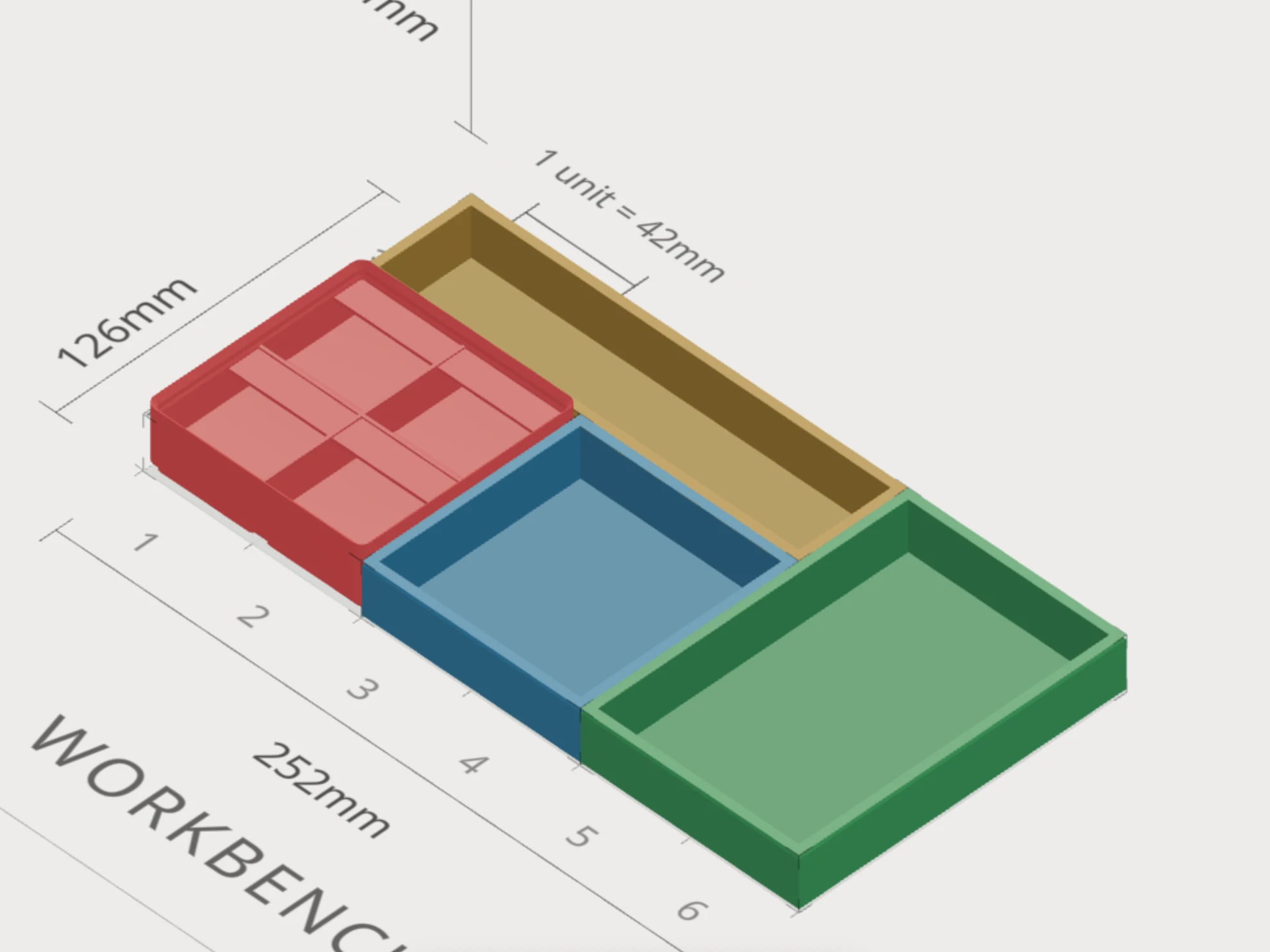
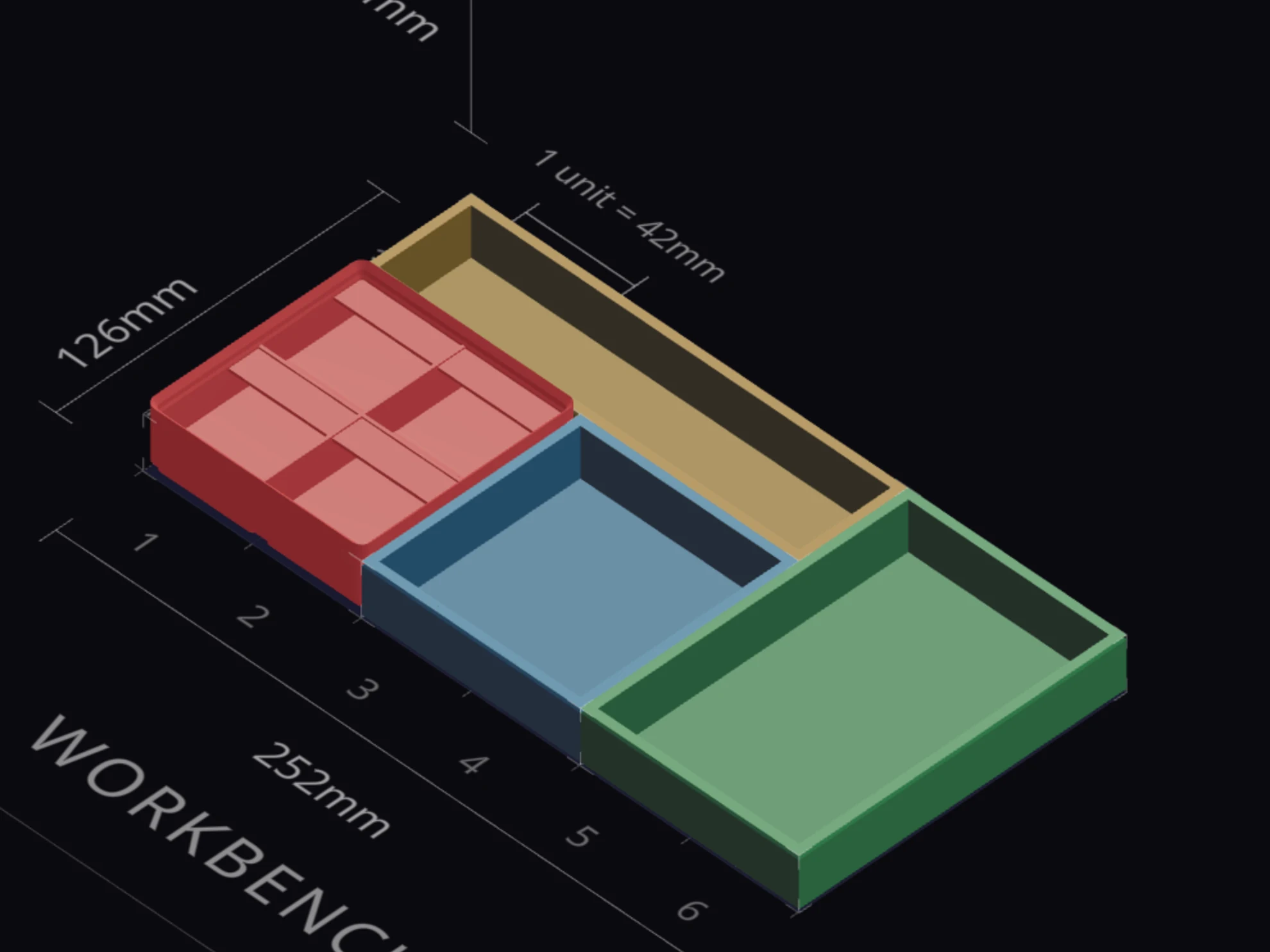
The layout editor draws its 3D preview from the layout itself, not from the geometry engine. A plain bin shows as a simple shape with its size and category color. A bin linked to a saved design shows the model of that design. Export layout (3D) builds the exact model of each linked bin, the same way the bin designer does.
When it goes wrong
The preview shows a message about the 3D engine
Update your browser, or open the Layout Tool in a recent Chrome, Edge, Firefox or Safari. If the message says that the engine failed to load, check your connection. Then click Retry, or reload the page.
The bin designer and the baseplate generator build each model in your browser, with WebAssembly. An old browser, or a security setting that turns WebAssembly off, stops the engine.
The preview says the model failed
Click Revert to undo your last change, or click Retry. Then change one value at a time, to find the one that breaks the model. Export stays gray until the preview has a model.
The export stops with an error
Read the message. For a timeout or a memory error, make the bin lower, or make the wall pattern bolder or turn it off. Then export again. See The export stops with an error.
The export builds the finest model of the three steps, so a very complex design can run out of time or memory in the browser.
Next steps
- File formats: pick STL, 3MF or STEP for your export
- The print list and ZIP export: export every bin in a layout at once
- Multi-color printing: see what the 3MF file carries for each color zone
- Saved designs and linked bins: see how a layout shows the model of a saved design
- SpaceMouse: move the 3D preview with a 3Dconnexion SpaceMouse