
Multi-color printing
Got a printer with an AMS or another multi-material system? Give each part of a bin its own filament color: an orange lip, white label tabs, black text. The 3MF export carries those colors to your slicer, so the whole bin prints in one job. Here's how color zones work, what the 3MF file holds, and what happens when you print in one color.
Color zones
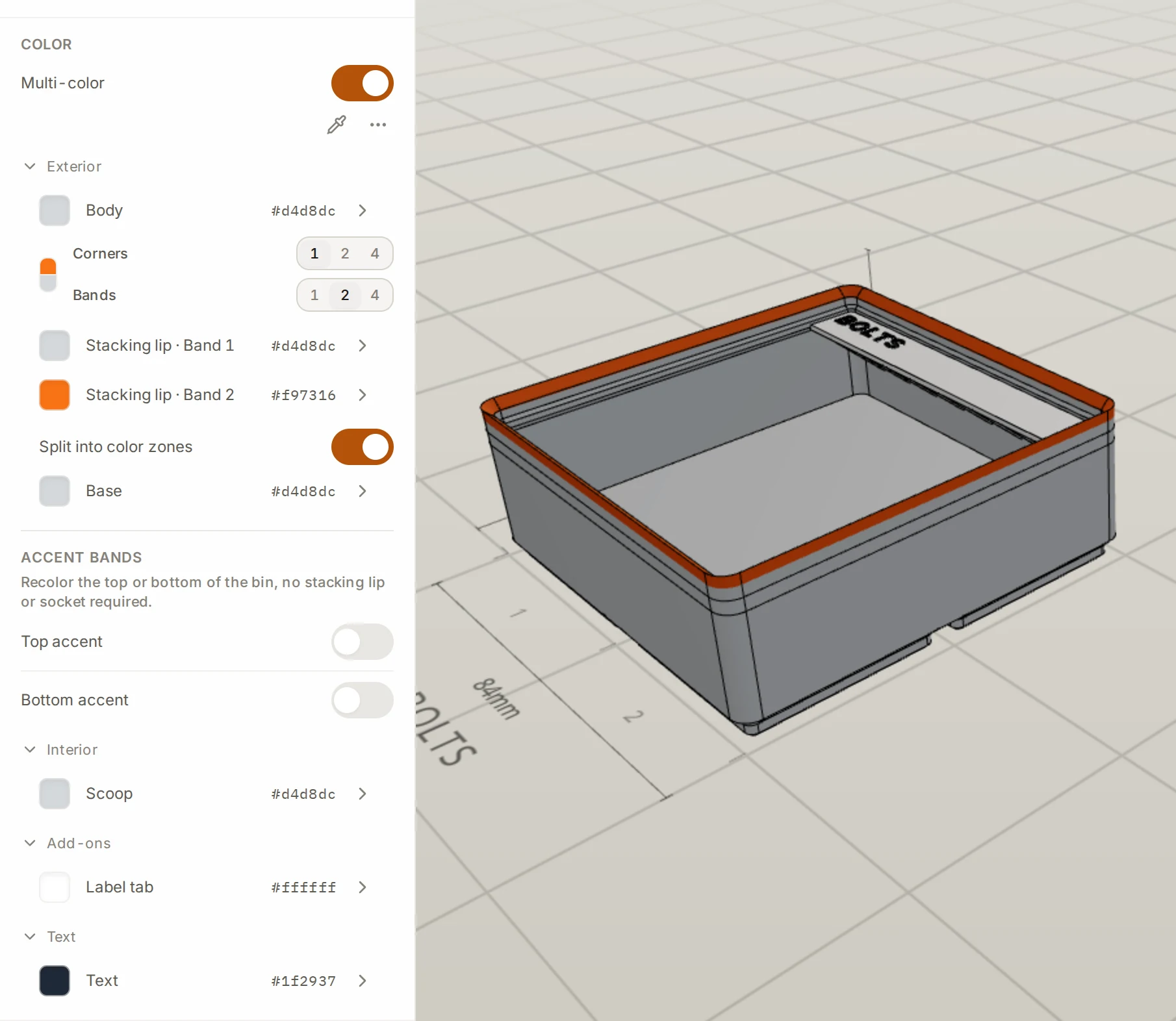
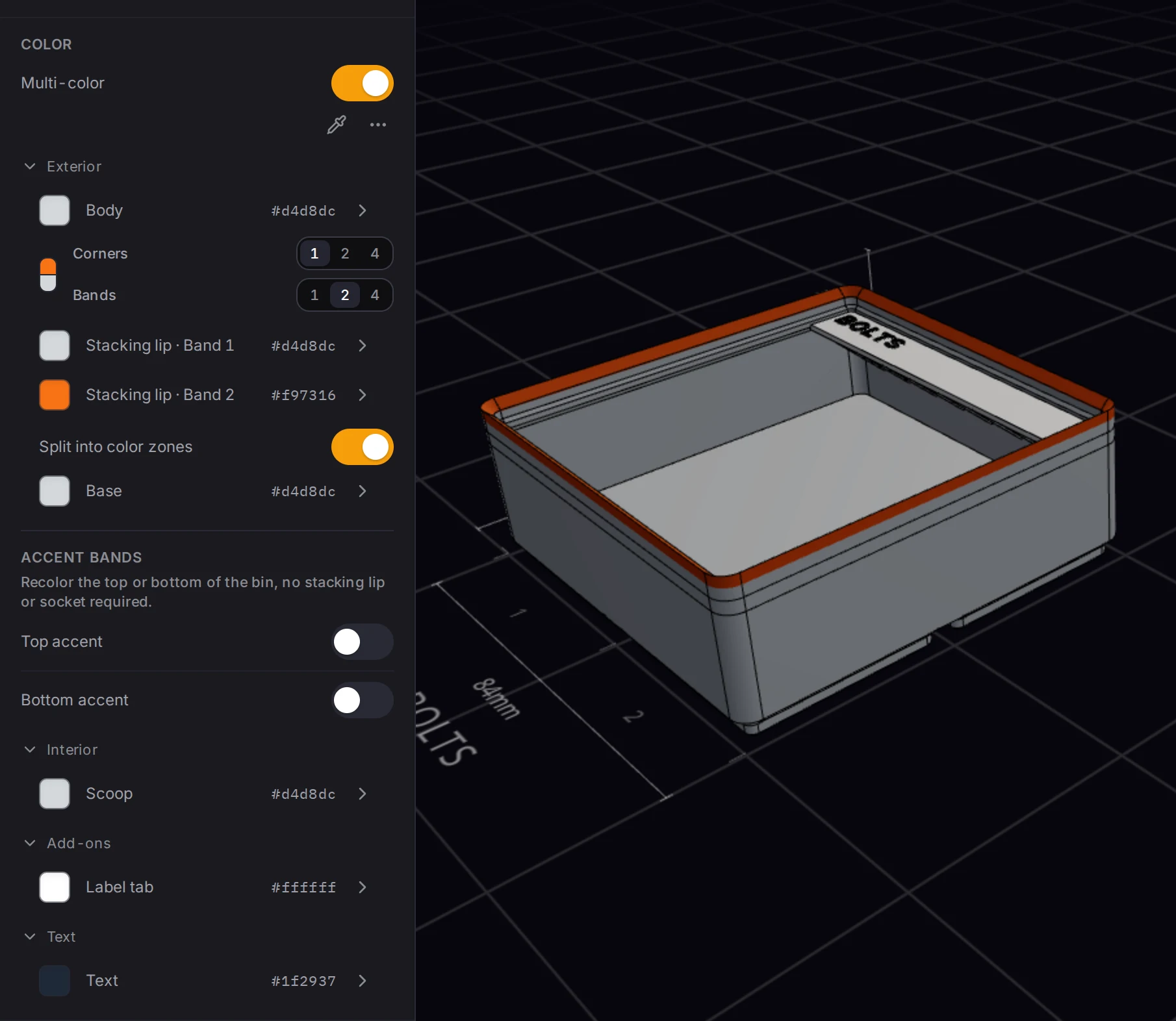
A color zone is a part of the bin that takes one color. Turn on Multi-color in the Finishing group to see the zones. The bin designer shows a zone only when the bin has that part. For example, the Scoop zone appears only on a bin with a finger scoop.
| Zone | What it colors |
|---|---|
| Body | The walls, the floor and all parts that no other zone covers |
| Stacking lip | The stacking lip |
| Base | The feet |
| Scoop | The finger scoop |
| Dividers | The divider walls between compartments |
| Label tab | The label tabs |
| Lid | The lid |
| Text | Text on tabs, walls, the floor, cutouts and the lid |
| Accent bands | A band at the top or the bottom of the body, in mm or in layers |
The stacking lip can have more than one color, in up to 16 colored cells. See Split the stacking lip.
An accent band colors the top or the bottom of the body. It needs no stacking lip or feet, and it covers every zone under it except text.
Cutouts and Bento compartments can have their own colors too. Open the Color section of a cutout. There, pick Floor or Floor + walls. A compartment in a Bento bin has the same choices. A colored cutout or compartment makes the design multi-color, even when the Multi-color switch is off.
How the 3MF file carries the colors
The export turns colors into filaments:
- Each different color in the design becomes one filament in the file. The body color is filament 1.
- Zones with the same color share one filament.
- Each triangle of the model carries a paint code that names its filament. Bambu Studio, OrcaSlicer and PrusaSlicer read these codes.
- The lid is a separate object in the file, and it takes the lid color.
- One 3MF file holds up to 16 filaments. When a file holds several bins, all bins share one list of filaments.
In the export dialog, Show filament mapping lists the filaments with the numbers that the slicer shows.
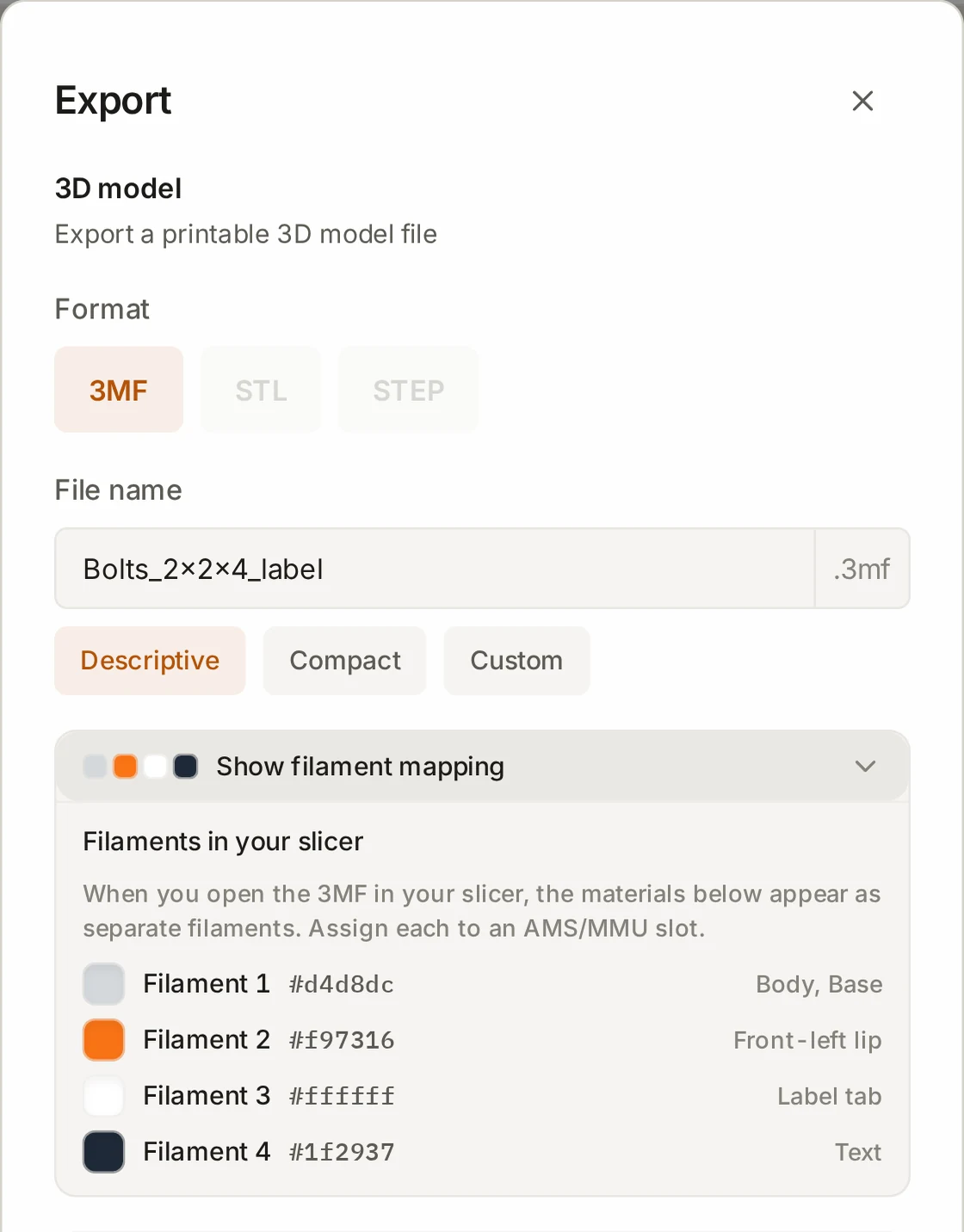
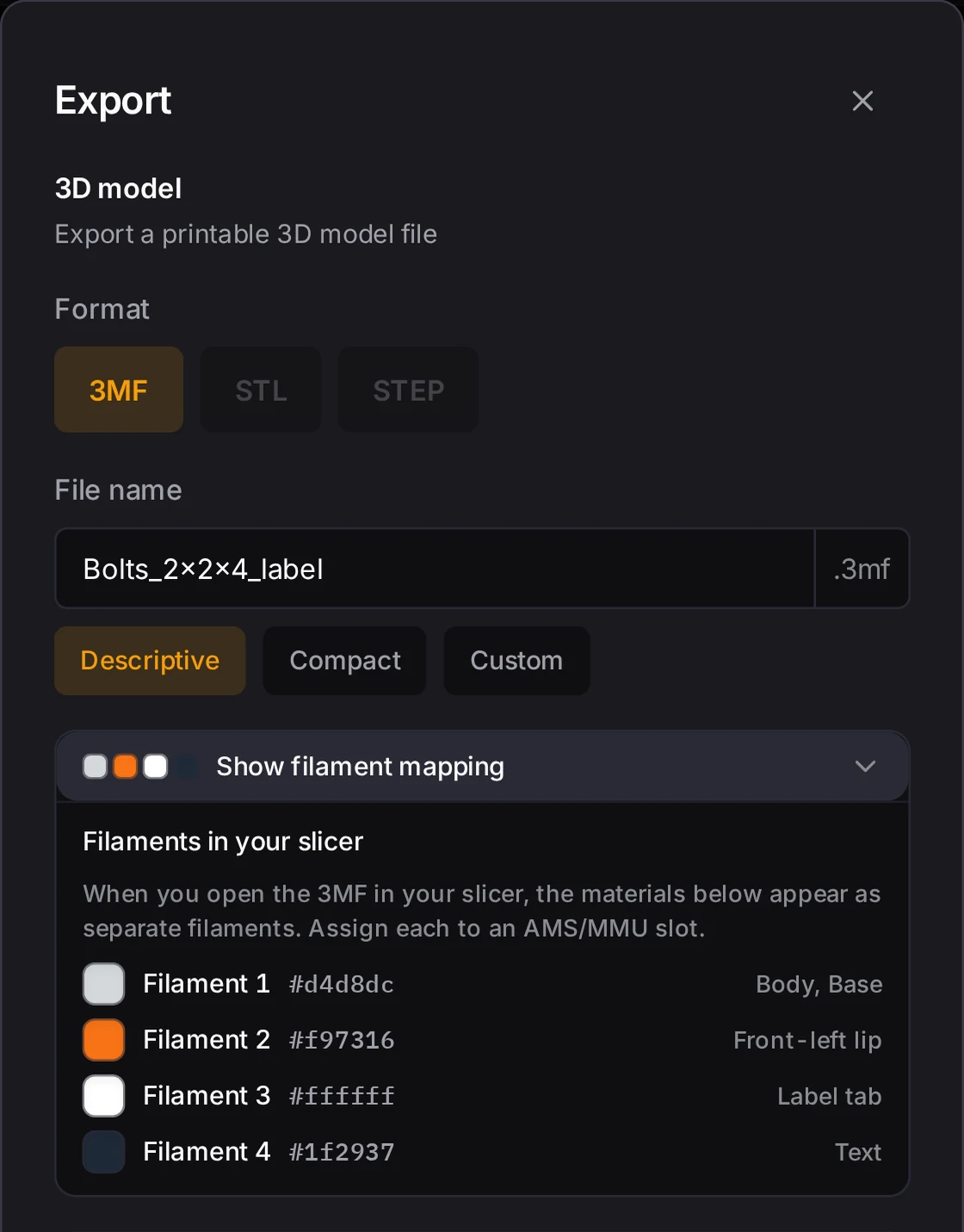
The file doesn't set the filament colors in your slicer. In the slicer, assign each filament to an AMS or MMU slot that holds the right color. Map multi-color zones to filaments gives the steps.
The file carries no slicer settings, so your own print profile stays in use. For this reason, Bambu Studio shows a notice that the file is not from Bambu Lab, and it loads only the geometry and the colors. You can ignore that notice.
TIP
When a 3MF file holds several parts, the slicer can put them all on one plate. Use the arrange command of your slicer to spread them out.
Print in one color
Only one filament? A design with color zones still prints fine. These rules decide what the export writes:
- STL and STEP files carry no colors. For a multi-color design, the export dialog turns off these formats and selects 3MF.
- A colored cutout or a colored Bento compartment makes the design multi-color, whatever the Multi-color switch says.
- With the switch off and nothing else colored, the preview shows one body color, and the 3MF file carries no color data.
- With the switch on, the design is single-color only when every zone has the body color. Then the 3MF file carries no color data.
- A split export prints each piece in one color.
To get a single-color file, and to use STL or STEP again, clear every color:
- For each colored cutout, set Color to Off.
- In a Bento bin, set each colored compartment to Off too.
- Turn off Multi-color.
Match all zones to body is only a partial shortcut. It sets the stacking lip, label tabs, feet, scoop and dividers to the body color. It leaves the text, the lid and the accent bands as they are, and it doesn't change cutout or compartment colors.
WARNING
Do not use Flat text on a single-color print. Flat text is level with the surface, so it shows only in a second filament.
You can still get two colors from a printer with one filament. Swappable label plates put the text depth on whole layers, so one filament change gives two-color labels.
When it goes wrong
STL and STEP are gray in the export dialog
Export 3MF to keep the colors. For a one-color STL or STEP file, clear every color first, as Print in one color shows. The export dialog turns these two formats off for a design with color, because they carry no color data. A colored cutout or Bento compartment counts too, even with the Multi-color switch off.
Flat text doesn't show
Give the text a color that differs from the surface under it. If the text settings offer Use a contrasting color, click it. On a printer with one filament, pick Emboss or Engrave instead. Flat letters are level with the surface, so only a second color makes them visible.
The slicer opens the file with one filament
Add the other filaments in the slicer by hand, or update Bambu Studio to 2.9.1 or later. The colors are still in the file, but Bambu Studio 2.8 doesn't add its filaments when you open it on an empty plate. See The colors are wrong.
Next steps
- Colors: set zone colors, palettes and the eyedropper step by step
- Slicer setup: open the 3MF file and assign filaments in your slicer
- Swappable label plates: print two-color labels with one filament change
- Fitting the print bed: see why a split bin loses its colors