
Troubleshooting prints
Something went wrong with a print or an export? Find what you see below. Each problem starts with the fix, then tells you why it happens.
| Where | What you see |
|---|---|
| In the plate | A bin is too tight, sits high, or is hard to lift out |
| Baseplate pieces | Connector keys are too tight, or stacked plates stick together |
| Labels | Labels are blank or missing |
| The layout ZIP | Bins are missing, or the baseplate is missing |
| The slicer | Bambu Studio rejects the file, or the colors are wrong |
| The export | The export stops with an error |
A bin is too tight in the plate
Fix: export the bin again from the layout that the plate belongs to.
- Open the layout of the drawer, then open the bin in the bin designer.
- Export the bin again.
- Did you change the Grid unit after you printed the plate? Then export and print the plate again too.
Why: the gap between a bin foot and a plate pocket comes from the Gridfinity standard, and no setting changes it. The cause that you can fix in the Layout Tool is a bin with a different grid from the plate. The bin designer takes the grid unit, the height unit, the magnet anchor and the low-profile base from the active layout.
A bin sits high on one spot
Fix: look for a screw head or a magnet that stands up from the plate. A screw head must sit flush. Set Head recess and Head diameter to match your screws, then export and print the plate again. See Magnets and screws.
A big bin with magnets is hard to lift out
Fix: in the bin designer, open Base and turn on Corners only.
Why: each magnet adds grip. With this option, the bin has magnets at its outer corners only, so it needs fewer magnets and lifts off the plate more easily.
The connector keys are too tight
Fix:
- Print the connector fit test, and set Tolerance to the best value.
- In your slicer, set the initial layer horizontal expansion to about −0.1 to −0.2 mm.
- Use a 0.4 mm nozzle for the keys if you can.
The same steps help when the plate pieces are too tight. See Fit and tolerances.
Stacked plates stick together
Fix: set the layer height in your slicer to the stack gap or less, or make Gap larger. Print the stack fit test before the next full tower.
Why: a layer that is taller than the gap closes the gap during the print, and the plates fuse together. See Eco plates and stack printing.
The labels are blank or missing
The tabs print blank, but the layout shows text
Fix: export the layout with Export, or export the bin with Export under Linked design in the inspector. Or type the label text in the design, in Interior.
Why: if Label text is blank, linked bins print the label that they have in the layout. Only the 3D layout preview, the layout ZIP and the inspector export fill in those labels. An export from the bin designer prints the tabs blank.
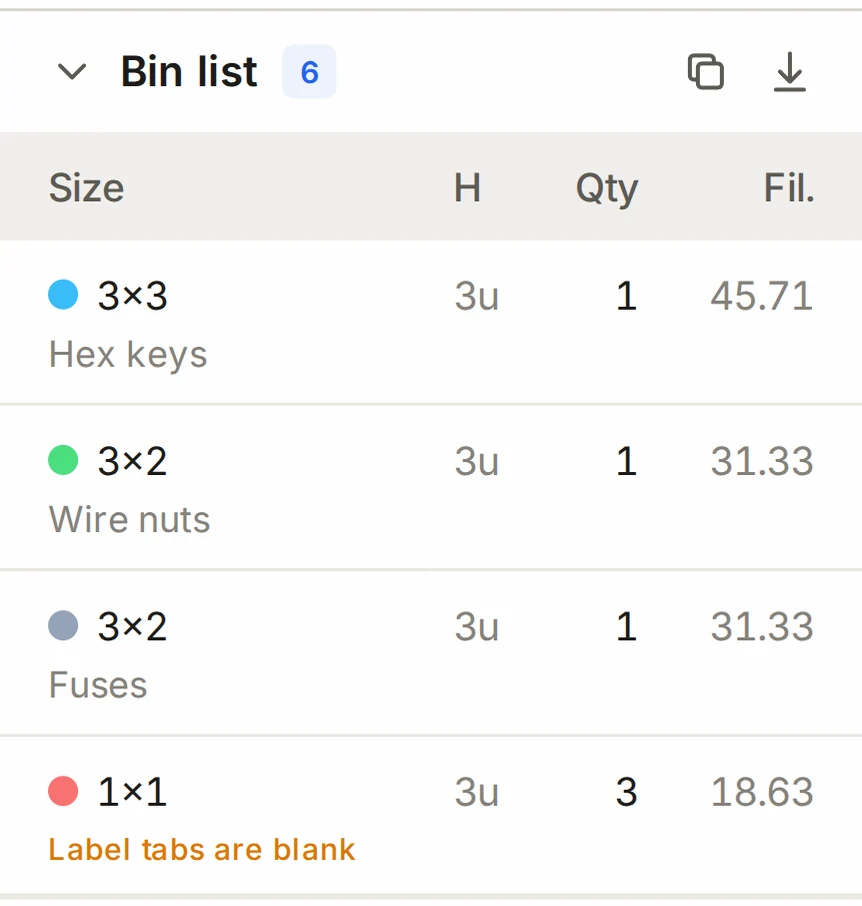
The bin list warns about blank label tabs
Fix: add the text in the bin designer.
Why: the bin list shows Label tabs are blank on a row whose tabs will print with no text.
The label plates are not in the bin file
Fix: in the export dialog of the bin designer, use the second download button to get the plates. The layout ZIP puts them in the labels/ folder.
Why: the plates are separate prints, so the bin file never holds them. The ZIP skips a plate that is wider than the print bed, and the manifest counts the skipped plates.
Bins are missing from the layout ZIP
Fix: open manifest.txt in the ZIP. Its last section lists each bin that the export skipped, and why:
| Reason | What to do |
|---|---|
| The bin has no link to a saved design. | Link the bin to a design. See Saved designs and linked bins. |
| The linked design could not load. | Open the bin and link it to a design that exists. |
| STEP cannot hold an imported mesh or a mesh cutout. | Export the layout as STL or 3MF. |
Do you see fewer files than bins? That's normal. Each design is in the ZIP once, not once for each bin. Print each file as many times as the manifest says.
The baseplate is missing from the layout ZIP
Fix: read the message that the export shows. If it names some pieces, open the baseplate generator and click Reset to automatic, or add a split. Then export again.
Why: if the baseplate fails, the Layout Tool exports the bins only, and a message tells you. The pieces that the message names are pieces of your custom split that are larger than the print bed. See Split for your print bed.
Bambu Studio rejects the 3MF file
Fix: update Bambu Studio to 2.8.3 or later. For a one-color part, you can also export STL.
Why: Bambu Studio versions 2.8.2.60 and 2.8.2.61 reject a 3MF file with no project settings. The Layout Tool leaves those settings out on purpose, because they replace your print profile.
The colors are wrong
| What you see | Fix | Why |
|---|---|---|
| The slicer shows only one filament. | Add the filaments by hand, or update Bambu Studio to 2.9.1 or later. | Bambu Studio 2.8.x on an empty plate does not add the filaments of the file. |
| The zones have the wrong colors. | Use Show filament mapping in the export dialog, and assign each filament to the correct slot. | The file does not set slot colors. |
| The whole bin prints in one color. | Export a whole bin as 3MF. | STL, STEP and split exports lose the colors. |
| Two bins share a filament in a layout project file. | Nothing to fix. This is the expected result. | Parts with the same color use the same filament. |
See Slicer setup.
The export stops with an error
Fix: make the bin lower, or make the wall pattern bolder, or turn it off. The wall pattern is in Finishing. Then export again.
Why: if the export of a bin times out or runs out of memory, the design is too complex for the geometry engine.
Next steps
- Fit and tolerances: find the fit settings and the test prints.
- Slicer setup: open the files and map the colors.
- The print list and ZIP export: learn what the layout ZIP holds.