
Save and reuse designs
Every bin you design goes into your design library, and it saves as you go. Come back to it later, copy it, make it in other sizes, or drop it into a drawer layout. This page shows how to find a design, keep checkpoints, and move design files in and out.
Save to the library
You never need to press save. The bin designer keeps the open design in your library, and it saves a change about one second after you stop. To name the design, click its name in the header and type a new one.
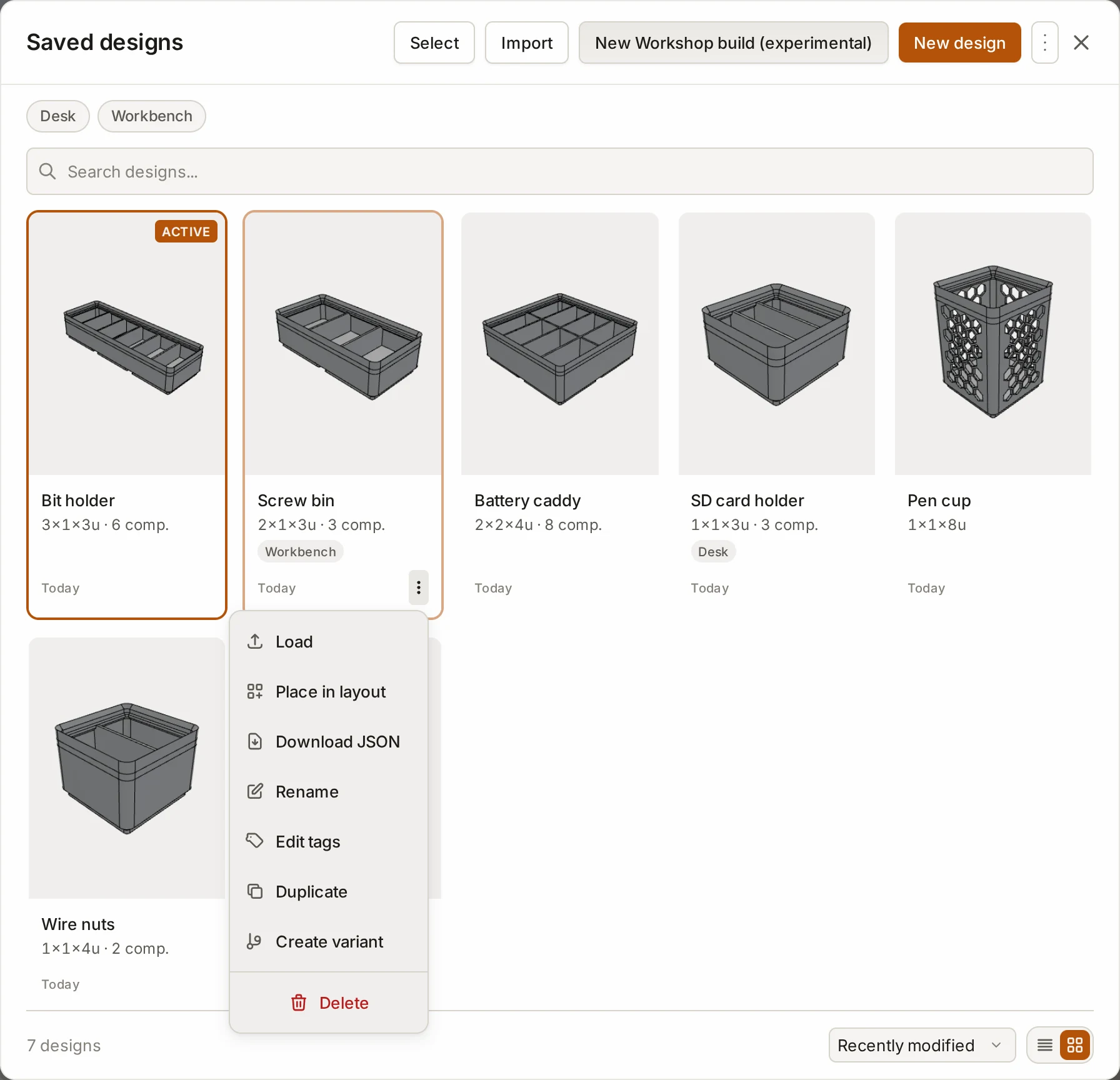
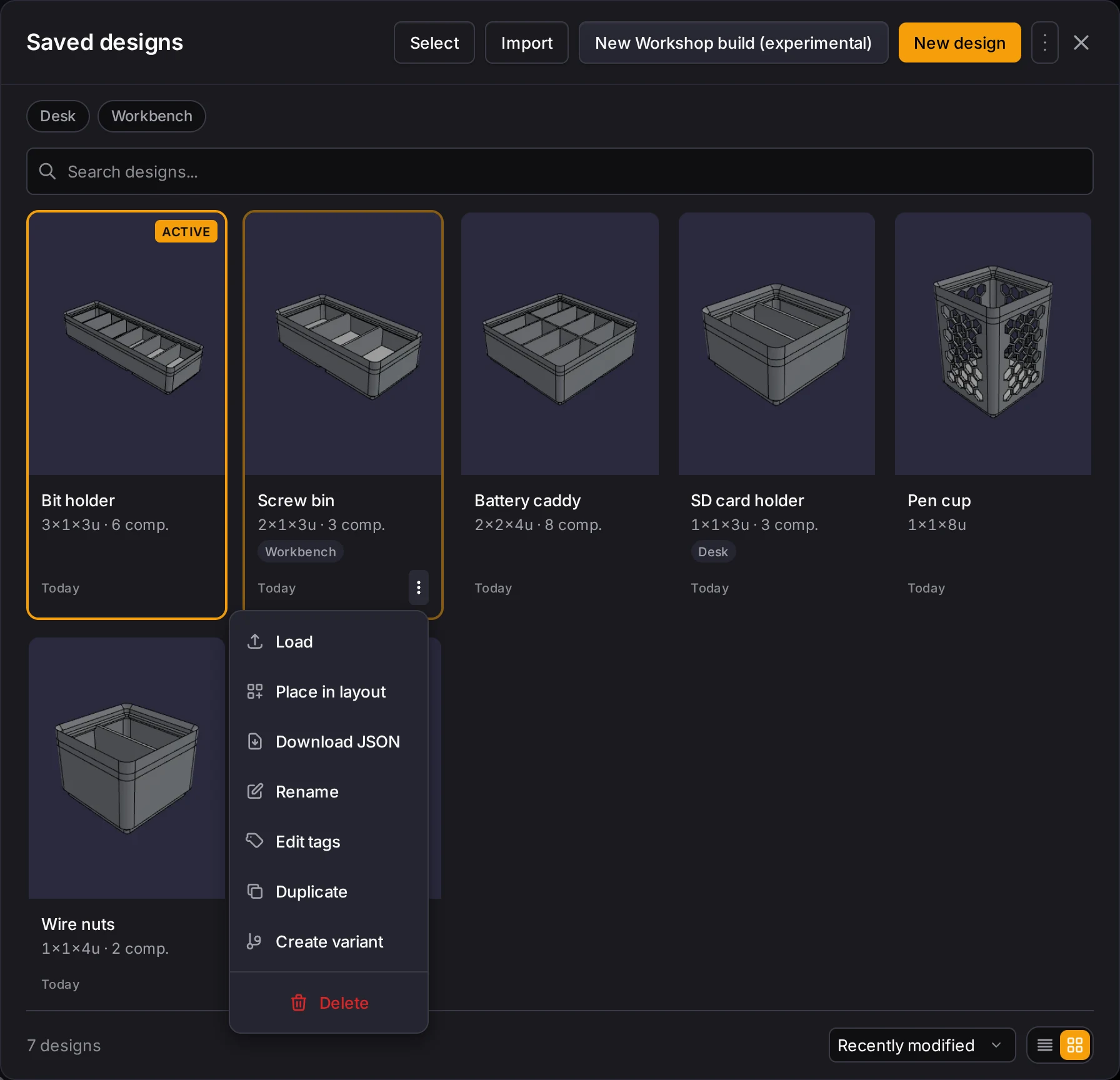
To open the library, click the button next to the design name. Its tooltip reads Open design list, and on a wide screen the button reads Designs. On a phone, tap the design name. The Saved designs list opens. Click a design to open it, or click New design to start a new bin. The current design stays in the library.
Each design has a menu with these actions:
| Action | What it does |
|---|---|
| Load | Opens the design. |
| Place in layout | Adds the design to a layout. See Place a design in a layout. |
| Download JSON | Saves a design file. See Download and import a design file. |
| Rename, Duplicate, Delete | Rename, copy or delete the design. |
| Edit tags | See Organize with tags. |
| Create variant | See Make one design in several sizes. |
The library lives in your browser. Sign in to keep the same designs on every device. See Accounts and sync and Saved designs.
Keep named versions
A version is a named checkpoint of one design. Undo history ends when you reload the page, but a version stays until you delete it. Save one before you try a risky change.
- Click Version history in the header.
- Click Save version.
- Type a name, for example the clearance that you test, and click Save.
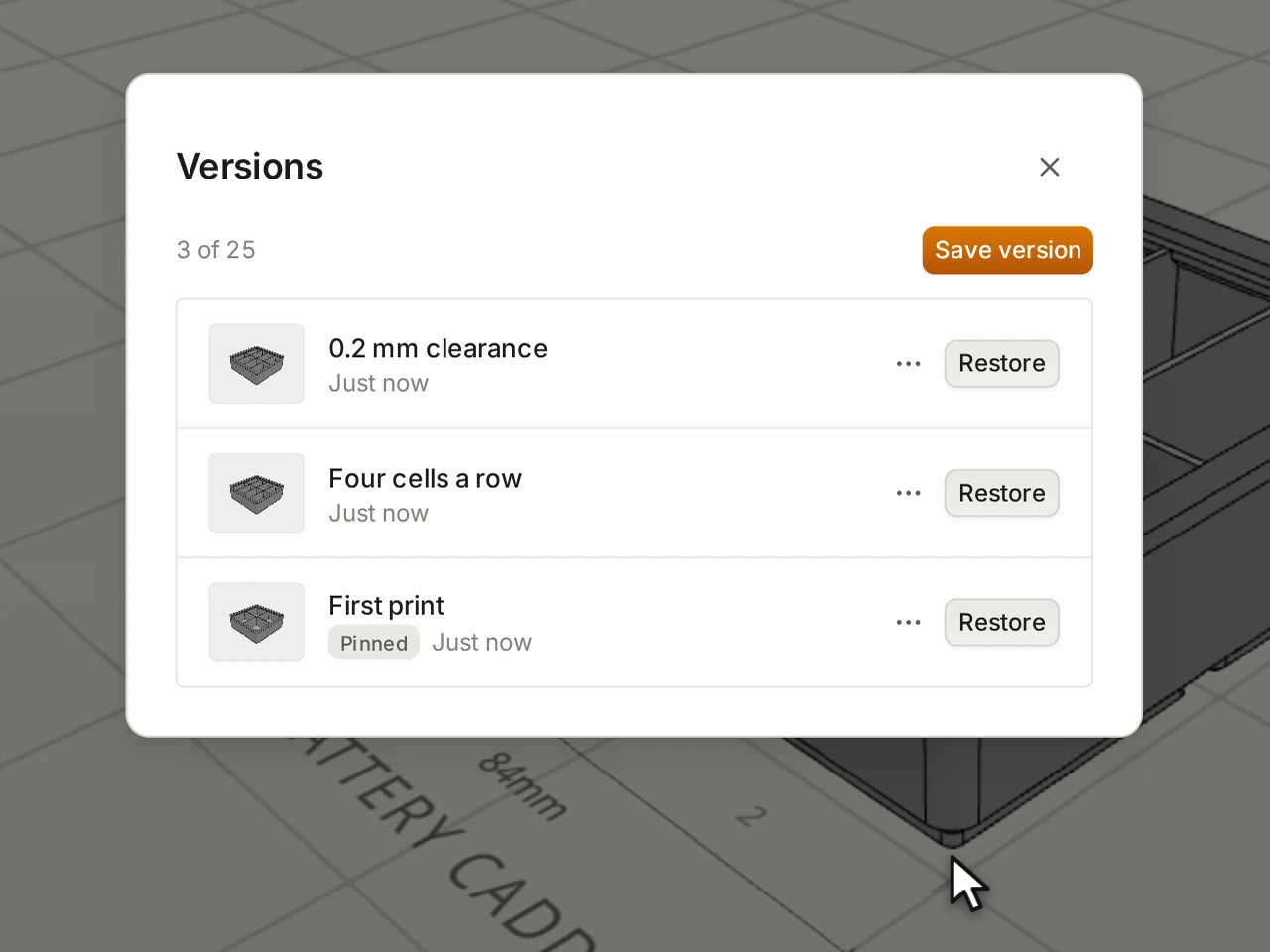
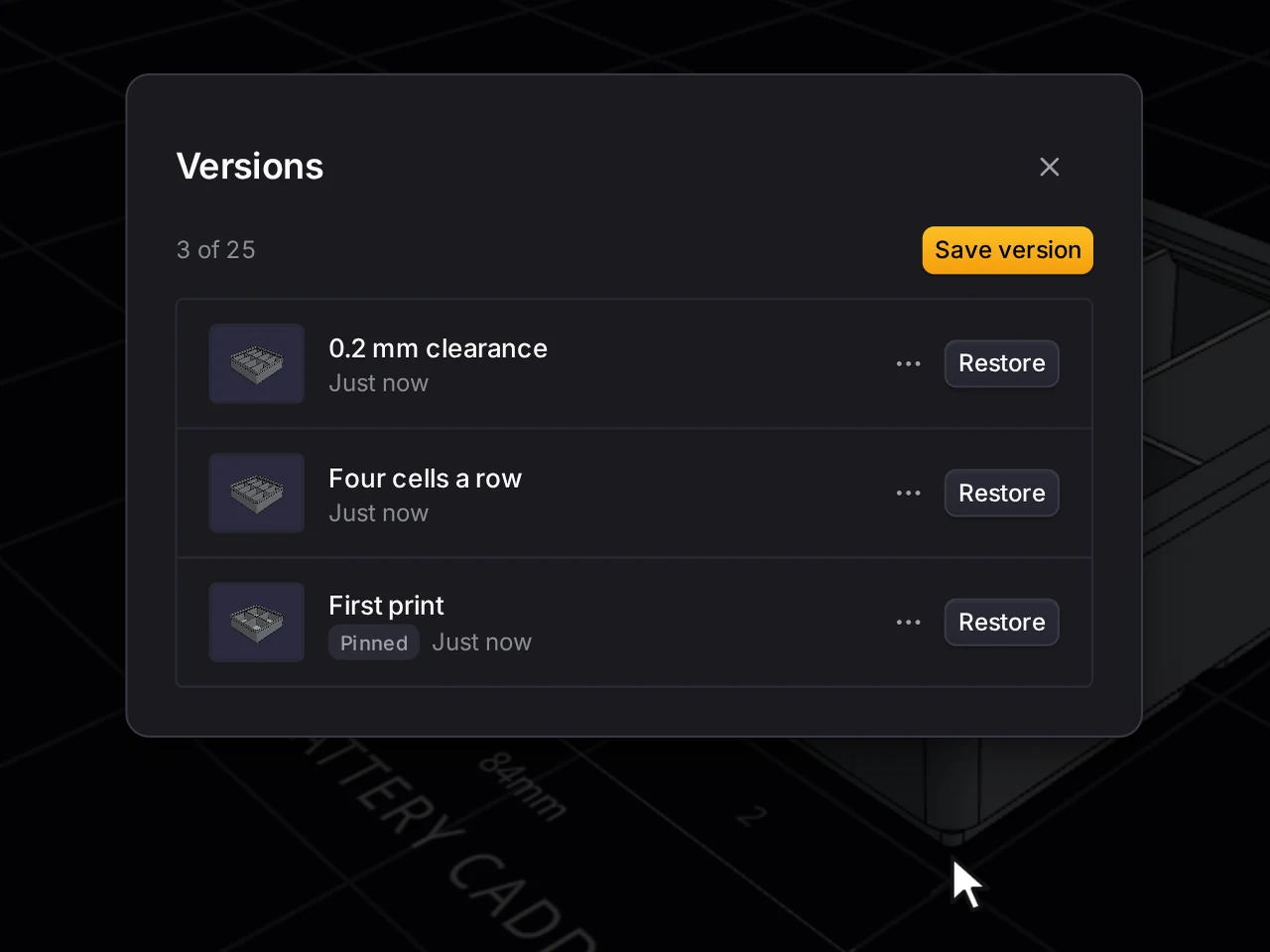
To go back to a version, click Restore on it. Nothing gets lost: the Layout Tool first saves your current state as an automatic version, and one undo reverses the restore.
Each design holds up to 25 versions. When a design is full, a new version removes an automatic version first, then the oldest one. Pinned versions stay, so click Pin this version on any version you want to keep for good.
Branch from a version
Branch from here on a version makes a new, separate design from that checkpoint. Changes to the branch don't change the original. In the library, branches show under the design they came from. If you delete that design, its branches stay.
Make one design in several sizes
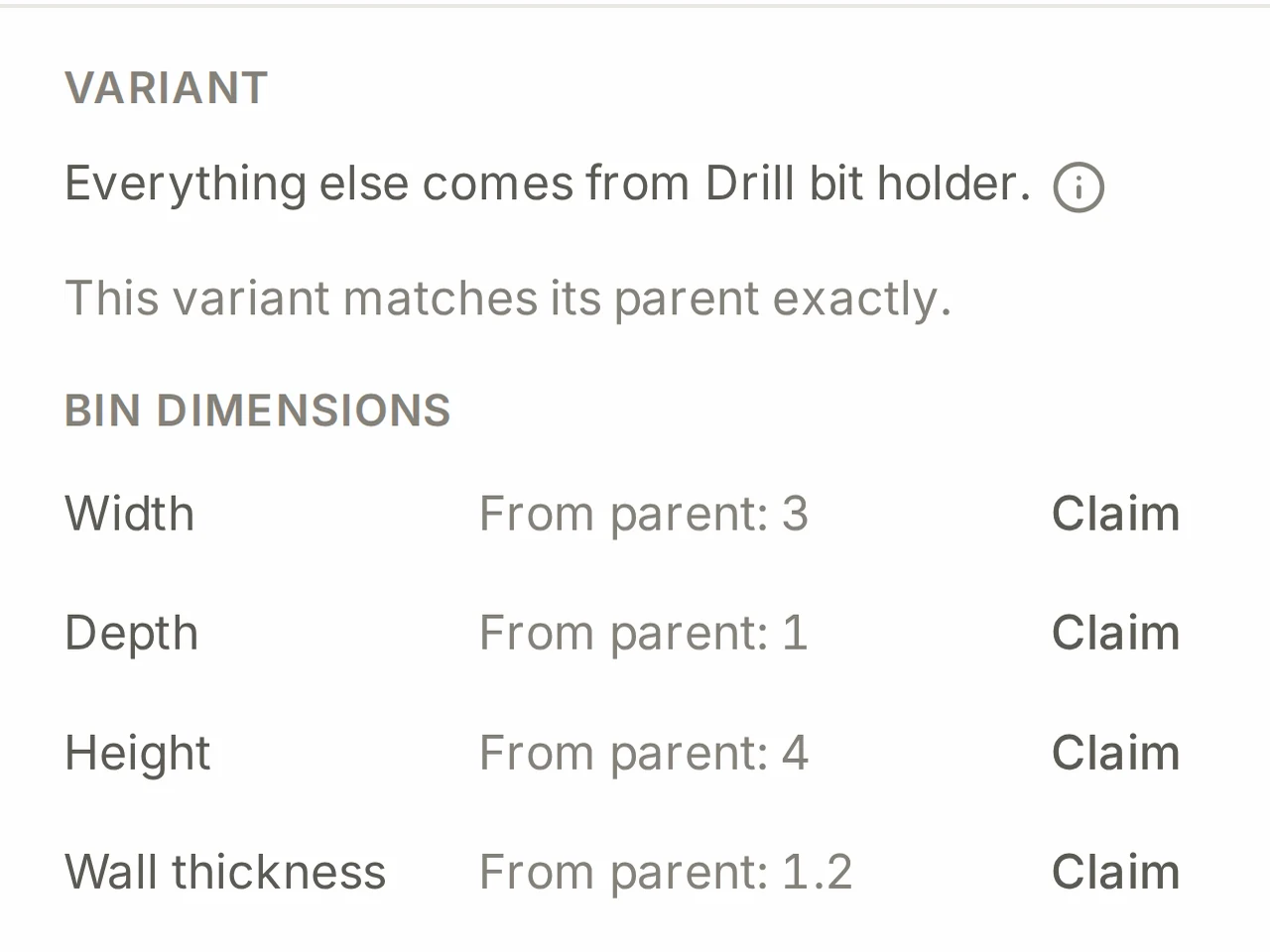
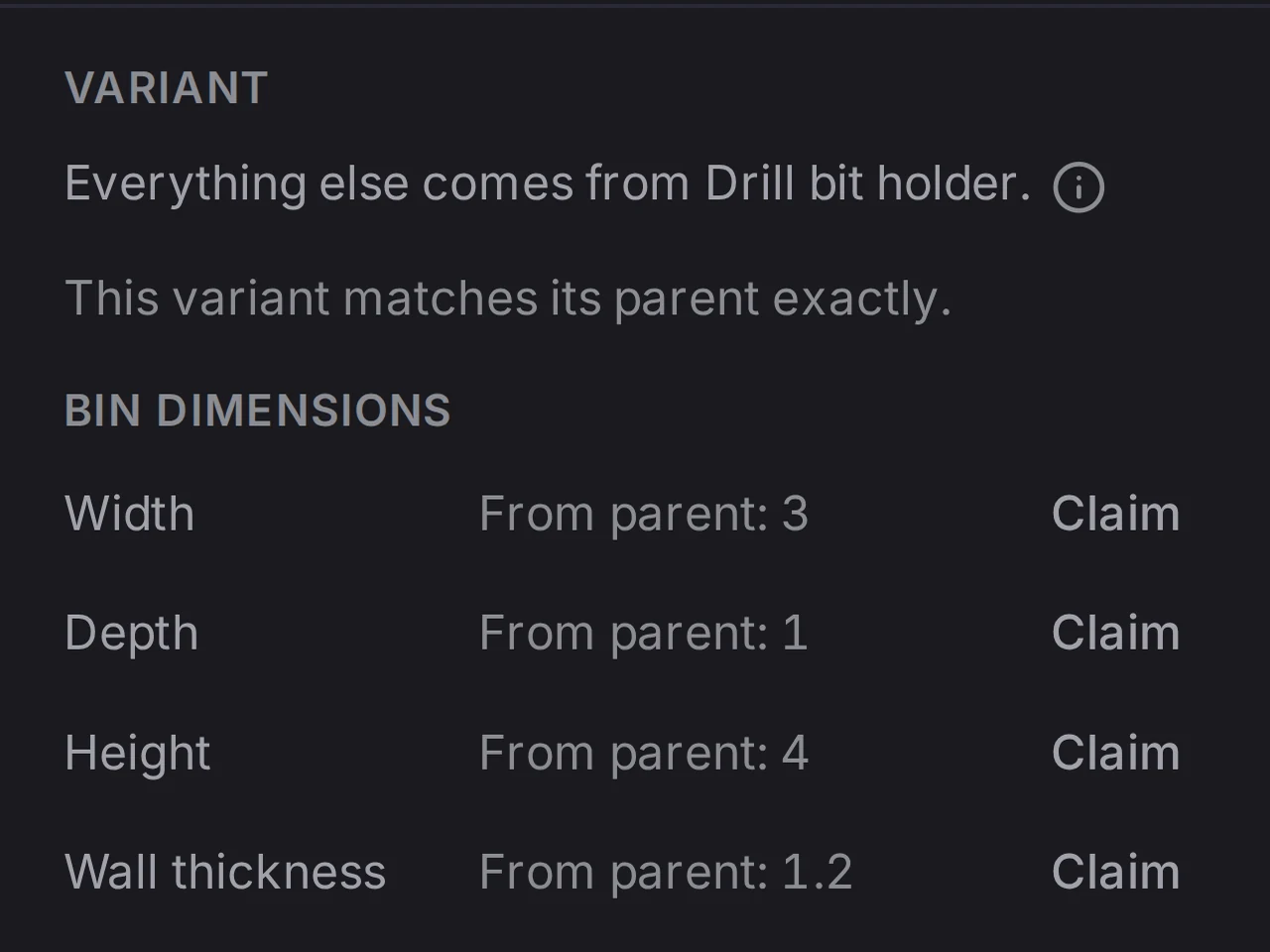
A variant is a copy of a design that follows its parent, except for the values that you claim. Say you make one bin for a set of drill bits. A variant can then change the width or the cutout size. When you improve the parent, each variant gets the change.
- In the library, open the menu of the parent design and click Create variant.
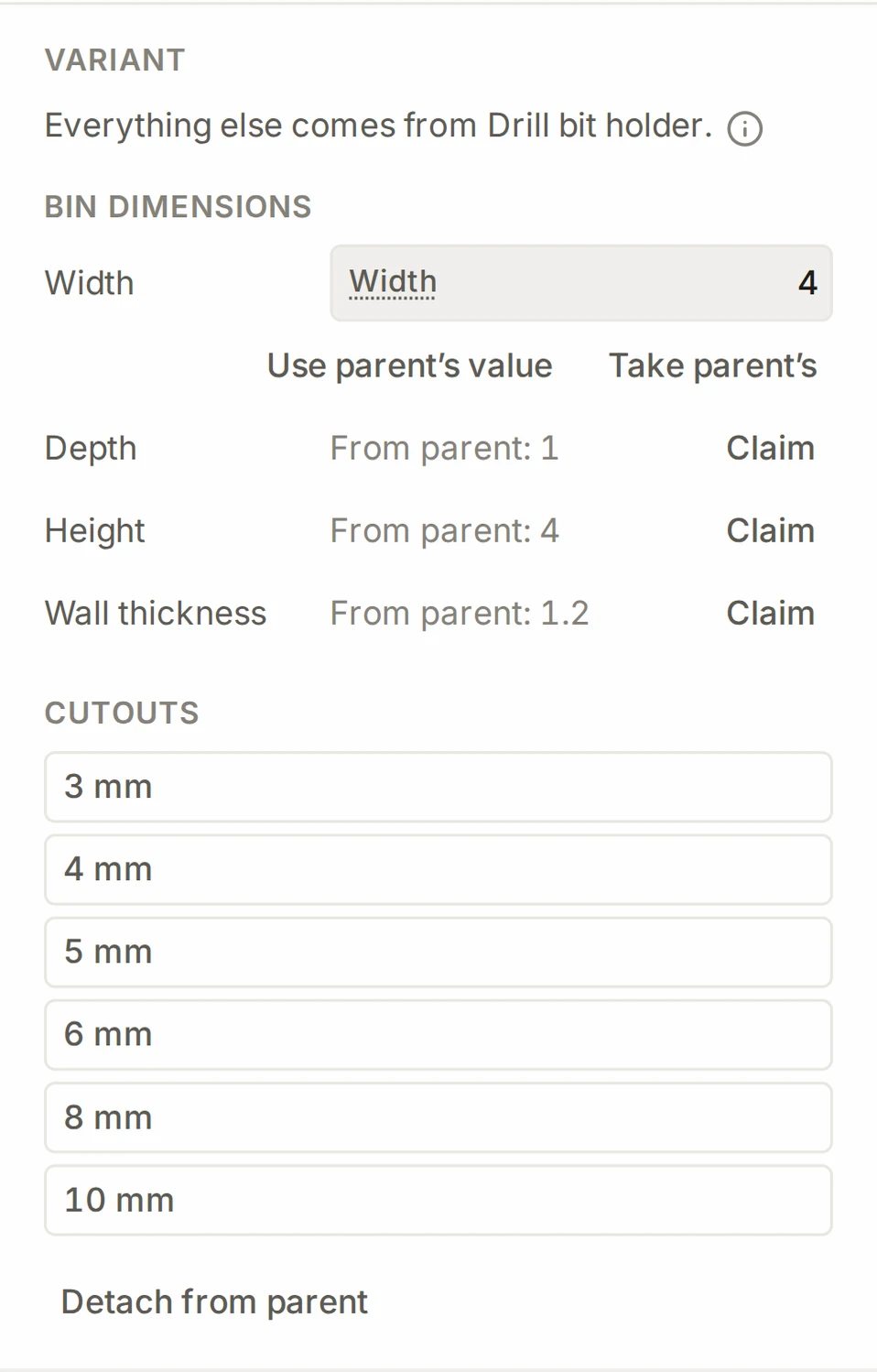
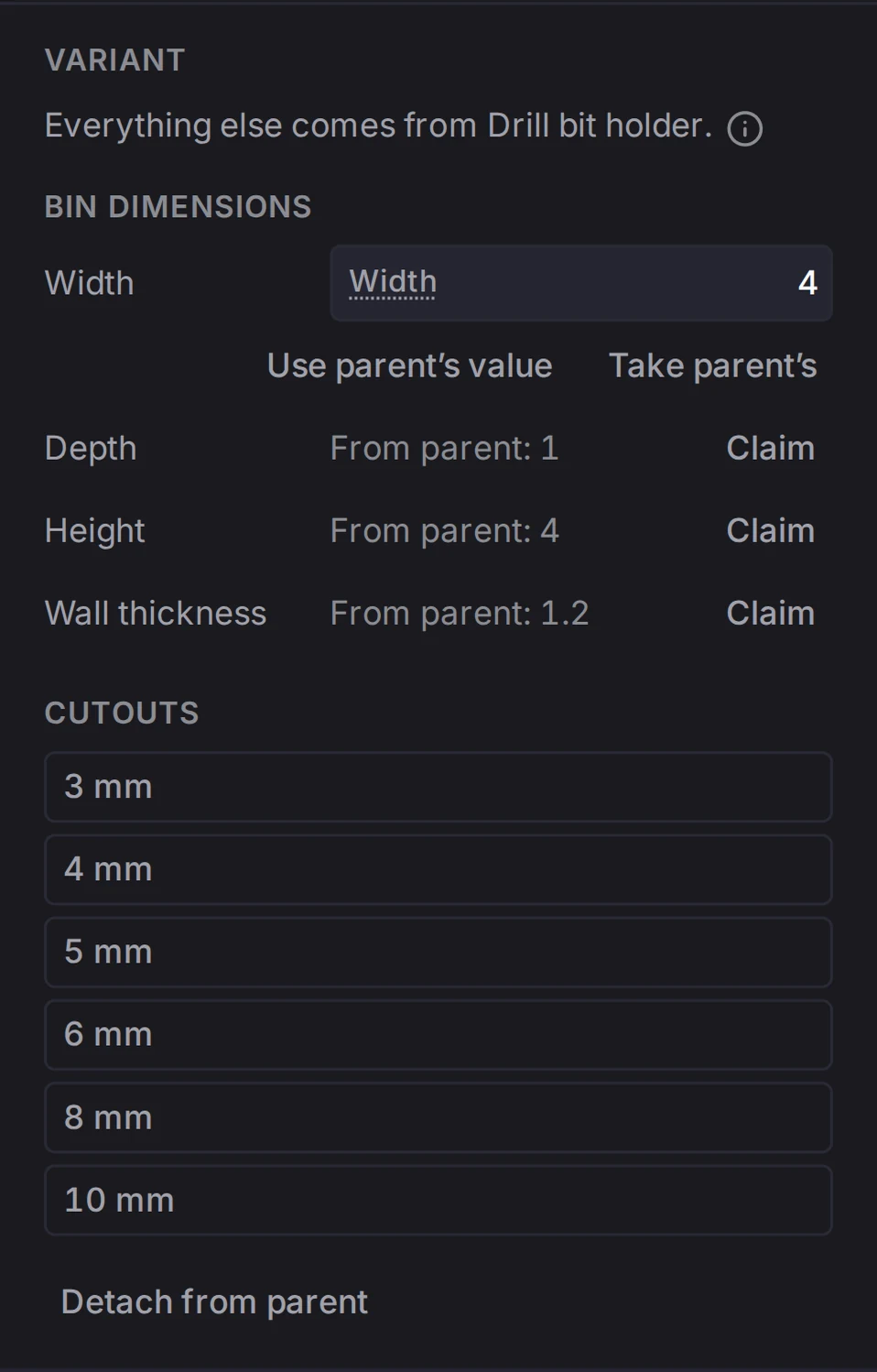
- In the variant, click Claim next to each value that must differ, and set it.
| Part | Values a variant can claim |
|---|---|
| The bin | Width, Depth, Height, Wall thickness |
| Each cutout | The size, Cut depth, Clearance, Chamfer |
A cutout keeps the position that the parent gives it. A variant locks all other controls. Use parent’s value gives a value back to the parent. Detach from parent makes the variant a normal design that you can edit freely. A variant can't have variants of its own.
Organize with tags
Tags group designs in the library, for example by drawer or by room. Tags sync with your account.
- Click Edit tags in the menu of a design. A design holds up to 12 tags of up to 32 characters.
- Click a tag in the filter bar to show only the designs that carry it.
- To tag many designs at once, click Select, pick the designs, and click Tag.
- Manage tags…, in the More options menu, gives each tag an icon and a color.
Start from an example
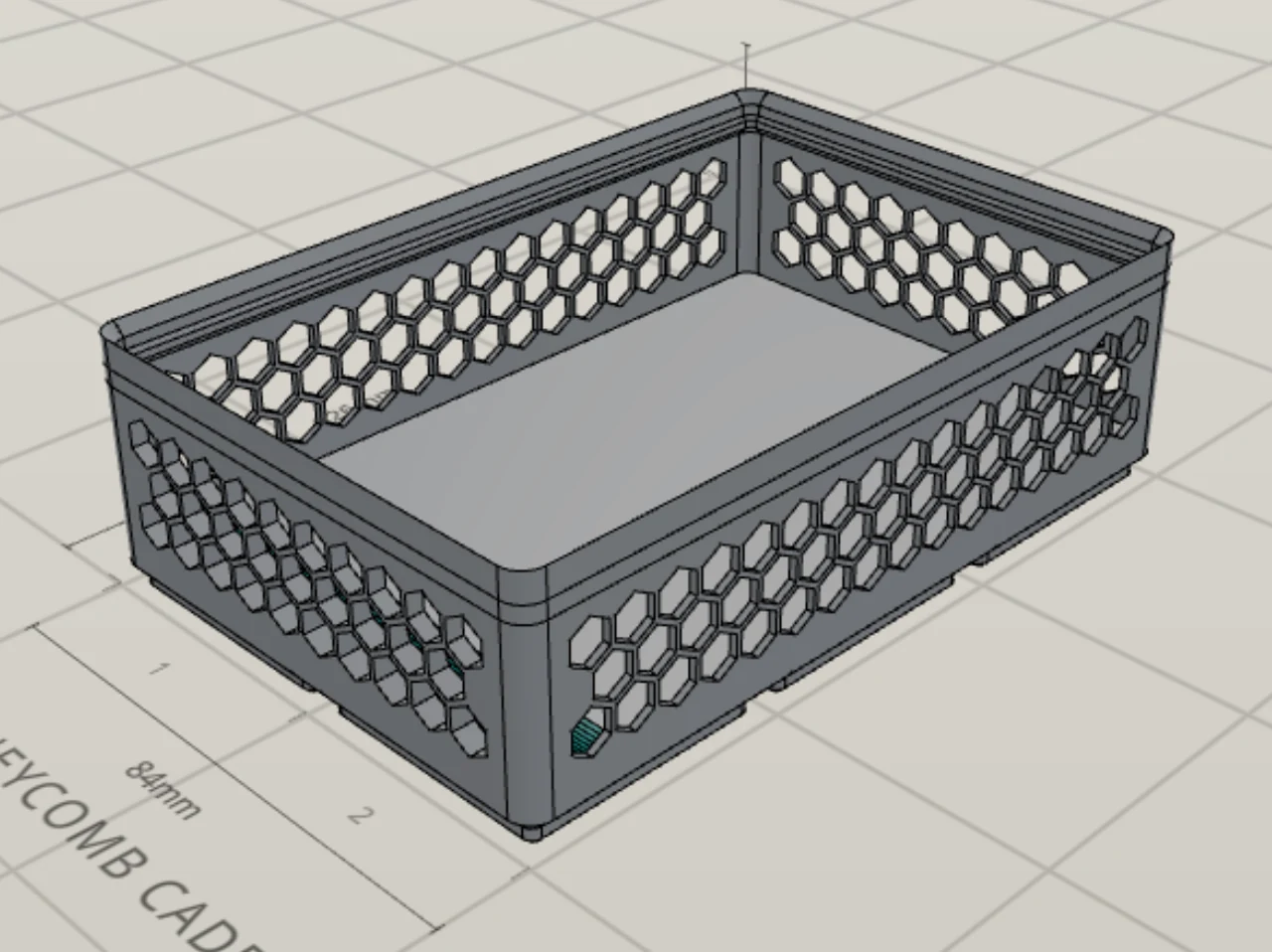
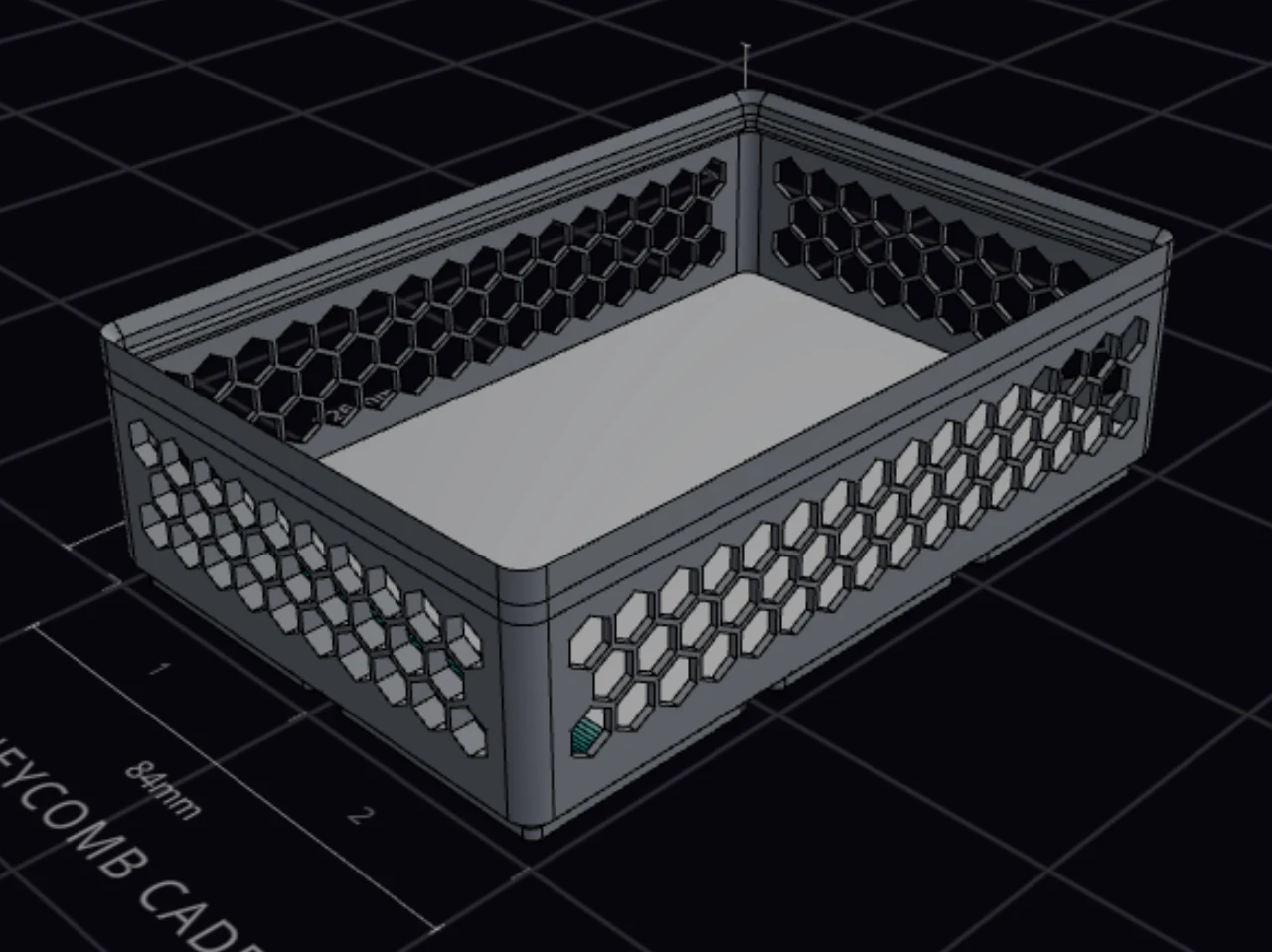
Don't want to start from a blank bin? At the top of the bin designer panel, click Community designs. The gallery has two tabs:
- Examples holds ready-made designs that show what the bin designer can do, such as lids, scoops and a knife block.
- Community holds bins that other makers share. See Community designs.
The gallery opens on the Community tab. To use an example:
- Click the Examples tab.
- Filter by technique, or search by name.
- Click an example to turn it around in a 3D view.
- Click Use as new design. The example becomes a new saved design that you can edit.
Download and import a design file
A design file is a small JSON file that holds every setting of a design. It isn't a printable model. Use it to keep a backup, to edit a design by hand, or to give a design to someone else.
- In the export dialog, click Download design JSON.
- In the library, click Download JSON in the menu of a design. To download many designs, click Select, pick the designs, and click Export.
To import a design file:
- In the library, click Import.
- Drop the file on the drop zone, or paste the JSON text in the box.
- Look at the preview, then click Import & load.
The same drop zone takes an STL file and imports it as a bin. See Special bins. For every field in the file, see Design file.
Place a design in a layout
In the library, open the menu of the design and click Place in layout.
The layout editor opens and adds the bin as a linked bin. The bin goes to the first free spot on the active layer, turned if it fits only that way. If the layer has no room, the bin goes to the stash (the holding area off the grid). Drag it to the place you want.
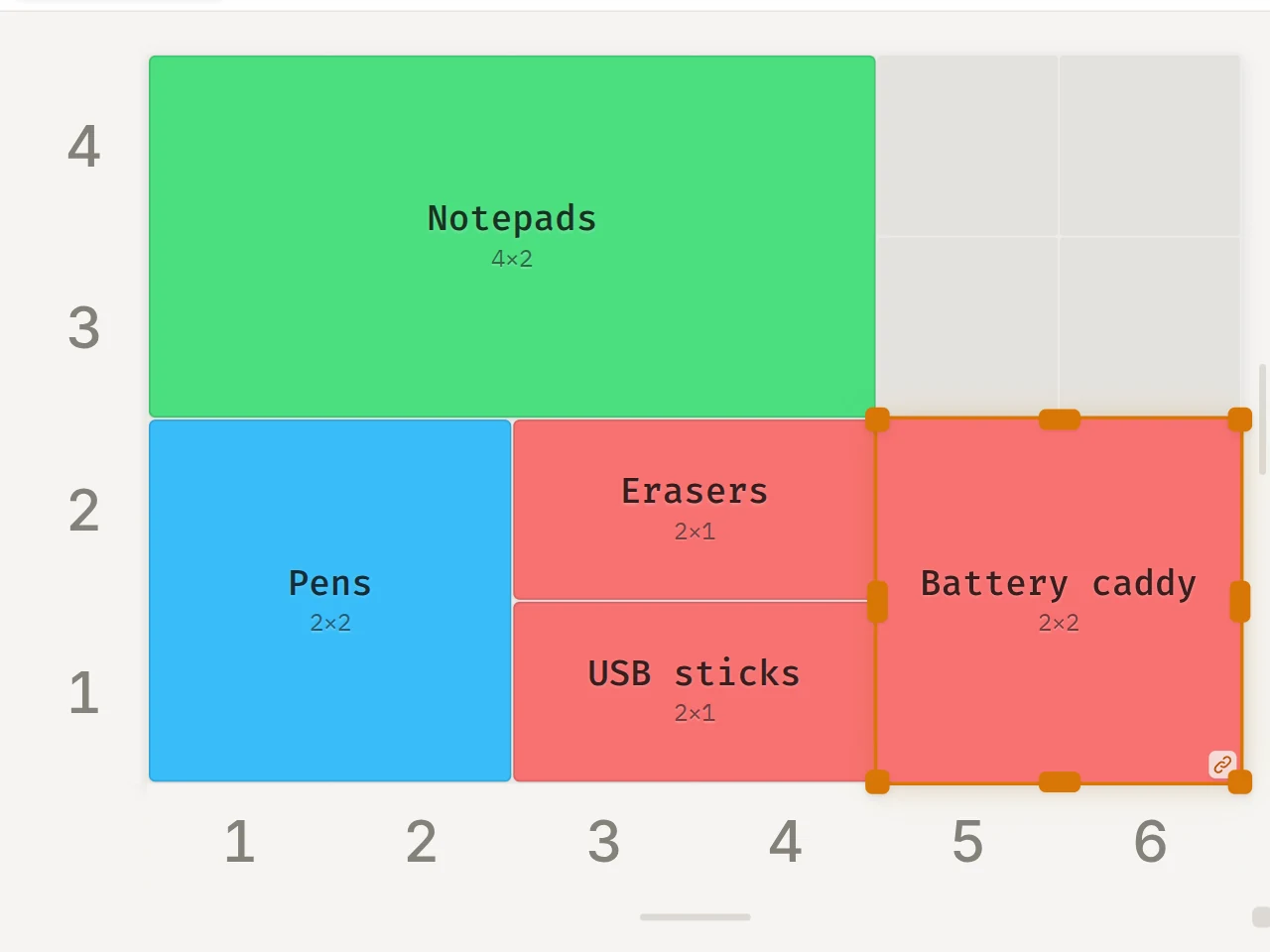
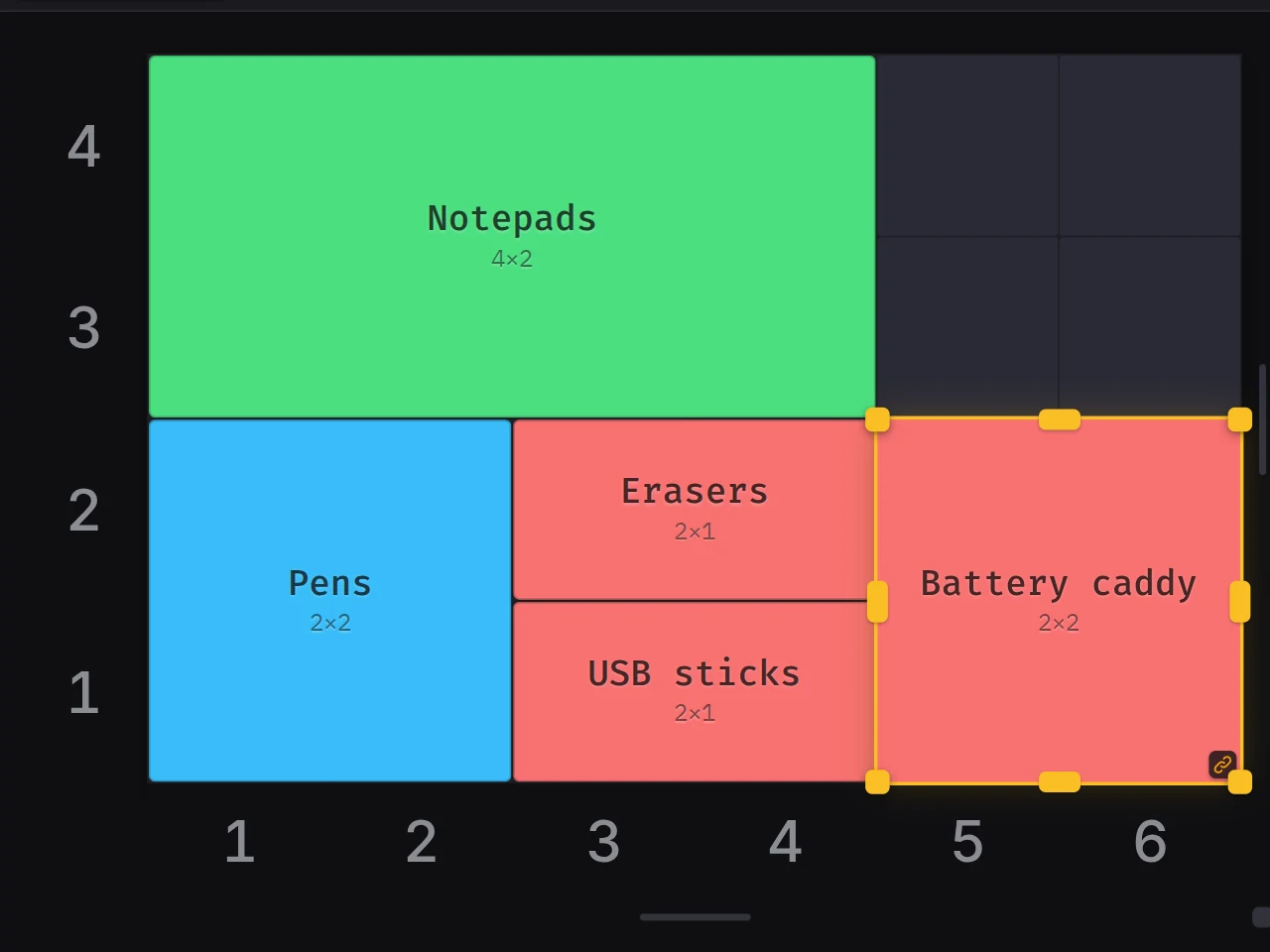
From then on, the bin follows the design. When you change the design, the linked bin in the layout changes too. To give a design to a bin that is already on the grid, see Place and edit bins.
When it goes wrong
An old version is gone
Click Pin this version on each version that you want to keep for good. A pinned version stays when the design is full.
Each design holds up to 25 versions. When you save one more, the Layout Tool removes an automatic version first, then the oldest version without a pin. A message names the version that it removes.
You can't change a value in a variant
Click Claim next to the value, then change it. To edit everything, click Detach from parent.
A variant takes all its other values from its parent. It can claim only the values in the table above.
A design file won't import
Read the error under the box. Is the file a layout file? Import it in the layout manager instead: see Import a layout file.
The import checks the file type and the main fields before it shows a preview. For a file that you edited by hand, see Avoid the traps.
Next steps
- Saved designs and linked bins: learn how designs and linked bins work together.
- Place and edit bins: arrange linked bins in a drawer.
- Accounts and sync: keep your library on every device.
- Bin design file format: read and edit the JSON design format.