
Import SVG and STL shapes
Already have a drawing or a 3D model of your tool? Bring it in. An SVG gives you flat outlines, and an STL model gives you a cutout with the full 3D shape of the part. You can also save cutouts as an SVG, tidy them up in a vector app, and bring them back at the same size.
Import an SVG as cutouts
- Open the cutout editor. See Cutout basics.
- Click Import SVG (or press I) and select the SVG file.
Each shape in the file becomes its own cutout, with the largest shape at the bottom. The Gridfinity Layout Tool reads rectangles, circles, ellipses, polygons, polylines and paths. It skips text and images. A file can have up to 500 shapes and be up to 5 MB.
Get the size right
When the SVG gives its width and height in mm, cm, inches, points or picas, the shapes keep that real size. When the file gives no unit, one SVG unit counts as 1 mm.
TIP
Set the document units to millimeters in your vector app before you save the SVG. Then the cutouts come in at the size that you drew.
Shapes with holes
A path with an inner ring, such as the letter O or the ring of a spanner, comes in as one cutout with an island. The island is plastic that stays at full height inside the cutout. See Trace a photo for more about islands.
Set the tool thickness
An outline is flat, so after an SVG import the editor asks how thick the tool is. Your answer sets the cutout depth.
- Measure the thickest part of the tool and type it in Thickness (mm).
- If the tool must stand above the top, so you can grab it, type that height in Sticks out (mm).
- Click Set depth.
The Layout Tool cuts the cutout so the tool sits flush with the top. If the bin is too short, the prompt offers to make it taller.
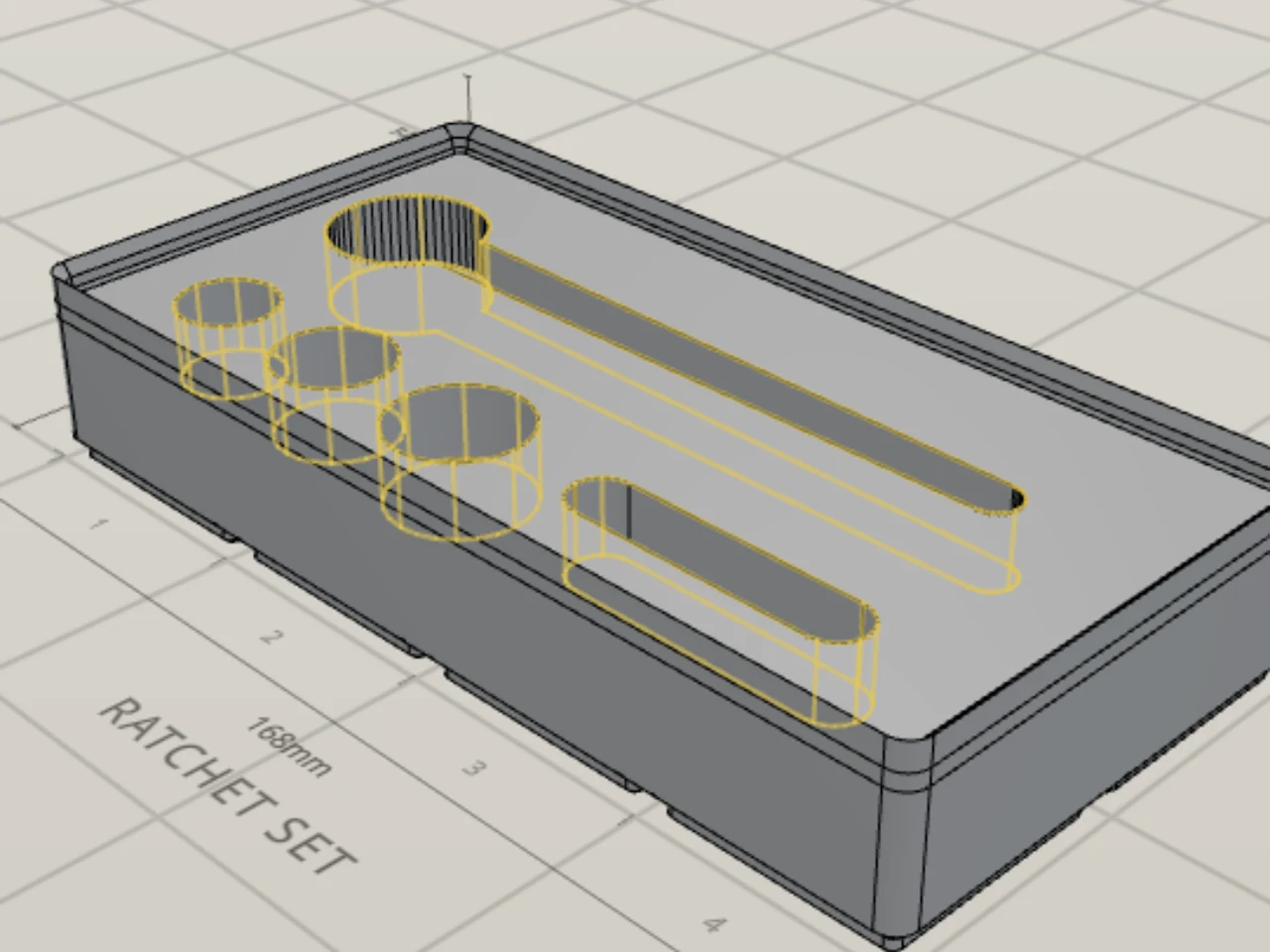
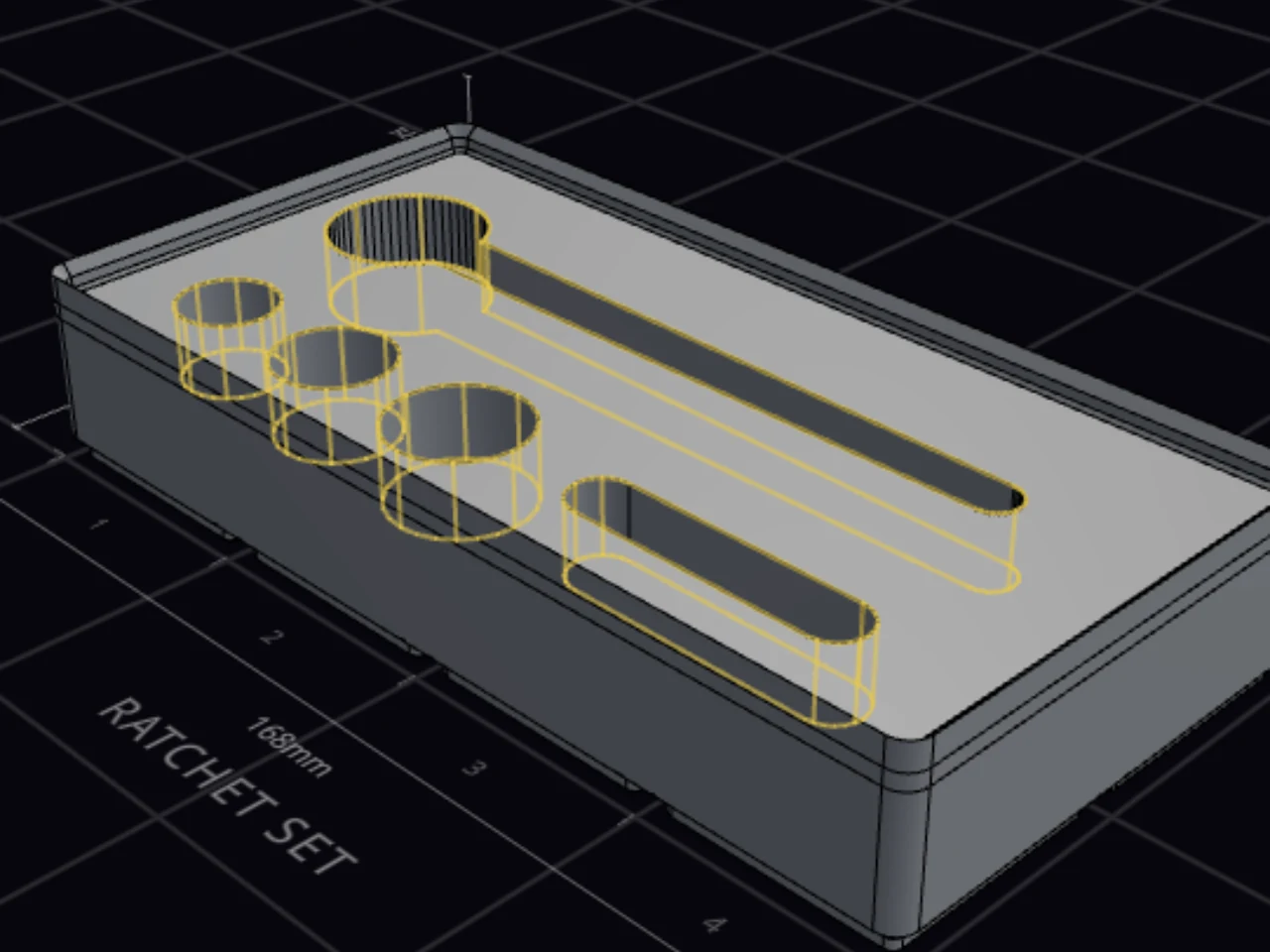
Not sure yet? Click Skip to keep the 5 mm start depth. You can change the Cut depth of each cutout later.
Cut an STL shape into a bin
An STL imprint is a cutout with the full 3D shape of a model, such as a model of the tool itself. The tool then drops into a pocket that matches it.
- Open the cutout editor.
- Click Import STL (or press J) and select the STL file.
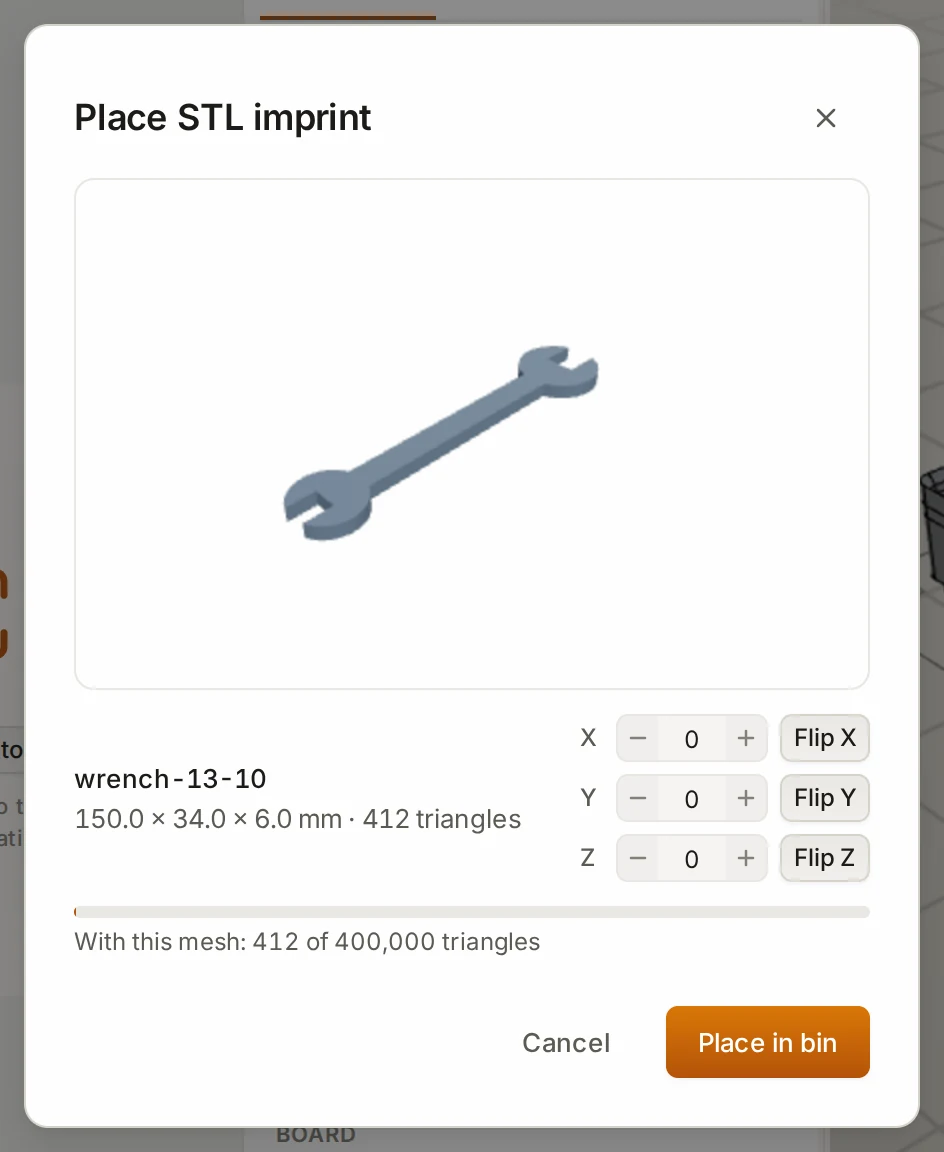
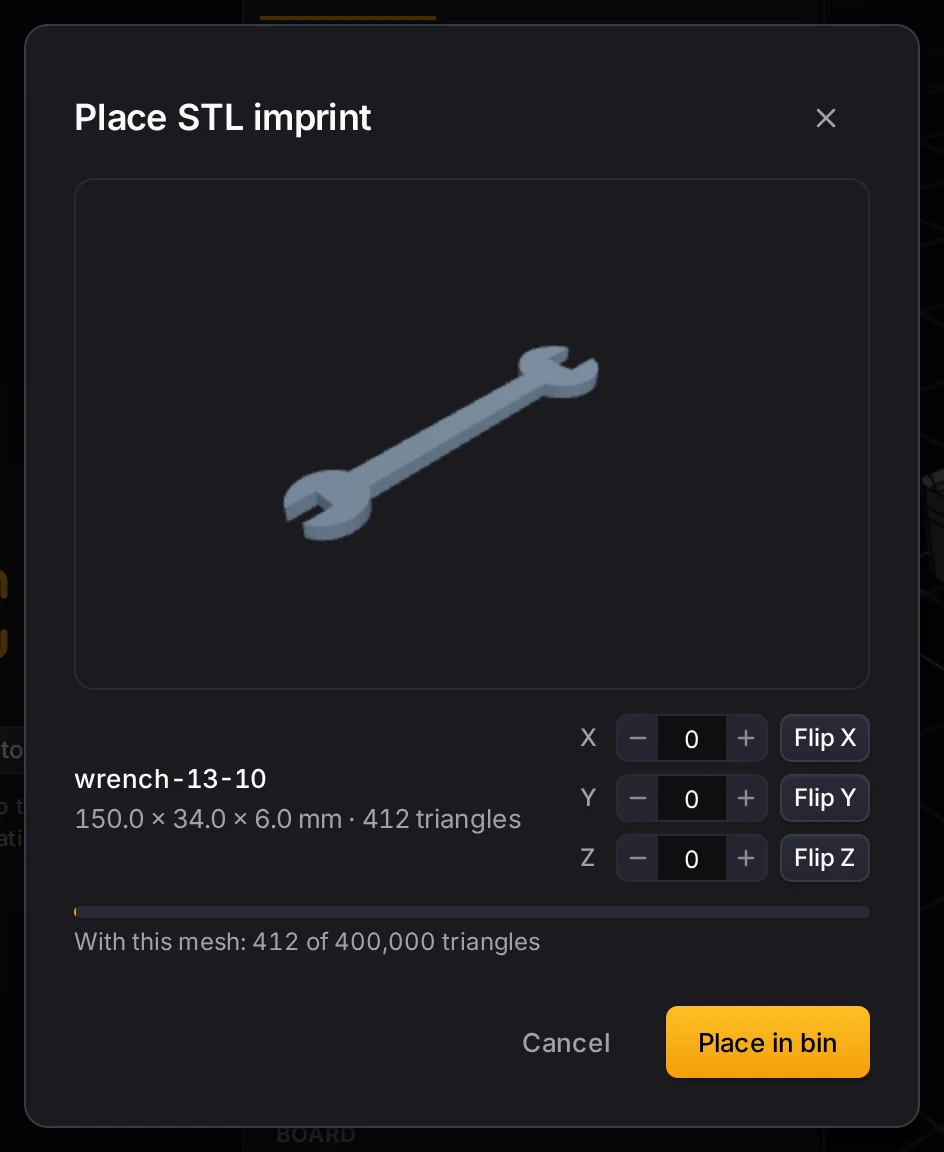
- In Place STL imprint, look at the position of the model, and change the rotation if it needs it.
- Click Place in bin.
Rotation
The Layout Tool lays the model flat on one of its faces. Each axis has a rotation field that steps 15° at a time, or you can type an angle. The Flip button beside each axis (Flip X, Flip Y and Flip Z) turns the model 90°. The dialog shows the footprint size, and it warns you when the model is larger than the inside of the bin.
The model keeps its real size. The Layout Tool never scales it.
What you get
The imprint lands in the middle of the bin. Its depth is the height of the model, and it starts with 0.4 mm of clearance and an entry chamfer. On the board, the imprint shows as its outline seen from above. You can move it and turn it, but you can't change its width or height.
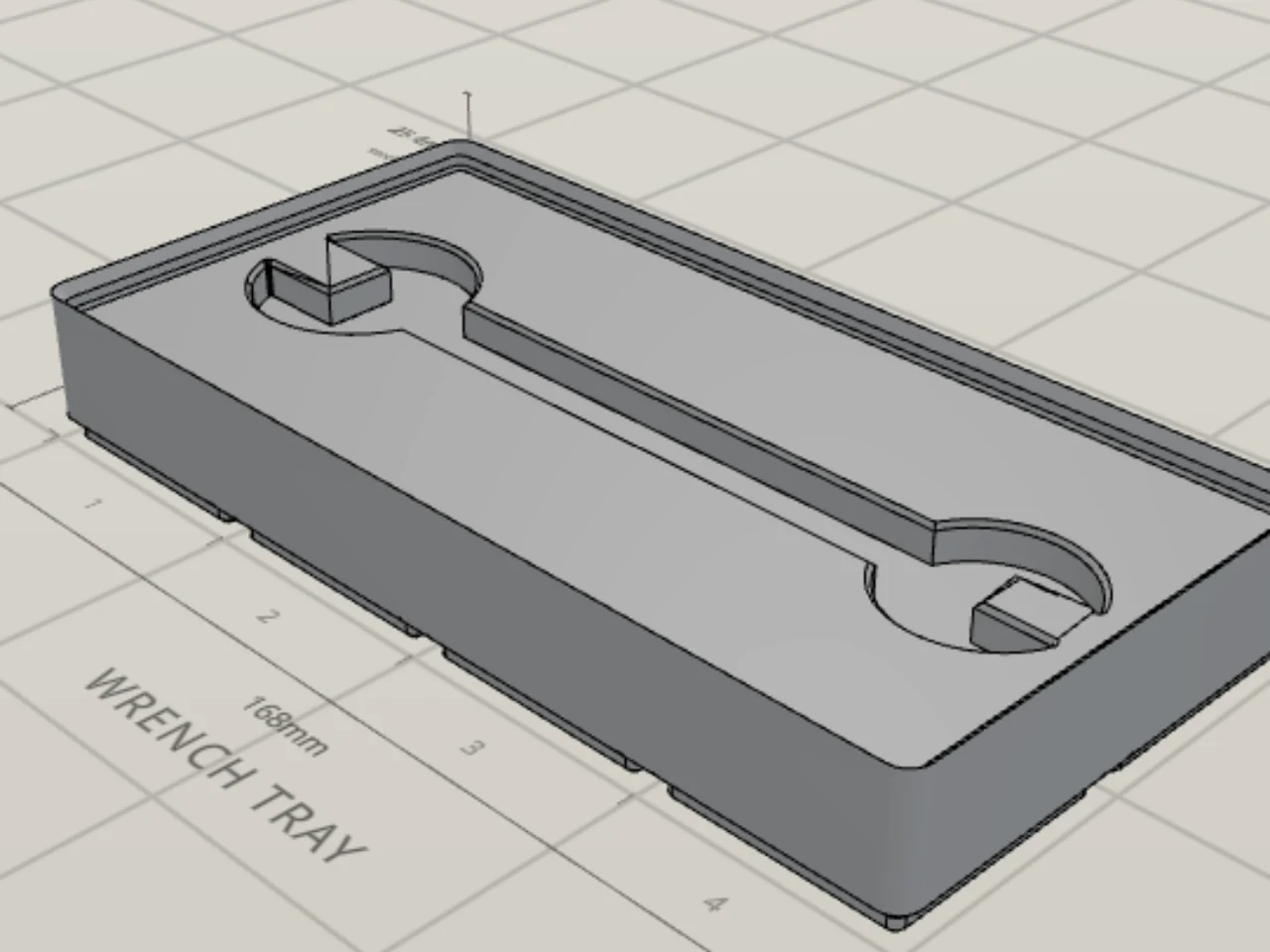
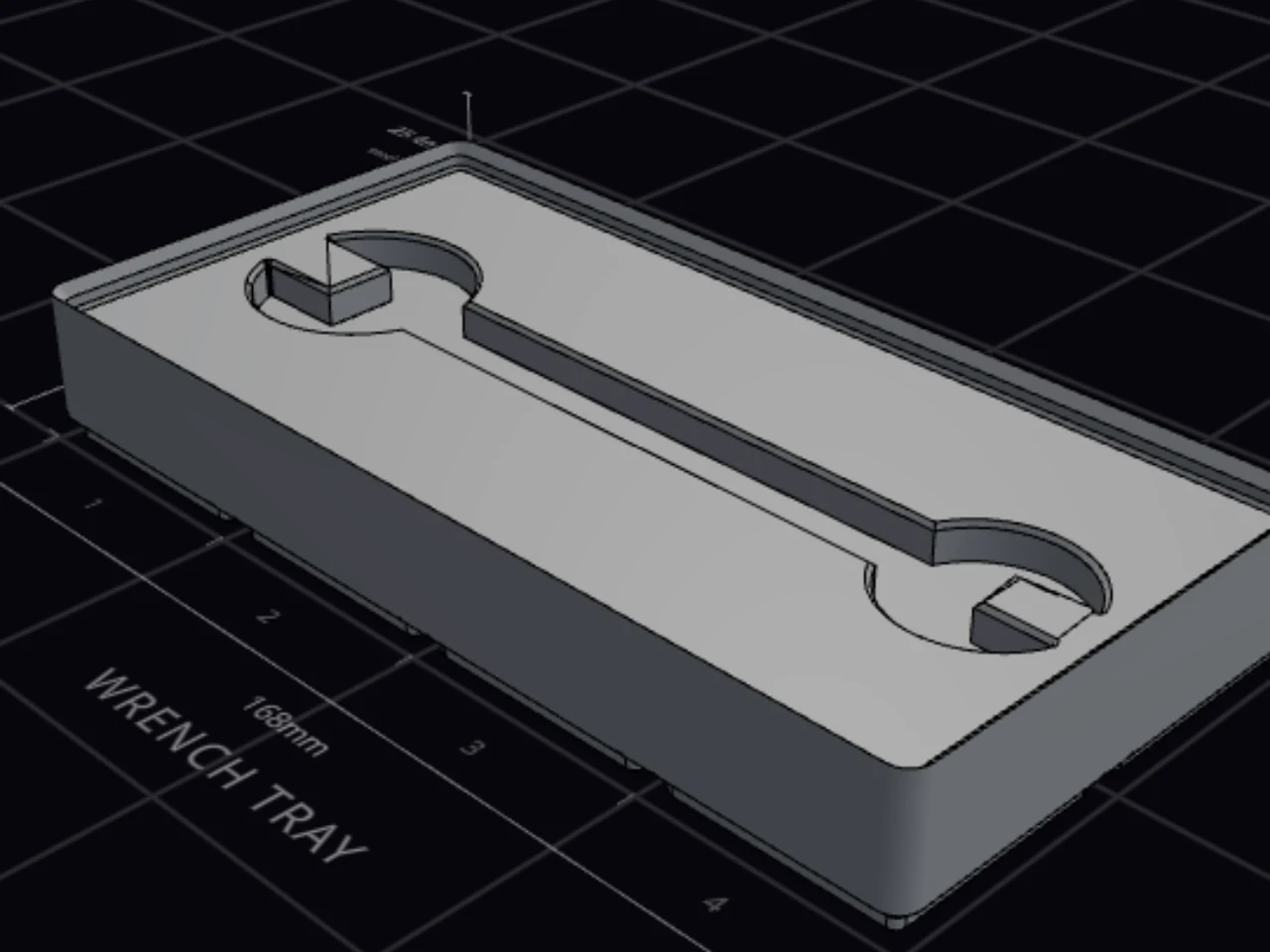
Clearance
Clearance makes the cutout larger than the model on every side, so the real part drops in. For an imprint, it goes up to 5 mm. A model from a 3D scan can have a rough surface, so give it a higher value.
Limits
- The STL file can be up to 50 MB.
- The model must be watertight. If the import fails, repair the model in your slicer and export it again.
- The Layout Tool reduces each model to 50,000 triangles or fewer.
- A design holds up to 400,000 triangles of imprints. The dialog shows how many the new model uses.
- An imprint can't lean, and it has no depth mode.
Export a cutout as SVG
Want to clean up a traced tool in a vector app? Send it out as an SVG.
- Select one or more cutouts.
- Right-click the selection and click Export SVG.
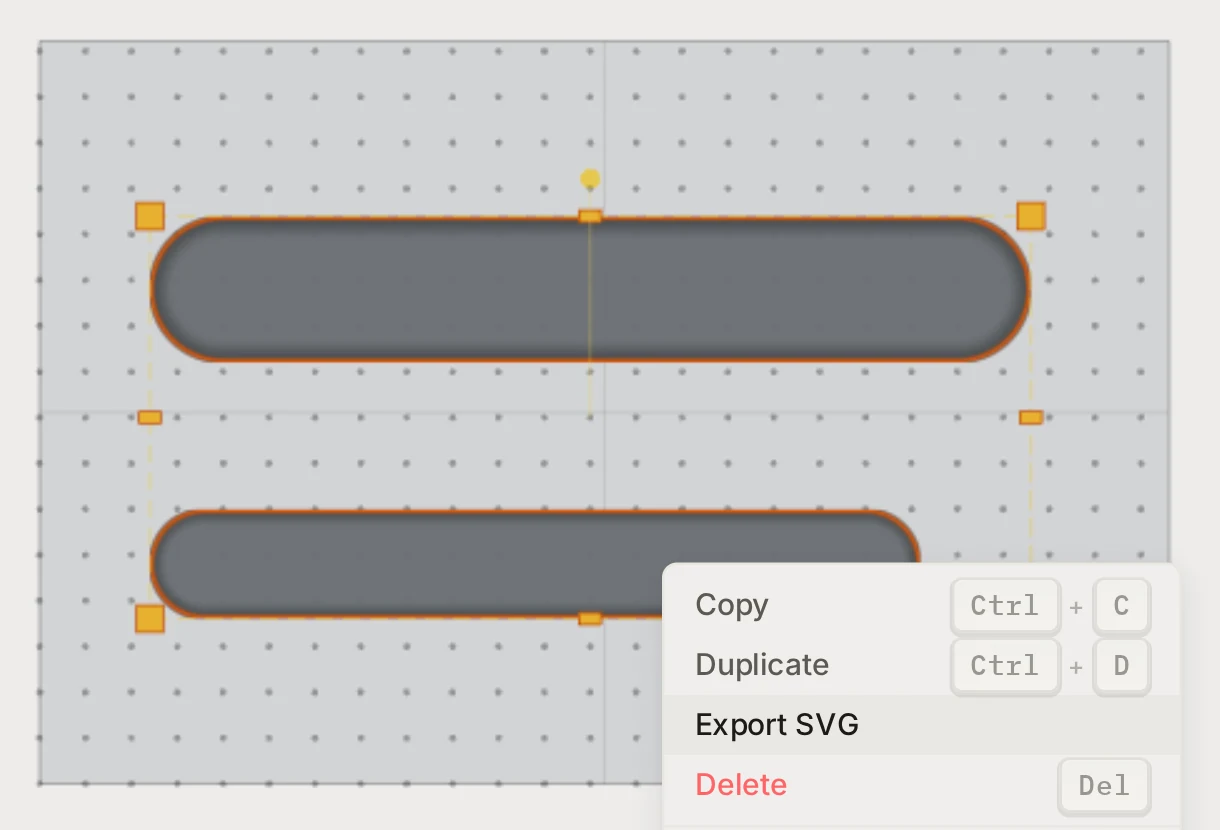
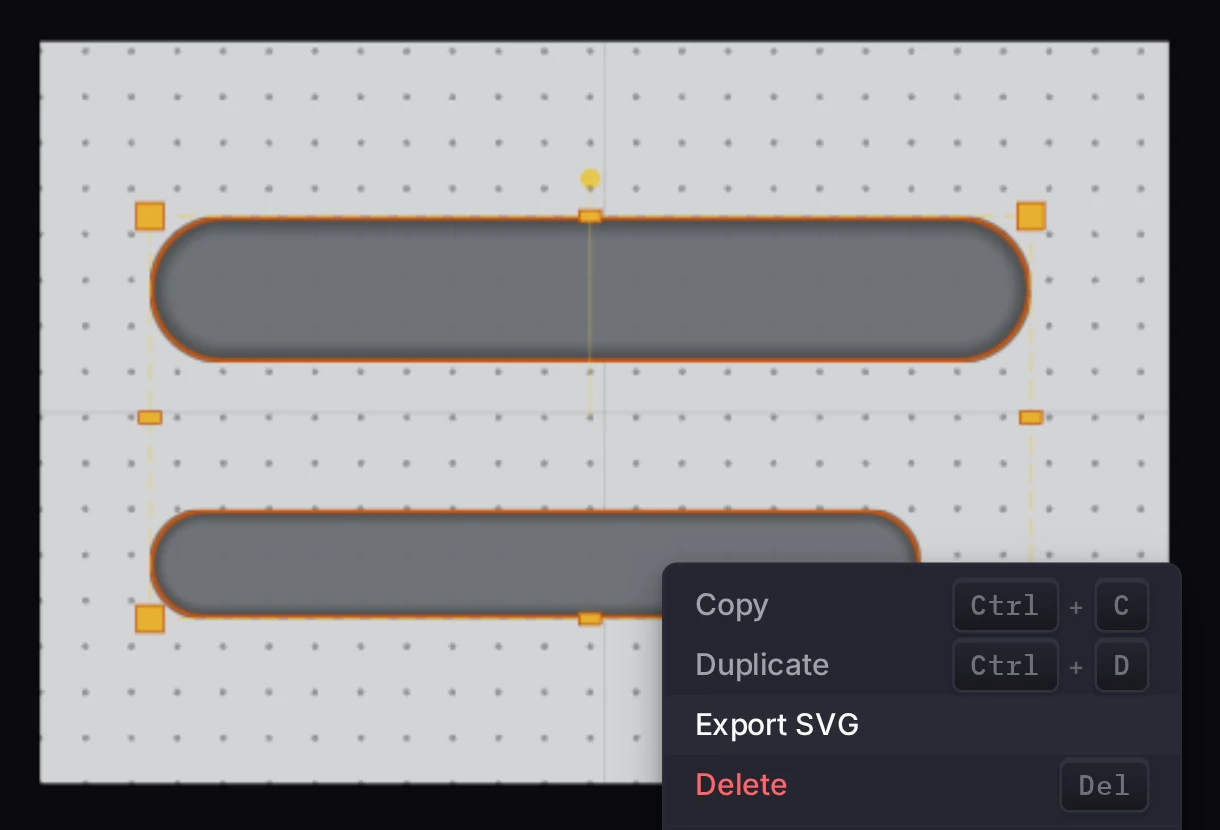
The file uses millimeters, so it opens at real size in a vector app. Rectangles and circles stay rectangles and circles. Paths keep their curves, and islands come with them. The outline is the size that you drew, with no clearance.
When you finish, import the file again with Import SVG. It comes back at the same size.
When it goes wrong
The shapes come in too big or too small
In your vector app, set the document units to millimeters, and save the SVG again. Then import the new file.
The Layout Tool reads the size of the file in mm, cm, inches, points or picas. Pixels don't count as a real size. So in a file in pixels, or in a file with no unit, one unit becomes 1 mm.
The import finds no shapes
In your vector app, change the text to paths, and save the SVG again. A placed image can't become a cutout, so draw its outline as a path.
The Layout Tool reads only rectangles, circles, ellipses, polygons, polylines and paths. A file with only text or a placed image has nothing to cut, so a message tells you that it found no supported shapes.
The STL file won't import
Read the message, and do what it asks:
| Message says | What to do |
|---|---|
| The mesh isn't watertight | Repair the model in your slicer, export it again, and import the new file. |
| The file is too large | Make the file smaller than 50 MB, for example with fewer triangles. |
| The triangle limit of the design | Remove an STL imprint from the design to free some triangles. |
Next steps
- Arrange cutouts: line up and pack the imported shapes.
- Trace a photo: make an outline from a photo of the tool.
- Check before you print: print a fit test of the new cutouts.
- Workshop: save the whole bin top as SVG or DXF.