
Work together live
Plan a drawer with a partner, or help a friend set up their first layout, without files that go back and forth. In the Gridfinity Layout Tool, a layout with an edit link becomes a live room. Everyone who opens the link edits the same layout at the same time, and sees what the others point at, select and move.
Start a live session
- Open the layout in the layout editor.
- Make a share link with Anyone with link can edit. See Share a layout.
- Send the link to the people you want to work with.
- Keep the layout open.
The room opens when someone opens a layout that has an edit link, and that includes you, the owner. Do you have a view-only link already? Open Manage shared layout and pick Anyone with link can edit.
Nobody needs an account. The room never asks anyone to sign in.
See who is in the room
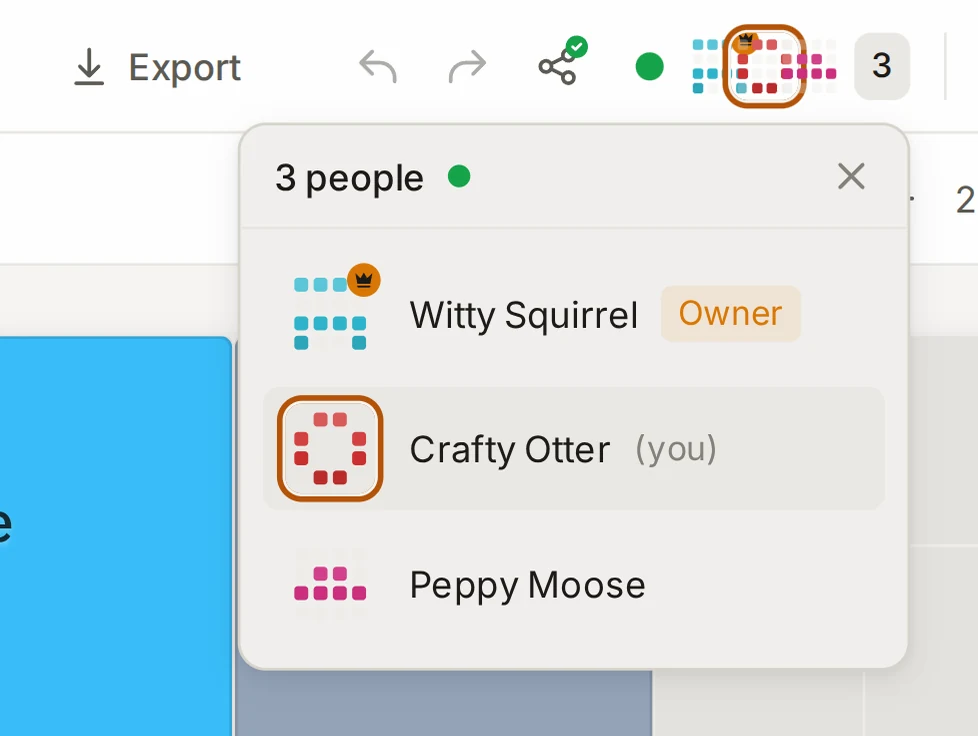
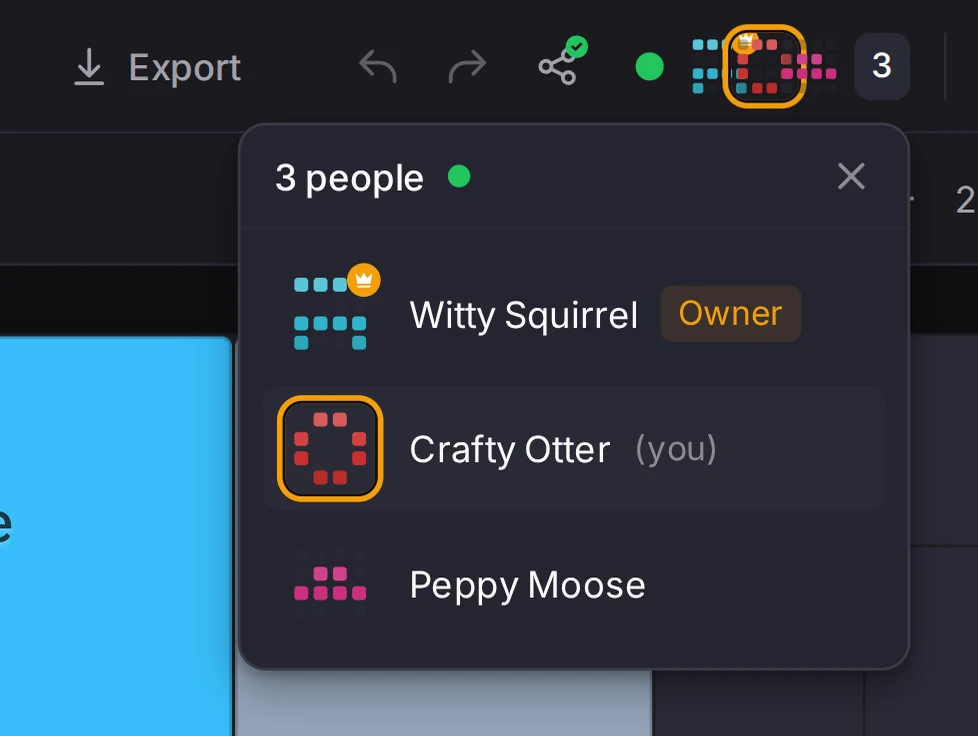
During a live session, avatars show in the header next to the share button. Each person gets a color and a guest name, made from an adjective and an animal.
Click the avatars to open the list of people in the session. The link owner has the Owner mark, and you have (you). A small indicator shows your connection:
| State | Meaning |
|---|---|
| Connected | You're in. Your changes go to the room, and theirs come to you. |
| Connecting | The Layout Tool joins the room. |
| Reconnecting | The connection stopped. The Layout Tool tries again by itself. |
| Disconnected | You're not in the room. |
See what the others do
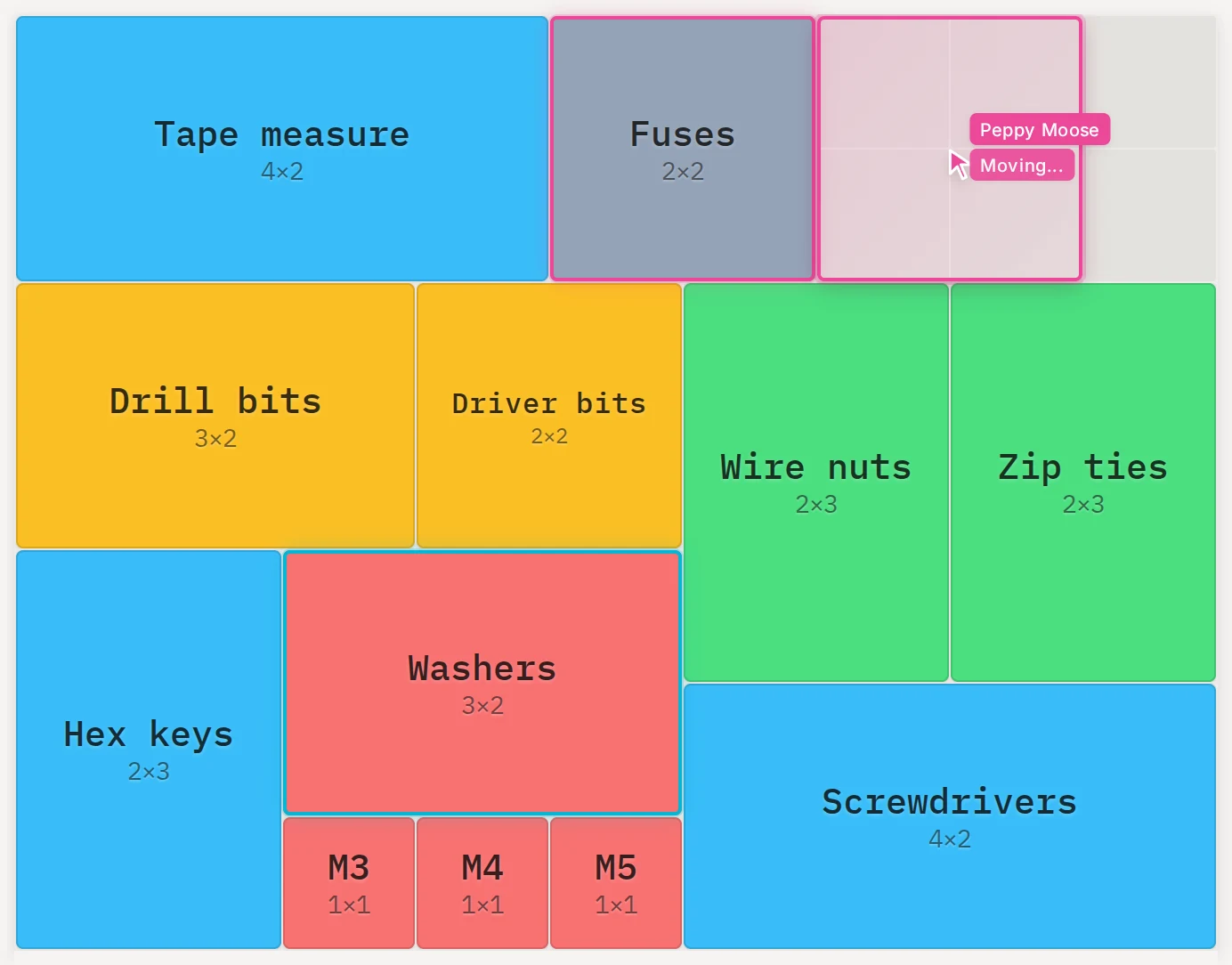
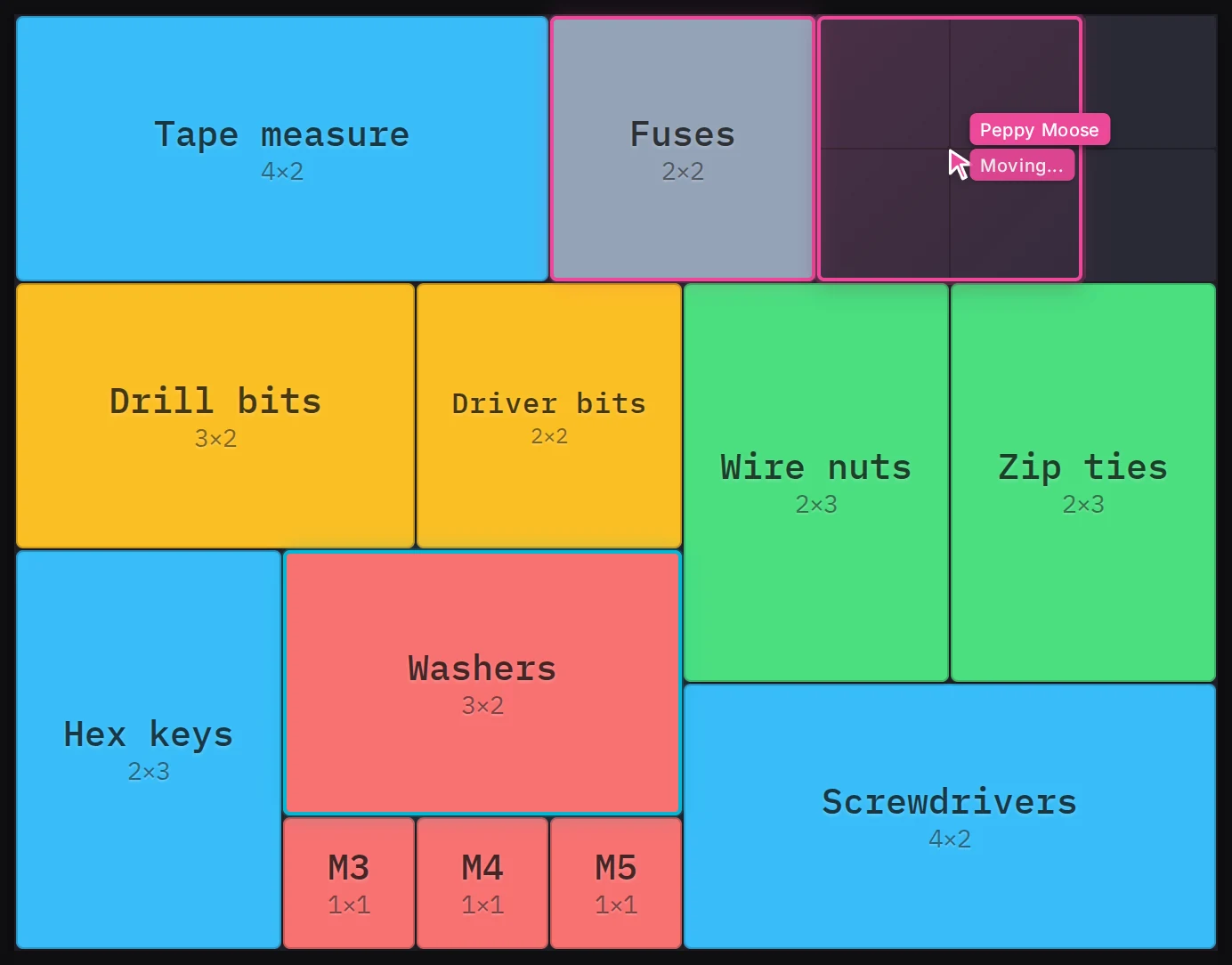
The work of the other people shows on your grid, each in their own color:
- Cursors. Each person's pointer, with their name, while it is over the grid.
- Selection rings. An outline around the bins that someone else selected.
- Ghosts. An outline of a bin that someone draws, moves or resizes, before they let go.
What the room shares
| Everyone in the room shares | Each person keeps their own |
|---|---|
| The layout: drawer, layers, categories, bins, labels, notes and stash | Zoom, the 3D preview and the settings |
| The cursor, the selected bins and a drag or resize that is not complete | The layouts and designs in their own library |
Who saves the link
The room holds the live layout, but only the link owner's browser saves the room back to the share link. It saves about one second after each change on the grid, whoever made it. Changes to bins in the stash go along with the next change on the grid. While the owner is away, the room keeps every change, and the owner's next visit saves them to the link.
Someone who joins gets the room's latest layout, so the work of the others stays. The room takes the copy from the link only when the copy is newer and the room has no unsaved changes. For example, the owner can edit the layout while the link is view-only, then turn editing back on. A room from an older version of the Layout Tool keeps its own layout when it has bins on the grid.
TIP
A view-only link opens no room, not even for the owner. It shows the copy that the owner's browser last saved, so it can lag behind the room.
WARNING
Before you switch a link to view-only, wait until the others stop editing. People who are still in the room can keep editing, and nobody saves those changes until the owner joins the room again. Then the room keeps them over the owner's edits from the view-only time.
Read-only rooms
Each person gets the permission that the link has at the moment they connect. Say the owner changes the link to view only. Anyone whose page still shows the edit permission then connects read-only. The room ignores their changes, and their page shows the room copy. To get the view-only banner and its save button, they open the link again.
When the server has no live service
Live editing needs a collaboration service on the server, and that service is optional. Without it, an edit link still opens the layout, but no room starts. You see no avatars and no cursors, and your changes stay in your browser. A self-hosted copy of the Layout Tool has no share links and no live rooms. See Self-hosting.
When it goes wrong
Nobody else shows up in the room
Do you own the link? Open Manage shared layout. The permission must be Anyone with link can edit. Then make sure that everyone is online, and that they opened the link after the change.
A view-only link opens no room. It shows a copy of the layout, so nobody sees the others.
A view-only link doesn't show the latest changes
Ask the owner to open the layout while the link can edit. The owner's browser then joins the room and saves it to the link within a second or so. Is the link view-only? Then the owner does these steps:
- Turn editing on for the link.
- Open the layout, and wait a few seconds.
- Turn view-only on again.
Only the owner's browser saves the room to the link, and only while it is in the room. A view-only link opens no room, not even for the owner. See Who saves the link.
Your edits don't reach the others
Open the link again.
This happens when the owner changes the link to view only after your page loads. Your page then connects read-only, so the room ignores your changes. See Read-only rooms.
You drop out of the room
When the status shows Reconnecting, wait a moment, and make sure that you're online. The Layout Tool joins the room again by itself.
Next steps
- Share a layout: make, change and delete the link that opens the room.
- Accounts and sync: keep your own layouts on all your devices.
- Work with several bins: select and move many bins at once.