
Saved designs and linked bins
Design a bin once, then use it all over your drawers. A bin in a layout is only a box with a size. A saved design is the full model from the bin designer, with its walls, compartments, labels and colors. Link the two, and the bin prints from the design.
Think of the design as a master copy. Every bin linked to it prints from it and changes with it. Here's what a link keeps in step, and how versions and variants of one design work.
The design library
Each bin that you make in the bin designer goes into your library as a saved design. The bin designer saves your changes as you work. Open Saved designs in the bin designer to see your library.
Your library lives in this browser. Sign in to sync it to your other devices.
Two ways to link a bin
You can start from either end:
- From the design. In Saved designs, use Place in layout. The layout editor opens and puts a linked bin in the first free space. When there's no free space, the bin goes to the stash.
- From the layout. Select a bin and look at Linked design in the inspector. Create makes a design from the bin and opens it in the bin designer. Link lists the saved designs with the same footprint.
A design also matches a bin that has its width and depth swapped. The layout then shows the design turned 90°.
Many bins can link to one design. Ten screw bins, one design.
What a link keeps in step
A link keeps only the size in step: width, depth and height. Everything else belongs to the design, so all linked bins share it.
| You change | What the Layout Tool does |
|---|---|
| The size of a design, in the bin designer | The linked bins take the new size |
| The size of a linked bin, in the layout | The design takes the new size, and the other linked bins follow |
| Walls, compartments, labels or colors | Every linked bin shows the change, because the model belongs to the design |
| The link, with Unlink | The bin keeps its size, and the design stays in your library |
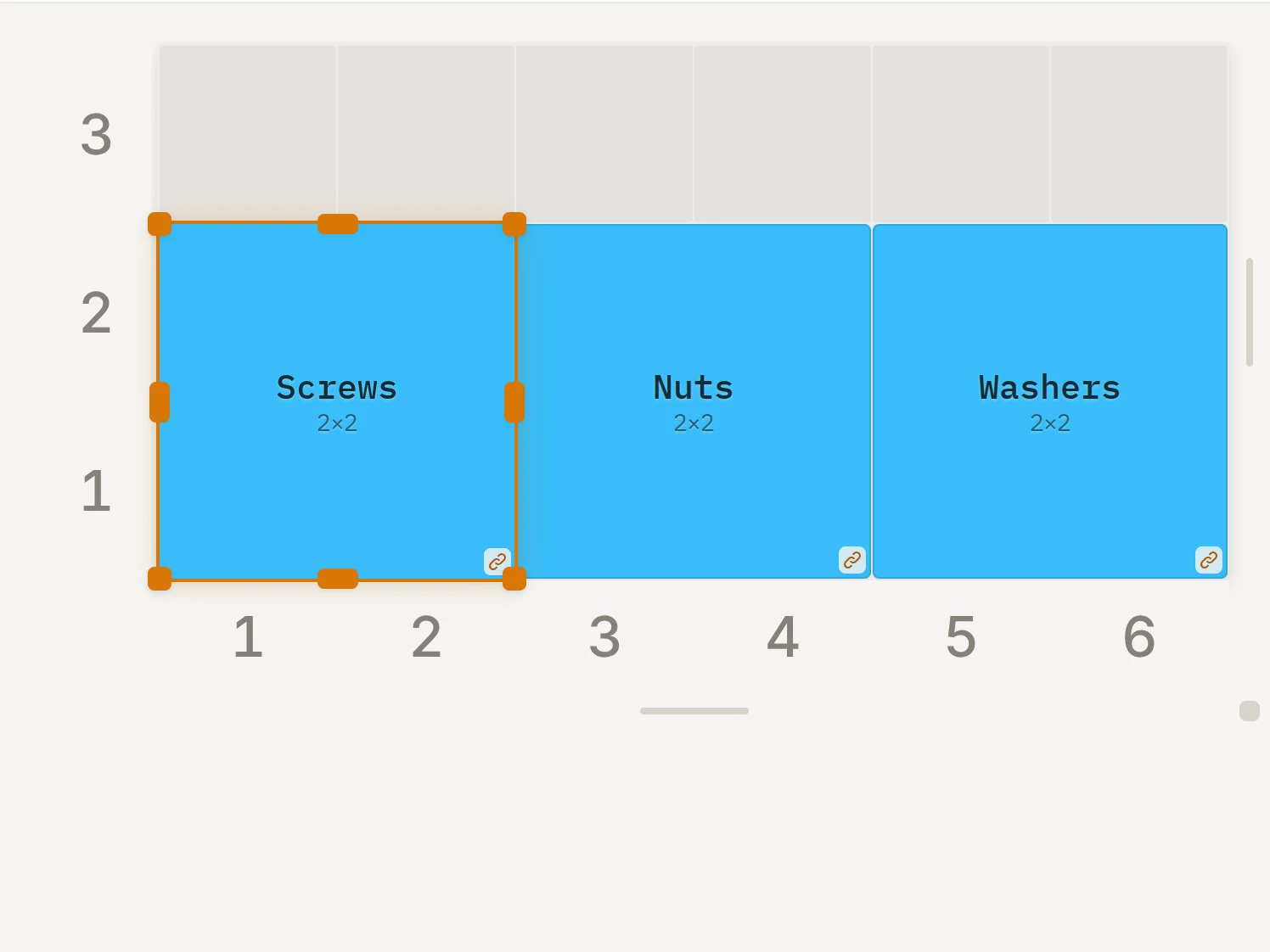
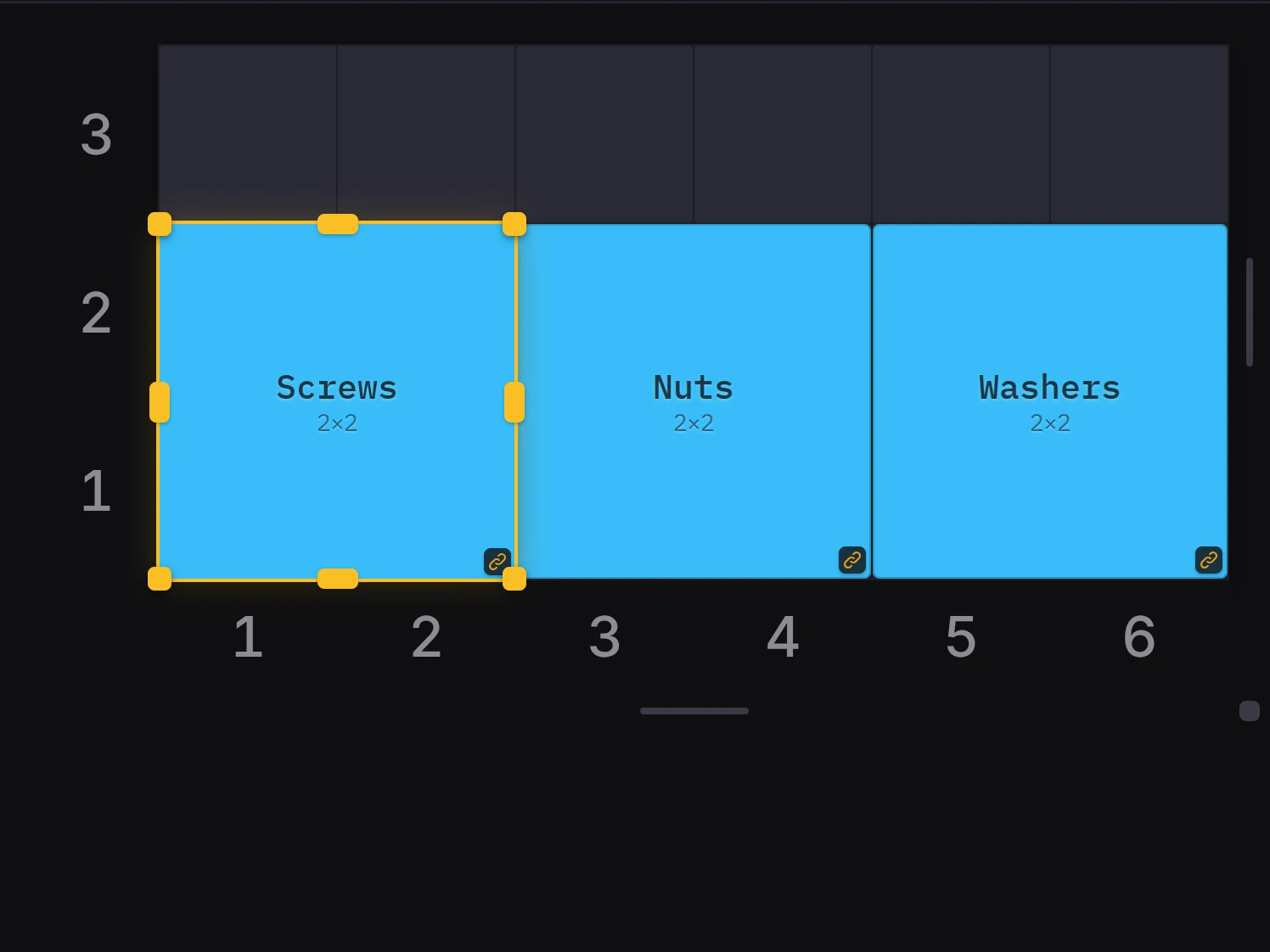
Sometimes a bin can't take the new size, because it no longer fits the drawer or it hits another bin. Then Sync dimensions opens and tells you how many bins it must unlink. Select Update bins to continue.
Some designs can't follow a resize from the layout, for example a design with cutouts or custom compartments. The Layout Tool then leaves the design as it is, and a dialog tells you why.
TIP
Want one bin to keep its size while its design changes? Turn on Lock size for that bin. The Layout Tool then doesn't resize it when its design changes.
In the layout editor, the 3D preview shows each linked bin with the model of its design. Export layout (3D) exports the model of each linked bin.
Labels for each bin
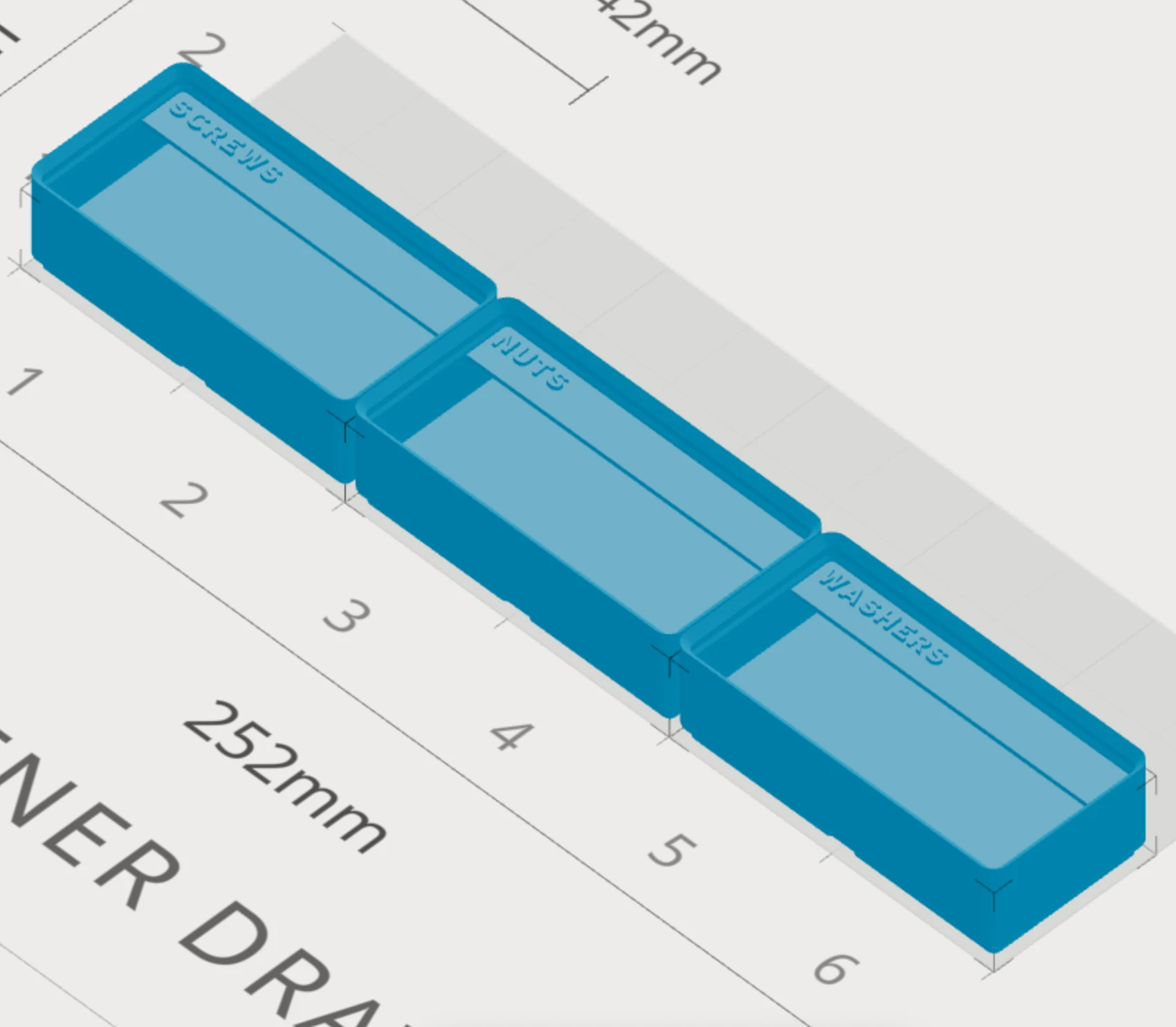
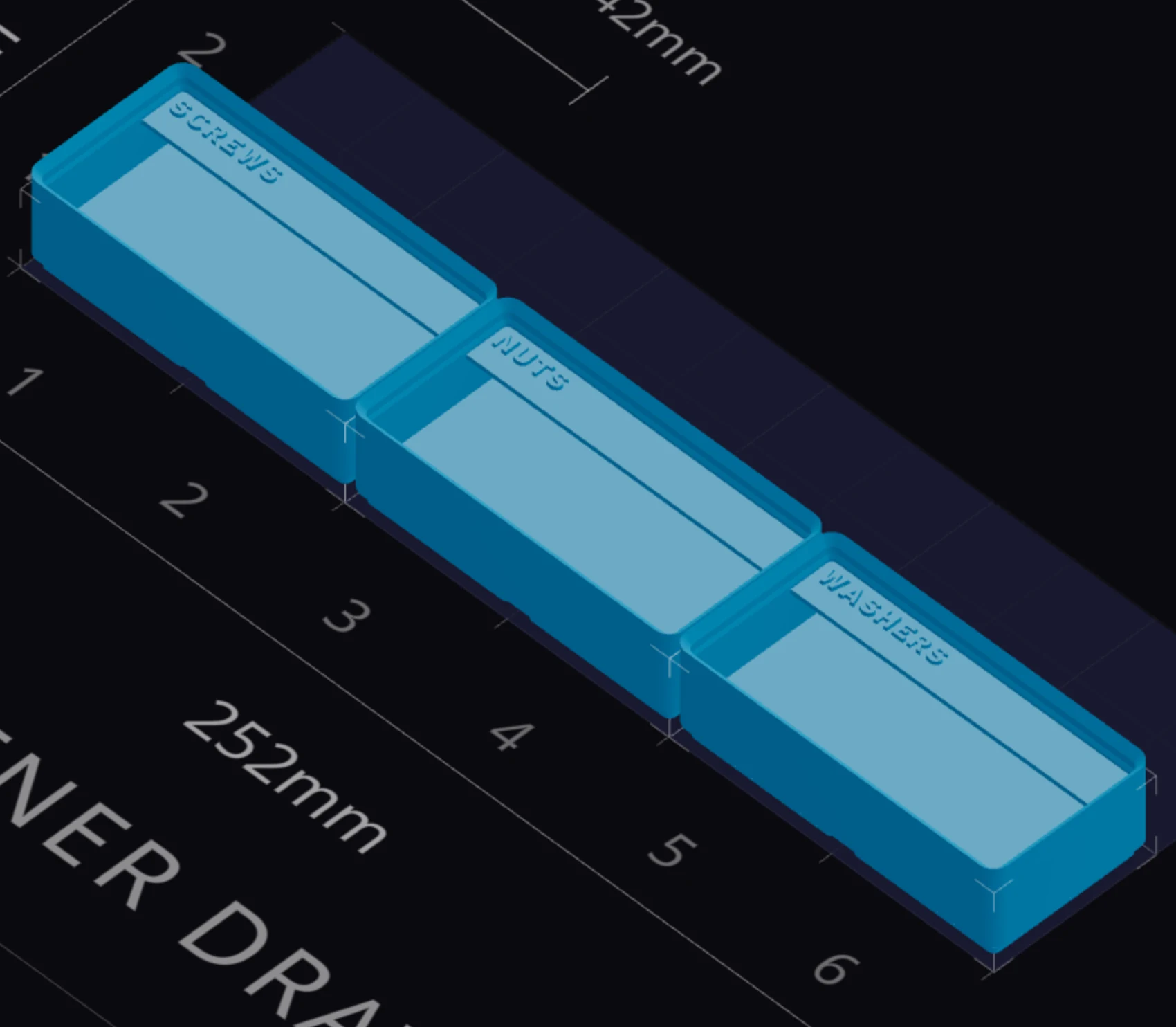
One design can carry a different label on every bin. Each bin in a layout has its own Bin label, and a linked bin can print that label on its label tab:
- In the bin designer, turn on Label tabs with a single label.
- Leave the label text empty. The empty box shows Left blank, linked bins print their layout labels.
Each linked bin then prints its own Bin label. You see the labels in the 3D preview of the layout. Export layout (3D) writes one file for each label. Swappable label plates use the labels too.
Versions of one design
Version history keeps named checkpoints of one design, for example a version with a tight fit. Save one before you try something bold. Undo is different: it keeps no names, and it ends when you reload the page.
- Save version stores the design as it is now, with a name.
- A restore replaces the design. First, though, the Layout Tool saves your current state as an automatic version, so you lose nothing.
- Each design keeps up to 25 versions. When the list is full, the Layout Tool removes an automatic version first, then the oldest version without a pin. A message names it. Pin a version to keep it.
- Branch from here makes a separate design from a version. The branch doesn't follow the original.
Variants: one design in several sizes
Need the same bin in a 1 × 1, a 2 × 1 and a 3 × 1? Make variants. A variant follows another design, its parent, except for the values that the variant claims. Make one with Create variant.
A variant can claim these values:
- the bin width, depth, height and wall thickness
- for each cutout: the width, depth, cut depth, clearance and chamfer
All other values come from the parent. Change the parent, and each variant changes with it. To change a value in the variant, claim that value first. Detach from parent makes the variant a separate design that no longer follows the parent.
When it goes wrong
Some linked bins kept their old size
Make room around those bins, then give each one the size of the design in the inspector. A linked bin takes the new size only where it has room, and a message tells you how many bins kept their old size. If Sync dimensions opens instead, it tells you how many bins it must unlink, because they can't fit.
A bin with Lock size on keeps its size too. That's what the lock is for.
The design didn't change when you resized a bin
Design not updated means the design has cutouts, floor inserts or a custom compartment layout. A new size could break those parts, so the Layout Tool leaves the design as it is. Open the design in the bin designer, and change its size there. The dialog names the parts that stopped the resize.
The list of designs to link is empty
No compatible designs means no saved design has the footprint of this bin. Click Create to make a design from the bin, or resize the bin to match a design that you have. The list shows only designs with the same width and depth, or with the two swapped. The height can differ.
Next steps
- Save and reuse designs: save, rename, duplicate and organize your designs
- Place and edit bins: move and resize bins in the layout
- Swappable label plates: print labels that you can change later
- Accounts and sync: keep your designs on every device