
What the Layout Tool does
Got a messy drawer and a 3D printer? The Gridfinity Layout Tool helps you turn one into a neat set of Gridfinity bins. You plan the drawer, design the bins and the plate under them, and download files that are ready for your slicer.
Three tools for one drawer
The tool switcher at the top left of each page has three tabs. Each tab opens one tool, and all three work on the same drawer.
| Tab | Tool | What you do there |
|---|---|---|
| Layout | Layout editor | Set the drawer size, draw bins on a grid, stack bins in layers, and read the print list. |
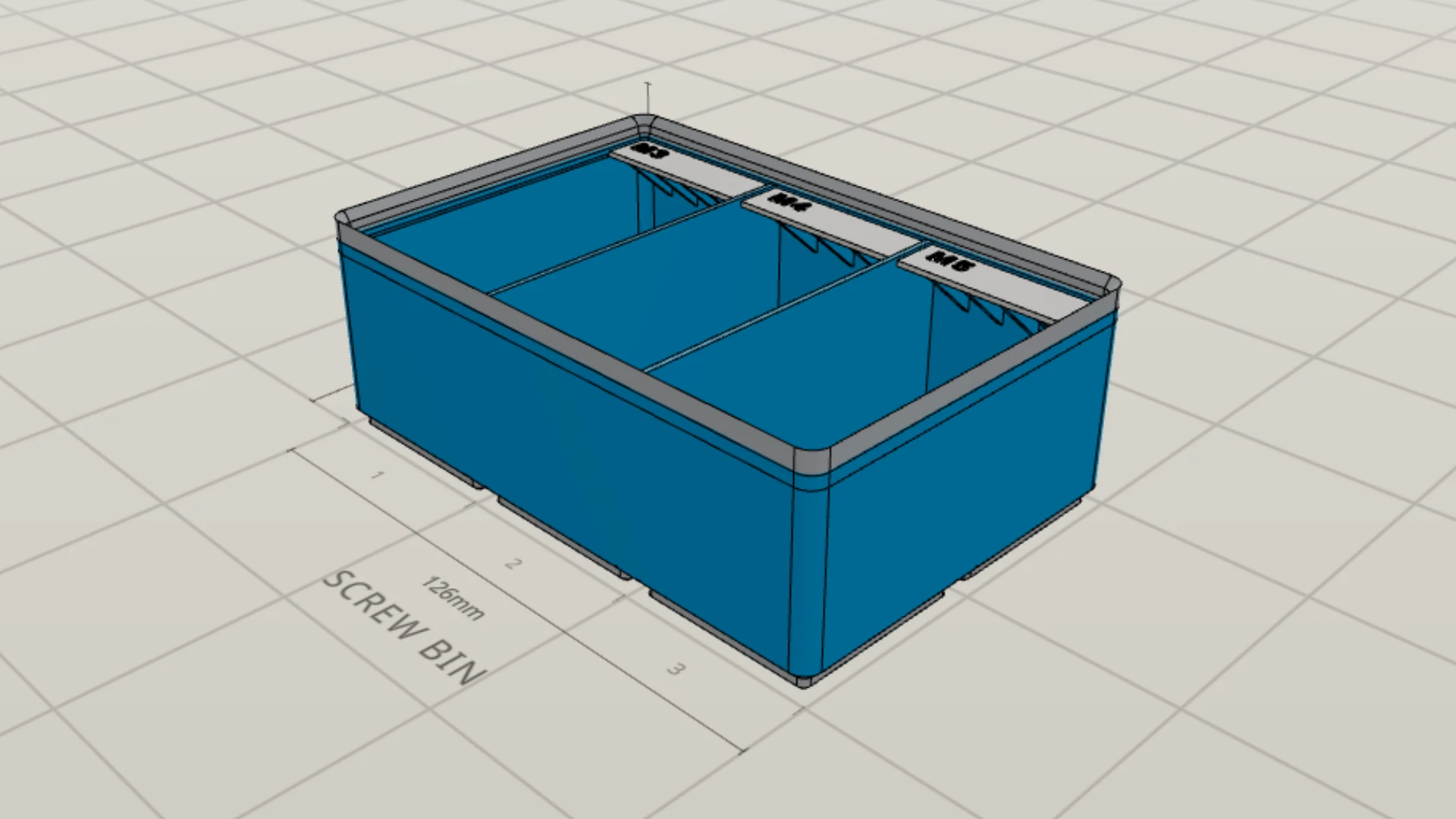
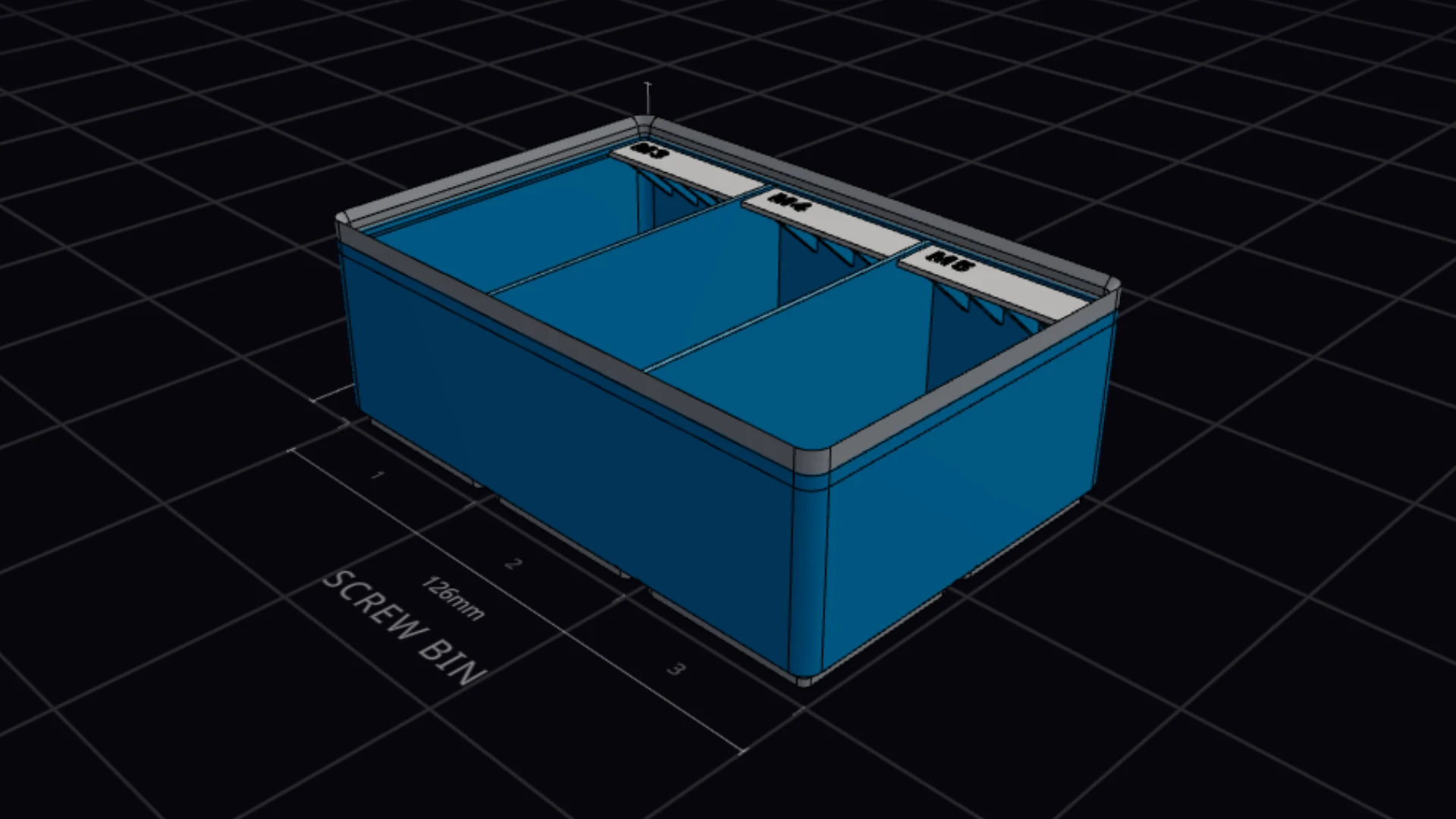
| Bins | Bin designer | Design one bin: its size, compartments, label tabs, scoops, lid and cutouts. Export it as a print file. |
| Baseplate | Baseplate generator | Make the plate that sits in the drawer and holds the bins. Add magnets or screws, and split a large plate into pieces. |


Each tool also has its own address, so you can bookmark the one you use most:
- Layout editor: gridfinitylayouttool.com
- Bin designer: gridfinitylayouttool.com/designer
- Baseplate generator: gridfinitylayouttool.com/baseplate
To jump between the layout editor and the bin designer from the keyboard, press Shift+D.
How the tools work together
The three tools share their data, so you never type the same size twice.
Linked bins. A bin that you draw in the layout editor starts as a plain box. It has a size, a height, a label and a category, but no print file yet. To get one, you link the bin to a saved design from the bin designer. Select the bin, then click Create in the right panel, under Linked design. The bin designer opens with a new design at the size of the bin, and the bin links to it. Many bins can link to the same design.
The baseplate follows the drawer. The baseplate generator reads the drawer size from your active layout. Change the drawer in the layout editor, and the plate changes too. To give the plate a size of its own, turn off Sync with layout.
One export for the whole drawer. Export in the layout editor header downloads one ZIP file with each linked bin and the baseplate. The export skips bins that have no linked design, and the dialog tells you how many it skipped.
What you get at the end
| Output | Where you get it | What it holds |
|---|---|---|
| One print file | Export in the bin designer or baseplate generator | One bin or one baseplate as a 3MF, STL or STEP file. |
| A ZIP of the drawer | Export in the layout editor | The files for each linked bin and for the baseplate. |
| Baseplate pieces | Export in the baseplate generator | For a plate larger than your print bed: one file for each piece and a print guide, in one ZIP. |
| The print list | Bin list in the right panel of the layout editor | Each bin size, how many you need, and estimates of filament, print time and cost. |
| A paper plan | Print in the layout editor header | A drawing of the drawer with labels, a legend and the bin list, to print on paper. |
Want the print list in a spreadsheet? Click Copy bin list as TSV (the copy icon in the list header), then paste.
Free, in your browser, and offline
The Layout Tool is free and open source, and you don't need an account to use it.
All three tools run in your web browser, and the 3D engine runs on your own computer. There's nothing to install. Use a recent version of Chrome, Edge, Firefox or Safari.
Your browser keeps a copy of each tool that you open. After your first visit, the tool works without an internet connection. A few features need a connection: share links, sign-in and sync, and the community gallery.
Your work saves in your browser as you go, so you can close the tab and pick up later. To use the same layouts and designs on more than one device, sign in. Your data and privacy tells you what stays on your device and what goes to the server.
Next steps
- Gridfinity in five minutes: the grid, the height units and the parts, if you are new to Gridfinity
- Plan your first drawer: a step-by-step tutorial in the layout editor
- A tour of the workspace: where each panel and control is
- Install and work offline: how the offline copy works